
Home › Utilities › ArkThinker Video Repair

Updated
The catalogue note
A drone clip won't open, a phone recording stutters, or the audio drifts out of sync. These are the moments ArkThinker Video Repair is for. It sits quietly next to your usual Mac tools, stepping in when files refuse to play properly.
What it fixes
- Videos that do not open at all
- Black screen or no picture
- Audio sync problems
- Playback that stops and starts
The app uses AI algorithms to analyse and rebuild the file structure, which works across recordings from cameras, smartphones, drones, and memory cards. For tricky cases, you can supply a sample video from the same device — the official guide recommends it for more accurate repair. The interface is in English, German, French, and Japanese.
Fit with your existing setup
On a Mac running macOS 10.12 or later, this is a recovery tool rather than a daily driver. It handles the jobs your usual player or editor can't, restoring corrupted footage from damaged devices without needing a second machine. Keep it alongside your backup utilities and you're covered when a file goes wrong.
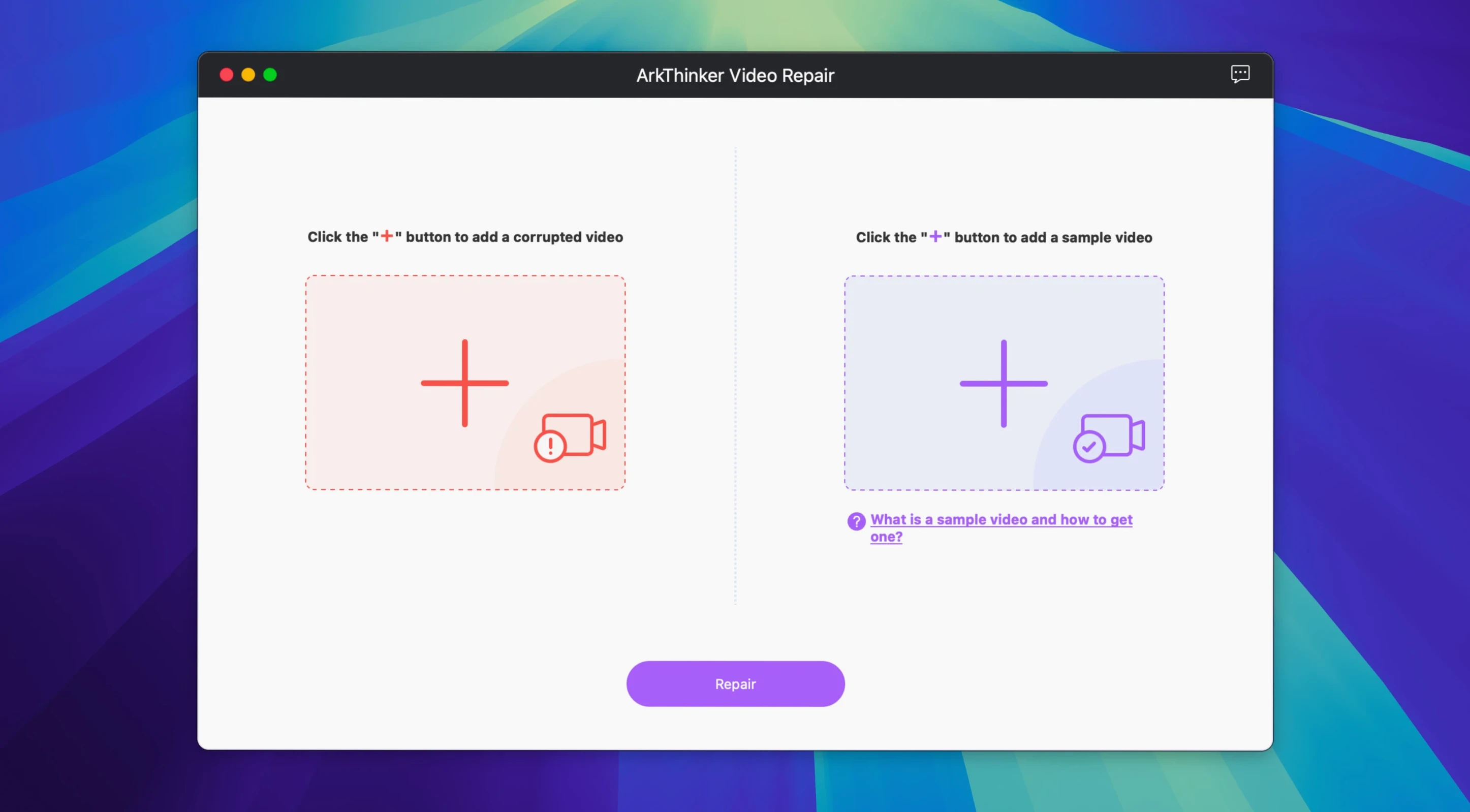
Load a working sample video before repairing
Before you load a broken file, open the app and check two things. The sample video field is optional but worth noting — if you have a working clip from the same camera or phone, you can point the app to it. This helps the AI understand the original encoding structure, especially for unusual codecs or custom camera profiles. The output folder defaults to the same location as the source; I change it to a dedicated Repaired folder on the desktop to avoid overwriting anything accidentally. That is about all there is to configure. The rest of the interface stays out of your way.
A typical repair session, step by step
Last week a client brought in an MP4 from a Sony mirrorless camera. The file played for three seconds on the Mac, then froze with a grey frame. Here is how a session with ArkThinker Video Repair usually goes.
- I launched the app and clicked the large Add button in the centre of the window. The file appeared in the list with its name, size, and format.
- Because I had a short sample clip from the same camera (a test shot I always keep on the drive), I clicked the sample field and selected it. The app did not ask for confirmation; it just accepted the file.
- I chose the output folder I had set up earlier, then clicked Repair. The progress bar moved without much drama — the app works through the file structure, rebuilding headers and sync data.
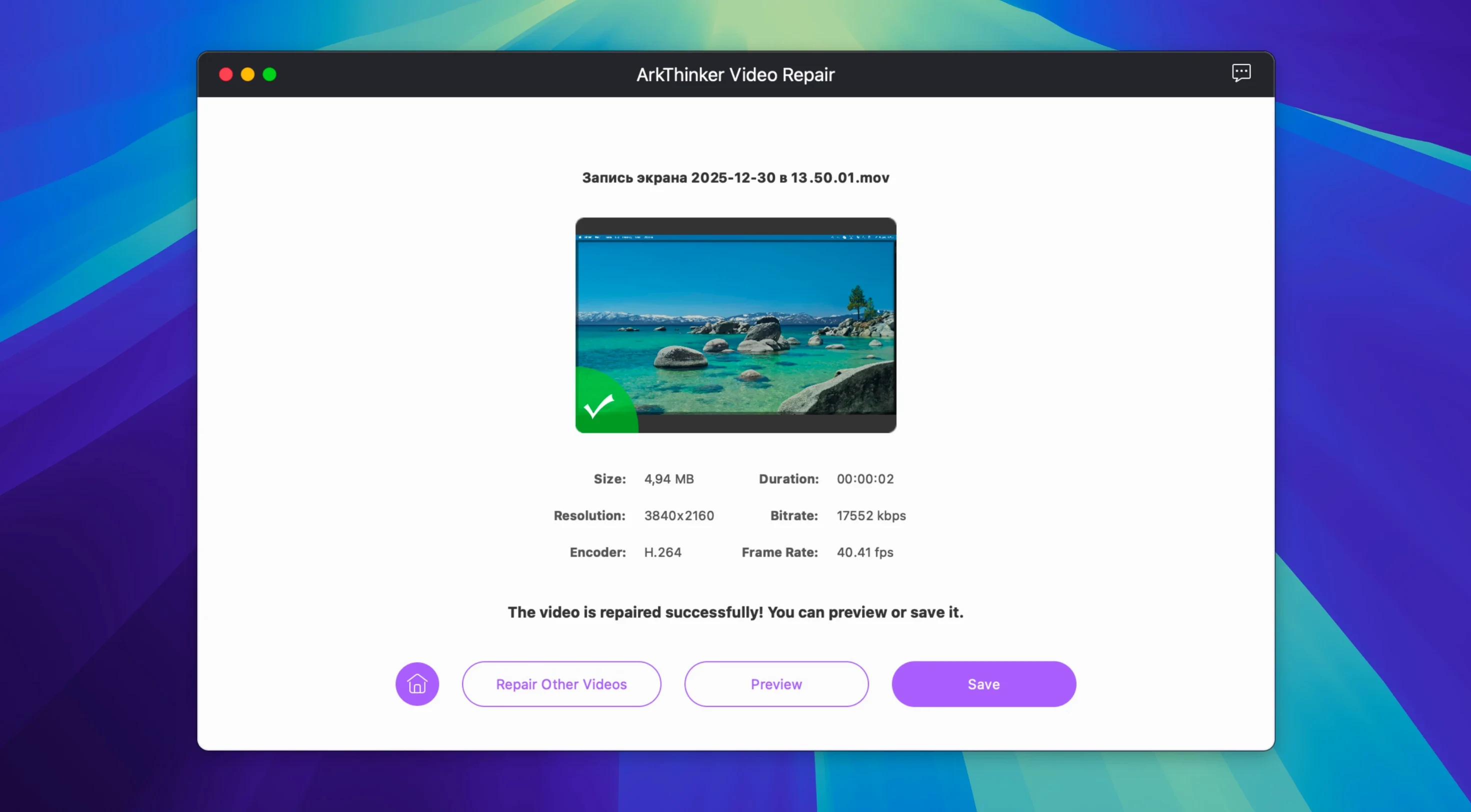
- When the repair finished, a preview window appeared. I scrubbed through the timeline: the full 12-minute clip played from start to end, audio in sync, no stutters. The preview lets you check before you commit to saving.
- I clicked Save, and the repaired file landed in my Repaired folder. The original stayed untouched.
The whole process took under five minutes for a 4K clip. The sample video made the difference — without it, the repair would have been a best-guess reconstruction. With it, the app matched the original recording parameters closely enough that the client could not tell the file had been broken.
Save sample paths and queue multiple files for batch repair
- The app remembers the sample video path between sessions. If you work with footage from the same camera repeatedly, you only need to point to a sample once.
- You can queue multiple files and run them in one batch. The interface lists them all, and the repair processes them sequentially. Useful when you have a card full of corrupted clips after a failed transfer.
- The preview window is not just for show — you can play through the repaired video, check audio sync, and look for remaining artefacts before you commit to saving. If the repair is not good enough, you can try again with a different sample.
- The app does not modify the original file. Even if the repair fails, the source remains intact for other tools or a second attempt.
Before it goes on the Mac
- macOS 10.12 or later
- Intel architecture
Questions from the room
Can a sample video improve the repair results?
Yes, the official site states that using a sample video can help the AI reconstruct the file structure more accurately, especially in difficult cases.
Installing it on the Mac
- Mount the disk image and run Open Gatekeeper friendly.
- Press Enter in Terminal to bypass Gatekeeper.
- Drag the app to the Applications folder.
- Open the app when installation is complete.
Notes from the control room
Sign in or open a catalogue account to leave a note.
No notes from the room yet. If you have used this build for a week, a short note helps the next person.
Also filed under Utilities
The whole Utilities rack AppZapper2.0.3 Utilities 4 MB
 App Cleaner & Uninstaller10.0.3 Utilities 47 MB Updated
 Apeaksoft Screen Recorder2.2.16 Utilities 35 MB
 AnyTrans for iOS8.9.14 Utilities 398 MB
 Antivirus Zap - Virus Scanner4.3.0 Utilities 49 MB Updated
 AmpliTube5.8.2 Utilities 3.1 GB
 AlDente1.39.4 Utilities 12 MB
 Alcove1.7.9 Utilities 14 MB