
Updated
The catalogue note
AppZapper runs on any Mac with OS X 10.9 or later, Intel 64-bit. That covers most Macs from the last decade or so, though it won't run on Apple Silicon without Rosetta. It's a utility that does one thing: when you drag an app onto its window, it finds the related files — preferences, caches, saved states — and offers them for deletion.
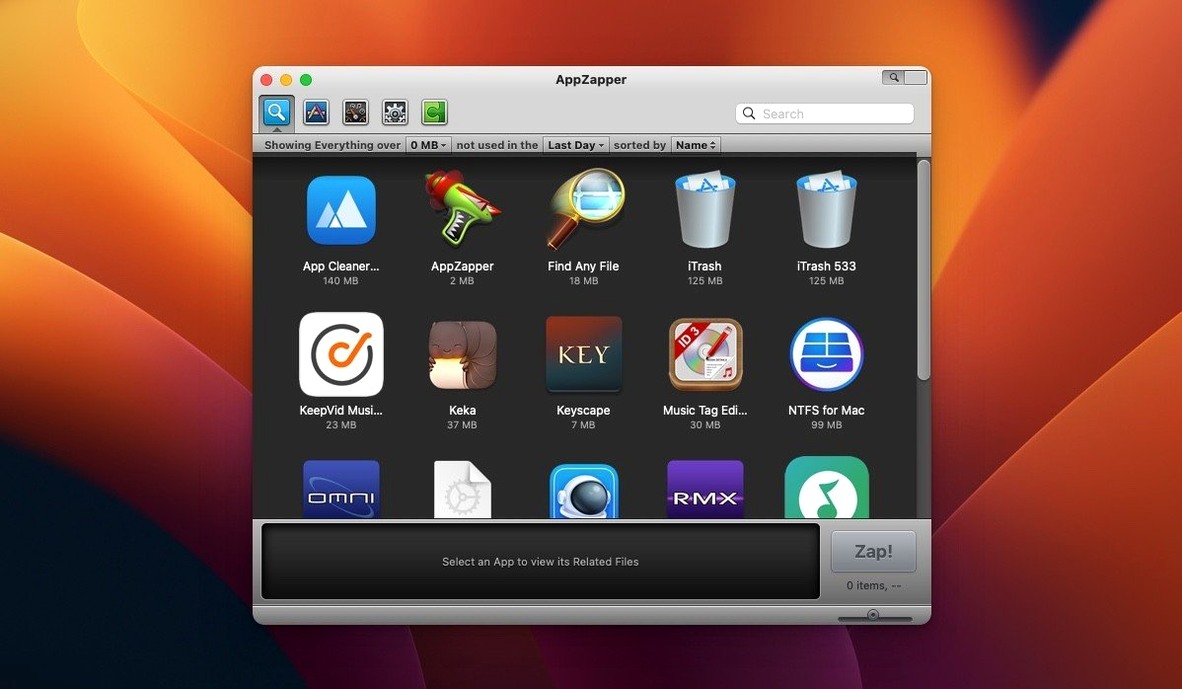
Drag an app or scan your grid to see all related files
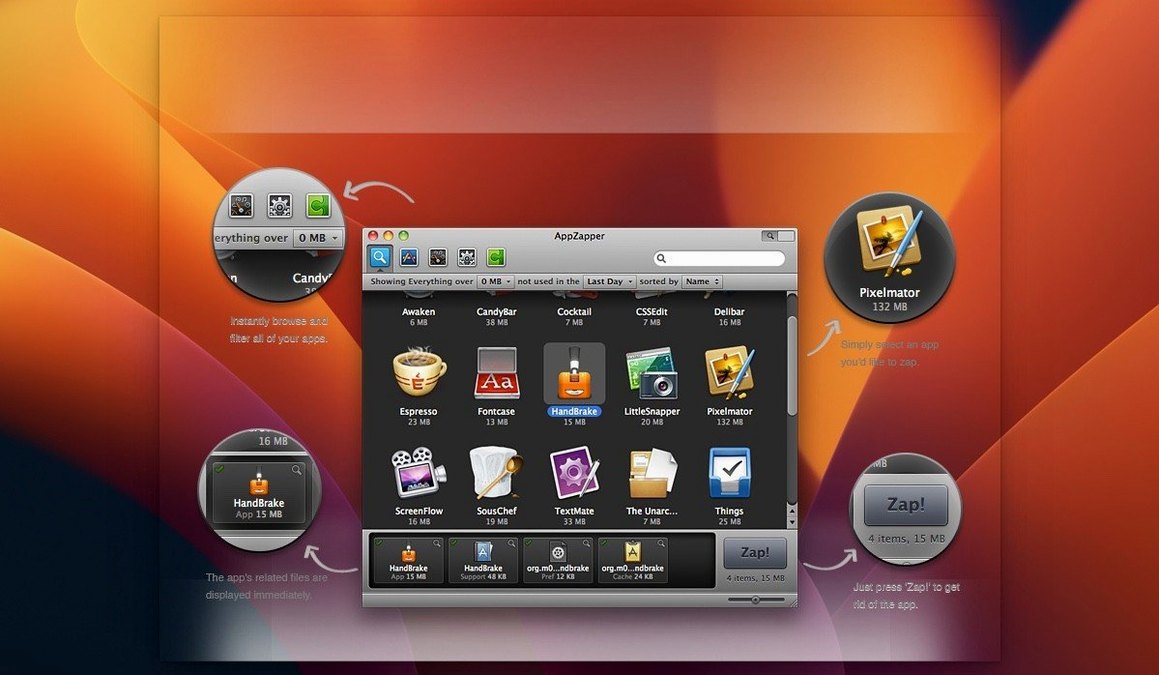
- Launch AppZapper. You'll see a grid of your installed apps, or drag one from the Finder into the main window.
- AppZapper scans for related files and lists them. Checked items are marked for removal; you can uncheck anything you want to keep.
- Click the Zap button. The app and its files go to the Trash, so you can restore anything if you change your mind.
That's the whole workflow. It's aimed at people who like to keep their system tidy but don't want to hunt through ~/Library manually. The grid view with large icons makes it easy to spot what you've got, and version 2.0.3 fix keeps things stable on current systems.
A typical uninstall session, from launch to empty trash
Let's say you've decided to remove an old copy of a note-taking app you haven't opened in months. You launch AppZapper and see the grid view — large icons arranged by rows and columns, showing every application it can find. Scrolling through is faster than poking around the Applications folder because you see all your installed apps in one place, including ones you might have forgotten about.
You spot the note-taking app and drag it from the grid onto the drop area at the top of the window — or, if you prefer, you can drag it straight from the Finder into AppZapper's main window. Either way, AppZapper starts scanning. Within a second or two, a list appears below: the app itself, a handful of preference files in ~/Library/Preferences, a couple of caches in ~/Library/Caches, and a saved state file. Each item has a checkbox next to it, checked by default.
You know the saved state file might contain a window layout you don't need, so you leave it checked. But you also see a preference file for a related helper tool you still use occasionally — you uncheck that one to keep it. Then you click the Zap button. The app and its selected files move to the Trash. You can empty the Trash now or leave it there for a few days in case you need to restore anything. If you change your mind later, just open the Trash, find the files, and put them back.
Don't zap without reviewing the file list first
The most common error is dragging the app from the Applications folder onto AppZapper, then clicking Zap without looking at the list of related files. AppZapper shows you everything it found, but it's up to you to decide what goes. If you blindly accept all checked items, you might delete a preference file that another app shares — some utilities store settings in shared locations. Unchecking items you aren't sure about is safer.
Another mistake: not using the grid view. Beginners often drag apps from the Finder one by one, but the grid view in version 2.0.3 fix lets you browse everything installed and filter by name or last-used date. It's quicker to spot duplicates or old apps you no longer need. If you only use the drag-and-drop method, you might miss something.
A third issue: forgetting that deleted files go to the Trash, not to a separate AppZapper archive. Beginners sometimes panic after clicking Zap, thinking the files are gone forever. They aren't — you can restore them from the Trash as long as you haven't emptied it. The app and its related files sit there like any other deleted item. Check the Trash before you empty it if you're unsure.
Finally, some users try to run AppZapper on macOS versions older than 10.9. It won't work — the app requires OS X 10.9 or later and a 64-bit Intel processor. On older systems, it simply won't launch. And on Apple Silicon Macs, you'll need Rosetta installed, since the app is Intel 64-bit only.
AppZapper catches preferences, caches, and support folders but not buried files
Does AppZapper find every related file?
No tool finds everything, but AppZapper covers the common locations: preferences, caches, saved states, and support folders. It won't find files buried in non-standard locations or data stored inside containers that the app itself created in unusual places. If you're thorough, you can still check ~/Library manually after using AppZapper.
What happens if I accidentally delete something important?
The files go to the Trash, so you can restore them. If you've already emptied the Trash, the files are gone — AppZapper doesn't create its own backup. That's why it's worth unchecking items you aren't sure about before clicking Zap. If you regularly empty the Trash without checking, consider leaving deleted files there for a few days.
Do I need to be an administrator to use AppZapper?
Not for most operations. Version 1.8.0 added authentication prompts when you aren't using an admin account, so you'll be asked for credentials if AppZapper needs to delete files that require admin rights. On a standard user account, it still works — you just get a password prompt when necessary.
Can I see what's inside the related files before deleting them?
No. AppZapper shows the file names and their locations, but it doesn't let you peek inside preference files or caches. If you want to inspect a file, you'd need to open it manually in a text editor or a property list viewer before deleting it. For most users, seeing the file path is enough to decide whether to keep it.
Does AppZapper work with apps I installed via Homebrew or MacPorts?
Not directly. Those tools place files in different directories, often outside the standard /Applications folder and ~/Library structure. For Homebrew or MacPorts, use the respective tool's uninstall command instead.
Changes in this build
- Grid-style app browser with large icons for easier browsing.
Before it goes on the Mac
- macOS OS X 10.9 or later
- Intel 64-bit
- Interface in English
Questions from the room
Can I cancel a deletion after it's done?
Yes. Deleted files go to the Trash, so you can restore them from there.
Does AppZapper need an admin account?
Not always. Since version 1.8.0, it prompts for authentication when you're not using an admin account.
Installing it on the Mac
- Mount the disk image and run Open Gatekeeper friendly.
- Press Enter in Terminal to bypass Gatekeeper.
- Drag the app into the Applications folder.
- Open the app after copying finishes.
Notes from the control room
Sign in or open a catalogue account to leave a note.
No notes from the room yet. If you have used this build for a week, a short note helps the next person.
Also filed under Utilities
The whole Utilities rack App Cleaner & Uninstaller10.0.3 Utilities 47 MB Updated
 Apeaksoft Screen Recorder2.2.16 Utilities 35 MB
 AnyTrans for iOS8.9.14 Utilities 398 MB
 Antivirus Zap - Virus Scanner4.3.0 Utilities 49 MB Updated
 AmpliTube5.8.2 Utilities 3.1 GB
 AlDente1.39.4 Utilities 12 MB
 Alcove1.7.9 Utilities 14 MB
 Airflow3.3.10 Utilities 69 MB