
Alcove 1.7.9 (Mac)
Updated
The catalogue note
Version 1.7.9 of Alcove keeps the same core promise: it turns the Mac notch into an interactive Dynamic Island area. On machines with a notch, it replaces the stock system volume and brightness HUDs with custom ones that live right in that space. No configuration hassle — the app simply extends the notch’s behaviour.
A realistic task: adjusting volume without losing focus. You hover over the notch, Alcove shows a slim, custom volume bar. Same for brightness. The standard macOS HUDs vanish, replaced by something that feels native to the notch’s shape. The tool supports both ARM and x86 64-bit Macs, but macOS 14 is necessary. The interface is English only.
To get started, open the downloaded disk image, drag Alcove to the Applications folder alias, then launch it from Launchpad. Turn off automatic updates once it’s running — the app doesn’t need to phone home. That’s it. The notch becomes a small utility zone, not just a camera cutout.
How alcove compares with other notch utilities
Several Mac apps aim to make the notch useful. Here is how Alcove differs from three of them.
- NotchDrop lets you drag files onto the notch to open them or trigger shortcuts. It focuses on file handling, not media or system controls. Alcove replaces volume and brightness HUDs, which NotchDrop does not touch. If your priority is dragging a screenshot to the notch for quick action, NotchDrop is the tool. If you want media playback and system sliders in the notch, Alcove covers that.
- MediaMate puts a Now Playing widget in the notch and replaces the system volume HUD with a custom one. It overlaps with Alcove on media playback and volume control. Alcove adds Live Activities, which MediaMate does not support. Both replace the volume HUD, but Alcove also handles brightness and notifications in the same capsule layout.
- It is closer to a widget dashboard than a Dynamic Island clone. Alcove treats the notch as a single interaction area for events and controls, not a static widget grid. DynamicLake requires macOS 13 or later, while Alcove needs macOS 14, which may influence your choice if you are on an older system.
None of these apps replicate the full Dynamic Island behaviour from iOS, but Alcove comes the closest by combining media, notifications, and system HUDs in one capsule. The others each carve out a smaller piece of the notch.
Let the notch settle before adjusting volume or brightness
- Let the notch settle. After dragging Alcove to Applications and launching it from Launchpad, give the app a minute. The custom HUDs appear the first time you adjust volume or brightness. Do not expect a tutorial window — there is none. The app is quiet until you trigger it.
- Test media playback from several apps. Open Music, a web browser with a video, and a podcast app in QuickTime Player. Alcove shows a capsule for each. Some apps may not trigger the capsule if they use non-standard audio output. That is normal — the app relies on standard system media notifications.
- Check notifications in the notch. Send yourself a message or a calendar reminder. Alcove shows it as a capsule at the top of the screen. The first time you see it, you will know how it differs from the standard macOS banner. If you prefer the old style, you can always disable notifications in System Settings and keep Alcove only for volume and brightness.
- Turn off automatic updates. The install steps mention this, and it is worth repeating. Alcove 1.7.9 works as delivered. Disabling updates prevents the app from checking for newer builds that may change behaviour without warning.
- Keep one display with a notch. If you use an external monitor without a notch, Alcove does nothing on that screen. The app is designed for built-in displays that have a notch. On a Mac with a notch and a second non-notched display, Alcove only activates on the notch screen.
Runs on macOS 14 or later for both Intel and Apple Silicon Macs
macOS 14 or later is needed to run Alcove 1.7.9. Users can use it on ARM and x86 64-bit Macs; thus, Intel Macs from 2020 and newer with macOS 14 are compatible, and Apple Silicon devices are also supported. The app is a single small binary — the disk image contains only the app and an Applications folder alias. No background services, no helper tools, no kernel extensions. It does not modify system files. Uninstalling is a matter of dragging the app to the Trash.
The app launches on login by default after the first run. It lives in the menu bar when active, though the main interface is the notch itself. No windows open. No setup assistant. The language is English throughout — there are no localised strings for other languages.
Because Alcove works by listening to system events (volume changes, brightness changes, media playback, notifications), it uses negligible resources when idle. It only draws the capsule when an event occurs. There is no always-on overlay. The notch remains a normal camera notch when nothing is happening.
Volume and brightness share the same capsule to keep the notch area clean
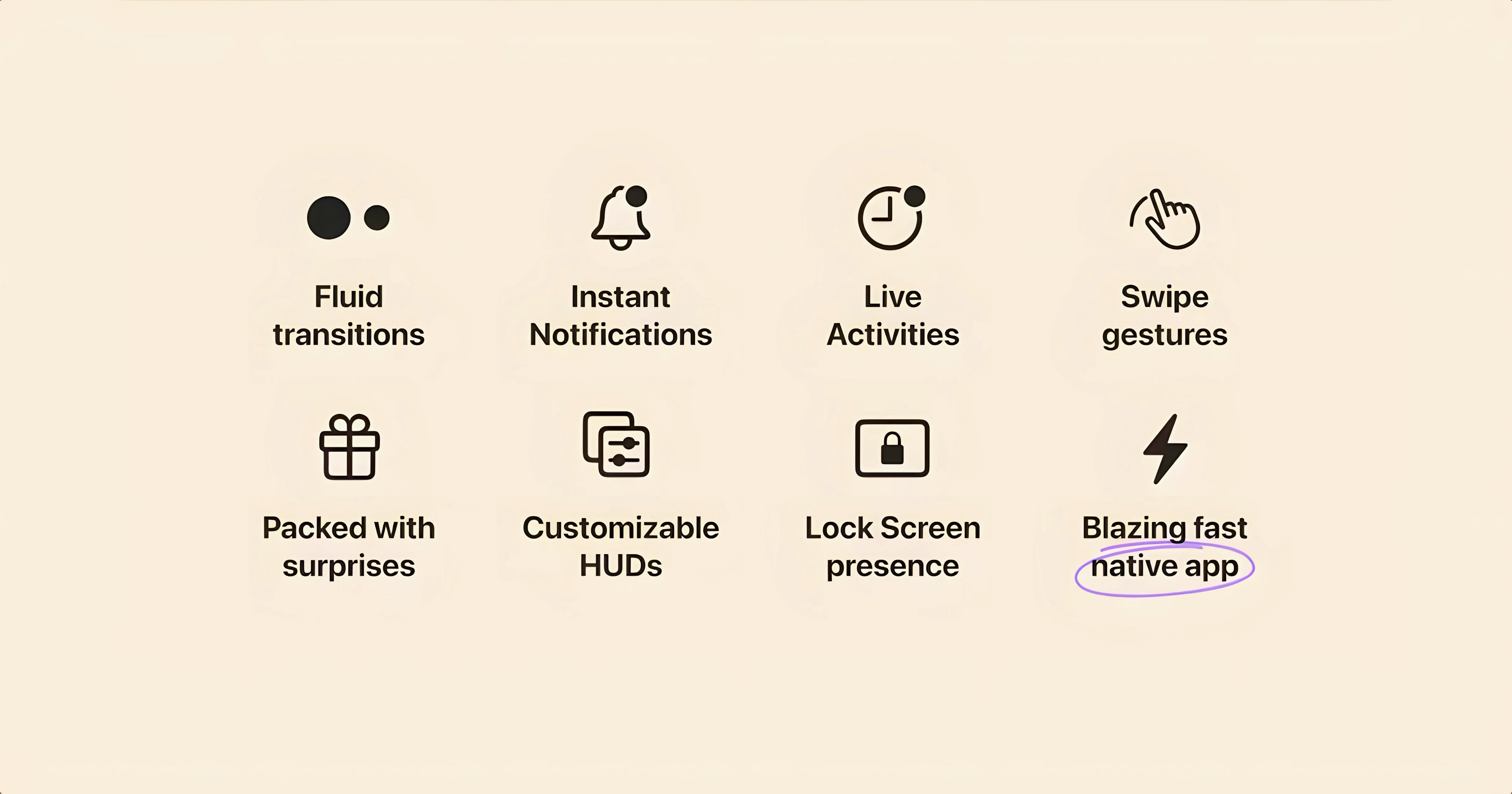
- Volume and brightness share the same capsule. Adjust volume, and the capsule appears. Adjust brightness right after, and the same capsule updates its content. It does not create two separate UI elements. This keeps the notch area clean.
- Live Activities work without extra setup. If you have an app that posts Live Activities on macOS (such as a timer or a sports score), Alcove displays it in the capsule. No configuration needed — the app picks up the system Live Activity feed.
- The capsule disappears on its own. After you stop adjusting volume or brightness, the capsule fades. It does not linger. The duration is short enough to feel responsive and long enough to read a notification.
- Notifications from any app appear. Alcove does not limit itself to Apple’s apps. A Slack message, a reminder from Things, a calendar alert — all show up in the notch capsule if macOS sends them as notifications. The app does not need a whitelist.
These are the details that make Alcove feel like a natural extension of the notch, not a third-party add-on. The app stays out of the way until you need it, then shows exactly what is relevant.
Before it goes on the Mac
- macOS 14
- ARM or x86 64-bit processor
Installing it on the Mac
- Open the downloaded disk image.
- Drag the app to the Applications folder alias.
- After copying finishes, launch the app from Launchpad.
- Turn off automatic updates.
Notes from the control room
Sign in or open a catalogue account to leave a note.
No notes from the room yet. If you have used this build for a week, a short note helps the next person.
Also filed under Utilities
The whole Utilities rack AlDente1.39.4 Utilities 12 MB
 Airflow3.3.10 Utilities 69 MB
 AirBuddy3.0 Utilities 49 MB
 AmpliTube5.8.2 Utilities 3.1 GB
 Antivirus Zap - Virus Scanner4.3.0 Utilities 49 MB Updated
 AnyTrans for iOS8.9.14 Utilities 398 MB
 Apeaksoft Screen Recorder2.2.16 Utilities 35 MB
 App Cleaner & Uninstaller10.0.3 Utilities 47 MB Updated