Home › Utilities › App Cleaner & Uninstaller

App Cleaner & Uninstaller 10.0.3 (Mac)
Updated
The catalogue note
Macs accumulate applications, leftover files and startup items over time. App Cleaner & Uninstaller aims to tidy that up. Below is what it does well and what to consider before installing version 10.0.
Removes leftover folders and preference files
- Removing applications completely, including leftover folders and preference files that standard drag-to-trash leaves behind.
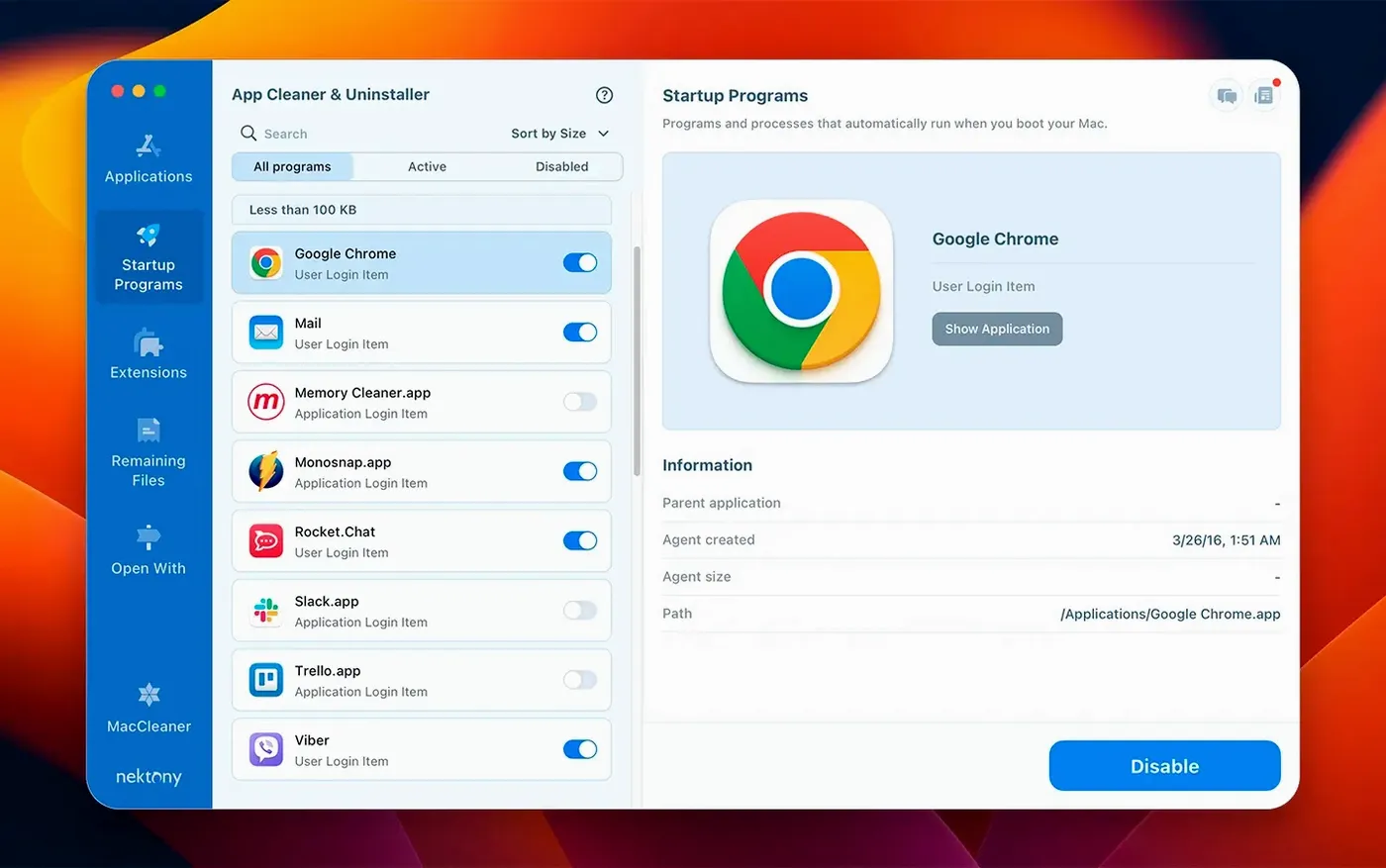
- Managing which apps launch at login – useful when too many things start without asking.
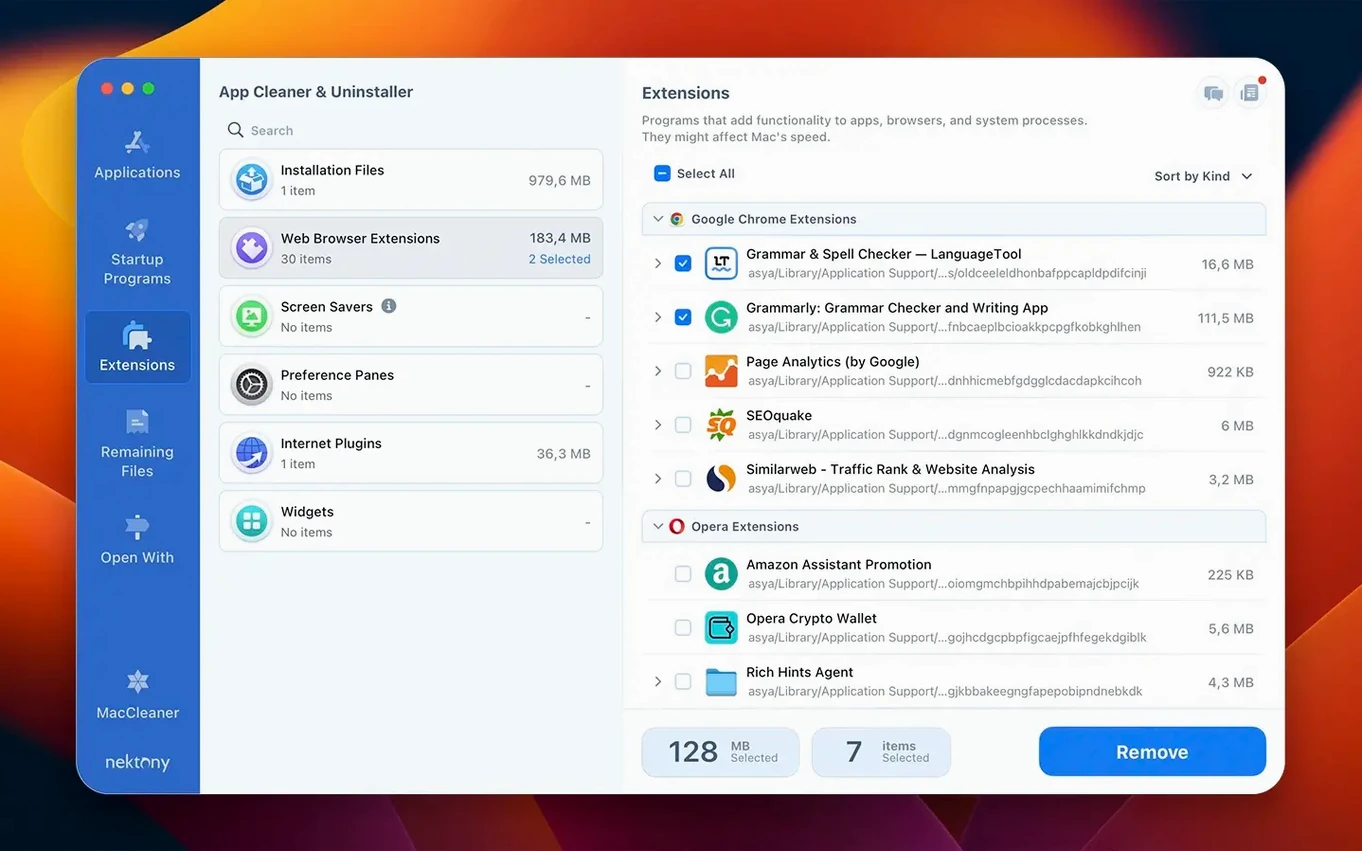
- Deleting or disabling extension files (browser extensions, system extensions) that you no longer need.
- Tracking updates for installed apps, including Homebrew command-line tools and Safari extensions.
Focuses on app removal, not system cleaning
- This is a macOS app manager, not a system cleaner – it focuses on application removal and startup control.
- The network access tab (new in version 10.0) and menu bar network traffic control are present, so the app has permissions to monitor connections.
- The incompatible applications filter helps avoid removing something your system needs, but read the descriptions before confirming removal.
- It runs on macOS 12 and later, both Intel and Apple Silicon.
A full uninstall workflow from start to finish
The most common task in App Cleaner & Uninstaller is removing an application and everything it left behind. Here is how that looks in practice.
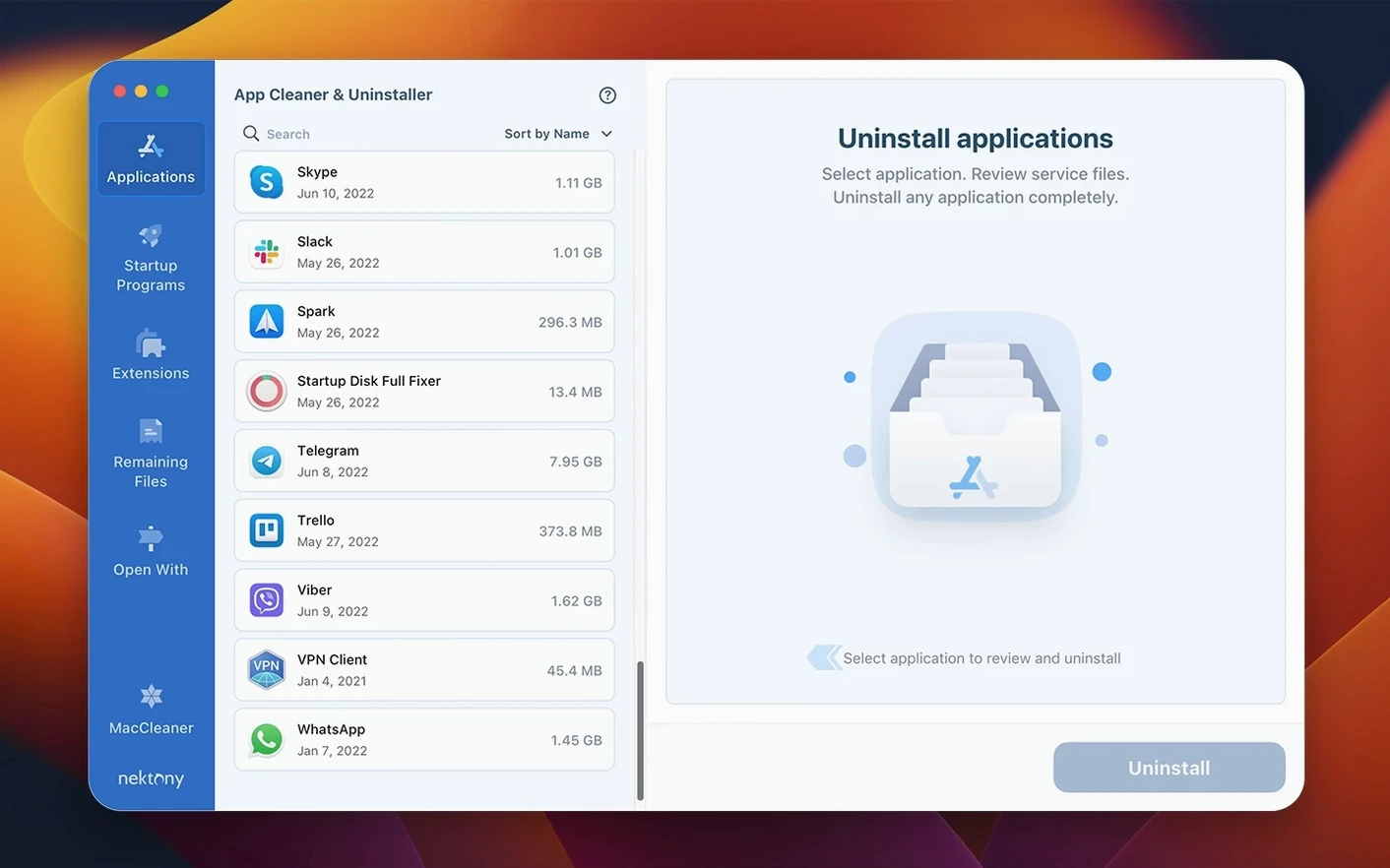
- Open the app and let it scan your system. The main window shows all installed applications, grouped by size or name.
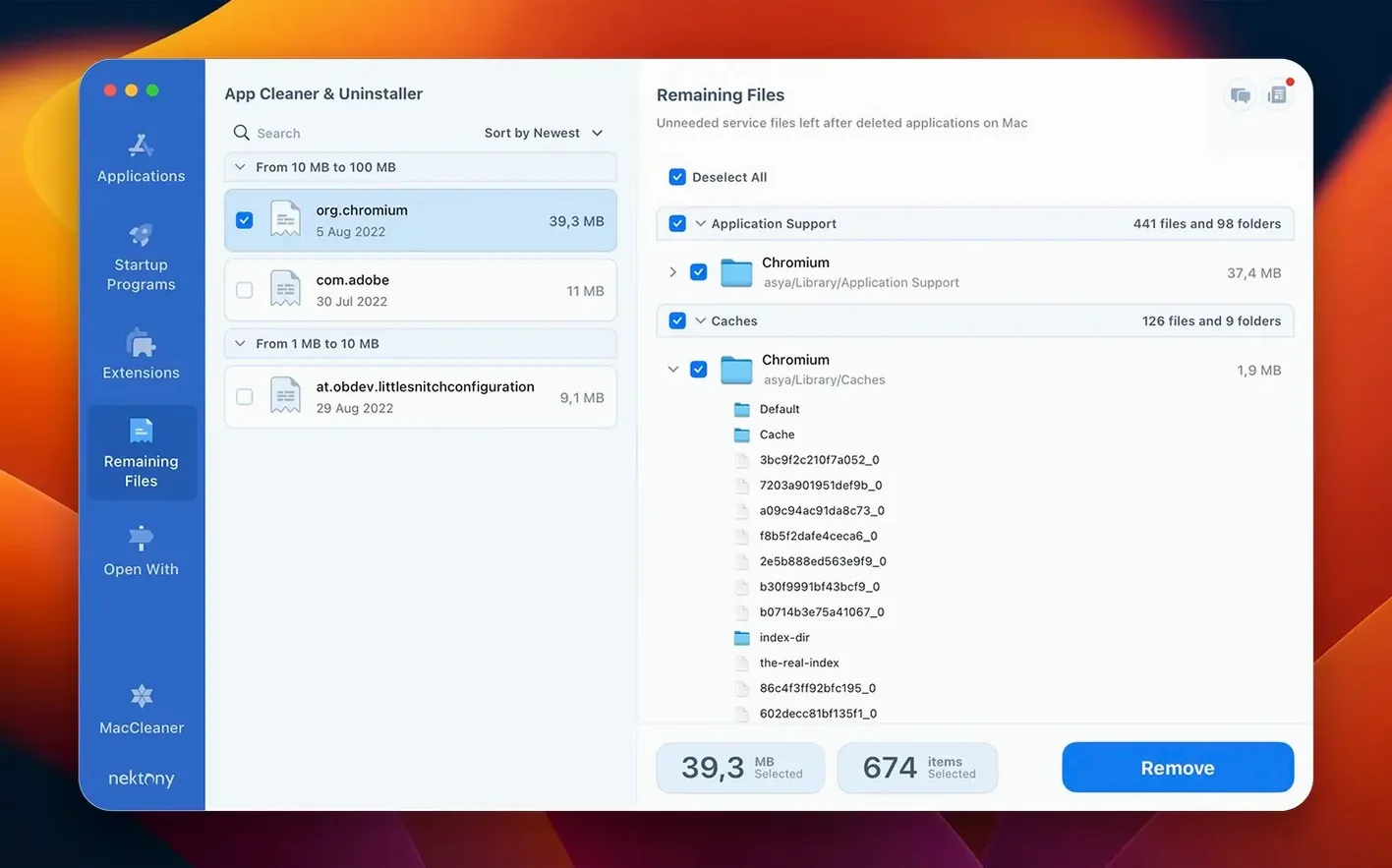
- Select the application you want to remove. The right-hand panel fills with every associated file the tool has found — preference files, caches, support folders, logs and any other remnants.
- Review the list. If you see a file you want to keep (rare, but possible with shared plug-ins), uncheck it. Otherwise leave everything checked.
- Click the removal button. The app moves the application and all selected files to the Trash in one pass.
- Empty the Trash when ready. The job is done — no manual hunting through
~/Library.
If you previously dragged an app to the Trash without thinking about leftovers, the leftover finder scans for orphaned files tied to that removed app. It is worth running this once after installing App Cleaner & Uninstaller, just to clear whatever the standard drag-and-drop missed.
Disable automatic scanning on launch
After the first launch, a few adjustments make the tool quieter and more predictable.
- Disable automatic scanning on launch if you prefer to start scans manually. The default behaviour is to scan when the app opens, which is fine for a quick check but can feel unnecessary if you only want to manage startup items.
- Set the menu bar app to show only what you need. The redesigned menu bar now includes network traffic control. If you do not need that visible, customise the icon set to keep the menu bar tidy.
- Turn on the incompatible applications filter from the start. This hides system-critical applications from the removal list, which is a sensible safety net for anyone new to the app.
- Configure the updates database to include Homebrew command-line tools and Safari extensions if you use them. The database expanded in version 10.0 to cover these, so enabling them early means fewer surprises when a tool silently falls behind.
Network access tab now visible in main interface
The jump to version 10.0 brought three practical changes that affect daily routines.
- The network access tab is now visible in the main interface. It lists which apps have been granted network permissions. This is not a firewall, but it gives a quick overview of what is phoning home. Useful for spotting unexpected connections after a new install.
- The menu bar app was redesigned and now includes network traffic control. You can see current traffic by app and stop or allow connections without opening the main window. This turns the menu bar into a lightweight network monitor.
- The updates database expanded to cover Safari extensions and Homebrew command-line tools. Now it picks up extensions and command-line utilities, which is helpful if you maintain a Homebrew setup alongside GUI apps.
The incompatible applications filter is a smaller addition, but it saves time for anyone who has accidentally selected a system app in earlier versions.
Run the leftover finder once, then leave it
New users often over-scope the tool. Here are a few pointers to avoid that.
- Run the leftover finder once, then leave it. After the initial cleanup, the leftover finder will rarely find anything new unless you have been manually dragging apps to the Trash again.
- Use the startup items manager sparingly. Disable an item to test whether your system still works without it, then delete the launch agent from the list only after confirming everything is stable. The app cleanly disables launch agents, but it is easier to re-enable than to restore a deleted plist.
- Check the extensions tab after every browser update. Safari extensions sometimes get re-enabled or duplicated during updates. App Cleaner & Uninstaller shows them clearly and lets you disable or delete the extras.
- Review the updates list once a week. The expanded database now includes Homebrew tools and Safari extensions, so the list is broader than before. A weekly check keeps your toolchain current without manual
brew updateruns. - Do not remove something just because it appears in the leftover list. Some leftover files are harmless preference stubs or empty cache folders. Removing them frees very little space and risks breaking an app you still use. Let the app suggest, but decide yourself.
Differs from three common alternatives
App Cleaner & Uninstaller sits in a category with several other uninstaller and app manager tools. Here is how it differs from three common alternatives.
AppCleaner (by FreeMacSoft)
AppCleaner is the simplest of the bunch. You drop an app onto its window, and it shows associated files and removes them together. It does not manage startup items, extensions, updates or network access. If your only need is to drag an app and have its leftovers follow, AppCleaner does that in one step. App Cleaner & Uninstaller adds the extras — startup control, extension management, update tracking and the network tab — which makes it more suited to users who want a central dashboard rather than a single-purpose tool.
CleanMyMac X (by MacPaw)
CleanMyMac X covers a much wider scope: system junk, malware scanning, privacy cleaning, optimisation and uninstalling. Its uninstaller module works similarly, finding leftovers and offering removal. The trade-off is that CleanMyMac X is a larger application with more background processes. App Cleaner & Uninstaller stays focused on applications and their associated files, without the system-wide cleaning tools. If you already run CleanMyMac X for general maintenance, you might not need a separate uninstaller. If you want a lighter, app-only manager, App Cleaner & Uninstaller is more direct.
Pearcleaner (open-source)
Pearcleaner is a newer open-source alternative that also finds leftover files and supports batch removal. It is free and respects privacy more than some commercial tools, but it lacks the startup items manager, extension manager and update database that App Cleaner & Uninstaller includes. Pearcleaner is a good choice if you want a no-frills uninstaller with a clean interface and no network features. App Cleaner & Uninstaller offers more management functions for users who want to control what runs at login and what extensions are active.
Each tool has its place. App Cleaner & Uninstaller is the middle ground — more features than AppCleaner or Pearcleaner, fewer than CleanMyMac X, and focused on app management rather than full system maintenance.
Before it goes on the Mac
- macOS 12 or later
- Apple Silicon or Intel 64-bit processor
Installing it on the Mac
App Cleaner & Uninstaller 10.0.3 clocks in around 47 MB and asks for macOS 12 or later on any Intel or Apple Silicon Mac. Two steps get it installed and working.
- Open the downloaded disk image and drag the application icon onto the Applications folder shortcut.
- Once copying finishes, launch the app from Launchpad.
Notes from the control room
Sign in or open a catalogue account to leave a note.
No notes from the room yet. If you have used this build for a week, a short note helps the next person.