
AlDente 1.39.4 (Mac)
Updated
The catalogue note
That is useful if your MacBook spends most of its time plugged into a desk setup, where a full charge is rarely needed.
The interface is clean and shows current charge state at a glance, with the menu bar icon giving quick access to the limit slider.
It is a practical tool, not a gimmick, and it does exactly what it promises. The app is available in English, German, Spanish, French, Polish, Japanese, Traditional Chinese, and several other languages, so it works well for a global audience.
Setting a charge limit but ignoring heat is the main trap
The main trap with a charge limiter is setting it and forgetting it — but forgetting the wrong way.
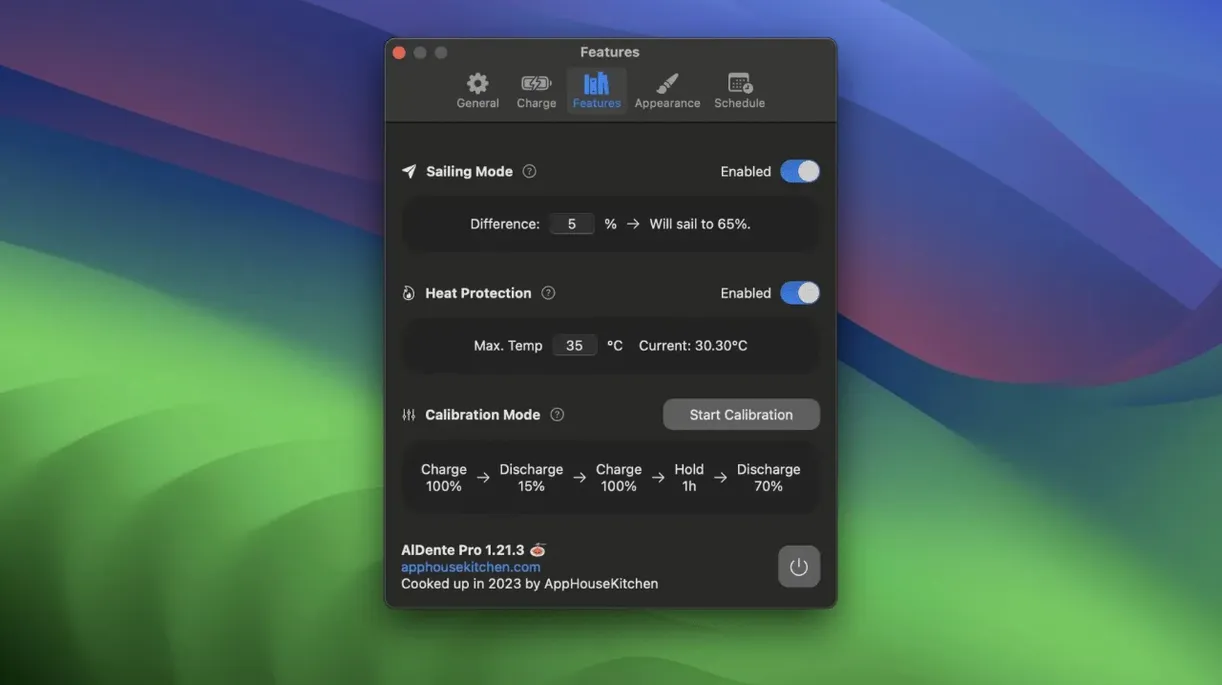
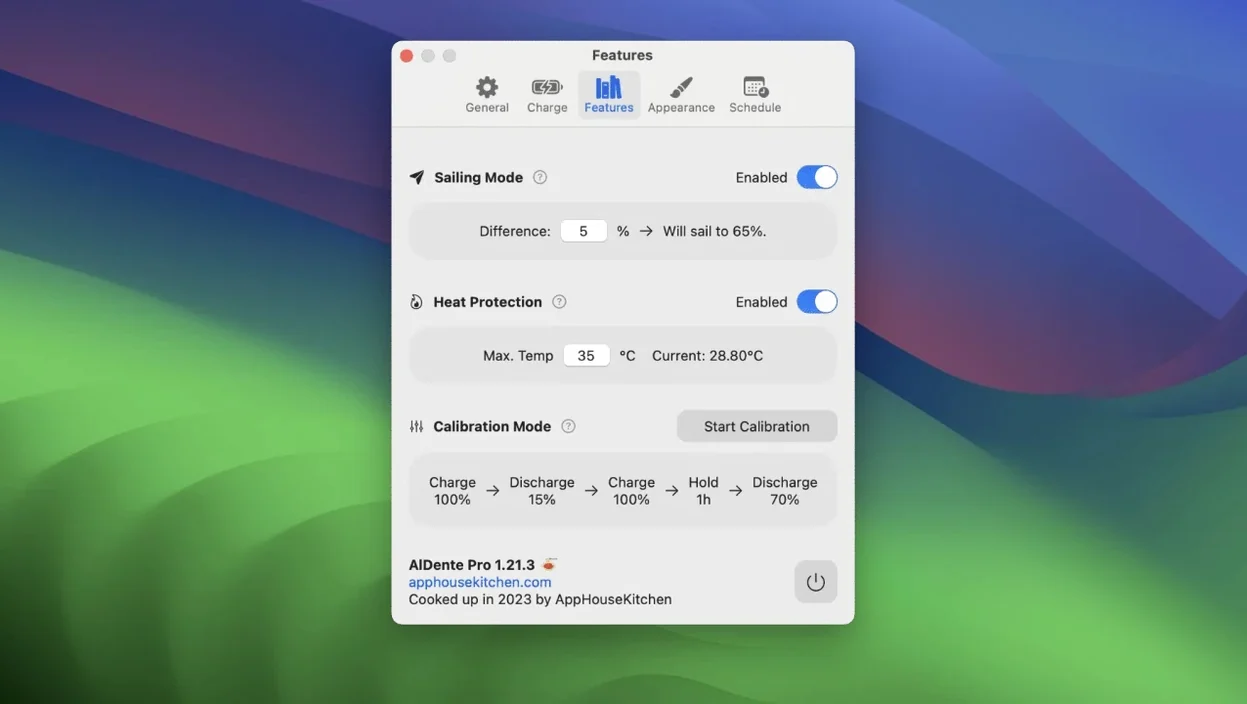
Another frequent mistake is ignoring heat. Users set a sensible charge limit but place the MacBook on a soft surface or in a poorly ventilated dock. AlDente includes heat protection, but that feature works best when the hardware itself can shed heat.
A third error involves Sailing Mode. People activate it without understanding what it does, then wonder why the charge percentage keeps fluctuating. But if you expect a rock-solid line on the graph, Sailing Mode will look like a fault. It is not. Read the description before toggling it on.
AlDente hands manual control to you, unlike schedule-based apps
That works well for users with predictable schedules, but it gives no manual control. AlDente hands that control to you directly.
Its interface is more data-heavy, aimed at users who want graphs and discharge rates. AlDente keeps the focus on the limit itself, with the menu bar icon and slider as the primary interaction. For someone who just wants to set a percentage and move on, AlDente is simpler.
Charge Limiter (a smaller utility) does one thing: it stops charging at a user-defined level. It lacks heat protection, Sailing Mode and Calibration Mode. AlDente offers those extras without adding much complexity, so it suits users who want the core limiter plus a safety net for temperature and occasional calibration.
None of these apps cost anything to download and evaluate, so the choice comes down to interface preference and whether you need the additional modes.
Menu bar dropdown now renders correctly on macOS 27.2
Version 1.39.4 addressed a visual issue in the popover that appeared after the first betas of macOS 27.2. For most users, that means the menu bar dropdown now renders correctly on the newest system builds.
Earlier updates in the 1.39.x cycle refined how Sailing Mode interacts with the heat protection threshold. In daily use, that means fewer unexpected charge drops on warm days or under heavy CPU load.
For users who keep AlDente running in the background, the menu bar icon gained a subtle colour change to indicate when heat protection is active. That is a small thing, but it saves a click to the popover to check the status.
Essential for desk-bound MacBook owners who dock all week
The obvious candidate is the desk-bound MacBook owner. If your laptop connects to a monitor, keyboard and power adapter on Monday morning and stays there until Friday evening, AlDente is almost essential. The same applies to anyone who docks their MacBook at a work station during the day and only unplugs it for meetings or commuting.
Users who run their MacBook in clamshell mode for extended periods benefit especially. In that configuration, the laptop is closed and often warm from driving an external display.
Power users who keep their MacBook plugged in while rendering video, compiling code or running machine learning models also gain from the heat protection.
Wednesday morning: drop on MagSafe, steady green, edit in Logic
Wednesday morning. I walk into the studio, drop my MacBook onto the MagSafe connector and sit down. The icon turns a steady green.
I spend the morning editing a multitrack session in Logic. The CPU meter climbs during a heavy plugin chain, and the MacBook warms up. After about an hour, I glance at the menu bar and notice the icon has shifted to a warmer colour — heat protection has kicked in. I do nothing; the protection will deactivate when the temperature drops.
At lunch I unplug the MacBook and take it to the kitchen. I watch a video for thirty minutes, then plug it back in.
The app then recharges it fully, resetting the gauge. The whole process takes a couple of hours, and I keep working throughout — the MacBook just behaves normally, except the percentage drops lower than usual before climbing back up.
Beginners often disable the macOS built-in optimised charging without reading the notes
AlDente needs a limit to be useful; the menu bar slider is there for a reason.
Another error is enabling Calibration Mode too frequently. Calibration Mode is designed for occasional use — once every few months is enough.
The whole point is to keep that number high over months and years. Ignoring it defeats the purpose.
How AlDente compares with the other two common approaches
Compared to Apple’s built-in Optimised Charging, AlDente gives you direct control. That works well for predictable schedules, but it leaves no manual override. AlDente lets you set a hard cap at any percentage, regardless of your calendar.
AlDente keeps things lighter — the menu bar icon and slider are the main interaction points. If you want a minimal tool that gets out of your way, AlDente suits better.
A third option is the command-line approach using pmset and custom scripts. That works, but it requires terminal knowledge and maintenance after macOS updates. AlDente offers the same result through a graphical interface, with heat protection and Sailing Mode added at no extra effort.
What version 1.39.4 changed in everyday use
The headline fix in 1.39.4 addresses visual glitches in the popover that appeared on the first betas of macOS 27.2. For users on that version, the menu bar dropdown now looks correct again — no garbled text or misaligned controls.
Earlier in the 1.39.x cycle, the team improved how Sailing Mode handles temperature. In practice, that means fewer abrupt charge stops when the MacBook warms up during normal use.
There is also a subtle colour change on the menu bar icon when heat protection activates. Instead of opening the popover to check, you can see at a glance that the app is managing temperature. It is a small quality-of-life tweak that reduces unnecessary clicks.
Which Mac users get the most out of AlDente
The clearest fit is the person who treats their MacBook as a desktop replacement.
Frequent travellers also benefit, but in a different way. Sailing Mode handles this well without manual intervention.
Users who run their MacBook in clamshell mode with an external display gain from the heat protection as well.
The MacBook stays plugged in overnight.
Changes in this build
- Fixed visual glitches in the Popover that appeared in the first betas of macOS 27.2.
Before it goes on the Mac
- macOS 12 Monterey or later
- Intel or Apple Silicon
- Interface languages: Russian, English, German, Arabic, Greek, Spanish, Italian, Traditional Chinese, Simplified Chinese, Korean, Dutch, Polish, Portuguese, Turkish, French, Japanese
Installing it on the Mac
- Open the downloaded disk image.
- Drag the app into the Applications folder alias.
- Once copying finishes, open the app from Launchpad.
Notes from the control room
Sign in or open a catalogue account to leave a note.
No notes from the room yet. If you have used this build for a week, a short note helps the next person.
Also filed under Utilities
The whole Utilities rack Alcove1.7.9 Utilities 14 MB
 Airflow3.3.10 Utilities 69 MB
 AirBuddy3.0 Utilities 49 MB
 AmpliTube5.8.2 Utilities 3.1 GB
 Antivirus Zap - Virus Scanner4.3.0 Utilities 49 MB Updated
 AnyTrans for iOS8.9.14 Utilities 398 MB
 Apeaksoft Screen Recorder2.2.16 Utilities 35 MB
 App Cleaner & Uninstaller10.0.3 Utilities 47 MB Updated