
AirBuddy 3.0 (Mac)
Updated
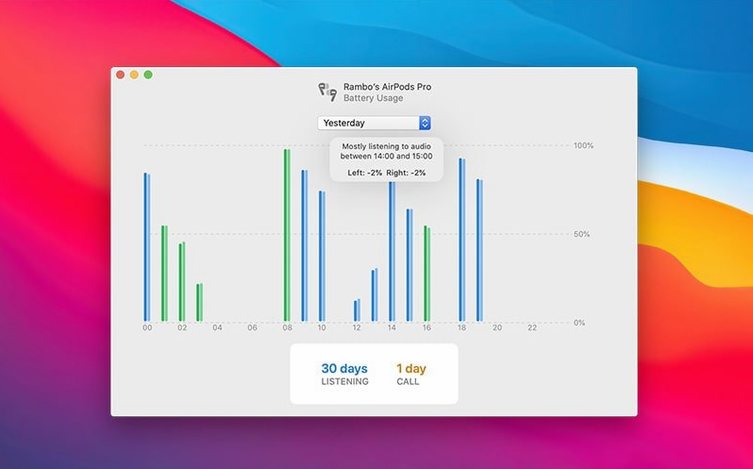
The catalogue note
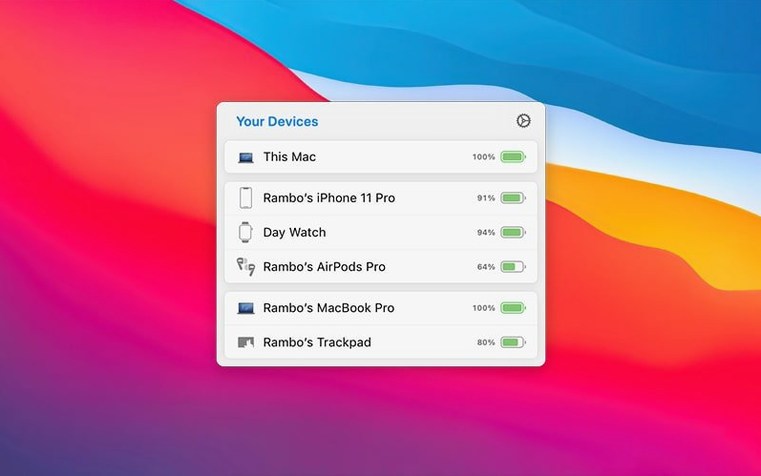
It also tracks iPhone, iPad, and other Macs in the same device view, grouping them by relationship. Both Intel and Apple silicon Macs are supported. The interface is English.
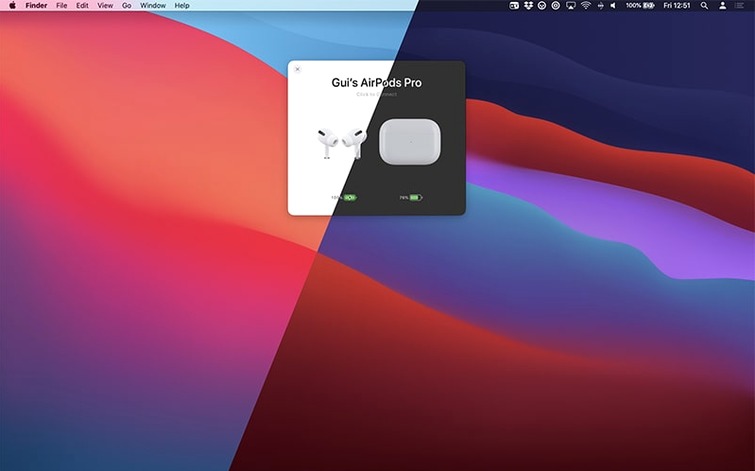
Connect to audio devices with one click
- One-click connection to audio devices.
- Trackpad gesture support for connecting and switching listening mode on AirPods Pro.
- Connection modes that can change listening mode, volume, and microphone state automatically.
- Custom connection modes for device setup when you connect to a Mac.
AirBuddy 3 is made by Gui Rambo and aims to simplify how you move between audio devices, whether you are switching from Mac to iPhone or adjusting AirPods settings without digging into menus.
Adjust connection modes before your regular workflow
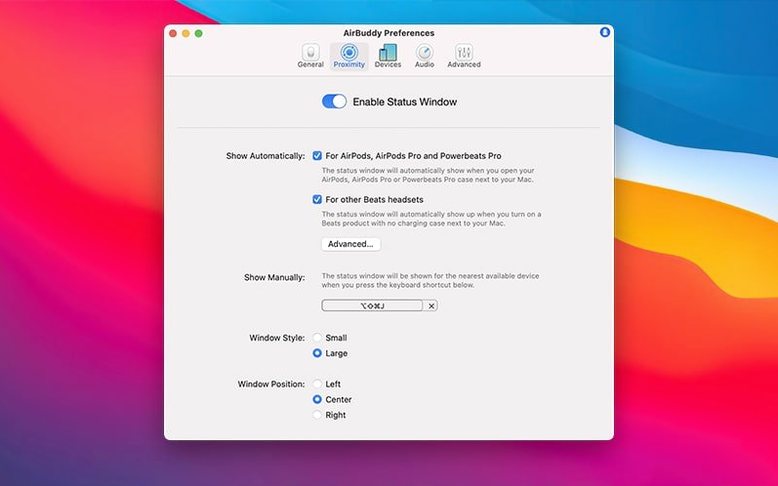
Once AirBuddy 3 is running, a few settings are worth visiting before you settle into your regular workflow. The connection modes deserve early attention too: you can configure what happens when a device connects — listening mode, volume level, microphone state.
If you use multiple Macs, the Magic Handoff feature for mice, trackpads, and keyboards can be enabled from the start. It moves peripherals between machines without replugging or re-pairing. The grouping of devices in the status window is automatic, but checking that your iPhone and iPad appear under the right relationship labels is a quick way to confirm the app sees your full ecosystem correctly.
Podcast producer switches between rough cuts and calls
A producer who records and edits three podcast episodes per week on a Mac works with AirPods Pro as their primary monitoring headset. Before AirBuddy 3, switching between listening to a rough cut on the Mac and taking a call on the iPhone meant opening Bluetooth settings, clicking connect, waiting, and often repeating the process when the call ended. With AirBuddy 3, they set up a custom connection mode that activates noise cancellation and lowers the volume by a few notches when the AirPods connect to the Mac for editing. The one-click connection from the menu bar replaces the multi-step Bluetooth menu dance. The usage history, which shows the previous 12 or 24 hours of listening and talk time, helps them track how long they spend on editing versus calls each day.
Lacks connection modes and trackpad gestures found in AirBuddy
AirBuddy 3 occupies a space that overlaps with a few other tools, though each takes a different angle. It also lacks connection modes and trackpad gestures for AirPods Pro. AirBuddy 3 extends further into device management: the status window with relationship grouping, the ability to see multiple Apple devices at once, and the Magic Handoff for input peripherals are features the others do not replicate. AirBuddy 3 is the only one of the three that also handles playback control and connection modes, which matters if you switch between devices frequently throughout a work session.
Define a connection mode for your most-used device
- Connection modes — define one for your most-used device (e.g., AirPods Pro) with a preset listening mode and volume level that activates on connection.
- Magic Handoff — enable if you share a mouse, trackpad, or keyboard between two or more Macs.
- Usage history interval — set to 12 hours or 24 hours depending on how far back you want to see listening and talk time. The previous-day option is useful for end-of-day reviews.
- Trackpad gesture — verify that the gesture for connecting and switching listening mode on AirPods Pro is assigned to a gesture you do not trigger accidentally.
These adjustments take a minute and make the first days with AirBuddy 3 feel less like configuring a new app and more like the app adapting to how you already work.
Check the menu bar icon display early
During the first few days, switching between these options is a quick way to decide what you actually want to see at a glance. Setting this early avoids the minor friction of a menu bar item that does not match how you scan your display.
Graphic designer moving between a Mac studio and a MacBook
A graphic designer who works at a desk with an iMac and occasionally moves to a MacBook in a meeting room uses AirBuddy 3 to keep a single pair of AirPods Pro synced across both machines. Without AirBuddy 3, reconnecting the AirPods when switching from the iMac to the MacBook required unpairing and repairing or navigating Bluetooth preferences each time. With AirBuddy 3, the one-click connection from the menu bar works on both machines, and the Magic Handoff feature moves the Magic Mouse and keyboard between the two Macs without plugging or unplugging. The designer does not need to touch the MacBook's Bluetooth settings at all. The device grouping in the status window also shows the iPhone and iPad nearby, which is useful when a client sends audio feedback that needs to be heard through the same AirPods without re-pairing.
How AirBuddy 3 compares with ToothFairy and Bluetooth Explorer
Bluetooth Explorer, aimed at developers and Bluetooth hardware testers, provides raw data about Bluetooth connections and signal strength but is not designed for everyday audio device management. AirBuddy 3 sits between these two: it offers the quick connection convenience of ToothFairy while adding the device grouping, usage history, and peripheral handoff that Bluetooth Explorer never intended to cover. For users who only connect one pair of headphones to one Mac, ToothFairy might be sufficient. For anyone managing multiple Apple devices and switching between them regularly, AirBuddy 3 provides a broader set of controls without needing a separate tool for each task.
Changes in this build
- Shows batteries, connects AirPods, controls playback, and moves peripherals between Macs.
- Menu bar icon can show the app icon, the battery indicator, or nothing.
Before it goes on the Mac
- macOS 14 or later
- Intel or Apple silicon Mac
- Interface: English
Questions from the room
What macOS version does AirBuddy 3 require?
The beta release notes mention macOS 13 or later for the final release, so check the latest notes before updating.
Does AirBuddy 3 work on Intel Macs?
Yes, it supports both Intel and Apple silicon Macs, so it runs on x86 64-bit and ARM architectures.
Can I control AirPods Pro with gestures?
Yes, AirBuddy 3 supports connecting and changing listening mode using trackpad gestures on supported Macs.
Installing it on the Mac
- Install the app following the included instructions.
- Follow the included activation instructions.
Notes from the control room
Sign in or open a catalogue account to leave a note.
No notes from the room yet. If you have used this build for a week, a short note helps the next person.
Also filed under Utilities
The whole Utilities rack Airflow3.3.10 Utilities 69 MB
 Alcove1.7.9 Utilities 14 MB
 AlDente1.39.4 Utilities 12 MB
 AmpliTube5.8.2 Utilities 3.1 GB
 Antivirus Zap - Virus Scanner4.3.0 Utilities 49 MB Updated
 AnyTrans for iOS8.9.14 Utilities 398 MB
 Apeaksoft Screen Recorder2.2.16 Utilities 35 MB
 App Cleaner & Uninstaller10.0.3 Utilities 47 MB Updated