Updated
The catalogue note
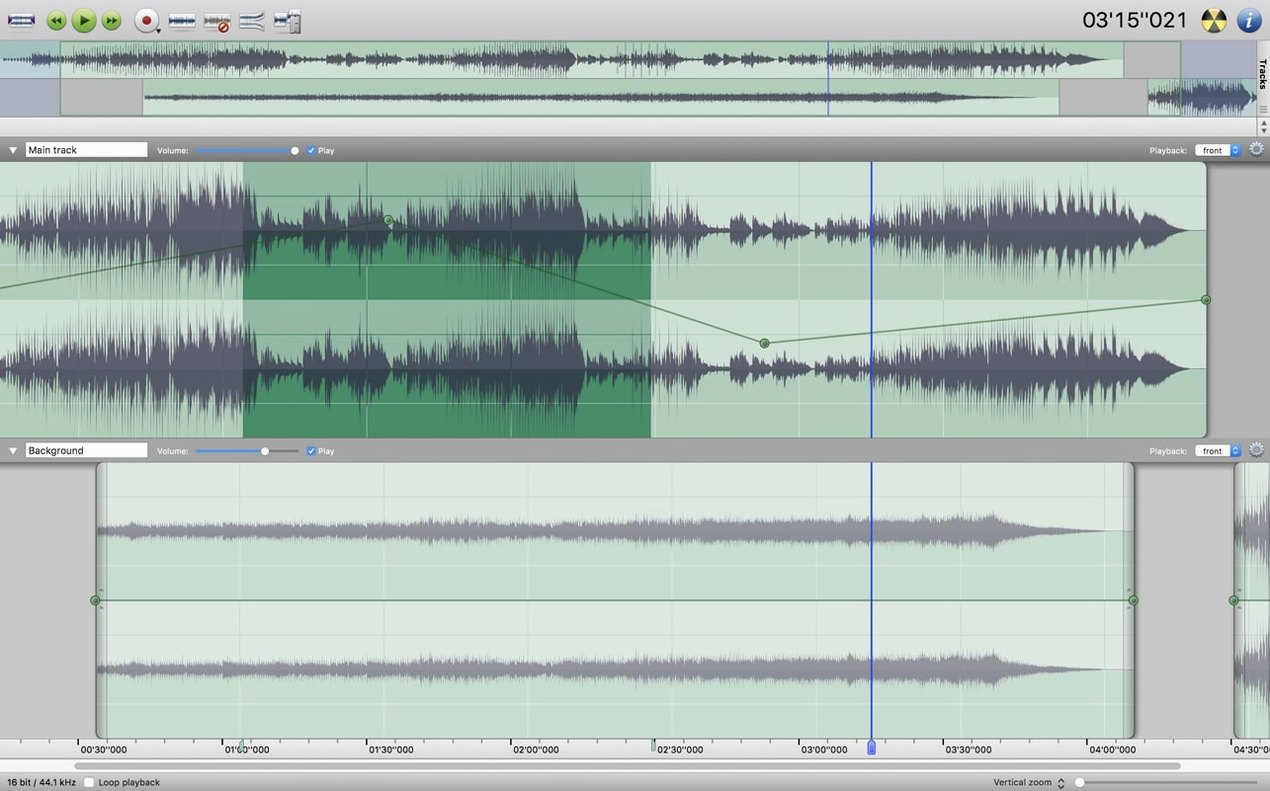
Amadeus Pro, a multi-track audio editor from Martin Hairer, runs on any Mac with a 64-bit Intel processor and macOS 10.9 or later. That covers almost every Mac made after 2007, though it does not natively support Apple Silicon — you will need Rosetta 2 installed to run it on an M1 or M2 machine. The current beta, version 2.8.14 (2680), is a 64-bit Intel binary, so compatibility is solid for older hardware but not optimised for the newer chips.
Opens and saves MP3, AAC, FLAC, and more with direct-to-disk output
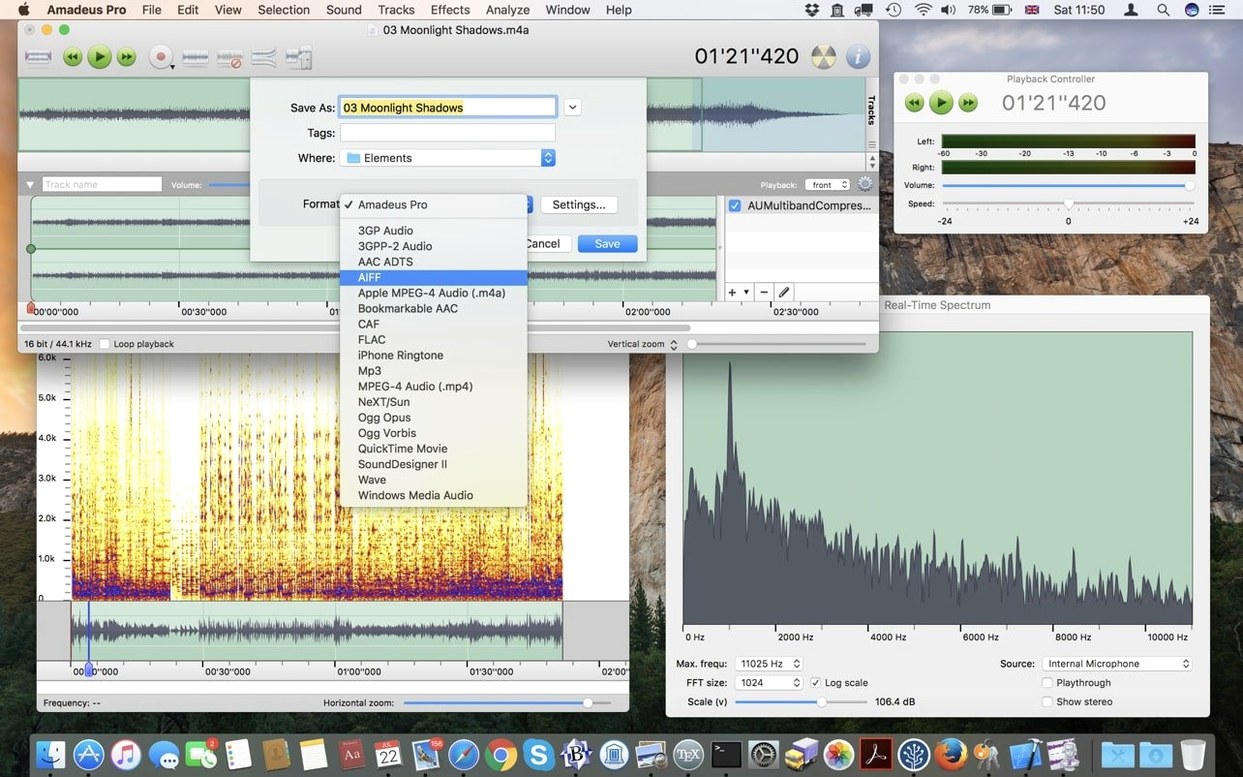
It opens and saves MP3, MPEG-4 AAC, AIFF, WAVE, WMA, CAF, FLAC, and Ogg Vorbis. Direct-to-disk output is supported during processing, which helps when working with long files.
Can I use Audio Unit and VST plugins?
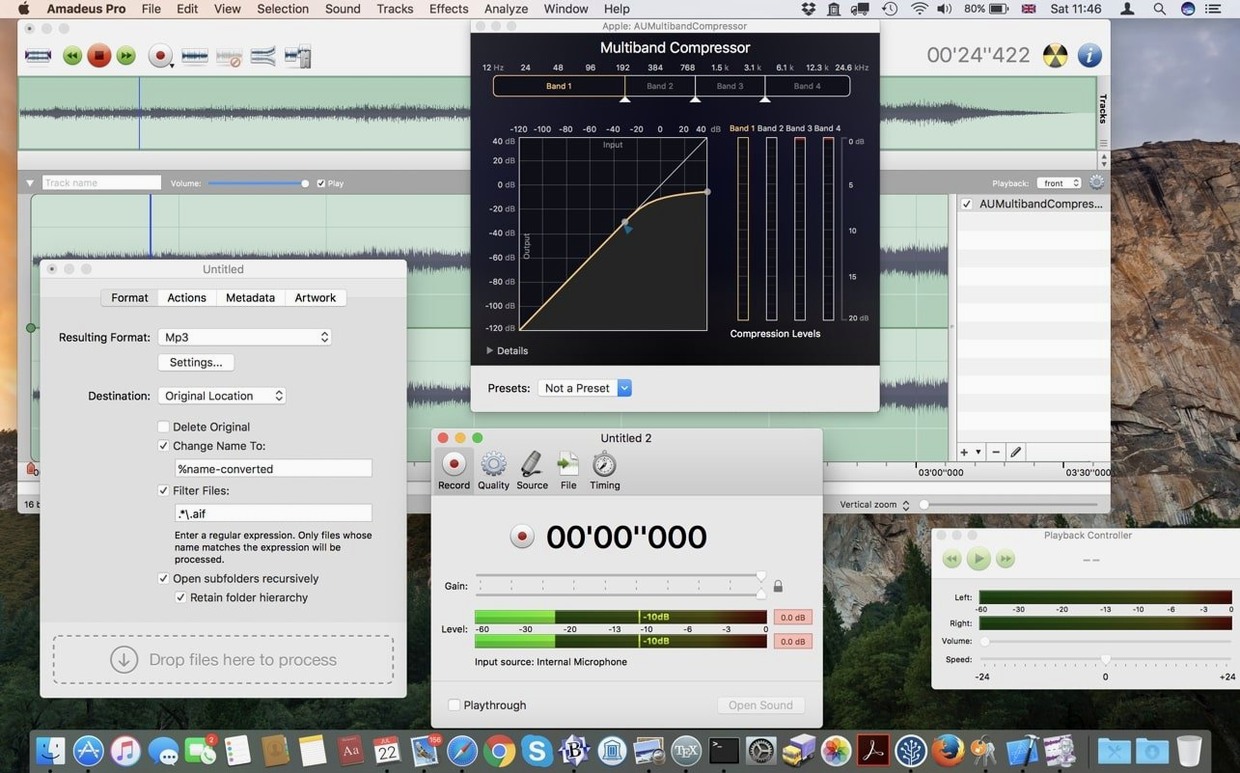
Yes, Amadeus Pro supports both Audio Unit and VST plugins. You can apply them to entire tracks or selected sections, and the built-in noise reduction works the same way.
What about markers and quick commands?
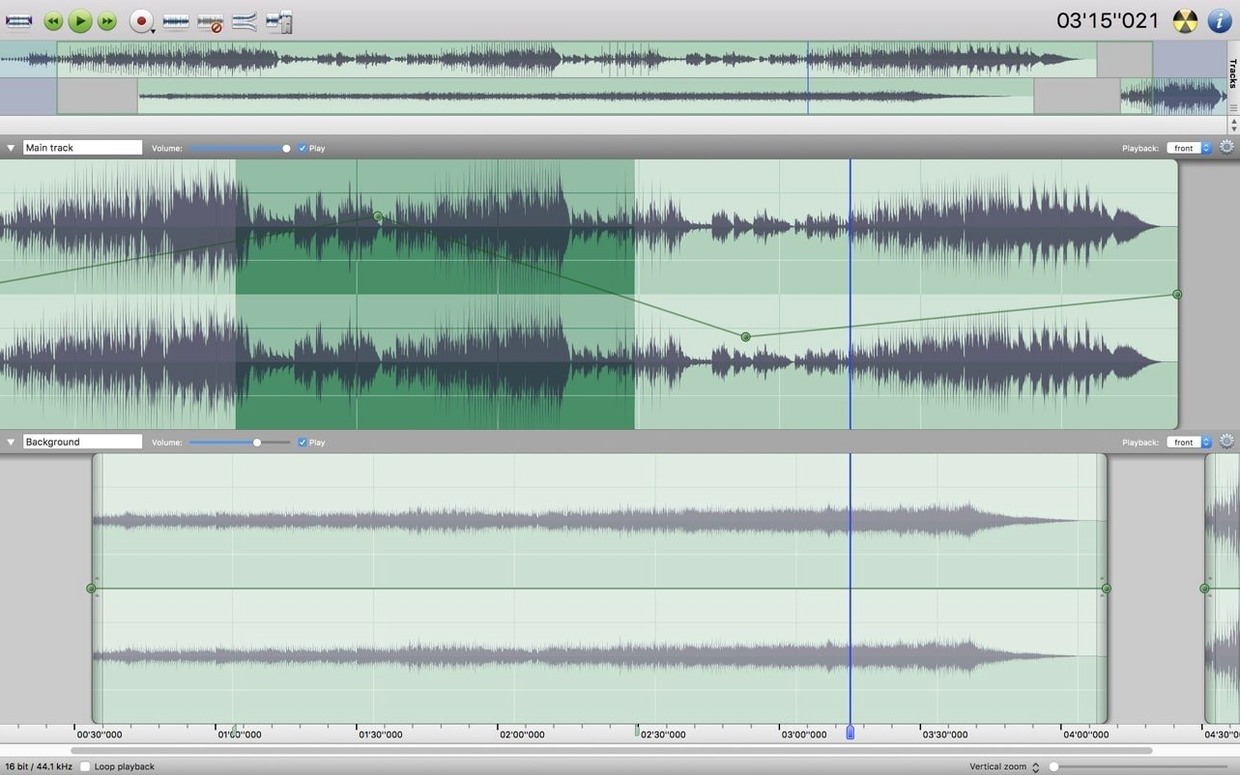
You can add markers to navigate longer recordings, and the Favorite Actions panel stores frequently used commands for faster editing. Fade in and fade out are straightforward menu options.
How Amadeus Pro compares with similar Mac audio editors
On the Mac, the field of multi-track audio editors is not crowded, but a few alternatives exist. TwistedWave offers a similar single-window approach and supports Audio Unit plugins, but its batch processing is less configurable and it does not handle WMA files natively. Fission by Rogue Amoeba focuses on lossless editing of compressed audio and is excellent for trimming and splitting MP3s and AACs without re-encoding, yet it lacks multi-track recording and VST support entirely. Audacity, the open-source stalwart, provides comparable multi-track editing and noise reduction, runs natively on Apple Silicon, and supports a wider range of plugins through its own system — but its interface feels dated, and it has no direct-to-disk output option. Amadeus Pro sits between these: more flexible than Fission for production work, more integrated than Audacity for macOS users who want Audio Units, and with batch processing that TwistedWave cannot match.
Set audio input and output in Preferences before recording
Start by opening the Preferences and checking the Audio Devices tab — assign your input and output hardware before you record anything, otherwise the app defaults to the built-in microphone and speakers. Use the batch processing feature early: drag a handful of WAV or AIFF files into the Batch Processor window, apply a sample rate conversion or a fade, and save them to a new folder. This gives you a feel for how the app handles multiple files without overwhelming your workflow.
Set up your Favorite Actions panel from the View menu. Add the noise reduction and the normalise command as your first two entries — these are the operations you will reach for most often. When recording long sessions, enable waveform caching in the Recording Preferences; it keeps the display responsive even with hours of audio. Finally, try the direct-to-disk mode on a large FLAC file to see how it handles processing without holding the whole waveform in memory.
Missing plugins? Quit and relaunch Amadeus Pro to scan them
- Plugins do not appear in the menu. Amadeus Pro scans VST and Audio Unit plugins only at launch. If you installed a new plugin after starting the app, quit and reopen it. If it still does not show, check that the plugin is a 64-bit Intel binary — 32-bit or Apple Silicon-only VSTs will not load on this version.
- Noise reduction sounds hollow or metallic. The built-in reducer works best with a noise print taken from a silent section of your recording. Select a few seconds of background noise only, open the noise reduction dialog, and click “Capture Noise Profile” before applying it to the selection. If the result is too aggressive, lower the reduction amount from the default.
- Recording drops out after a few minutes. This usually happens when your hard drive cannot keep up with direct-to-disk writing. Set the recording format to WAVE or AIFF (not compressed MP3), and record to an internal SSD rather than an external USB drive. Also check that no other app is hammering the disk during capture.
- Batch processing does not preserve folder structure. The batch processor outputs all files into the destination folder you specify. If you need subfolder organisation, process one folder at a time or rename the output files using the naming template in the batch window.
What the latest beta changed in everyday use
Version 2.8.14 (2680) Beta is a maintenance release focused on compatibility. The most noticeable change for daily work is improved handling of long recordings with markers — the waveform cache refreshes faster when you jump between marker positions, which reduces the lag when editing a two-hour podcast or a digitised tape. The direct-to-disk engine received minor updates to prevent glitches during simultaneous playback and recording on older Intel Macs. For users who rely on the Favorite Actions panel, the undo stack now tracks actions triggered from that panel correctly, so you can revert a batch noise reduction step without affecting unrelated edits. No new file formats or plugin types were added; this version tightens existing features rather than expanding them.
Before it goes on the Mac
- macOS 10.9 or later
- 64-bit Intel processor
- Interface languages: English, German, Danish, Spanish, Italian, Finnish, French
Questions from the room
Does Amadeus Pro work on Apple Silicon Macs?
It runs under Rosetta 2, but there is no native Apple Silicon version yet.
What audio formats does it read and write?
It supports MP3, MPEG-4 AAC, AIFF, WAVE, WMA, CAF, FLAC, and Ogg Vorbis.
Can I use third-party plugins with Amadeus Pro?
Yes, it supports both Audio Unit and VST plugins.
Installing it on the Mac
- Mount the disk image and open it — Gatekeeper may ask for approval.
- If Gatekeeper blocks it, press Enter in Terminal to bypass it.
- Drag the app into the Applications folder.
- Open the app from Applications.
Notes from the control room
Sign in or open a catalogue account to leave a note.
No notes from the room yet. If you have used this build for a week, a short note helps the next person.