Airfoil 5.13.0 (Mac)
Updated
The catalogue note
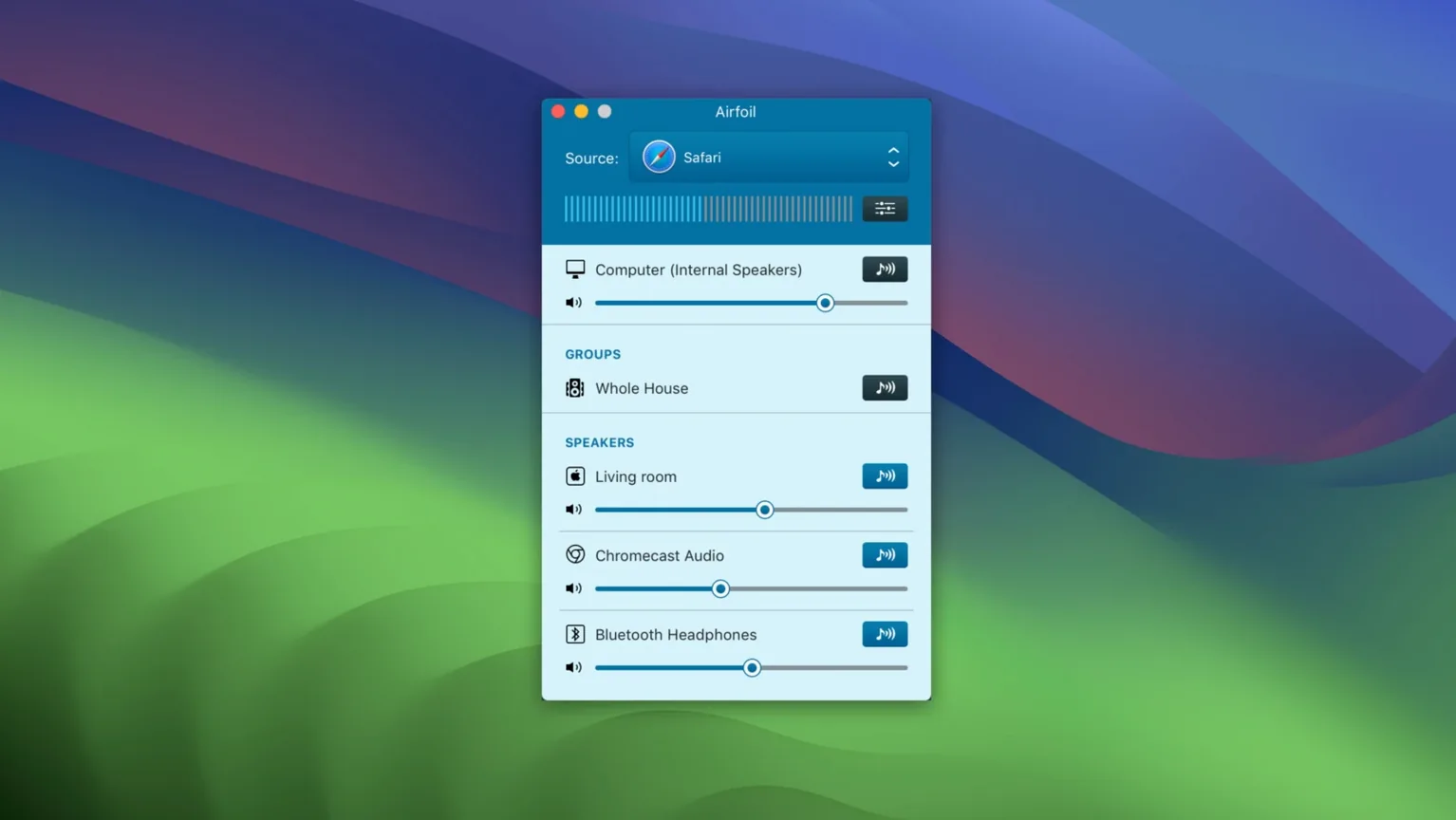
Airfoil is a Mac app that sends audio from your computer to remote devices. You pick a source — any application or system audio — and route it to speakers, AirPlay targets, or another machine running Airfoil Satellite.
Stream iTunes or a browser tab to Apple TV or HomePod
- Streaming iTunes or a browser tab to an Apple TV or HomePod. Version 5.13 restored this after a break.
- Broadcasting system audio to multiple devices in different rooms, with sync kept tight.
- Using the built-in equaliser to tweak the sound before it leaves your Mac.
- Automatically kicking off a stream to a chosen device when Airfoil launches — set it once and forget it.
Audio is encoded in Apple Lossless and requires macOS 14.4 or later
- Audio is encoded in Apple Lossless, so quality holds up over the network.
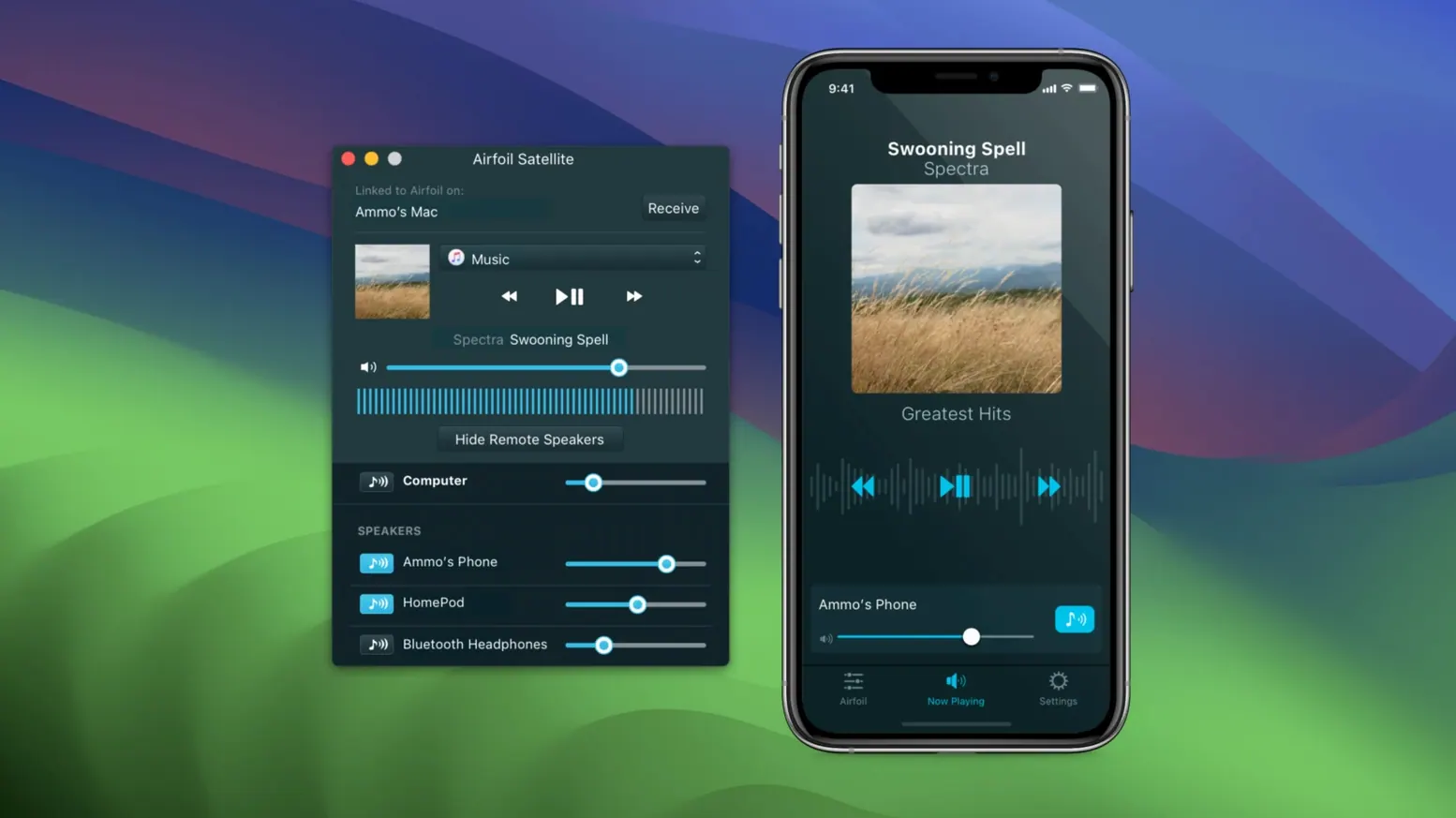
- Airfoil Satellite (separate companion apps) lets you extend streaming and remote control to other devices.
- Requires macOS 14.4 or later; 64-bit only.
Pick a source, pick a device, then hit play
You open Airfoil and see its main window: a source list on the left, a device list on the right, and a transport bar at the top. The workflow tends to follow the same pattern each time.
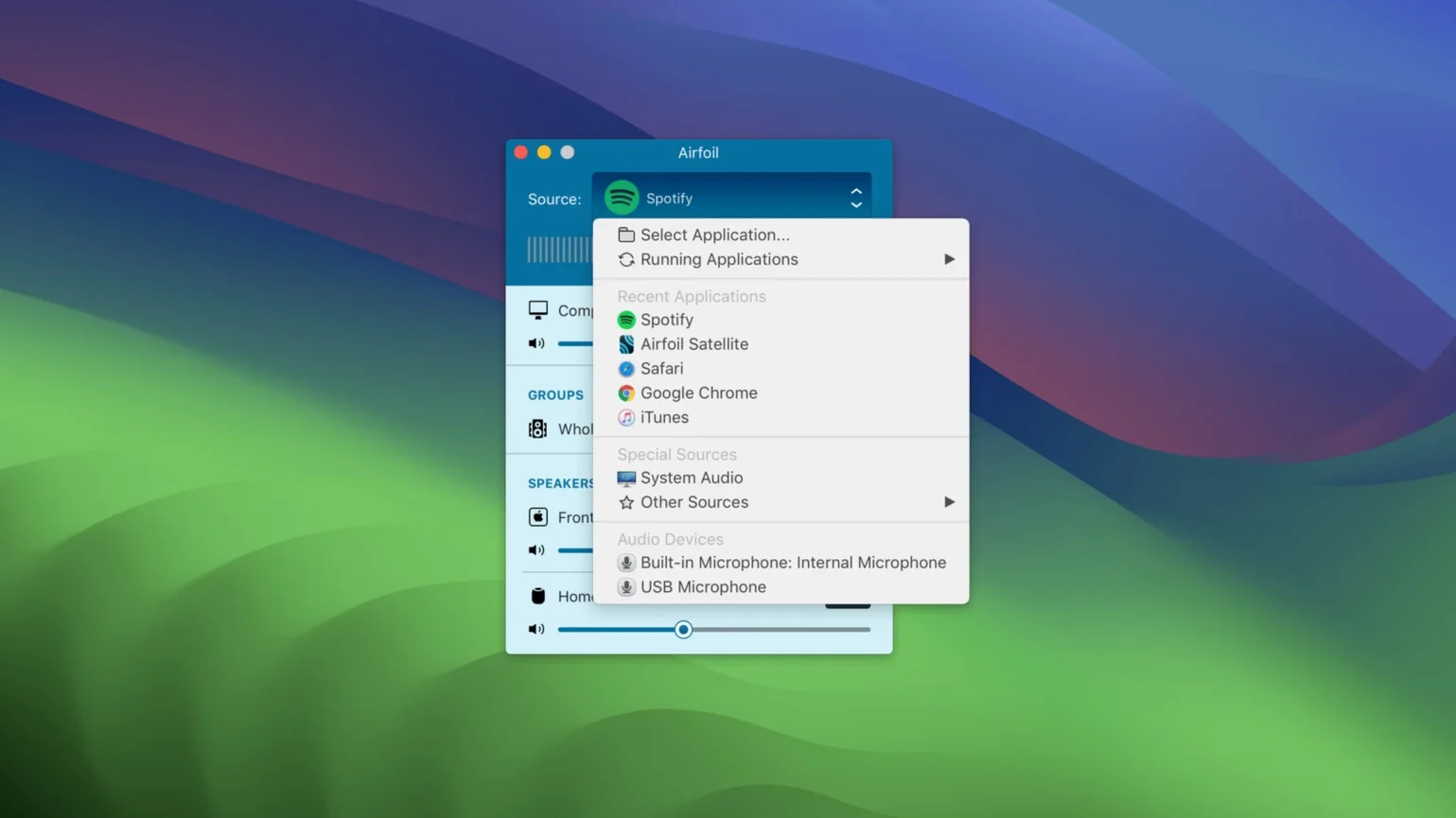
First, choose a source. Click the source pop-up and select an application — Safari, Spotify, QuickTime Player, whatever is running. You can also pick System Audio to grab everything the Mac outputs, including notification sounds and system alerts. That is useful when you want to send a video call’s audio to a television without fussing with per-app settings.
Next, select the target devices. Airfoil scans the local network and populates the device list automatically. Apple TVs, HomePods, AirPort Express units, Google Cast speakers, and Bluetooth devices all appear here. Tick the boxes next to the ones you want. You can stream to a single speaker or to five at once; the app keeps them in sync well enough that you do not hear echoes across rooms.
Start playback in the source app. The audio reaches the remote devices within a second or two. The built-in equaliser sits in the window footer — a simple graphic EQ with a handful of bands. If a podcast sounds boxy or a film’s dialogue is muffled, you can tweak the mid-range right there without opening another tool.
If you use the same setup every evening, go to Airfoil’s preferences and enable auto-start streaming. Pick a default source and a default device; the next time the app launches, it connects and begins streaming immediately. No clicking required.
Device not appearing? Check it's on the same subnet
A few issues crop up regularly. Here is what to check first.
- Device not appearing in the list. Make sure the target device is on the same subnet as your Mac. Airfoil uses Bonjour for discovery; if your network has multiple VLANs, devices on a different subnet will not show up unless you configure mDNS forwarding on the router.
- Audio stutters or drops out. Wi-Fi congestion is the usual culprit. Wired Ethernet for the Mac is the most reliable fix.
- Stream starts but no sound comes out. Check the volume level on the remote device itself — Airfoil sends audio at the Mac’s system volume, but the speaker or Apple TV has its own volume that might be muted or low.
- Airfoil does not capture audio from a specific app. Some apps use protected audio paths that block third-party capture. In those cases, choose System Audio as the source instead of the individual app.
- After updating macOS, Airfoil stops streaming to Apple TV or HomePod. Version 5.13 restored this capability, so verify you are on that release or newer. If the problem persists, reboot both the Mac and the target device.
Turn on auto-start streaming in Preferences
Airfoil’s default settings work for basic use, but a few adjustments make the experience smoother.
- Auto-start streaming. As mentioned above, this saves a couple of clicks if you stream to the same device daily. Set it in Preferences under the General tab.
- Equaliser presets. The EQ panel lets you save custom curves. If you listen to different genres or content types, create a preset for each and switch between them quickly.
- Device naming. Long device names clutter the list. Rename your Apple TV or speaker to something short like “Kitchen” or “Living Room” so you can identify it at a glance.
- Satellite remote control. If you use Airfoil Satellite on an iPhone or iPad, enable remote control in Airfoil’s preferences. That lets you change sources and adjust volume from your phone without walking back to the Mac.
Airfoil routes to AirPlay devices; Loopback creates virtual devices
Airfoil is not the only audio-routing tool for macOS, but it occupies a specific niche. Here is how it lines up against a couple of alternatives.
Rogue Amoeba Loopback. Loopback creates virtual audio devices that let you route audio between applications on the same Mac. It does not send audio over the network. If you need to pipe a browser’s output into a recording app or a video chat tool, Loopback is the better choice. Airfoil, by contrast, is built for remote playback — it handles network streaming and multi-device sync natively. The two complement each other; some users combine them to capture Loopback’s virtual device and stream it to speakers via Airfoil.
Audio Hijack. Also from Rogue Amoeba, Audio Hijack records and processes audio from any app. It includes a full mixer, effects, and scheduled recording. While it can output to Airfoil as a destination, its primary purpose is capture and manipulation, not streaming. For a straightforward “play this on my HomePod” task, Airfoil is quicker and lighter. Audio Hijack is overkill if you never record or apply effects.
Apple’s built-in AirPlay. macOS has supported sending audio to AirPlay receivers since Ventura. It works for system audio but gives you no control over individual sources, no equaliser, and no multi-device sync outside Apple’s own ecosystem. Airfoil adds Google Cast support, Bluetooth speaker targeting, simultaneous streaming to mixed device types, and the ability to route a single app rather than everything. For mixed-device households or anyone who wants EQ before the stream leaves the Mac, Airfoil fills the gap that Apple leaves open.
If your needs are simple — one Apple TV, one source, no EQ — the built-in AirPlay button in the menu bar might be enough. For anything beyond that, Airfoil is the tool that does not require compromises.
Changes in this build
- Restores audio streaming to Apple TV and HomePod devices.
Before it goes on the Mac
- macOS 14.4 or later
- 64-bit processor (Intel or Apple Silicon)
- Interface language: English
Questions from the room
Does Airfoil support Apple TV and HomePod?
Yes, version 5.13 restored streaming to Apple TV and HomePod devices.
What audio quality does Airfoil use?
Airfoil transmits audio encoded in Apple Lossless, preserving the original quality.
Installing it on the Mac
- Mount the disk image and run Open Gatekeeper friendly.
- Press Enter in the Terminal window to bypass Gatekeeper.
- Drag the app to the Applications folder.
- Open the app when installation is complete.
Notes from the control room
Sign in or open a catalogue account to leave a note.
No notes from the room yet. If you have used this build for a week, a short note helps the next person.