AIMP 5.40.2675 (Mac)
Updated
The catalogue note
You have a library of FLAC, Monkey's Audio and Vorbis files, and you miss AIMP's clean playlist management from Windows. On a Mac running macOS 11 or later, the same AIMP 5.40.2675 runs wrapped in WineSkin — no separate emulator to configure.
| Detail | Value |
|---|---|
| Version | 5.40.2675 |
| Developer | AIMP DevTeam |
| macOS requirement | 11 or later, Apple Silicon |
| Interface languages | 20, including Czech, Japanese, Korean, Ukrainian, French, Swedish |
The app installs from a disk image: drag it to Applications, run it. If macOS blocks the first launch, the disk image contains a Fix file that resolves the permission issue. You can also scale the interface by opening the app package, running KegworksConfig and setting the screen resolution under winecfg's Graphics tab to a value between 122 and 144 DPI. The recent update improved waveform calculation speed, updated Monkey's Audio to 11.08 and fixed a libVorbis conflict that affected third-party plug-ins.
Runs through Wineskin, not a native macOS port
AIMP for macOS is not a native port — it runs through Wineskin, which translates the Windows build to work on your Mac. This means the app behaves like the Windows version, including its file dialogs and folder structure. Some people ask whether it integrates with the macOS media keys or the Touch Bar. It does not. The Wineskin wrapper handles basic keyboard input, but system-level shortcuts like play/pause from the function row are not mapped.
Another frequent question is whether the library from a Windows install can be copied over. You can copy the AIMP database files (the .db files in the app's data folder) from a Windows machine to the equivalent Wineskin location, but the path is not the same as on Windows. The easiest route is to rebuild your playlists from scratch on the Mac. The tag editor and playlist manager work identically to the Windows version, so the workflow is familiar once the files are imported.
People also ask about audio output. AIMP uses its own audio engine and does not go through Core Audio in the usual way. It works with most USB DACs and built-in outputs, but sample rate switching may need to be set manually in the app's playback settings rather than relying on macOS to handle it automatically.
Drag FLAC folders into the dark grey default skin
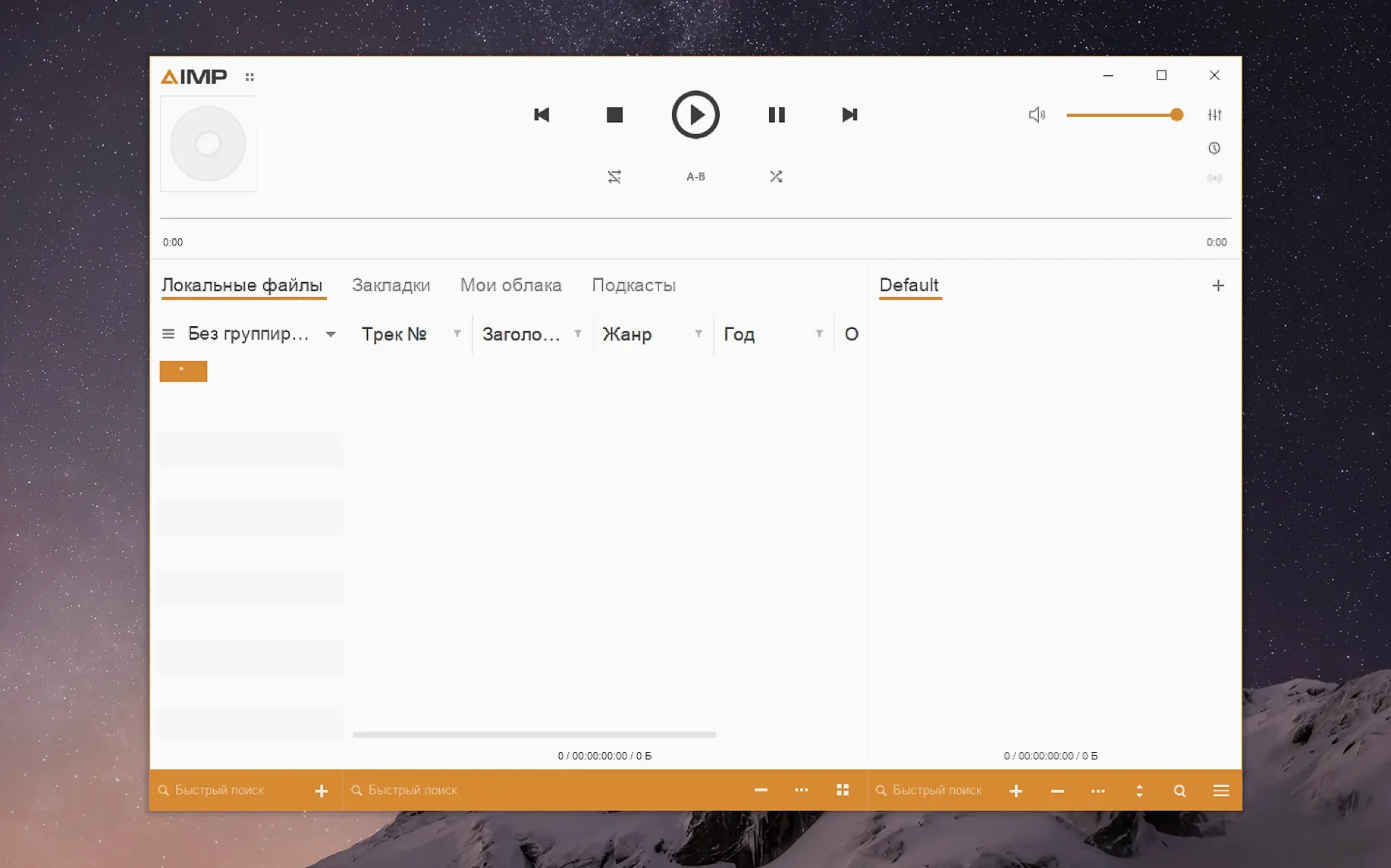
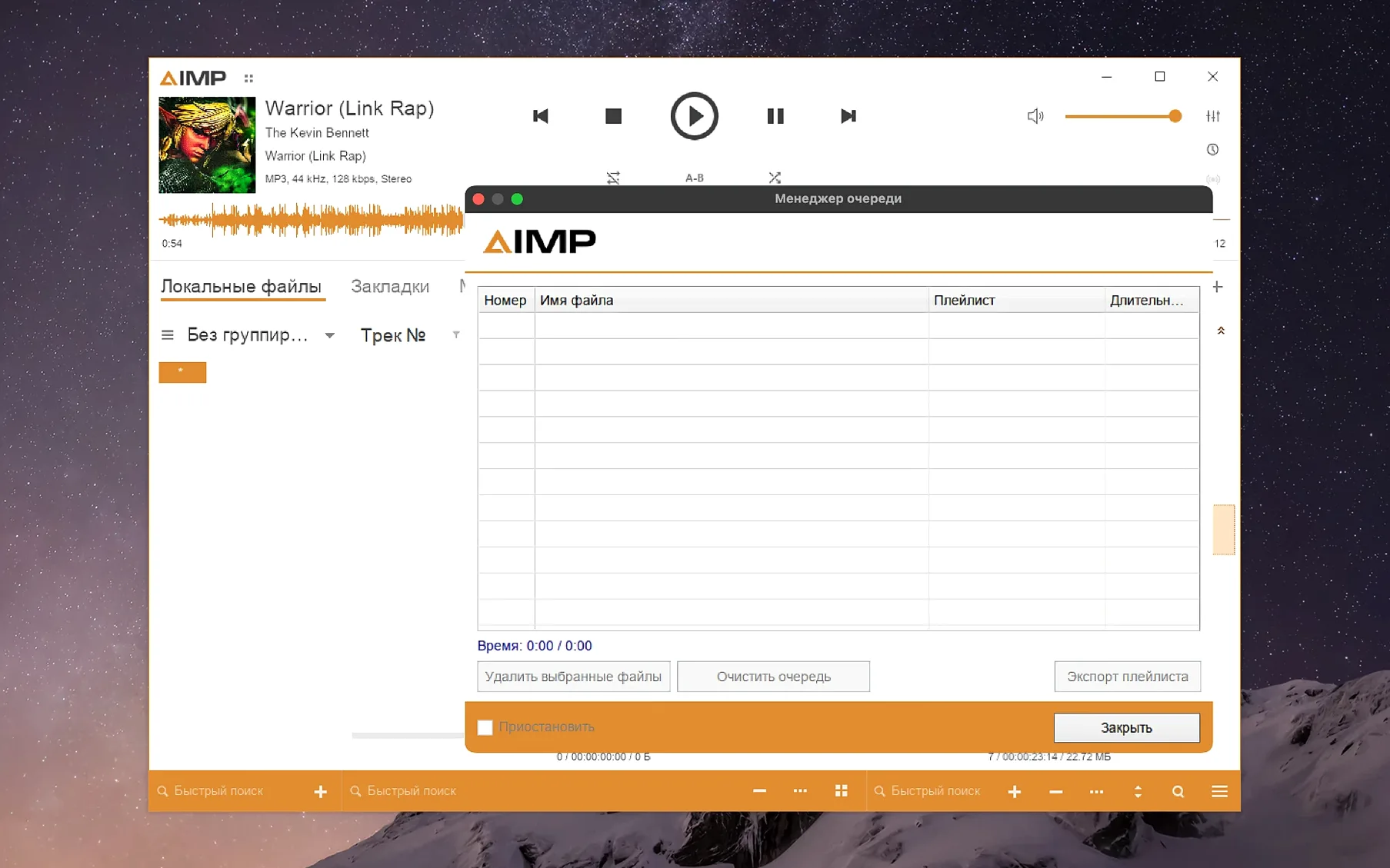
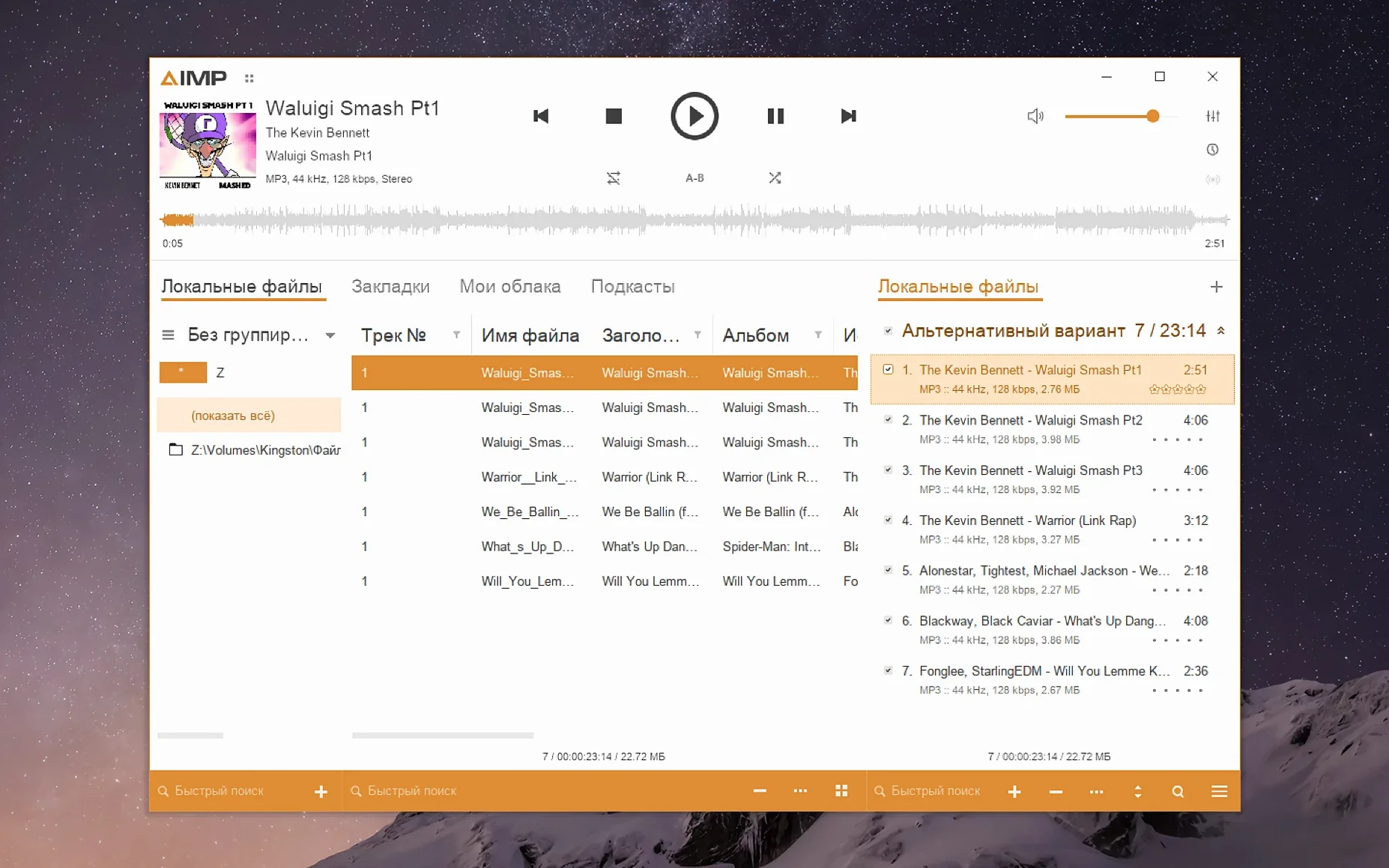
I open AIMP from Launchpad. The interface loads with the default skin — clean, dark grey, with a playlist panel on the left and the library browser on the right. I drag a folder of FLAC files from the Finder into the playlist panel. AIMP scans the tags and populates the list in a second or two. The waveform calculation improvement in this version means the visual waveform appears quickly after a track starts playing.
I switch to the tag editor for a few files that have incorrect album art. The editor opens as a separate window. I select the files, drop a new cover image into the artwork field, and save. No parser errors this time — the fix for unnamed MP4 fields in 5.40.2675 means that metadata from mixed-format collections is handled without warnings.
I queue the next album using the playlist manager. The manager does not mark the content as modified when I change the playing track in active storage, which keeps the playlist tree clean. I switch to the music library view and browse by genre. The grouping tree responds to single clicks; the Alt+Click issue from earlier builds is gone, so expanding and collapsing groups works as expected.
I let the playback run for an hour. The skin engine mouse wheel works in the visualisation window — a small fix in this build, but it means I can scroll through spectrum displays without the view jumping. I close the app when I am done; the session state is saved automatically.
Avoid latency by setting the output device to your DAC
- Output device — go to the playback settings and select your DAC or the built-in output. The default may be set to a generic Wineskin device. Changing it avoids any latency or sample rate mismatches.
- Sample rate — if your DAC supports 96 kHz or higher, set the output sample rate in the same panel. The 5.40.2675 fix for unflushed buffers when changing sampling frequency means this setting is more reliable now.
- Interface scaling — if the app looks too small on a Retina display, open the package contents, run KegworksConfig and set the DPI under winecfg's Graphics tab to 132 or 144. This makes the text and buttons readable without blurring.
- Language — the installer defaults to the system language if it is among the 20 supported. If the interface appears in a language you do not expect, switch it in the preferences. The full list includes English, Russian, German, Polish, French, Japanese and others.
- Playlist auto-save — enabled by default, but check that it is on. This prevents losing the queue after an unexpected close.
Tag editor handles MP4 fields without parser errors
- The tag editor handles MP4 fields without throwing parser errors. If you have a mixed library with M4A files, the unnamed field fix in this version means metadata edits go through without extra steps.
- The waveform calculation is noticeably faster in 5.40.2675. For large files or long recordings, the waveform appears sooner in the player window.
- Monkey's Audio codec was updated to 11.08. If you archive in APE format, this version decodes the latest files without needing a separate codec pack.
- The music library grouping tree responds to Alt+Click correctly. This lets you expand or collapse all nodes in a group with one modifier click — useful when browsing a large genre or artist tree.
- The skin engine mouse wheel fix means visualisation windows stay responsive when scrolling. It is a small thing, but if you keep the spectrum analyser open, the difference is immediate.
Changes in this build
- Localisations updated.
- Monkey's Audio codec updated to version 11.08.
- Waveform calculation speed improved.
- libVorbis conflict with third-party plug-ins fixed.
- Sampling-frequency buffering issue fixed.
Before it goes on the Mac
- macOS 11 or later
- Apple Silicon processor
Questions from the room
Does AIMP for Mac support Apple Silicon?
Yes, the WineSkin wrapper runs on Apple Silicon under macOS 11 or later.
Why does the interface look small on a Retina display?
Open the app package, run KegworksConfig, go to Graphics and set the screen resolution to between 122 and 144 DPI. Apply and restart the app.
What languages does the interface include?
English, Russian, German, Arabic, Belarusian, Hungarian, Danish, Spanish, Italian, Traditional Chinese, Simplified Chinese, Korean, Polish, Portuguese, Turkish, Ukrainian, Finnish, French, Czech, Swedish and Japanese.
Installing it on the Mac
- Open the downloaded disk image.
- Drag the app to the Applications folder alias.
- After copying finishes, launch the app from Launchpad.
- If an error appears on launch, run the Fix file inside the disk image.
- To enlarge the interface, open the app package contents.
- Open the Contents folder and start KegworksConfig.
- In Tools, open Config Utility (winecfg).
- In the Graphics tab, set the screen resolution to a value from 122 to 144.
- Apply the change and start the app again.
Notes from the control room
Sign in or open a catalogue account to leave a note.
No notes from the room yet. If you have used this build for a week, a short note helps the next person.