
RightFont 10.2.1 (Mac)
Updated
The catalogue note
RightFont 10.2.1, a font manager built exclusively for the Mac, asks for macOS 11 or newer and runs on both Intel-based and Apple silicon machines. That covers most Macs in active use, so compatibility is rarely the reason to pass it up.
What RightFont does for a working studio
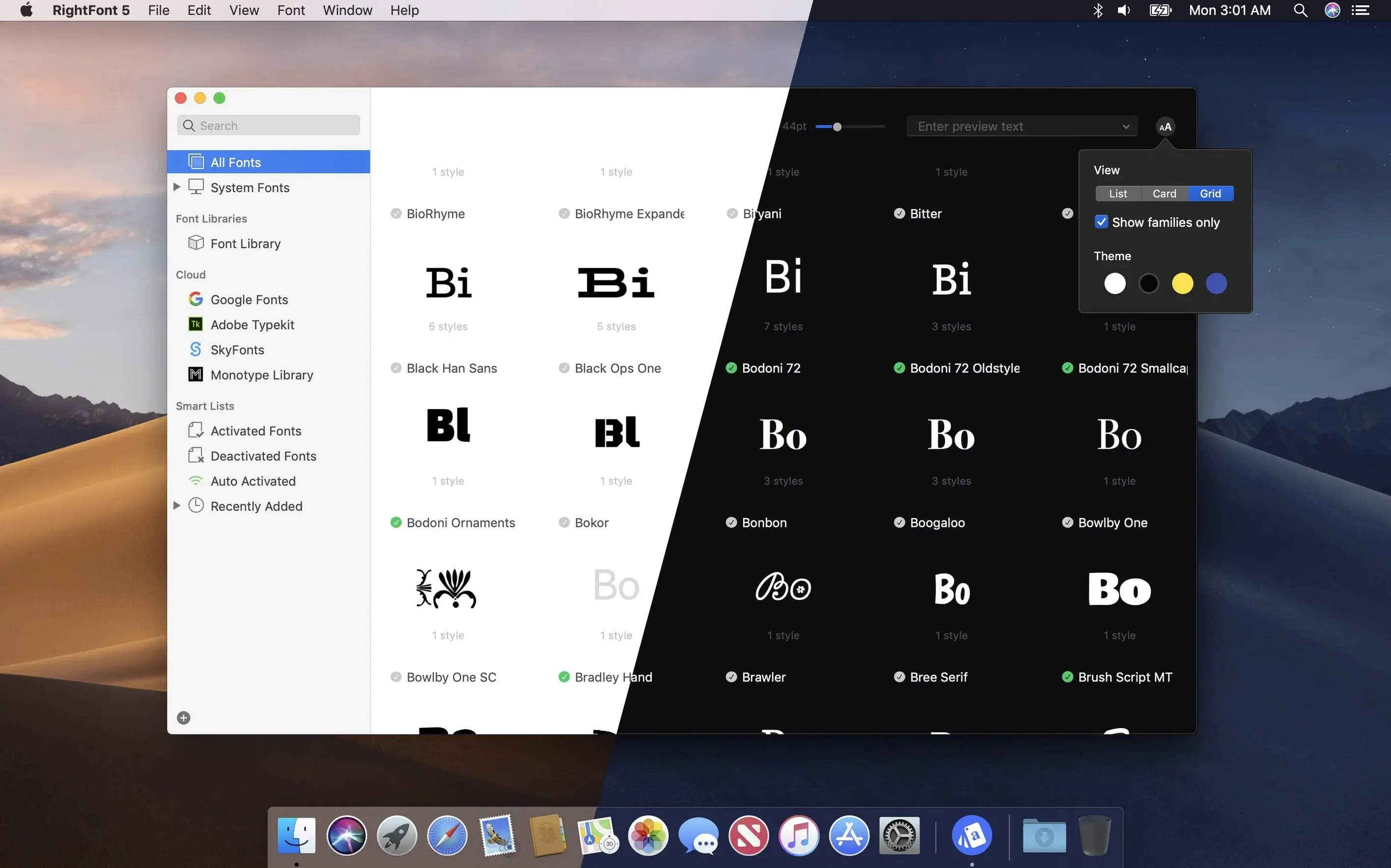
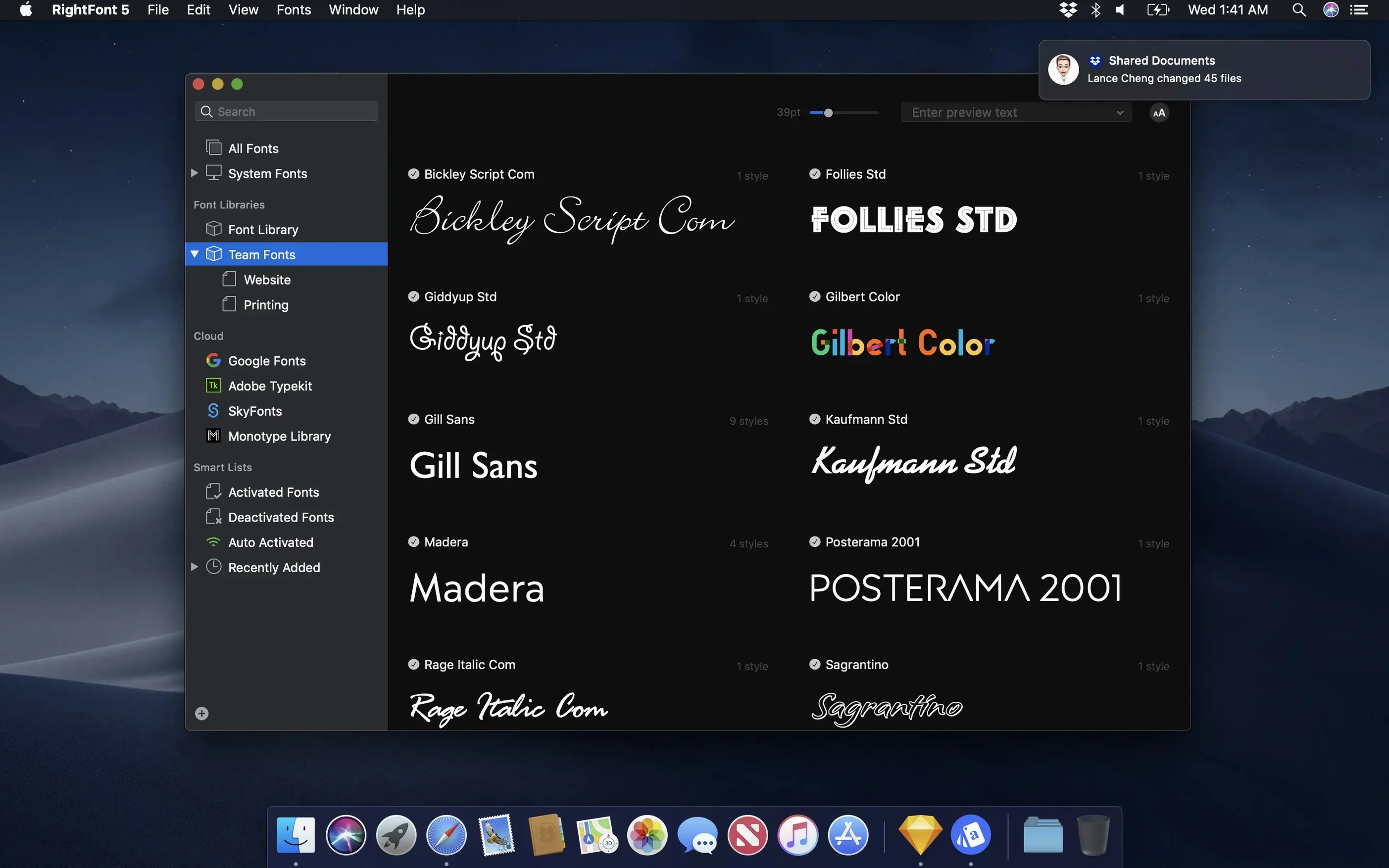
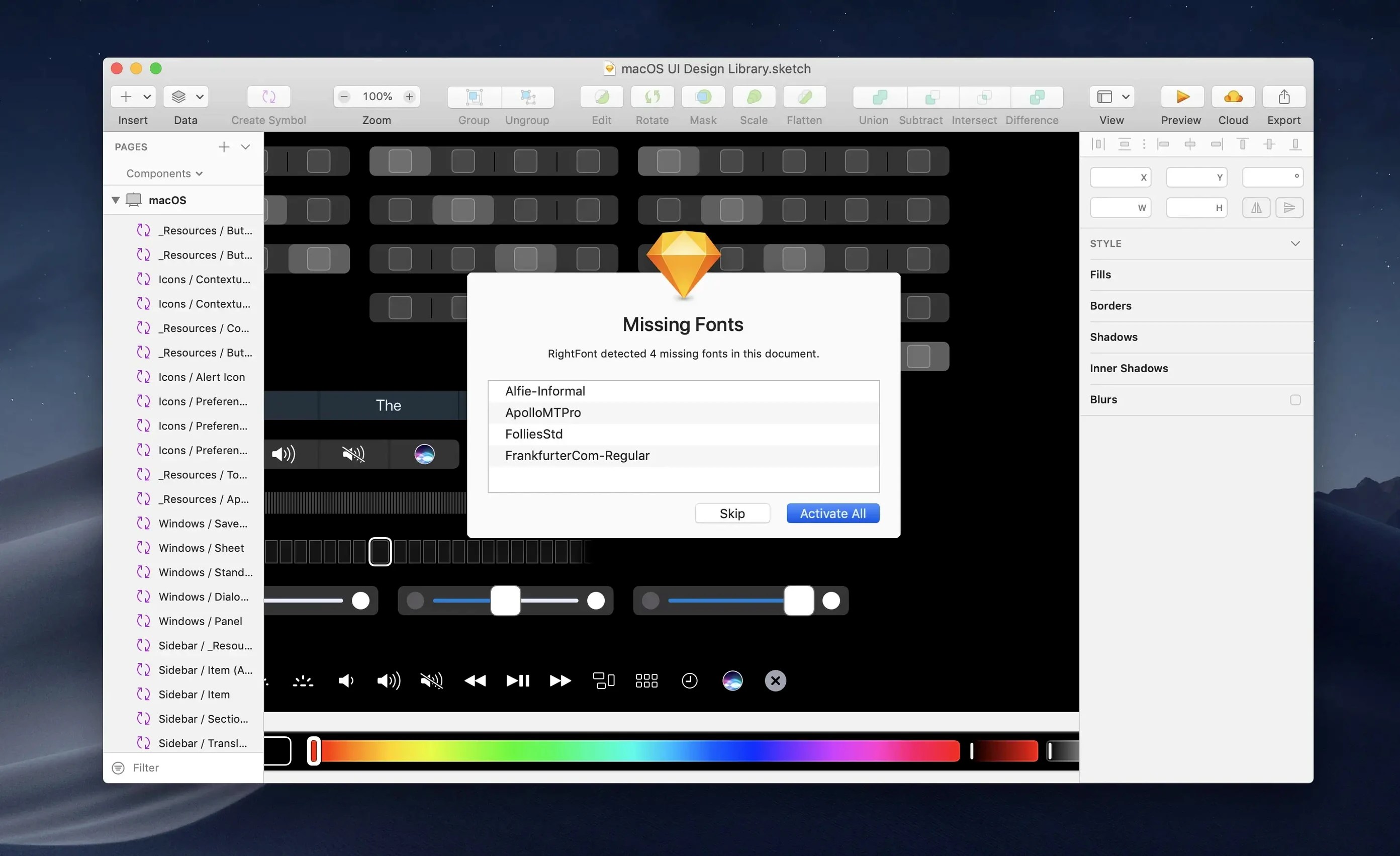
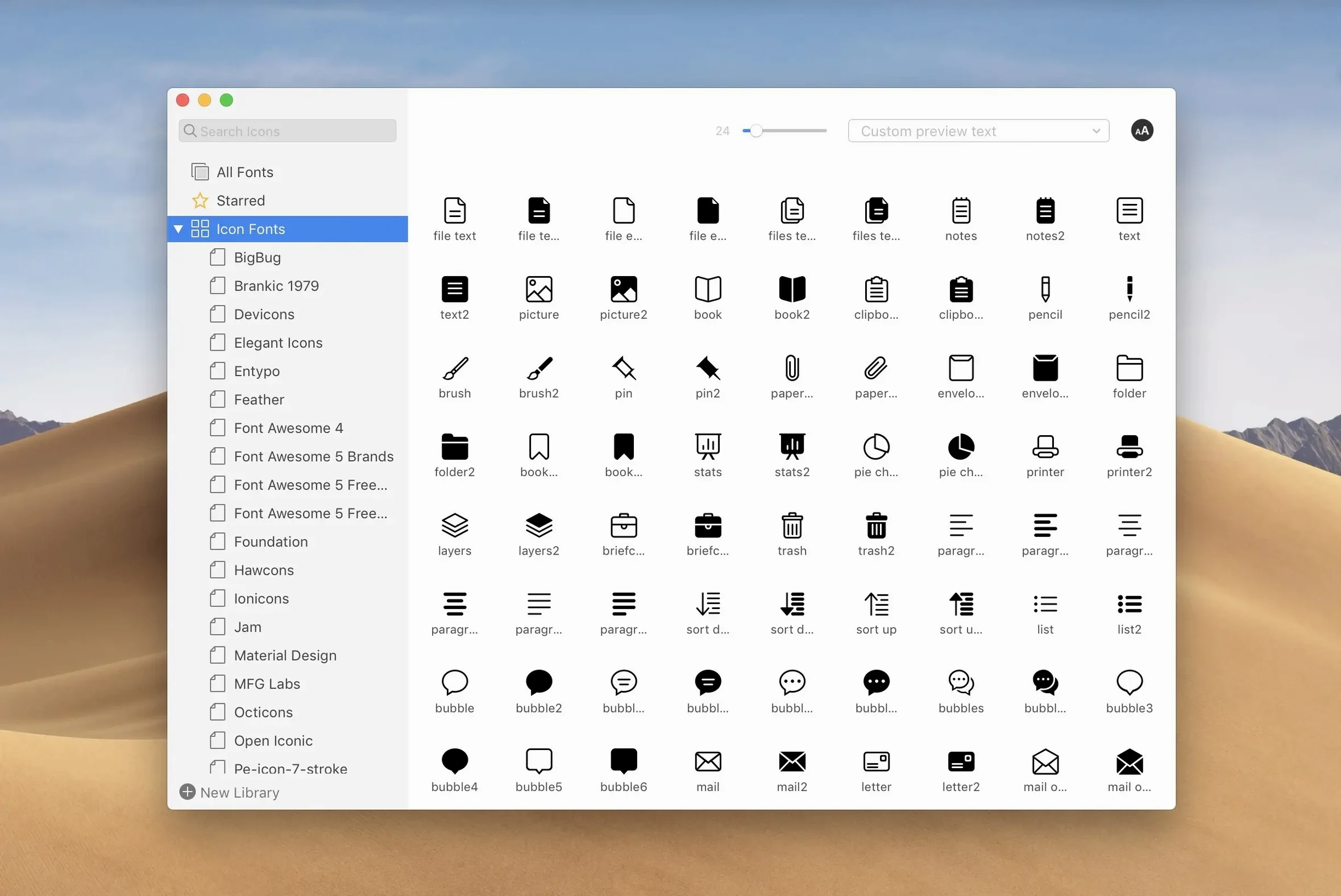
The app keeps your type collection in order: you can create and manage font lists, filter by classification, width and weight, and preview typefaces before you commit. It sits in the menu bar for quick access, so you don't have to leave your current application to check a glyph or activate a family. When a font is active, RightFont works with design software directly – change a text layer's font by double-clicking in the host app. That integration is where it earns its keep in an audio-adjacent studio that also touches graphics.
What 10.2.1 changes
The latest release tightens import reliability and tag handling, and clears up the progress display during large imports – you now see a finalisation stage and a count of unsupported files. Fixes target Adobe Illustrator, QuarkXPress and macOS 27. If you've hit import hiccups before, this version is worth the update.
Designed for designers and anyone with repeated font decisions
Designers and layout people are the obvious audience, but the app also suits anyone whose work involves repeated font decisions. A graphic designer switching between dozens of client projects will appreciate the font lists and the ability to filter by classification – no more scrolling through a flat system font picker. Teams managing a shared type library benefit from the organisational side: moving fonts for backup or sharing keeps the collection consistent across machines. Even if you only produce the occasional poster or social asset, having a menu bar preview saves the back-and-forth with Font Book.
Point RightFont at your folders, then let it scan before organizing
Start by pointing RightFont at your existing font folders – the app will scan them and build its library. Let it finish before you start organising; the import progress window now shows a finalisation stage and lists unsupported files, so you know what didn't make it. Create a few font lists based on your recurring projects: one for body copy, one for display faces, one for logo treatments. Tagging comes next – the improved tag management in 10.2.1 makes this less fiddly, and subtags can now be dragged back to the main Tags section if you change your mind. Keep the menu bar icon active for the first week. Every time you find yourself opening Font Book, use RightFont instead. You will quickly learn where your typefaces live and how the filter options narrow a long list. The habit takes a couple of days, then feels natural.
Doesn't replace Font Book, but handles day-to-day activation and previewing
Does it replace Font Book? Not entirely – macOS still needs Font Book for system-level font management, but RightFont handles the day-to-day activation, previewing and organising that most users actually do. You can keep both installed without conflict.
Will it slow down my Mac? Font managers that constantly scan every font on every launch can feel heavy. RightFont is described as lightweight, and it stays in the menu bar rather than running a full-window interface unless you open it. The import process is the only time it works through a large collection, and the progress details in 10.2.1 make that clearer.
Can I use it without design software? Yes – the menu bar preview and font list features work independently.
Does it work with fonts I download from foundries? Absolutely. RightFont imports standard font formats and organises them however you like. The more fonts you add, the more useful the filters and tags become.
What happens if I stop using it? Fonts you activated through RightFont remain active in the system until you deactivate them. Your lists and tags stay in the app's library if you come back later.
Filter your full type collection to find headline options fast in InDesign
You are laying out a booklet in InDesign. The client approved the text but wants three headline options by end of day. You open RightFont from the menu bar – the library shows your full type collection. You filter by classification and pick 'sans serif', then narrow by weight to 'bold'. A list of eight candidates appears. You click through each one, previewing a sample sentence in the app's panel. Two families stand out. You activate both with a single click. Back in InDesign, you select the headline text layer, double-click the font field, and RightFont lists the active fonts. You switch between the two candidates, adjust tracking, and choose one. The whole round takes maybe four minutes. Later, you add the runner-up to a font list named 'Headline alternatives' for future projects. Before closing, you check the menu bar icon – it shows two active fonts. You leave them on; tomorrow's edit session will use the same face. The app sits quietly in the background until you need it again.
Changes in this build
- More reliable font imports.
- Improved tag management.
- Fixes for Adobe Illustrator, QuarkXPress, and macOS 27.
- Clearer import progress, including a finalisation stage and a count of unsupported files.
- Subtags can be dragged back to the main Tags section.
Before it goes on the Mac
- macOS 11 or newer
- Intel or Apple silicon
Questions from the room
Does RightFont work on Apple silicon Macs?
Yes.
What macOS version do I need for RightFont?
RightFont requires macOS 11 or newer.
Can I use RightFont with Adobe Illustrator?
Yes. RightFont works with design software, and version 10.2.1 includes fixes for Adobe Illustrator.
Installing it on the Mac
- Mount the disk image and run the installer – Gatekeeper may ask for confirmation.
- If you see the 'unidentified developer' warning, press Enter in Terminal to bypass Gatekeeper.
- Drag the app to the Applications folder.
- Launch RightFont once the copy finishes.
Notes from the control room
Sign in or open a catalogue account to leave a note.
No notes from the room yet. If you have used this build for a week, a short note helps the next person.