Home › Mac Apps › Session Pomodoro Focus Timer
Session Pomodoro Focus Timer 2.13.48 (Mac)
Updated
The catalogue note
If you already use a Pomodoro timer, Session Pomodoro Focus Timer is the one that also logs what you actually did and learned, not just how many tomatoes you finished. Version 2.13.48 is a maintenance update, so the core workflow remains unchanged.
Track your sessions
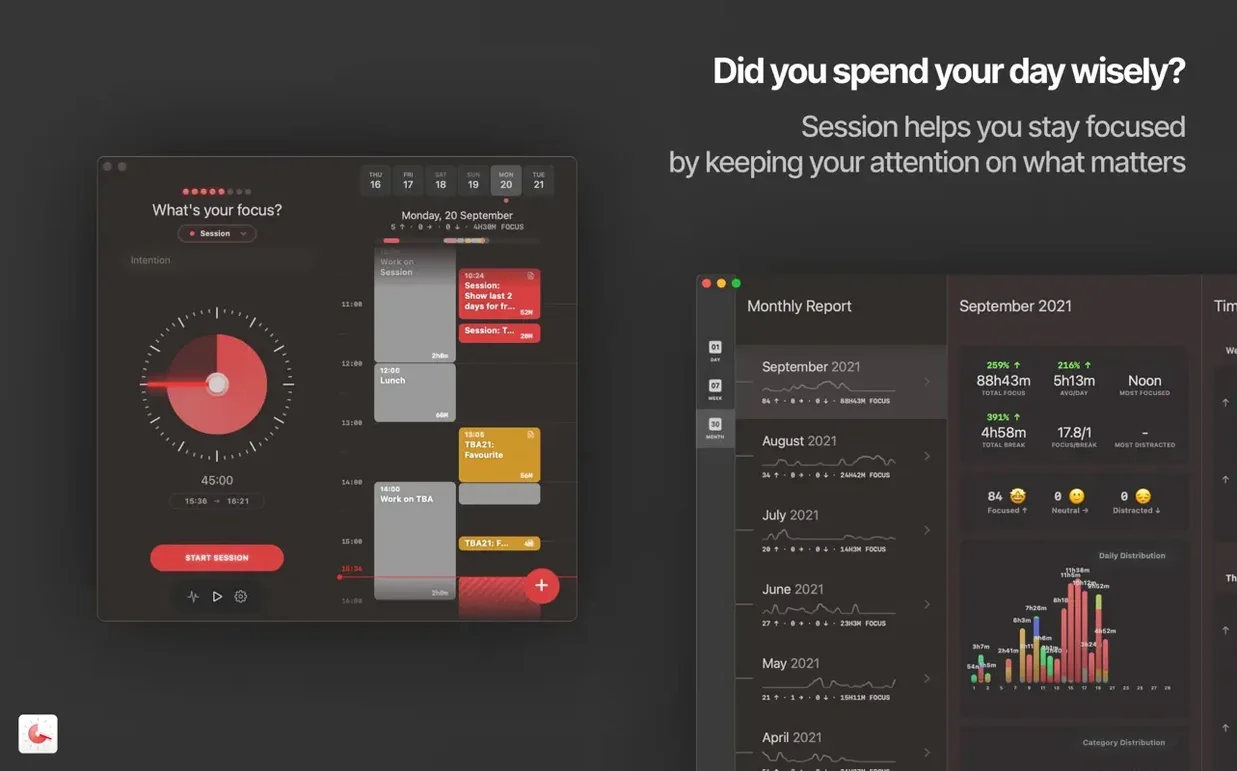
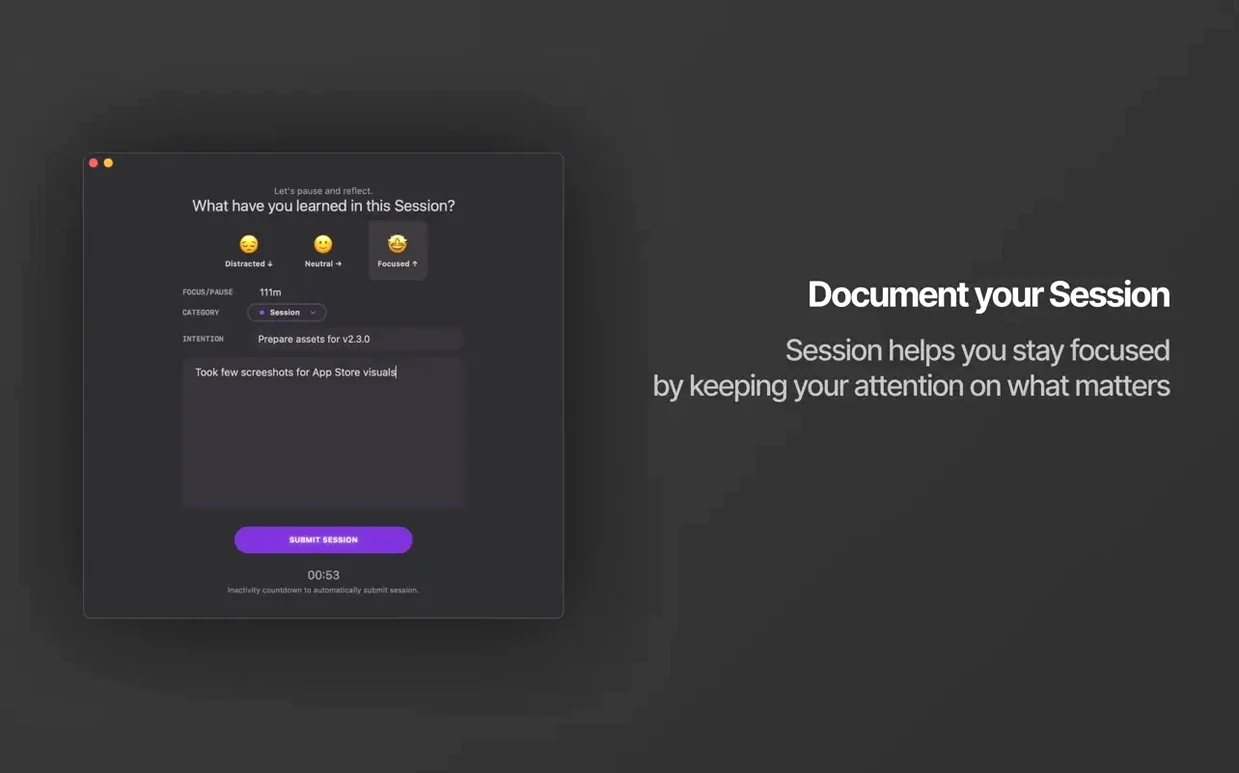
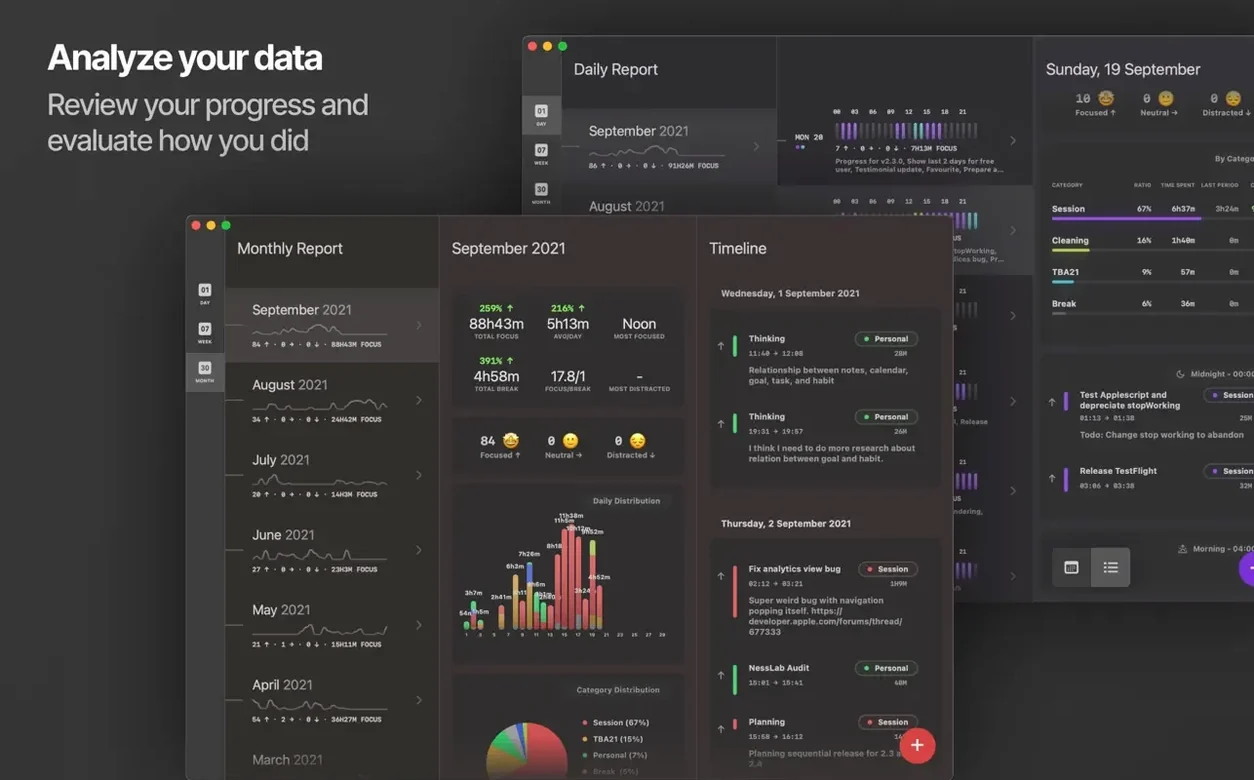
The app records what you worked on, what you learned, and the time spent per session. That data stays visible even after the focus period ends.
Block what distracts
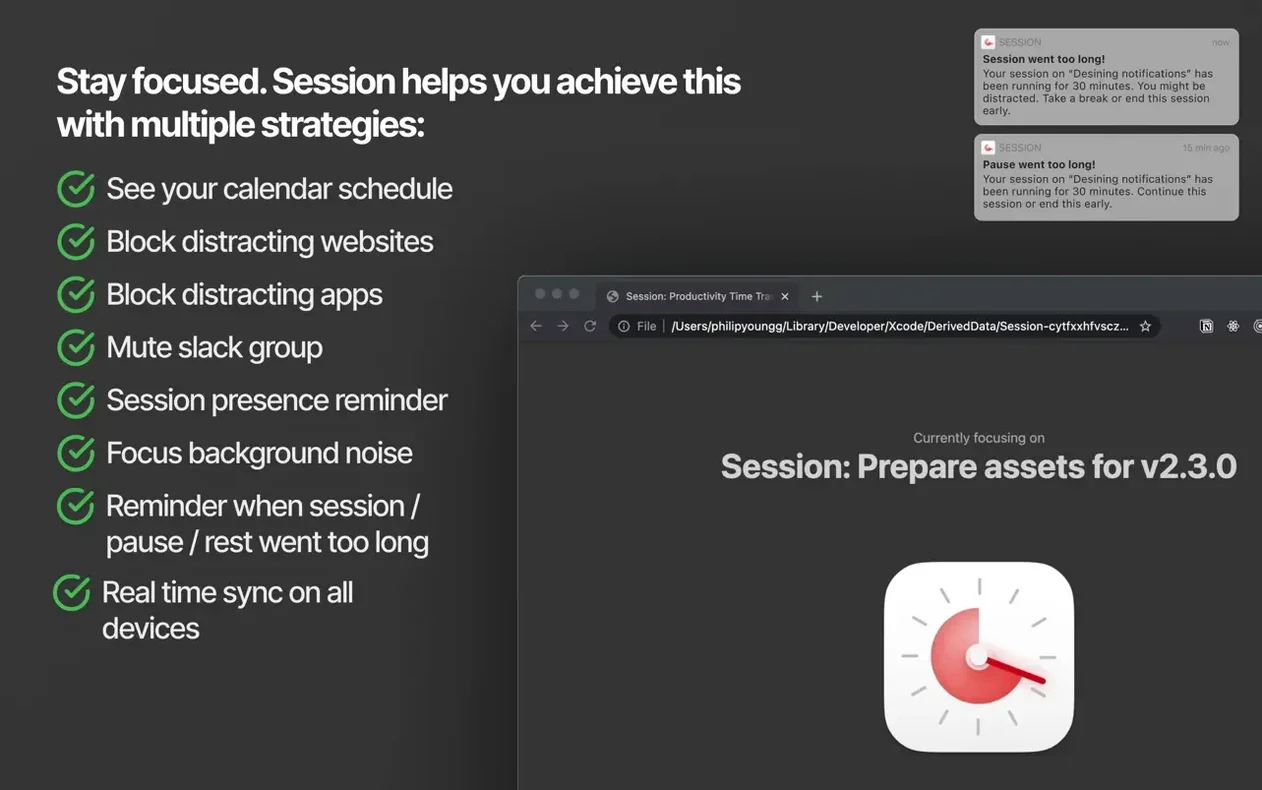
You can add websites and apps to a block list. They stay locked during a session and only reappear when the break starts or the timer stops.
Fix one gesture
The only change in 2.13.48 is a fix for the resize gesture on the calendar view. If you use the calendar frequently, this saves a bit of frustration.
Account sign-in required to run offline
A few things tend to trip people up when they start with Session. The account sign-in requirement catches some off guard — the app needs any account to work, so you cannot run it offline without one. If you prefer not to use a personal email, a secondary or work account does the job.
The block list can be too aggressive at first. If you block a system app that you need for basic functions, the session will interrupt your workflow. Test the list with one or two non-essential sites before adding everything. The restore feature works correctly, but a brief interruption during a deep-focus block is still annoying.
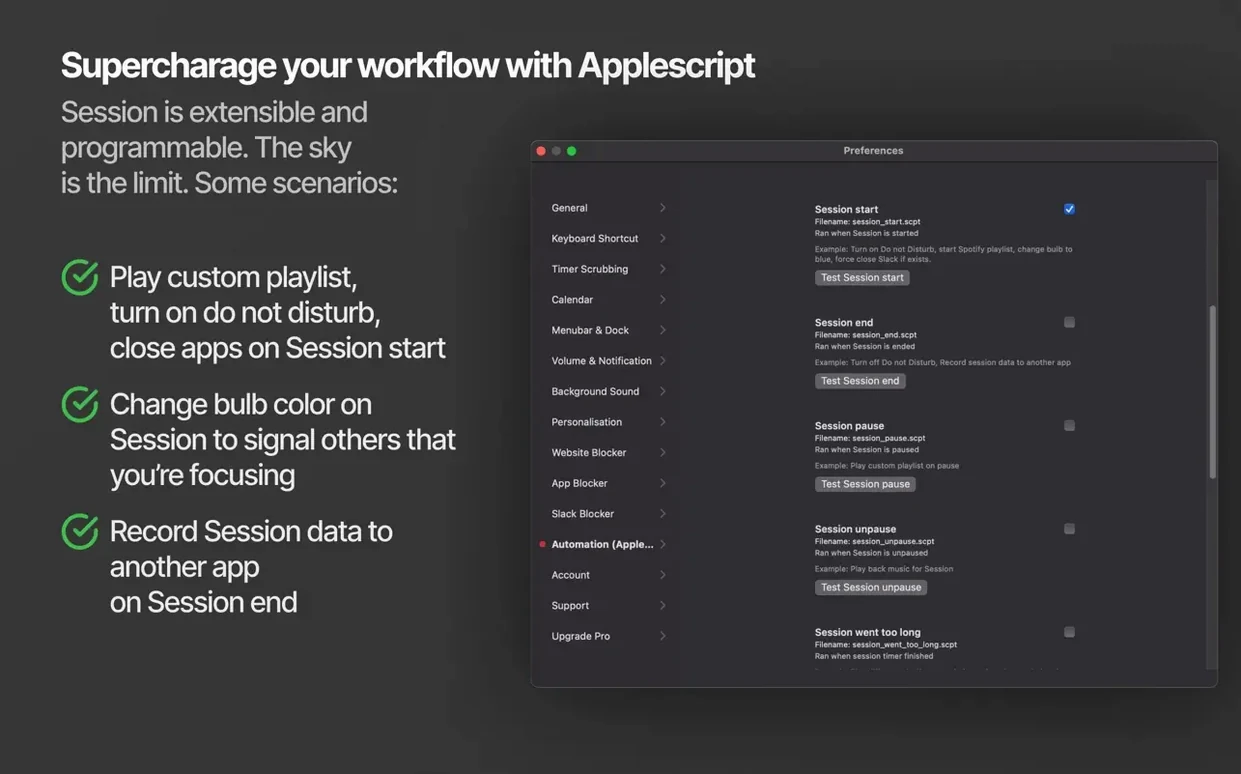
Slack muting and Do Not Disturb are automatic, but only if you have the relevant permissions set. On macOS, Session needs accessibility access to toggle Do Not Disturb reliably. If the automatic mute does not fire, check System Settings > Privacy & Security > Accessibility and confirm Session is listed and enabled.
The reminder about breaks shows up at the end of a work block. Some users miss it because they are already moving to the next task. The app does not force a break — it only reminds. If you tend to skip rests, treat the reminder as a hard stop.
Start with a task name and tap start to block distractions
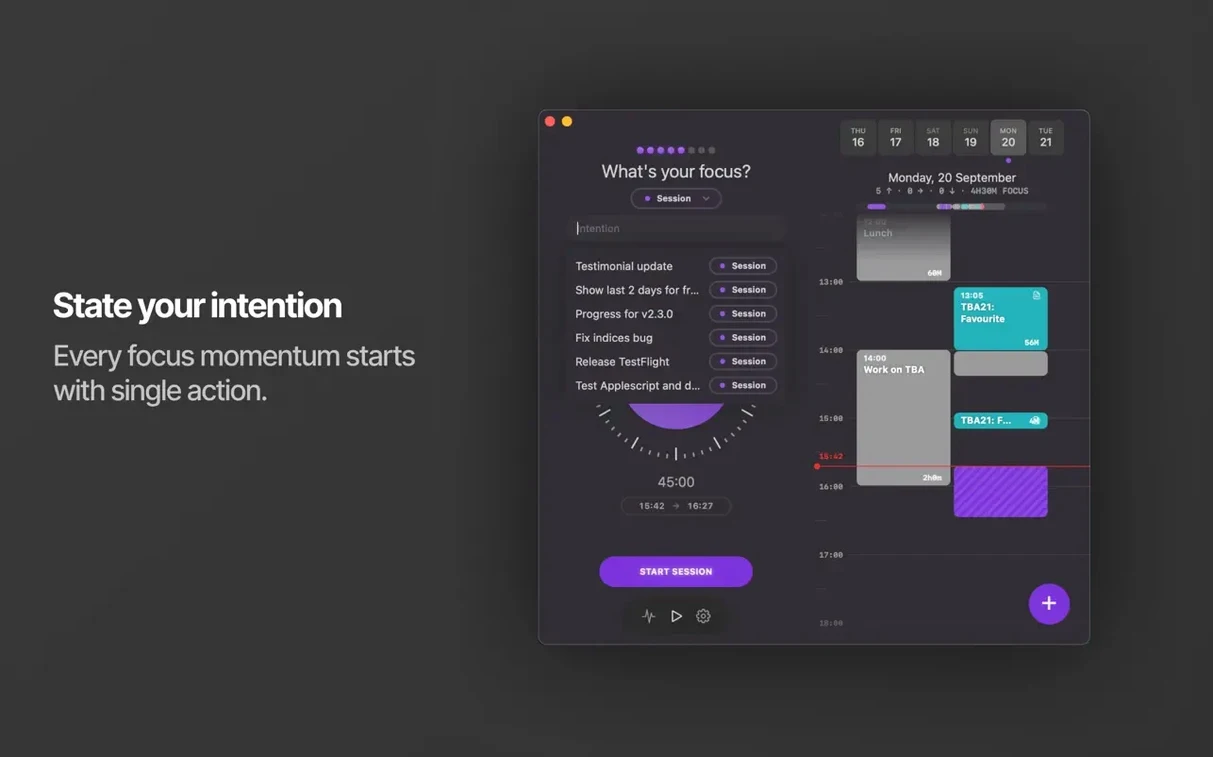
I start my morning by opening Session and signing in. The interface shows a clean timer and a task field. I type "mix revision for track three" into the task name and tap start.
Session immediately blocks the two websites I have listed — news and social media — and turns on Do Not Disturb. My Slack stays unmuted today because I am waiting for a client message, but on other days the automatic mute saves me from notification pile-up.
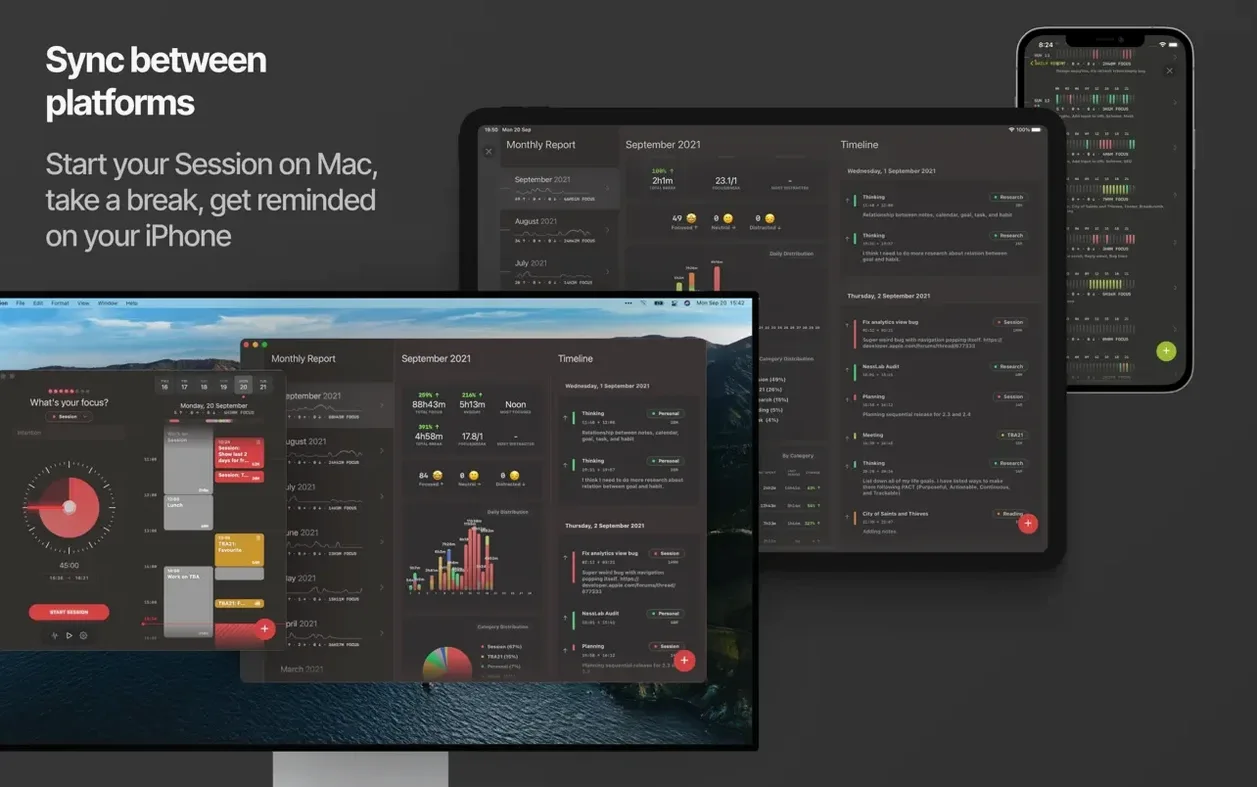
During the block, I work on the mix. The app sits in the menu bar, ticking away silently. I do not look at it. When the timer ends, a brief alert pops up: "Break time." I stretch, grab water, and check the calendar view for the rest of the day. The resize gesture fix from version 2.13.48 is noticeable here — the calendar responds without lag when I drag its edge.
After five minutes, the timer resumes for another block. I log what I accomplished: "adjusted EQ on the vocal bus, exported rough mix." Session stores that note against the session. By lunch, I have four completed blocks and a record of what each one produced.
At the end of the day, I review the session log. The app shows total focus time and a list of tasks with notes. That summary goes into my weekly planner. No separate time-tracking app needed.
Adds distraction blocking and Slack integration missing from Be Focused
Session vs. Be Focused. Be Focused is a straightforward Pomodoro timer with configurable intervals and a basic task list. It does not block websites or apps, and it has no automatic Do Not Disturb. Session adds distraction blocking and Slack integration, which makes it better for people who need environmental control, not just a countdown.
Session vs. Focus. Focus offers site blocking and a clean interface, but it lacks session logging. You can block distractions, but you cannot review what you learned during each block. Session's note-taking per session fills that gap for anyone who wants a written record, not just a timer.
Session vs. TomatoOne. TomatoOne is minimal — a timer and a stopwatch, no block lists, no notes. Session is for users who want the timer to actively shape their environment and preserve a history of their work.
Session log helps freelancers track client tasks for billing
Freelancers who juggle multiple projects benefit from the session log. You can see exactly how long each client task took and what you learned, which helps with billing and planning. The distraction blocking also helps when you work from home and need to resist the browser tabs.
Students writing papers or studying for exams get value from the automatic Do Not Disturb and site blocking. The app removes the temptation to check notifications, and the break reminders prevent burnout during long study blocks.
Knowledge workers who spend their day in Slack, email, and document editing will find the Slack mute and app blocking useful. The app does the discipline work for you. You do not have to remember to close Slack — Session does it when the timer starts.
Anyone who tracks their time for accountability, not just productivity, will appreciate the session notes. The app turns a simple timer into a lightweight time tracker that also captures context. That context is what makes Session more than a countdown.
Changes in this build
- Fix resize gesture on calendar.
Before it goes on the Mac
- macOS 10.15 Catalina or later
- Intel (x86) or Apple Silicon (ARM) architecture
- Requires signing in to any account
Questions from the room
Does Session Pomodoro Focus Timer work on Apple Silicon Macs?
Yes, it supports both Intel (x86) and Apple Silicon (ARM) Macs running macOS 10.15 Catalina or later.
Do I need to create an account to use the app?
Yes, the app requires signing in to any account before you can start a session.
Installing it on the Mac
- Open the downloaded disk image.
- Drag the app to the Applications folder alias.
- After copying finishes, launch the app from Launchpad.
- Sign in to any account to use the app.
Notes from the control room
Sign in or open a catalogue account to leave a note.
No notes from the room yet. If you have used this build for a week, a short note helps the next person.