Home › Mac Apps › OmniPlan Pro

OmniPlan Pro 4.11.0 (Mac)
Updated
The catalogue note
OmniPlan Pro supports critical paths, milestones, and multi-project dashboards. Before installing, people often ask about practical details. Here are the most common questions answered.
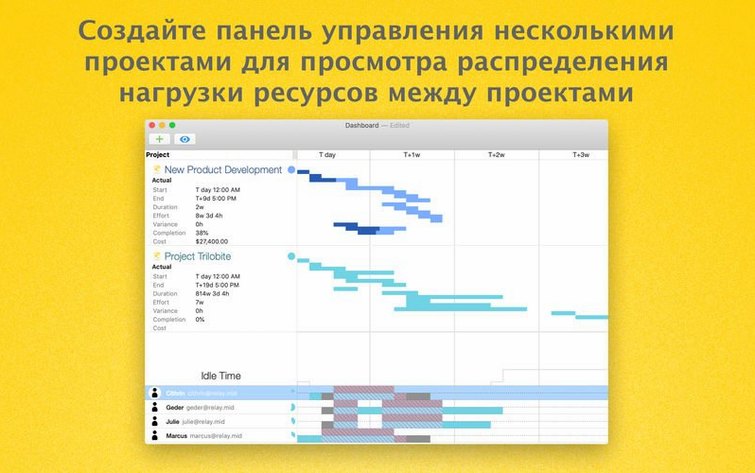
- Can it handle multiple projects at once? Yes, the Pro tier includes a multi-project dashboard that consolidates data across separate plans.
- What export formats are available? You can save documents as PDF, CSV, OmniOutliner, OmniGraffle, or ICS — useful for sharing with colleagues or other tools.
- Does it work with AppleScript? Yes, OmniPlan Pro includes AppleScript support for automating repetitive tasks.
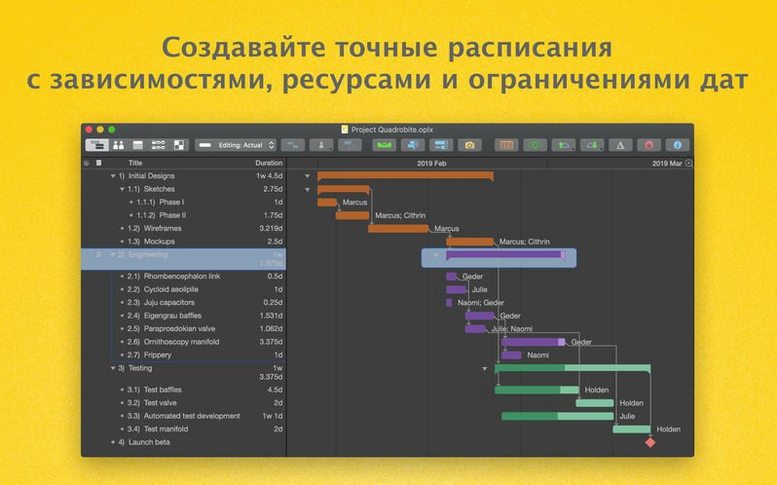
- Can I track dependencies and critical paths? Absolutely. The app highlights critical paths and lets you manage task dependencies, summaries, and milestones.
- How does collaboration work? You can share project data with colleagues and accept or reject changes individually or all at once.
- Is Intel Mac support included? Yes, the current version runs on both Intel and Apple Silicon Macs, requiring macOS 12 or later.
Adjust the built-in tutorial project to match your calendar
Start by opening the built-in tutorial project — it ships with the app and shows you the layout before you build anything from scratch. Spend an hour adjusting the calendar to match your organisation's working days and holidays; the default assumes a Monday-to-Friday schedule with no exceptions. Set up your resource pool early, naming people and equipment exactly as they appear in your other tracking systems. If you work with a team, configure the Omni Sync Server or WebDAV publishing before you create your first real project — retrofitting collaboration later means re-sharing the whole plan.
Keep the inspector panel visible during these first sessions. It reveals task constraints, resource allocations, and cost fields that are easy to miss when you rely only on the Gantt chart. Turn on the critical path display from the View menu so you see which tasks actually control your finish date from day one.
Compatibility fixes for macOS 14 and 15 plus performance improvements
Two changes matter for daily work. The compatibility improvements mean OmniPlan Pro now opens and saves correctly on macOS 14 and 15 — earlier versions could stall on certain dialog boxes after a system update. The second change is performance-related: editing a task that has dozens of assigned resources no longer causes a noticeable pause after each keystroke. If you manage a team of twenty or more people and assign several to each task, you will feel the difference when adjusting hours or changing task durations.
Don't assign resources at full capacity without accounting for non-project time
New users often assign resources at full capacity without accounting for meetings, email, or unplanned interruptions. OmniPlan can add days of absence to the calendar, but it does not guess that people spend two hours a day on non-project work — you need to enter that as reduced availability. Another common error is creating too many tasks at the same level instead of using summaries and milestones to group work logically. A flat task list makes the network diagram unreadable and hides the critical path behind noise.
People also overlook the change tracking feature. Once collaboration is active, every edit becomes a tracked change. Beginners accept or reject changes all at once without reviewing individual items, which can reintroduce old data or delete someone else's correction. Take the time to review changes per task when multiple people are editing the same plan. Finally, exporting to Microsoft Project format works well, but the reverse import sometimes loses custom fields and resource calendars if the source file was created in an older Project version. Test a small subset before migrating an entire portfolio.
Wednesday morning: open the master project from Omni Sync Server
Wednesday morning, nine o'clock. I open the master project file from the Omni Sync Server — the team has been editing it since Monday. The multi-project dashboard shows three active plans; I select the one for the office relocation because its critical path has shifted. The inspector shows that the electrical contractor moved their start date by two days. I check the resource graph: two electricians are now overallocated because they also appear on the ventilation project.
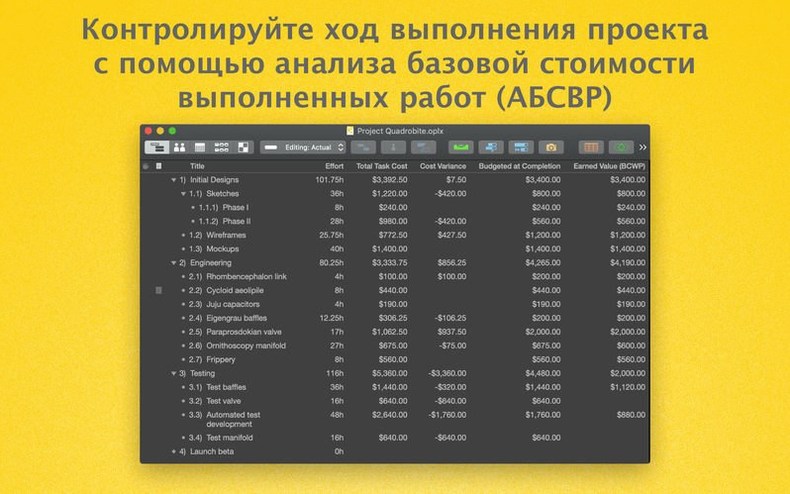
I drag the electrical task to start a day later and let OmniPlan re-level the resources automatically. The earned value analysis panel updates — the project is still within budget, but the schedule variance has turned slightly negative. I run a Monte Carlo simulation on the remaining tasks to see if the finish date still holds; the probability drops to 78 percent. Time to adjust.
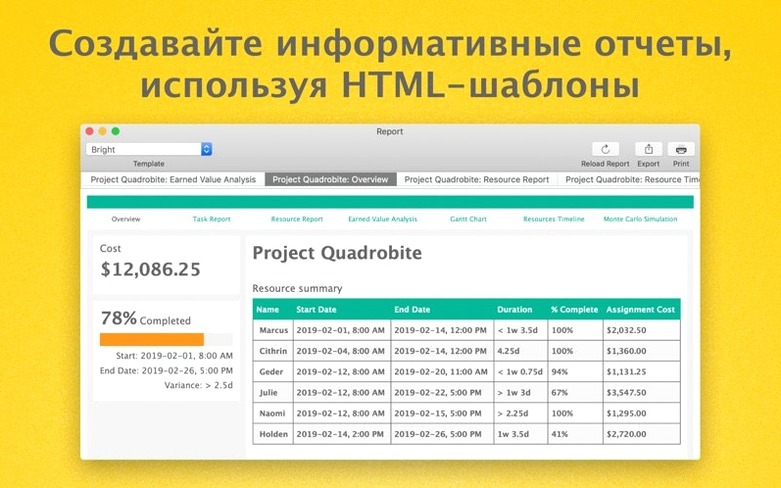
I split the cabling task into two parallel streams, assign a third resource from the pool, and re-run the simulation. The probability climbs back to 92 percent. I publish the updated plan to the sync server, then export a PDF report for the client and an ICS file for the building manager's calendar. Before closing, I open the change tracking view and accept the three approved changes from yesterday. Total time: about twenty minutes.
These details should help you decide whether OmniPlan Pro fits your workflow. Version 4.11.0 also improves editing performance for tasks with many resources assigned.
Changes in this build
- Improved compatibility with newer versions of macOS.
- Improved performance when editing a task with many assigned resources.
Before it goes on the Mac
- macOS 12 or later
- Intel or Apple Silicon
Installing it on the Mac
- Mount the disk image and launch Open Gatekeeper friendly.
- Press Enter in the Terminal window to bypass Gatekeeper.
- Drag the app into the Applications folder.
- Start the app after installation.
Notes from the control room
Sign in or open a catalogue account to leave a note.
No notes from the room yet. If you have used this build for a week, a short note helps the next person.