
Home › Mac Apps › Nitro PDF Pro
Nitro PDF Pro 13.3.1 (Mac)
Updated
The catalogue note
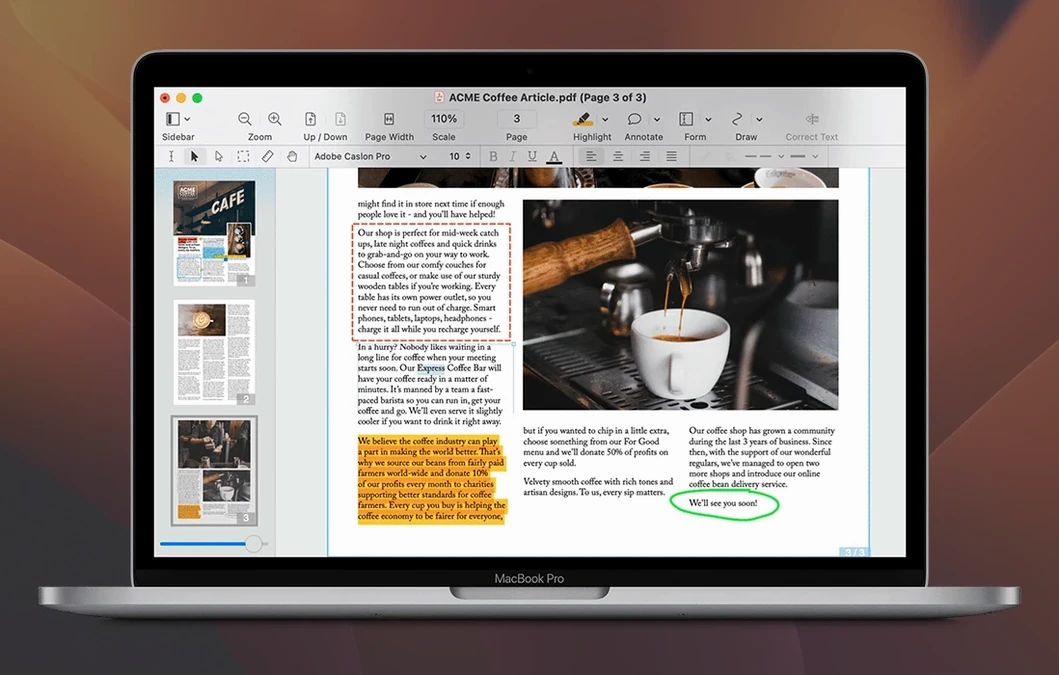
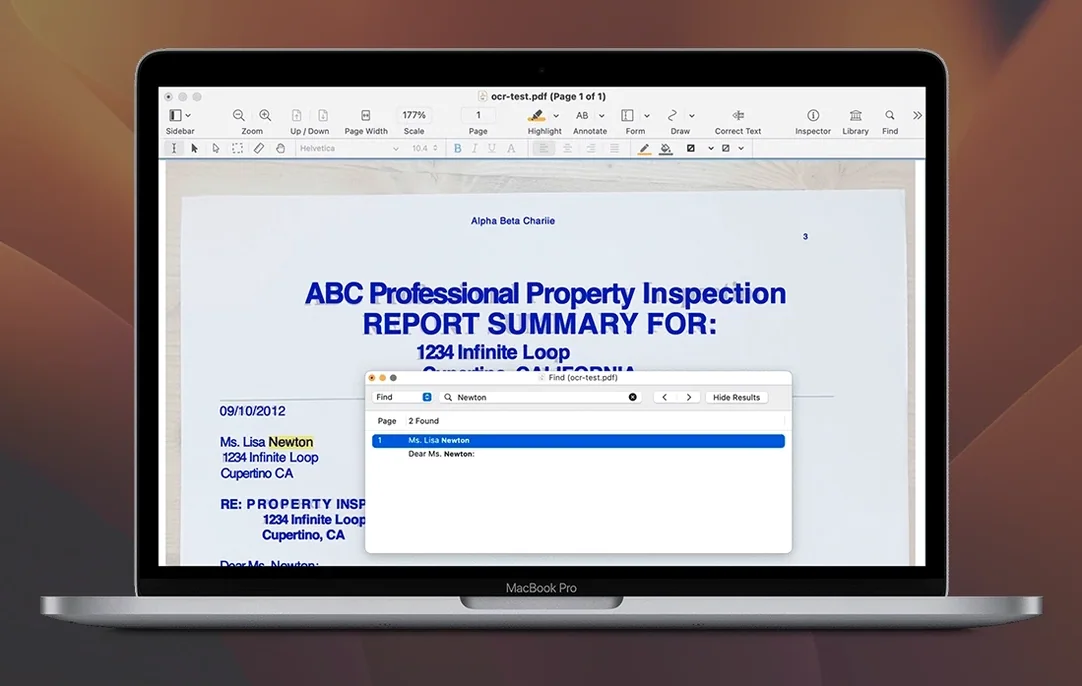
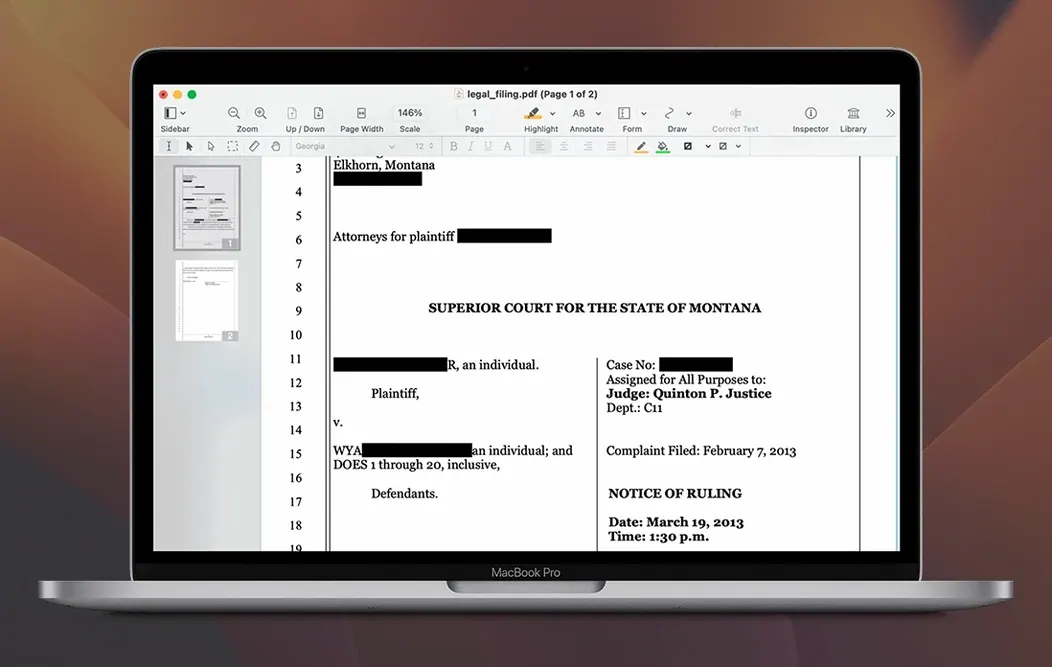
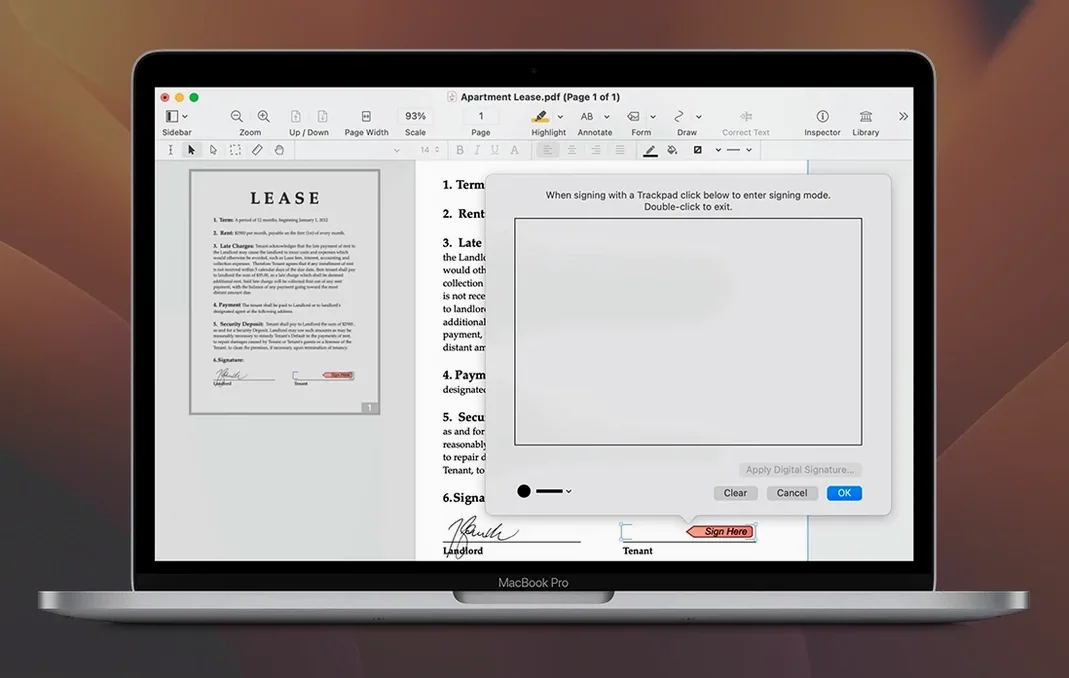
If you already work with PDFs on a Mac—marking up drafts, filling forms, or merging documents—you know the limitations of Preview and the web-based editors that vanish the moment you lose signal. Nitro PDF Pro for macOS sits on your drive and does the things a studio engineer expects from a proper tool: edit text blocks directly in the original PDF, run OCR on scanned pages, build cross-platform fillable forms, and annotate with highlights, underlines, comments, or even audio. It also handles the structural jobs: create a table of contents, assemble a document portfolio from related files, convert a website into a multi-page PDF with live hyperlinks, and add headers, footers, watermarks, or line numbers.
- Mount the disk image and launch the installer. macOS may flag it as an unverified developer. That is normal.
- Open Terminal (in /Applications/Utilities) and type
sudo spctl --master-disable, then press Enter. Enter your admin password when prompted. This tells Gatekeeper to allow the app to open once. - Drag Nitro PDF Pro from the mounted image into your Applications folder.
- Launch the app. After the first successful run, you can re-enable Gatekeeper with
sudo spctl --master-enableif you prefer.
Record voice notes directly into a PDF
A few features in Nitro PDF Pro sit outside the obvious editing workflow but save time once you know they are there. Audio annotations are one: you can record a voice note directly into a PDF and play it back inside the document. Handy for reviewing drafts without typing or for adding spoken instructions to a form that gets passed around a team.
Copying rich text from a PDF into another document preserves fonts and formatting, including text that runs in columns. That sounds minor until you try to paste a table-heavy paragraph into Word and get a single line of jumbled characters. Nitro handles the column structure.
The ability to add, view, and extract file attachments and annotations means you can embed supporting documents inside a single PDF portfolio rather than emailing a zip file. Related to that: you can create editable tables of contents and document portfolios, which is useful when assembling a final deliverable from multiple source files.
Batch processing and automation are mentioned in the official documentation. You can apply repetitive actions—converting, OCR-ing, or watermarking—across multiple files without opening each one individually. The automation is not scripted like Apple's Automator, but it reduces manual repetition for common tasks.
Editable text blocks still respect the original PDF layout
People new to Nitro PDF Pro sometimes expect to edit a PDF the same way they edit a Word document. The editable text blocks in Nitro are live, but the original PDF layout can limit how much you can move or resize text without breaking alignment. If a paragraph refuses to reflow, try adjusting the text block boundaries rather than the font size.
OCR on scanned documents works best when the source scan is clean—straight, at least 300 DPI, no handwritten notes over the text. Blurry or skewed pages produce more recognition errors. If you get garbled output, re-scan the page with a flatbed scanner and run OCR again.
Gatekeeper warnings during installation are the most common stumbling block. The steps described earlier (disabling Gatekeeper via Terminal) are the standard workaround. After the first successful launch, you can re-enable Gatekeeper without affecting the app.
Forms you create in Nitro PDF Pro should be tested in a second PDF reader before distribution. Cross-platform fillable forms generally work, but some interactive elements (date pickers, calculated fields) behave differently in Apple's Preview versus Adobe Acrobat. Test in the reader your recipients actually use.
Lighter than Acrobat Pro but less scriptable than PDF Expert
Adobe Acrobat Pro for Mac remains the full-featured benchmark. It has deeper form scripting, more advanced redaction tools, and better integration with cloud services.
PDF Expert by Readdle is lighter and faster for everyday annotation, text editing, and form filling. Its interface is cleaner, and it handles large documents well. What it lacks compared to Nitro is the same level of OCR reliability on scanned pages and the ability to create fillable forms from scratch. PDF Expert can fill forms, but building them is limited.
LibreOffice Draw can open and edit PDFs at no cost, but the workflow is indirect: you import the PDF as a drawing, edit it, and export back to PDF. Text reflow and font preservation are hit or miss. For a free option it works in a pinch, but it is not a dedicated PDF editor.
Nitro PDF Pro sits between these options. For the Mac user who needs to edit, sign, and convert PDFs regularly, it is a practical middle ground.
13.x line fixed text block selection on Apple Silicon Macs
Current version is 13.3.1. The main changes in the 13.x line have been around stability and compatibility with newer macOS releases. Earlier versions had occasional issues with text block selection on Apple Silicon Macs; those have been smoothed out. The app now runs natively on both Intel and ARM architectures without Rosetta translation, which keeps launch times and memory usage predictable.
OCR processing in version 13 has improved recognition accuracy on multi-column documents and mixed-language pages. The batch processing tools also gained better progress reporting, so you can see which file in a queue is being processed rather than waiting for a generic progress bar.
For users converting PDFs to Office formats, the latest versions preserve more formatting elements—tables, bullet lists, and embedded images—than the 12.x releases did. It is not perfect, but the output requires less manual cleanup.
The whole process takes two minutes.
Before it goes on the Mac
- macOS 10.14 Mojave or later
- 1 GB RAM
- Up to 2 GB free disk space
- Display resolution: 1280×800 or higher
- Intel or Apple Silicon Mac
Installing it on the Mac
- Mount the disk image and run the installer. macOS may show a Gatekeeper warning — this is expected for unsigned builds.
- Open Terminal from /Applications/Utilities, type
sudo spctl --master-disableand press Enter. Enter your admin password to temporarily disable Gatekeeper. - Drag the Nitro PDF Pro app into your Applications folder.
- Launch the app. Once it opens, you can re-enable Gatekeeper with
sudo spctl --master-enableif desired.
Notes from the control room
Sign in or open a catalogue account to leave a note.
No notes from the room yet. If you have used this build for a week, a short note helps the next person.
Also filed under Mac Apps
The whole Mac Apps rack m’s HalfTone1.5.3 Mac Apps 6 MB
 Movavi Video Suite22.4.1 Mac Apps 294 MB
 OmniGraffle Pro7.26 Mac Apps 73 MB
 OmniPlan Pro4.11.0 Mac Apps 100 MB
 OmniReader Pro3.4.4 Mac Apps 33 MB
 ON1 Photo RAW27.0.3 Mac Apps 1.1 GB Updated
 MotionVFX mModules Mac Apps 5 MB
 MotionVFX - mLowers Universal for FCP Mac Apps 71 MB