Home › Mac Apps › Movavi Video Suite

Updated

The catalogue note
Version 22.4.1 of Movavi Video Suite addresses a shutdown issue that occurred while working with titles, and adds new music tracks. The symbol for applied effects has also been updated.
Here is a typical workflow that shows what the suite can do:
- Record your screen with the built-in screen recorder, using mouse cursor effects to highlight important moments.
- Import footage, including files transferred from a phone over the network directly into the program.
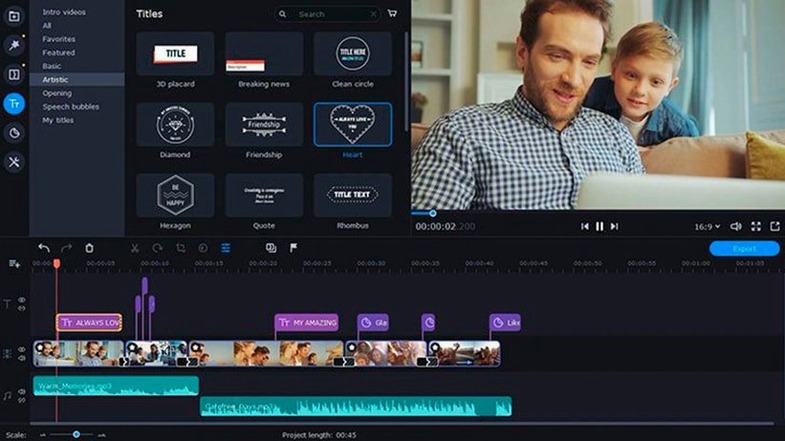
- Edit the video using the suite’s editing tools – trim, apply effects, add the new music tracks, and work with titles without the program shutting down.
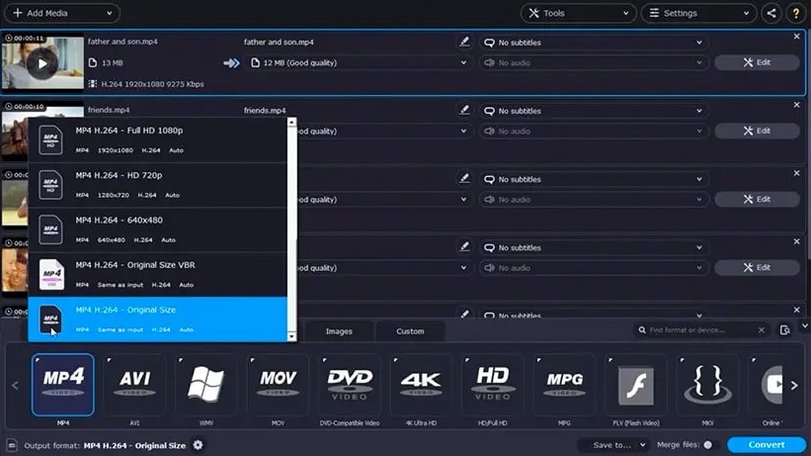
- Convert the finished project, or batch-convert multiple files at once using the file conversion tools.
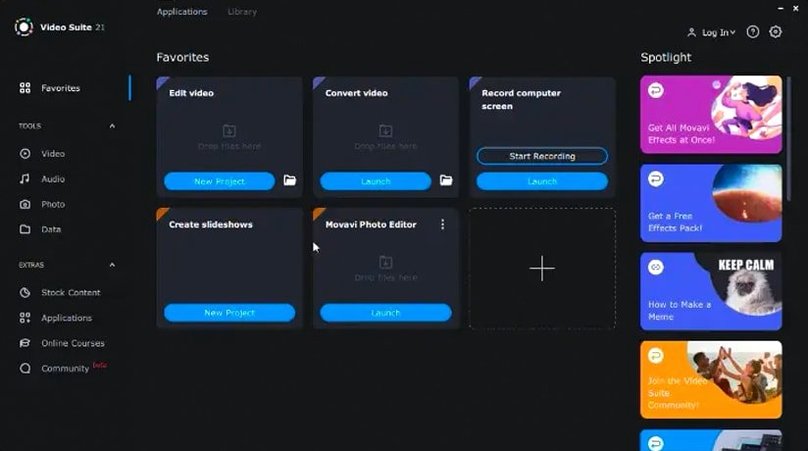
Movavi Video Suite combines video editing, file conversion, and screen recording in one application. The interface is in English, and the software runs on macOS 10.13 or later on Intel-based Macs.
Three tools in one window trips up new users
The suite bundles three tools in one window, and that breadth can trip up new users. A few patterns I see regularly in studio and remote-work contexts:
- Recording without checking the audio source. The screen recorder captures system sound and can add audio commentary, but the default input might be the built-in mic rather than an external one. Beginners often record a walkthrough only to find the commentary is quiet or missing. It is worth selecting the correct microphone before you hit record.
- Skipping the mouse cursor effects setup. The suite can highlight cursor clicks and movements, but the effects are not on by default. New users sometimes record a tutorial and later realise the cursor is invisible against a busy background. Enable the effects in the recording panel beforehand.
- Overlooking batch conversion settings. The file conversion tool supports more than 180 formats and can handle multiple files at once. Beginners tend to convert files one by one, missing the time-saving batch option. You can drag several files in, set a single output format, and let the suite process them together.
- A common mistake is to add a subtitle file and expect it to sync perfectly without checking the start and end points.
Combines recording, editing, and converting in one app
Movavi Video Suite sits in a category that includes iMovie, HandBrake, and OBS Studio. Each covers part of what Movavi does, but none combine all three functions in one app.
iMovie (included with macOS)
iMovie handles video editing well for basic projects and is free with the system. It lacks a screen recorder and a batch file converter. If you only edit occasional clips, iMovie is enough. If you need to record your screen and then convert the result to a different format, you end up switching between two or three separate tools. Movavi keeps that workflow in one window.
HandBrake (open-source converter)
HandBrake is a solid choice for converting video files between formats. It supports presets and batch processing, and it runs on Intel Macs. It does not edit video or record the screen. For a user who needs a quick conversion from one format to another, HandBrake works fine. For someone who wants to record a tutorial, trim it, add subtitles, and export to a specific format, Movavi removes the step of opening a second application.
OBS Studio (open-source screen recorder and streamer)
OBS Studio is powerful for screen recording and live streaming, with extensive source management and scene switching. It does not include video editing tools or file conversion. You record in OBS, then open a separate editor and a separate converter. Movavi’s advantage is integration: you record, edit, and convert without exporting intermediate files to another program.
None of these three apps offer the all-in-one approach of Movavi Video Suite. The trade-off is that each specialist tool goes deeper in its own area. The suite trades some depth for convenience.
Best for remote workers and educators making training videos
The suite is best suited to users who need to move between recording, editing, and converting in a single session. Three groups benefit most:
- Remote workers and educators. If you create training videos, record meetings, or produce short instructional clips, the screen recorder with audio commentary and cursor effects covers the capture side. The editing tools let you trim out mistakes and add titles. The converter handles output for different platforms – MP4 for upload, MOV for archival.
- Video hobbyists who work with varied source material. Users who receive footage from phones, cameras, and downloads often need to convert files before editing. The suite’s network transfer feature lets you pull files from a phone directly into the program, and the batch converter can normalise a folder of mixed formats before you start cutting.
- Users who prefer a single-install solution. Some people do not want to maintain three separate apps with different update schedules and interfaces. Movavi Video Suite installs once and provides a consistent workflow. This is especially relevant on older Intel Macs where running multiple applications simultaneously can be a constraint.
Transfer files from phone over network without cables
Based on the version 22.4.1 facts, a few details are worth knowing:
- Network file transfer. You can transfer files from a phone over the network directly into the program. This avoids cables and cloud uploads for short clips.
- Updated effects symbol. Version 22.4.1 changed the symbol used for applied effects. If you previously saw an icon that was hard to distinguish from the timeline, the new symbol is clearer at a glance.
- New music tracks. The update added fresh music tracks. These are royalty-free and can be used in projects without sourcing external audio.
- Shutdown fix for titles. The program no longer shuts down while working with titles. This might sound minor, but it makes a real difference if you spend time adjusting title placement and timing.
For users looking to get the software, terms such as movavi video suite torrent, movavi torrent, movavi mac torrent, or movavi video torrent sometimes appear in search results. The current version is 22.4.1, dated August 2022, and it runs on macOS 10.13 or later on Intel-based Macs.
Changes in this build
- Fixed a shutdown issue when working with titles
- Added new music tracks
- Updated the symbol for applied effects
Before it goes on the Mac
- macOS 10.13 or later
- Intel-based Mac
Questions from the room
Can Movavi Video Suite convert multiple files at the same time?
Yes, it can convert multiple files simultaneously using its file conversion tools.
Does it include screen recording features?
Yes, it includes screen recording tools with mouse cursor effects to highlight important moments.
What is new in version 22.4.1?
It fixes a shutdown issue while working with titles, adds new music tracks, and updates the symbol for applied effects.
Installing it on the Mac
- Mount the disk image and open Gatekeeper friendly.
- Press Enter in the Terminal window to bypass Gatekeeper.
- Complete the standard installation procedure.
Notes from the control room
Sign in or open a catalogue account to leave a note.
No notes from the room yet. If you have used this build for a week, a short note helps the next person.