Eagle 4.0.0 (Mac)
Updated

The catalogue note
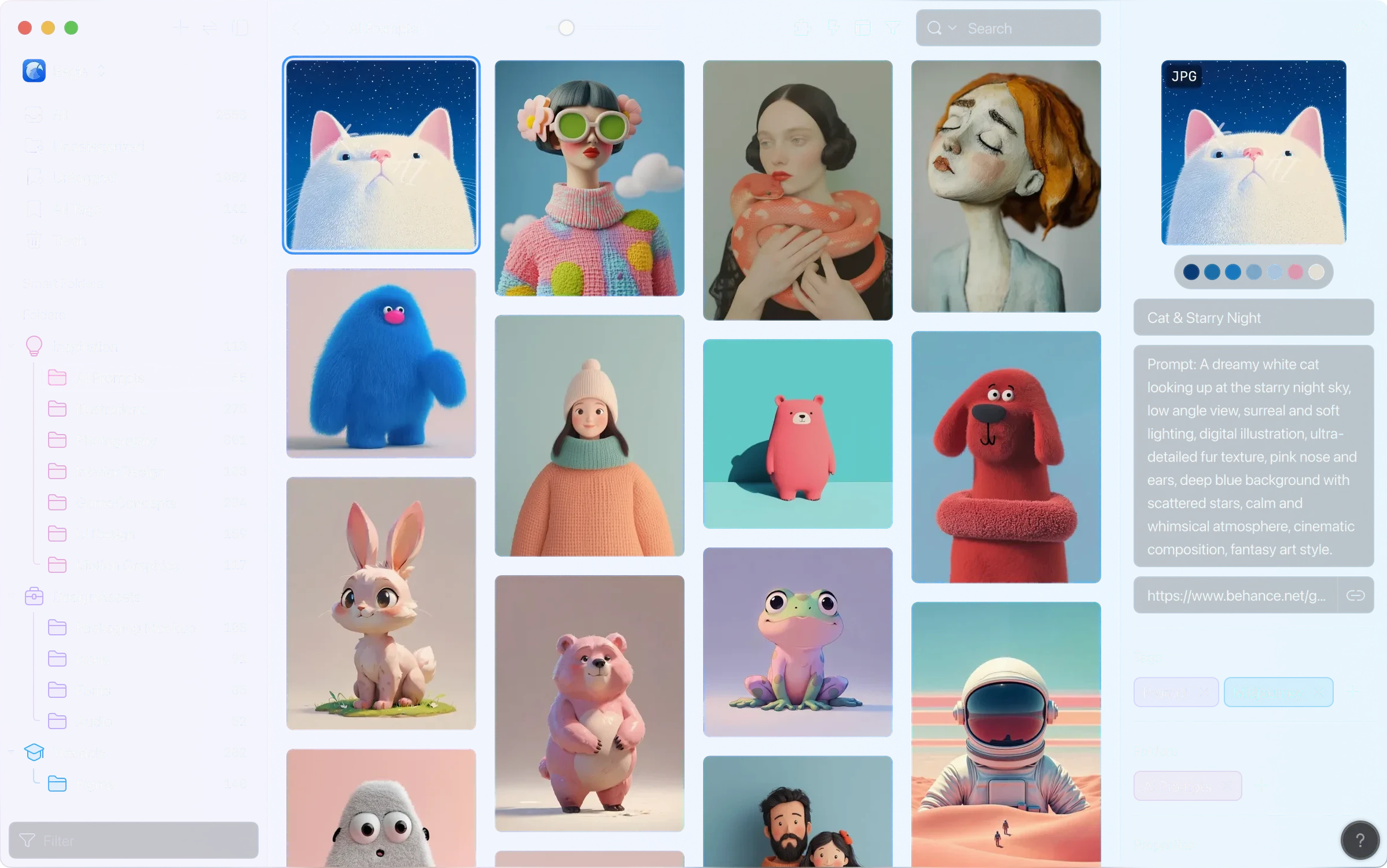
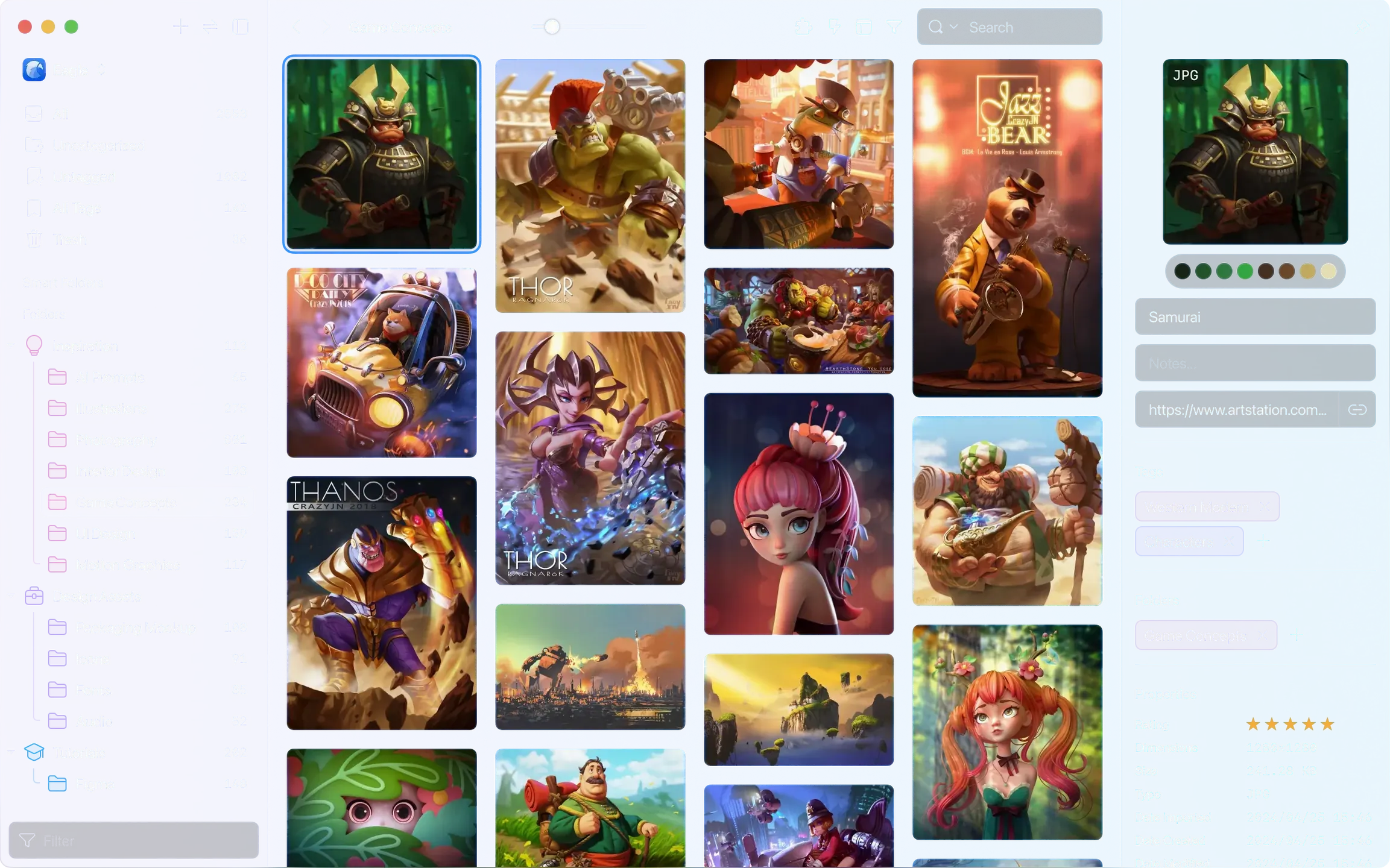
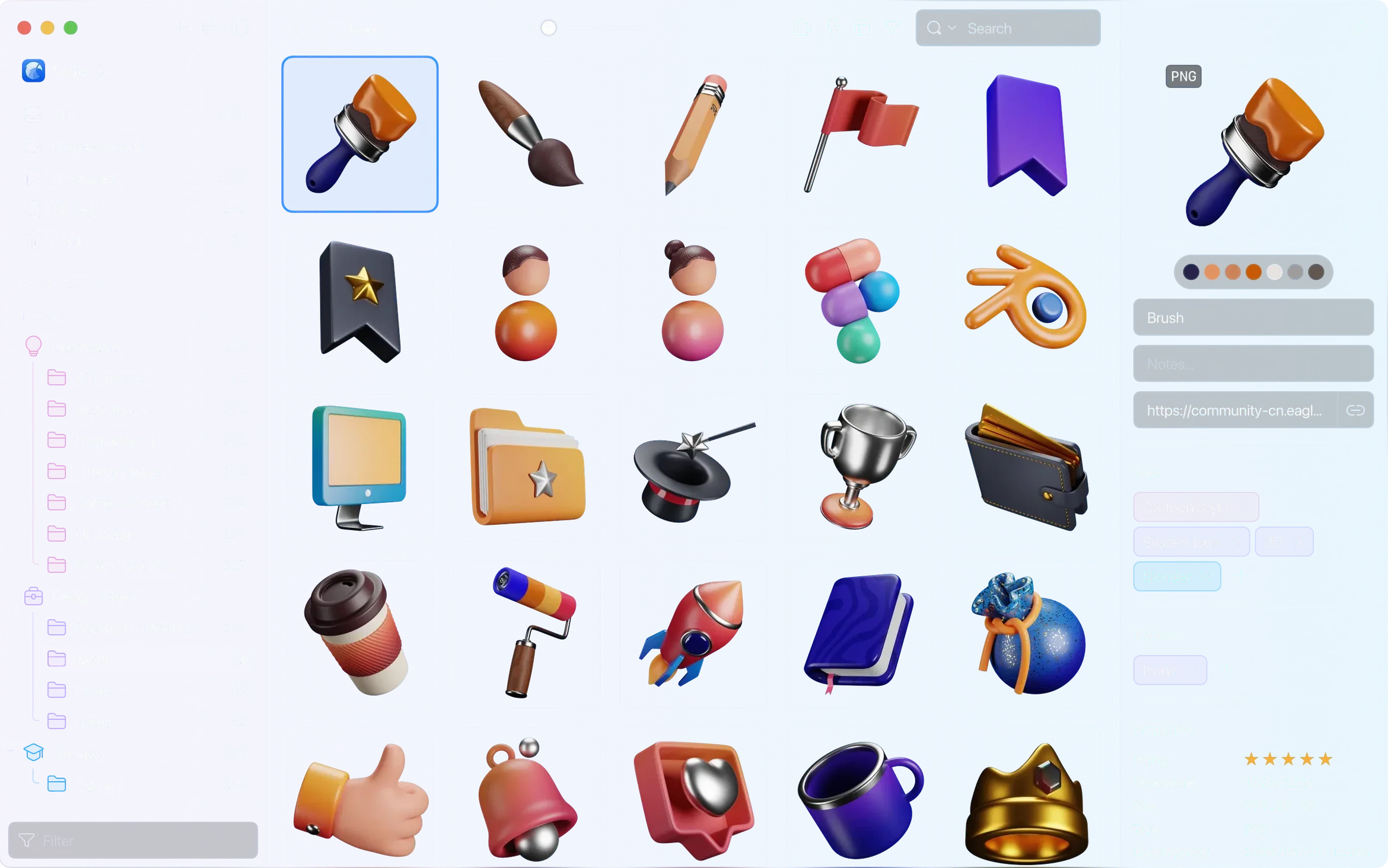
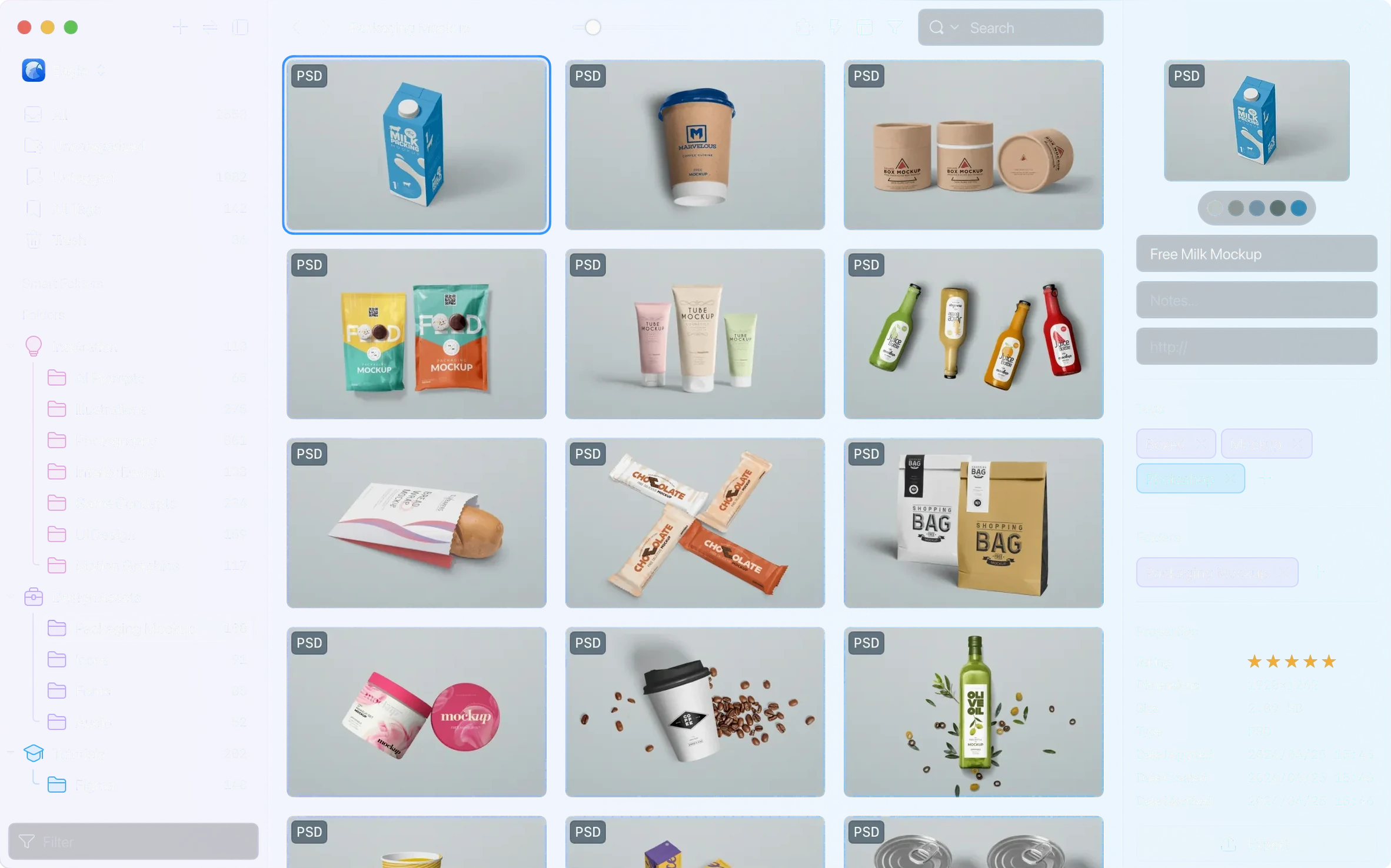
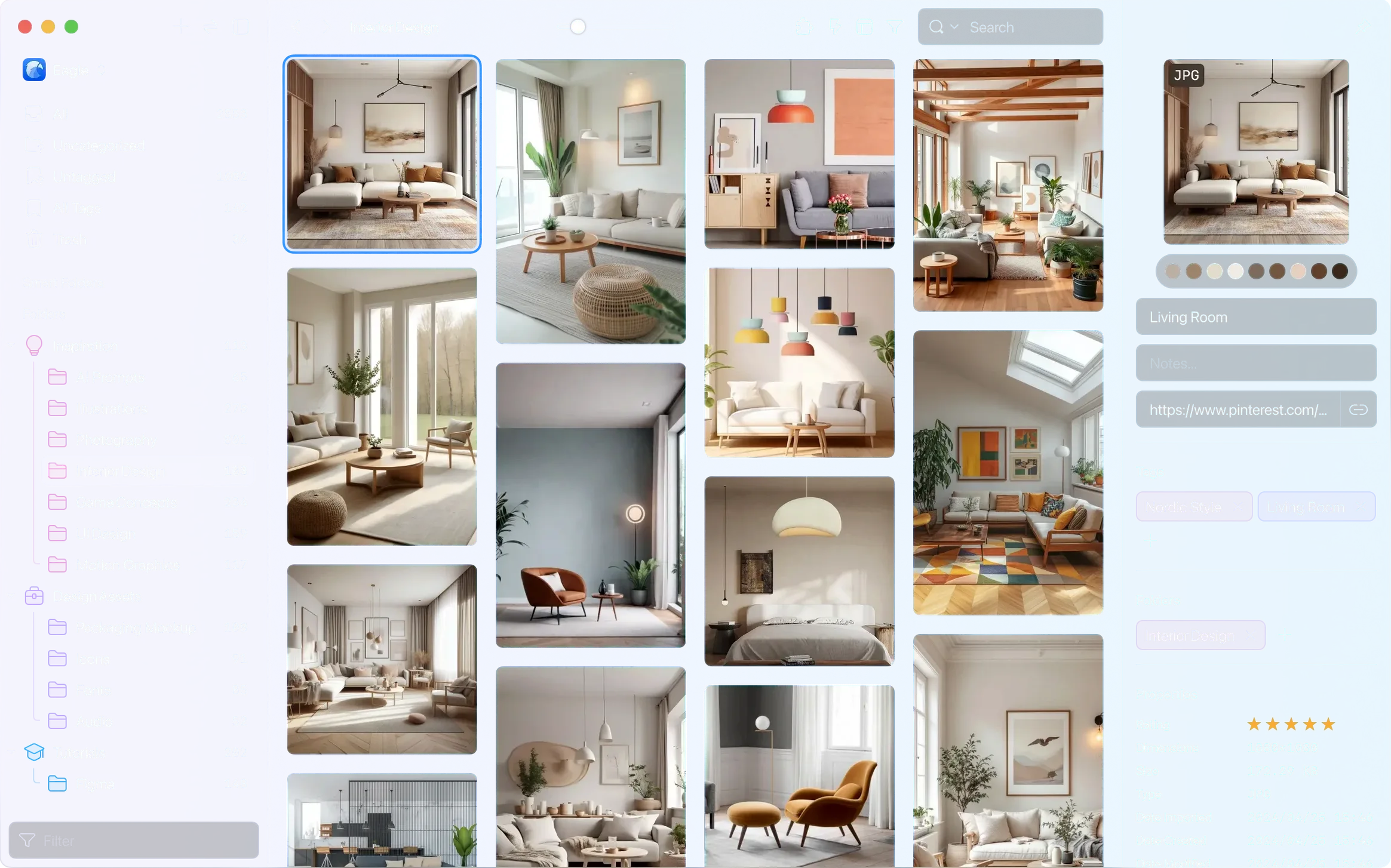
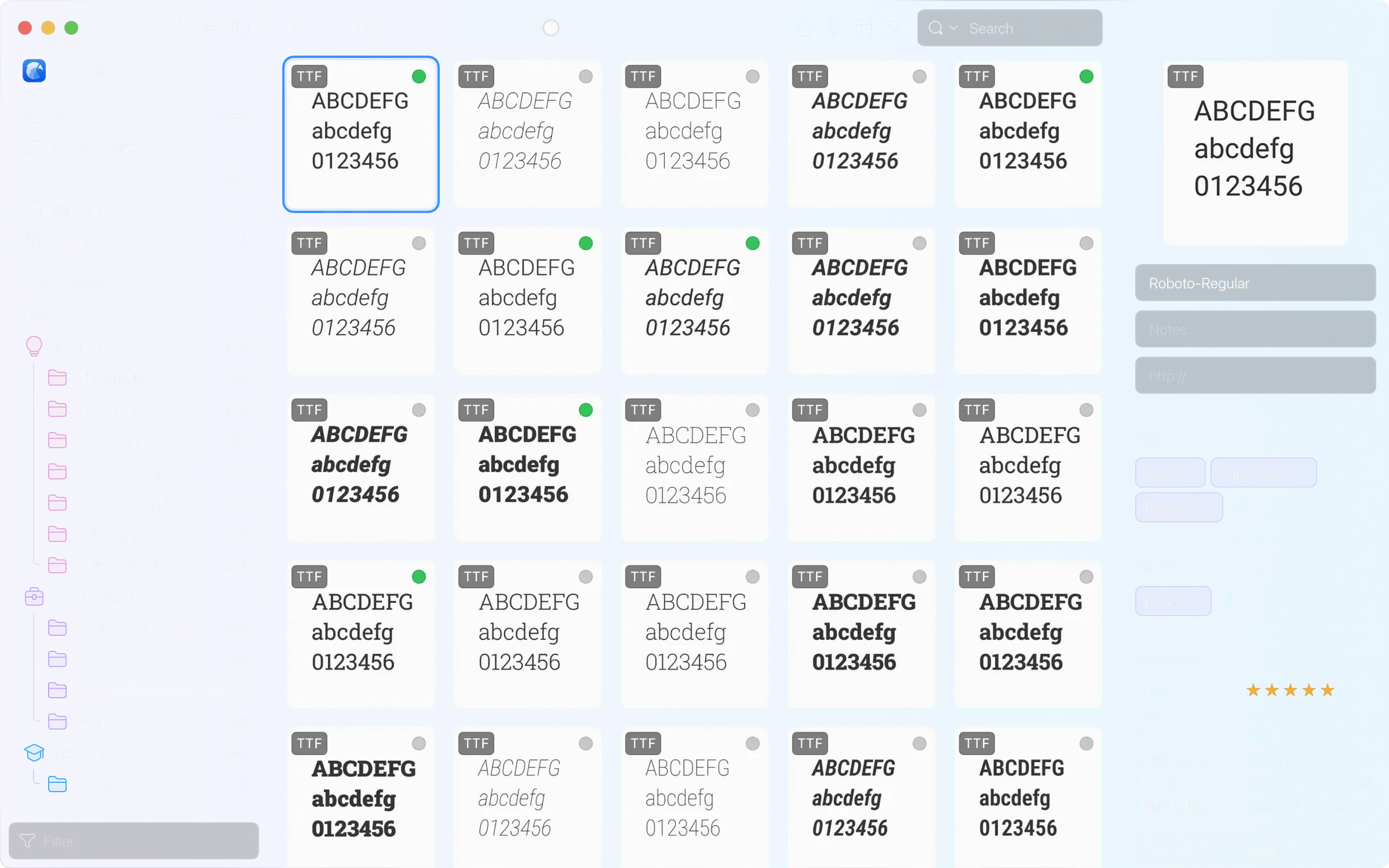
If you have ever managed a folder full of screenshots, PSDs and reference images, you know the pain of finding the right file later. Eagle treats those files as a library, not a pile. It collects images, video, fonts, icons, mockups, 3D models, PSD, AI, Figma and PDF files in one place, and it is built specifically for macOS.
The first thing to try is auto-import. Point Eagle at a folder you already use, and it pulls everything in without you dragging files one by one. Once inside, the layout panel lets you switch thumbnail sizes — version 4.0 even adds a display control option there. Hover over an AVIF image and you get a preview, which is handy if you work with modern web formats.
Search is where Eagle earns its keep. The new advanced search supports OR, AND and parentheses, so you can combine terms like logo AND blue or mockup OR poster. Filters for colour, size, shape, file type and date narrow things further. You can also check the metadata panel for colour palettes and fonts, or rate and annotate images directly.
Finally, if you are constantly saving things from the browser, install the extension for Safari, Chrome, Edge or Firefox. It grabs images, GIFs, videos and full pages straight into Eagle. That, plus unlimited folders and subfolders, should keep your references in order from day one.
Auto-import tab adjusts Eagle to your workflow
A fresh Eagle installation works well out of the box, but a few adjustments make it feel like your own system rather than a generic one. Head to the preferences and look for the auto-import tab first. If you keep a Downloads folder full of reference material, point Eagle at it and let it watch that folder. Every new screenshot or image you save from the web lands in your library automatically, no extra drag-and-drop needed.
Next, set up your tag colour scheme. Eagle supports multi-level coloured tags, so you can assign red to “client work”, blue to “personal projects” and green to “tutorials”. A few minutes of planning here saves scrolling through hundreds of unlabelled files later. Smart folders are another early win: create one that collects everything with a rating of four stars or higher, or one that gathers all PNG files under 1 MB. The rules run in the background, so the folder updates itself as your library grows.
If you work across multiple projects, enable multiple libraries. Store one on your internal drive for active work and another on an external drive for archived client assets. Eagle handles the switching without complaint, and you can keep the two worlds separate.
Eagle runs natively on Intel and Apple Silicon Macs
Does Eagle work on older Macs? Yes, it runs on macOS 10.15 and later, and it supports both Intel and Apple Silicon Macs natively. There is no separate version to download — the same disk image works on both architectures.
Do I need to activate or sign in to use it? No. The app does not require activation, an account or an internet connection to function. You download it, drag it to Applications and it is ready to go. This also means your library stays on your machine and external drives, not on someone else’s server.
What about files that are not images? Eagle supports more than 80 file types, including PSD, AI, Figma files, PDFs, fonts and 3D models. The built-in viewer can handle layered PSD previews, GIF animations, video clips and font samples, so you rarely need to open the original application just to check what a file contains.
Can I move my existing folder structure into Eagle? You can, but the app works best when you let it organise by tags, ratings and smart folders. If you prefer a traditional hierarchy, Eagle supports unlimited folders and subfolders. You can also export to different folder structures if you ever need to share files with someone who does not use the app.
Does the browser extension work with all major browsers? Extensions are available for Safari, Chrome, Edge and Firefox. They let you save images, GIFs, videos and even full-page screenshots directly into your library without saving to the desktop first.
Audio files longer than one hour now play back fully
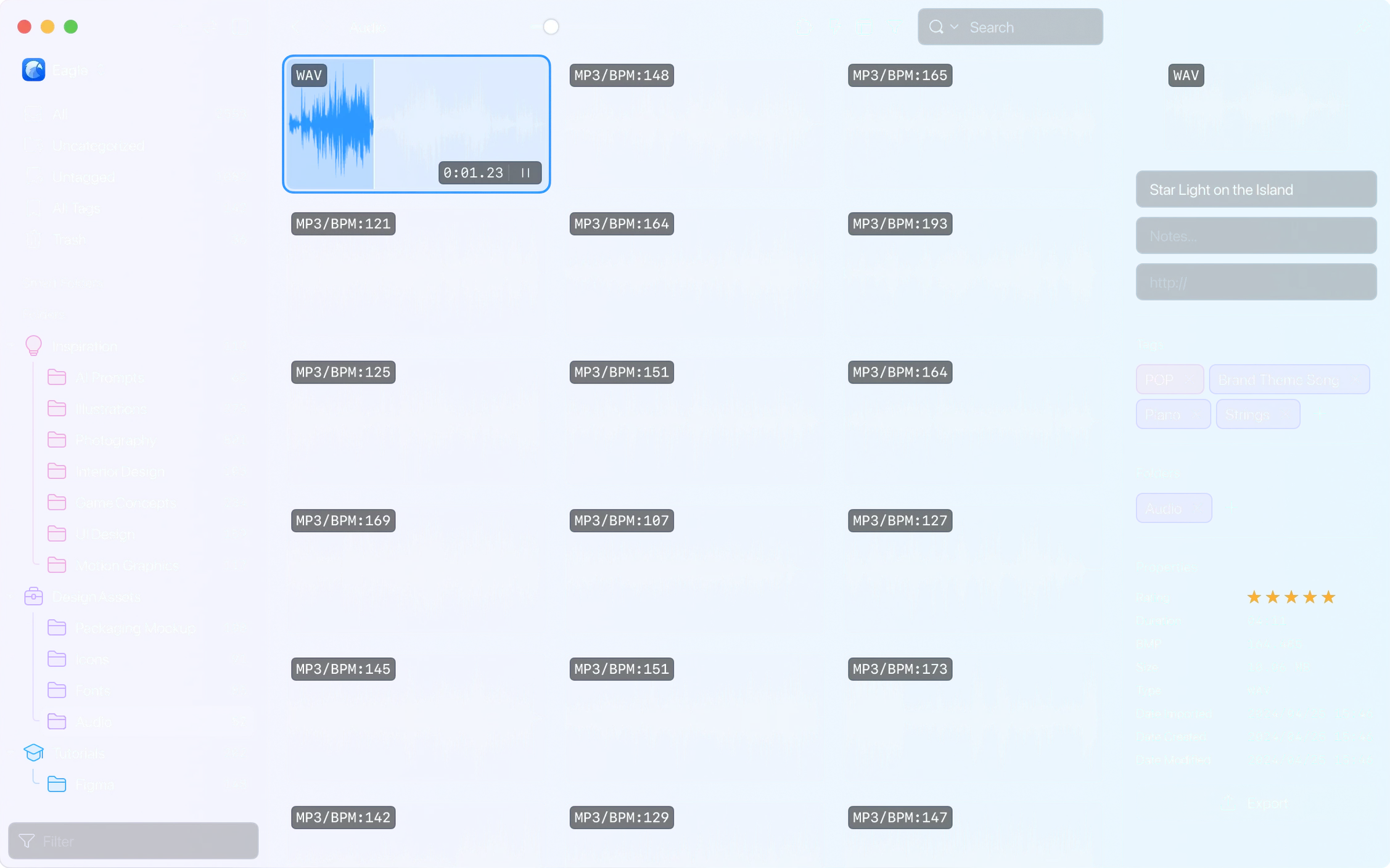
Version 4.0.0 build 11 (20250627) introduced a handful of practical improvements. The most noticeable for anyone working with audio reference material is support for audio files longer than one hour. If you keep podcasts, long interviews or sound design sketches in your library, they now play through without cutting off at the sixty-minute mark.
The layout panel gained a thumbnail display control option. This lets you fine-tune how thumbnails appear in grid view, which matters when your library contains a mix of portrait, landscape and square assets. The hover preview feature now covers AVIF images, so if you design for modern web workflows, you can inspect those files without opening them in a separate editor.
Two new actions appear in the right-click menu: remove a specified folder and remove a specified tag. These sound minor, but they save time when cleaning up imported collections or renaming a tag scheme. The similar-image detection limit increased to 128 MB, which means larger source files are now compared for duplicates — useful if you work with high-resolution photography or layered PSDs.
One bug fix addresses a macOS annoyance: the main window no longer pops open unexpectedly after taking a screenshot. Anyone who captures reference images regularly will appreciate that the app stays out of the way until you call it.
Changes in this build
- Supports audio files longer than one hour.
- Adds thumbnail display control options in the layout panel.
- Adds hover preview support for AVIF images.
- Adds actions to remove a specified folder and remove a specified tag.
- Fixes a macOS issue where the main window could open unexpectedly after taking a screenshot.
Before it goes on the Mac
- macOS 10.15 or later
- Intel or Apple Silicon
- No activation required
Installing it on the Mac
- Mount the downloaded disk image.
- Drag the app into the Applications folder alias.
- After copying finishes, launch the app from Launchpad.
Notes from the control room
Sign in or open a catalogue account to leave a note.
No notes from the room yet. If you have used this build for a week, a short note helps the next person.