Home › Mac Apps › DxO PhotoLab
DxO PhotoLab 9.10.0 (Mac)
Updated
The catalogue note
Over 600 cameras and a lens database measured in a lab — that's the foundation DxO PhotoLab has built its name on. Version 9.10.0 keeps that core intact while refining the tools around it. DeepPRIME XD3 handles Bayer and X-Trans sensors with AI-based noise reduction, and DxO Smart Lighting lifts shadows without the halo artefacts you get from a simple exposure push.
| Detail | Value |
|---|---|
| Developer | DxO Labs |
| Version | 9.10.0 |
| Category | Apps |
| macOS | 14.7 or later |
| Architecture | Intel and Apple Silicon |
| Languages | English, German, Simplified Chinese, French, Japanese |
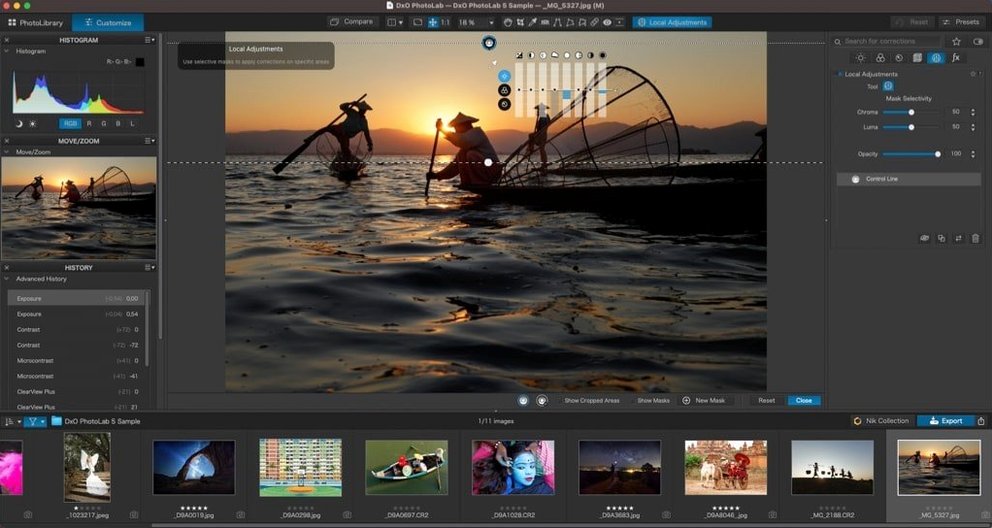
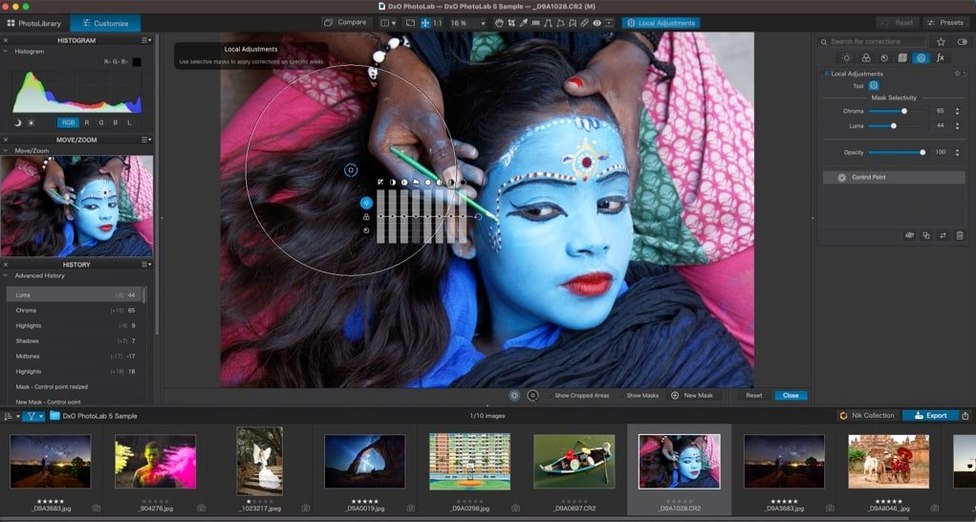
The workflow hasn't changed drastically: you still get U Point for local adjustments, AI Masks for skies, people and animals, and edit synchronisation between images via quick-select Subject Types. What's new in 9.10.0 is mostly under the hood — deeper RAW support and refinements to the existing engine. If you already know PhotoLab, you'll feel at home; if you're new, the manual control over automated corrections is where the power sits.
Point PhotoLab at your own RAW files first
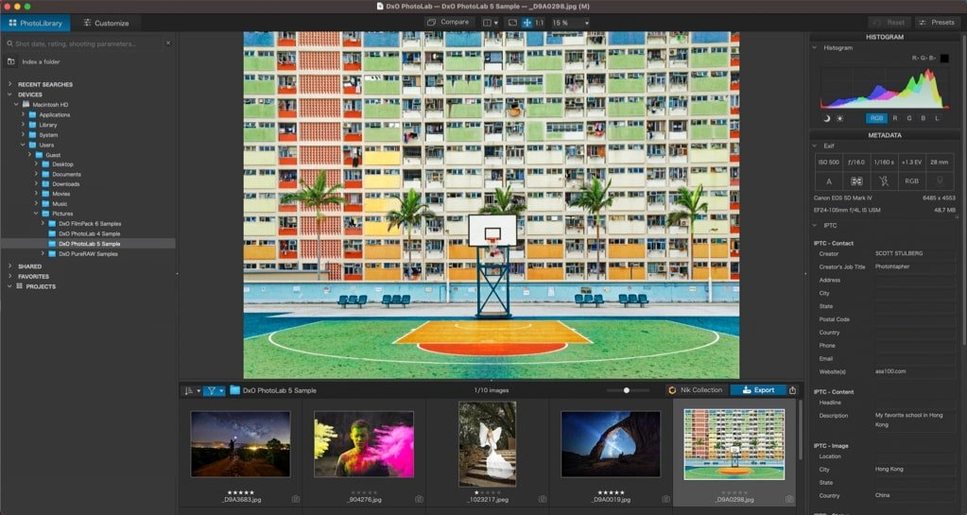
When you first open PhotoLab, point it at a folder of your own RAW files — not the sample images. Let it scan and build thumbnails. DxO Modules will download automatically for each camera and lens combination it detects. This initial download can take a while if you shoot with several bodies, so let it finish before you start editing.
Try DeepPRIME XD3 on a noisy ISO 6400 file first. The difference between the standard demosaicing and the AI pass is immediate and instructive. Once you see what it can do, you'll know where to apply it later. Don't use DeepPRIME on every image — it's computationally heavy and the benefit is marginal on clean, well-exposed shots.
Spend an afternoon with U Point. It's a local adjustment tool that works by placing control points on the image; you then set the radius and the effect strength. It takes a few tries to get the hang of feathering, but once you do, it's faster than brushing masks by hand.
Set up your export presets early. PhotoLab remembers the last settings, but having a few presets — one for social media, one for print, one for full-resolution TIFF — saves time when you're processing a batch.
PhotoLab is a standalone app, not a plug-in
Can I use PhotoLab as a plug-in for Lightroom or Capture One?
No, PhotoLab is a standalone application. It opens its own file browser and processes images inside its own workspace. There is no plug-in mode that passes edits back to a host application. Some users export TIFFs or DNGs from Lightroom and process them in PhotoLab, but that adds a step.
Will it work with my camera?
The official number is over 600 cameras, but you should check DxO's support list for your specific body. Older cameras are often supported; very recent ones may take a few months after release for a module to appear. The software also handles HEIC, HEIF and ProRAW from Apple devices.
Does it run on Intel Macs?
Yes, version 9.10.0 runs on both Intel and Apple Silicon. The installer is universal. Performance on Intel machines is noticeably slower for DeepPRIME processing, but the basic adjustments and optical corrections work fine.
Can I undo edits after saving?
PhotoLab uses a non-destructive workflow. The original RAW file is never touched. Edits are stored in sidecar files or in the database, so you can reset an image to its original state at any time.
Is there a cloud sync or library feature?
No. PhotoLab manages files on your local drive. It does not offer cloud libraries, shared albums or mobile companions. If you need that, you keep using Photos or Lightroom alongside it.
Fix module downloads and slow DeepPRIME processing
- Modules won't download. Check your internet connection and make sure the app has permission to access the network. Sometimes a firewall or VPN blocks DxO's servers. Restarting the app usually retriggers the download.
- DeepPRIME processing is very slow. This is normal on Intel Macs and even on base-model Apple Silicon machines. Close other apps to free up resources. You can also queue images and let them process overnight.
- AI Masks don't detect the subject correctly. The AI works best with clear subjects against contrasting backgrounds. If the mask is off, use the manual brush or U Point to refine it. You can also try adjusting the detection sensitivity in the mask settings.
- Images look flat after applying optical corrections. Optical corrections fix distortion, vignetting and chromatic aberration. They don't apply tone or contrast. You need to add DxO Smart Lighting or a tone curve afterward to bring back the punch.
- Copy-paste of local adjustments doesn't work. Make sure both images are the same camera model and lens. Local adjustments that rely on lens geometry can't transfer between different optical setups.
Export TIFFs to Affinity Photo or Pixelmator Pro for compositing
PhotoLab works best as your primary RAW processor, with a secondary app for tasks it doesn't handle. For example, export a TIFF from PhotoLab and open it in Affinity Photo or Pixelmator Pro for compositing or text overlays. The round-trip is straightforward because PhotoLab preserves the full tonal range in 16-bit TIFFs.
On macOS, you can use Quick Look in the Finder to preview RAW files after PhotoLab is installed. The software registers its own thumbnail and preview generators, so you don't need to open the app just to check a shot. The Files integration works the same way — you can browse and open RAW files directly from Finder without launching PhotoLab first.
If you use Apple Photos, you can export originals from Photos and open them in PhotoLab. There is no direct extension or Share Sheet integration, so it's a manual export-import workflow. That said, the editing power in PhotoLab far exceeds what Photos offers, so the extra step is worth it for important images.
Spotlight search indexes your RAW files after PhotoLab processes them, but only the metadata — not the edits. If you need to find images by keywords or ratings, you're better off organising them inside PhotoLab's own project structure.
Before it goes on the Mac
- macOS 14.7 or later
- Intel or Apple Silicon
Questions from the room
Does DxO PhotoLab support my camera?
DxO PhotoLab processes RAW files from more than 600 digital cameras, so the odds are good. Check the DxO website for the full compatibility list.
Installing it on the Mac
- Open the installation package you downloaded.
- Launch the installer from inside the package.
- Click Next in the welcome dialog.
- Drag the app icon to the Applications folder.
- Open the app from the Applications folder.
- Read and accept the license agreement to continue.
Notes from the control room
Sign in or open a catalogue account to leave a note.
No notes from the room yet. If you have used this build for a week, a short note helps the next person.