Home › Mac Apps › DxO FilmPack 8
DxO FilmPack 8 8.8.0 (Mac)
Updated
The catalogue note
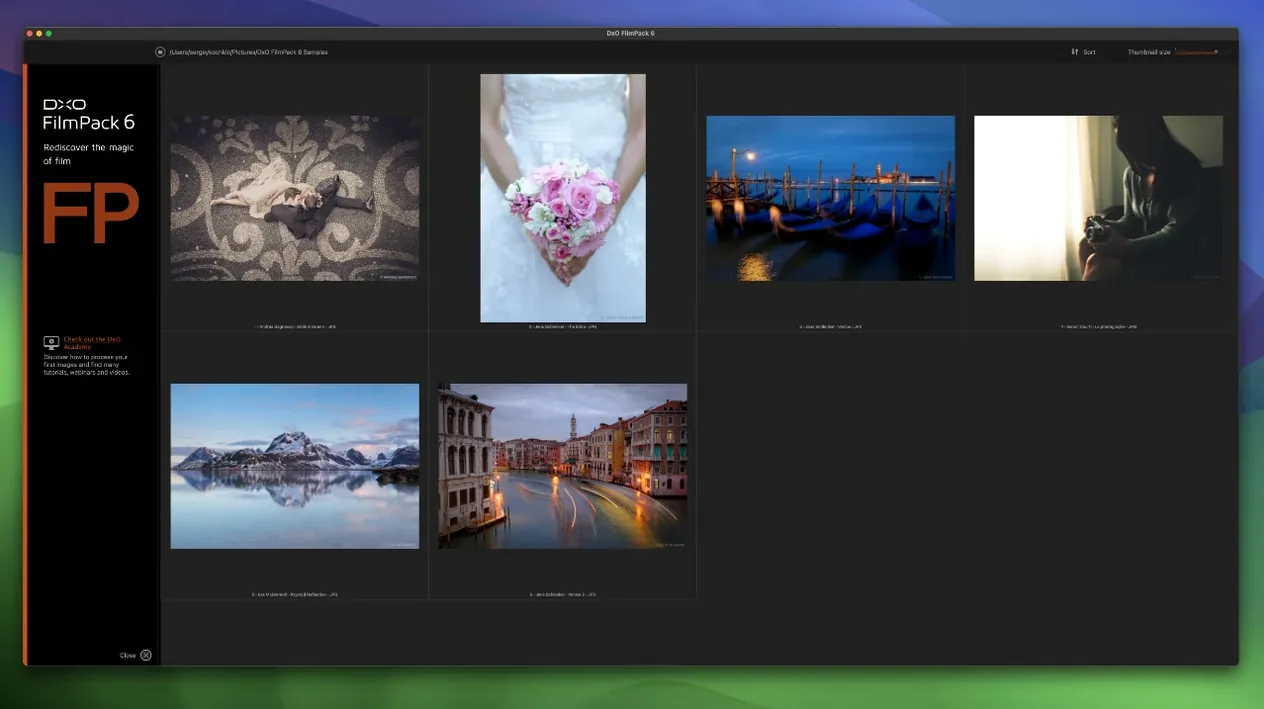
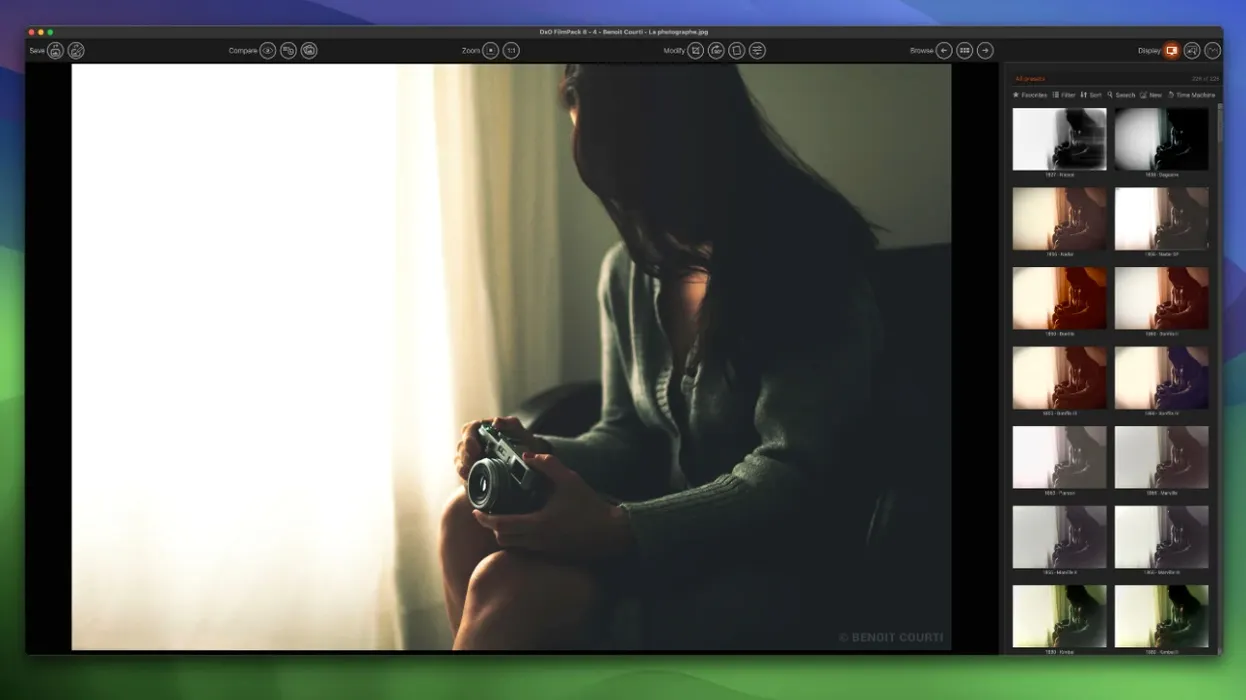
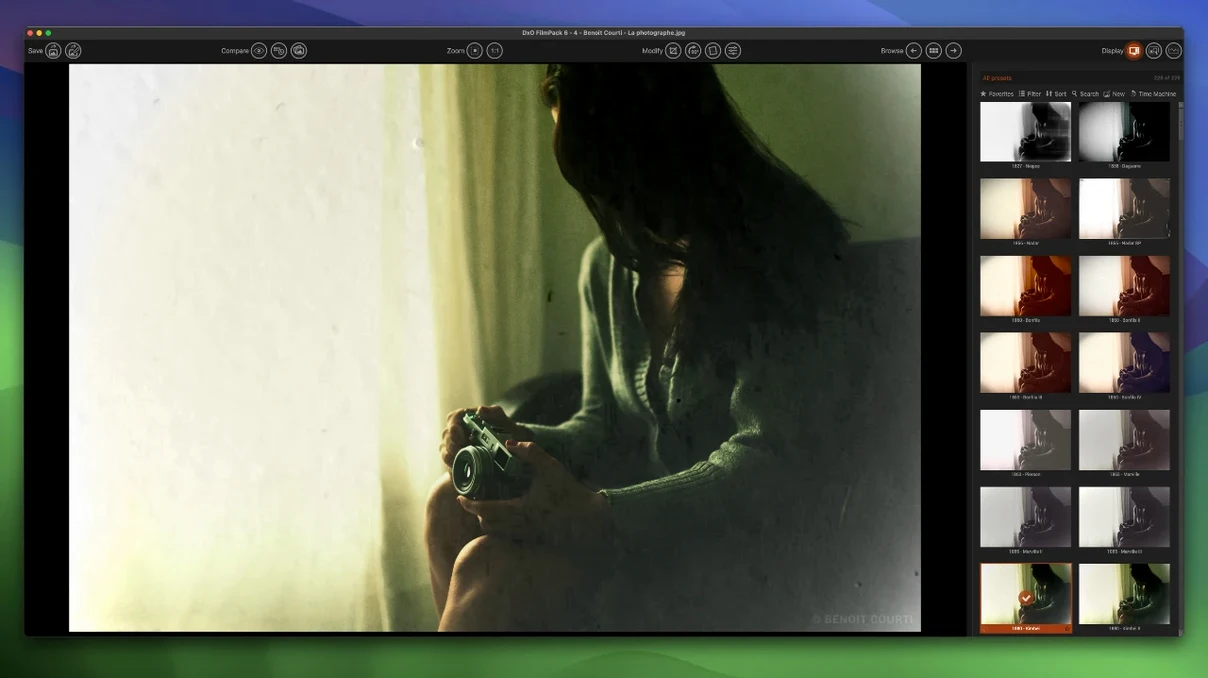
Time Warp is the first thing I open in DxO FilmPack 8. It drops you into a timeline of photographic eras — 14 of them, from daguerreotypes to the 2000s — and lets you pick a look without scrolling through hundreds of presets. It is a practical starting point, not a gimmick.
Questions to Ask Before Installing
- Will it fit my existing workflow? FilmPack 8 runs as a standalone app, but it also works as a dedicated palette inside Adobe Photoshop and integrates fully with Lightroom Classic. If you live in Adobe, you can stay there.
- Does it handle my files? Yes — JPEG and TIFF are both supported, so you can work with what you already have.
- Will it correct my lens flaws? It automatically fixes chromatic aberrations and vignetting, which is useful when you are pushing a look hard.
- What is new here? Version 8 adds 15 film emulations, Time Warp, full Photoshop integration, and a Scanned Film Optimization tool for digitised negatives.
The film emulations are the core of it, and they cover the usual suspects — Kodak, Fuji, Ilford — plus the scanned-film tool that cleans up the orange mask and base fog. For a studio engineer who spends most of the day inside a DAW, this is the photography equivalent of a good saturation plugin: it does one thing well and stays out of the way.
RAW shooters get a single tool for color and lens correction
Photographers who shoot RAW and want a single tool for both colour grading and lens correction get the clearest value. The calibrated camera data means the film rendering starts from a known baseline, not a guess. Portrait and wedding photographers who chase a consistent film look across hundreds of frames will find the batch-friendly Lightroom integration useful. The same applies to anyone digitising old negatives — the Scanned Film Optimization tool removes the orange mask and base fog that usually requires manual curves work in a separate app.
For studio engineers like me, the appeal is narrower but real. If you photograph gear, workspace shots, or album artwork for clients, you can match a period look without leaving your RAW editor. The automatic distortion and chromatic aberration correction also saves time when you are shooting with adapted lenses or older glass.
A Workflow: Matching a 1970s Print Look
Start with a RAW file in Lightroom Classic and open it into FilmPack 8 as a plugin. Use Time Warp to set the era to the 1970s — this narrows the preset list to emulations from that period. Pick Kodak Portra 160 NC (the 1978 version) as the base film. The automatic colour protection engages by default, so you do not clip highlights when the film curve lifts the midtones.
Adjust the grain intensity to match the ISO of your original shot. If the file came from a digital camera, the grain is synthetic but sits underneath the film colour profile, so it looks more natural than a simple overlay. Apply the Scanned Film Optimization only if you are working from a digitised negative — for a straight RAW file, leave it off. Export back to Lightroom Classic with the TIFF option to preserve the full colour depth. The whole process takes about two minutes once you know the film you want.
Runs on macOS 10.15+ with native Apple Silicon support
FilmPack 8 runs on macOS 10.15 or later and supports both Intel and Apple Silicon. The installer includes the standalone application, the Lightroom Classic plugin, and the dedicated palette for Adobe Photoshop. No additional runtimes or frameworks are required beyond what the OS provides. The package is activated via the included instructions — no online account needed during setup.
The app itself launches as a native window on both architectures. RAW processing uses DxO's own engine, which handles files from most modern cameras without needing separate camera profiles. Some users may search for dxo filmpack 8 crack, but the standard activation method is straightforward and does not interrupt your workflow.
Changes in this build
- Time Warp mode – explore 14 photographic eras
- Full Adobe Photoshop integration
- 15 new film emulations
- Scanned Film Optimization tool
Before it goes on the Mac
- macOS 10.15 or later
- Intel or Apple Silicon Mac
Questions from the room
Does DxO FilmPack 8 work with Adobe Lightroom Classic?
Yes, FilmPack 8 integrates fully with Lightroom Classic, so you can apply film emulations directly from your existing catalogue.
Installing it on the Mac
- Download the DxO FilmPack 8 package.
- Open the package and follow the installer prompts.
- Activate the software using the instructions included in the package.
Notes from the control room
Sign in or open a catalogue account to leave a note.
No notes from the room yet. If you have used this build for a week, a short note helps the next person.