Art Text 4 4.5.10 (Mac)
Updated
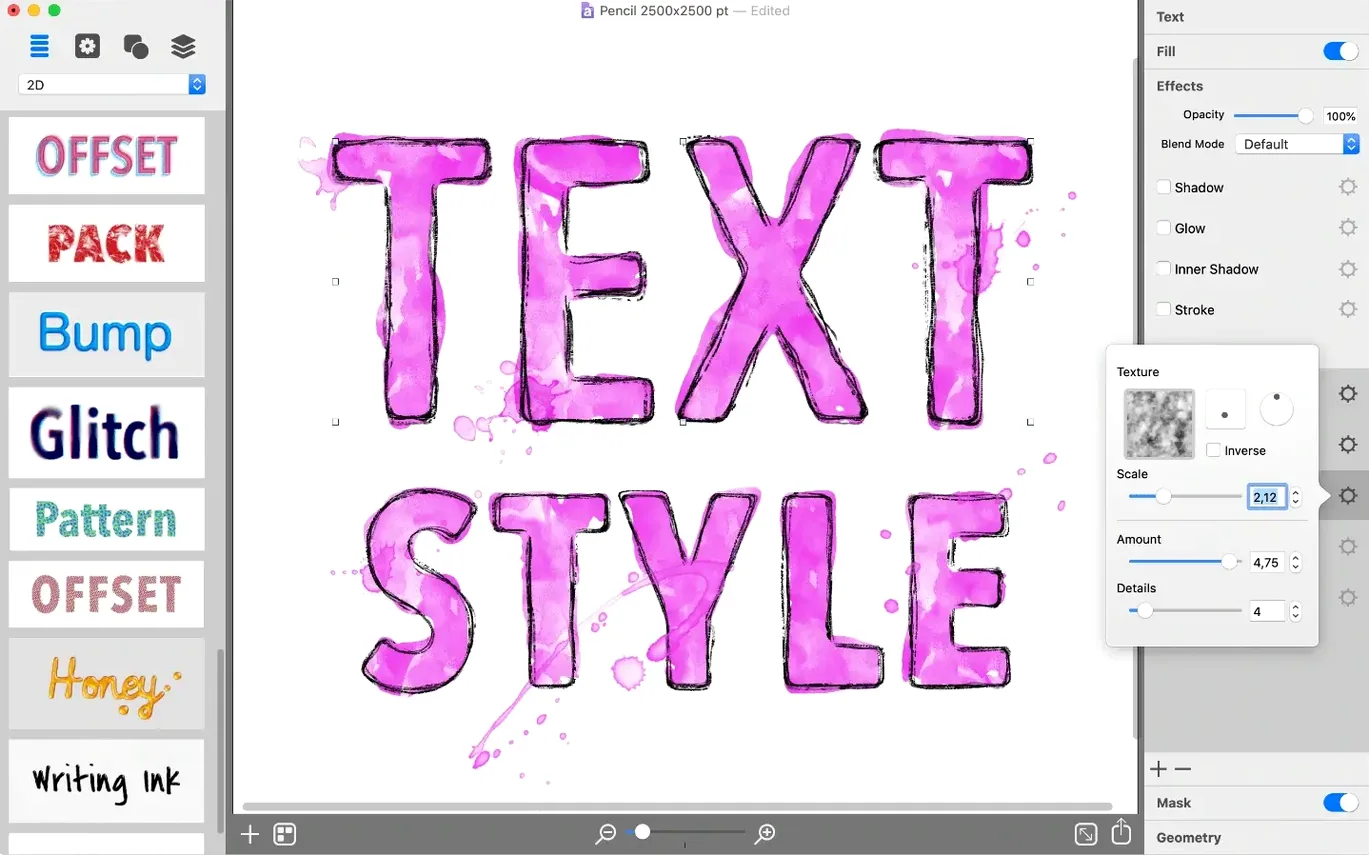
The catalogue note
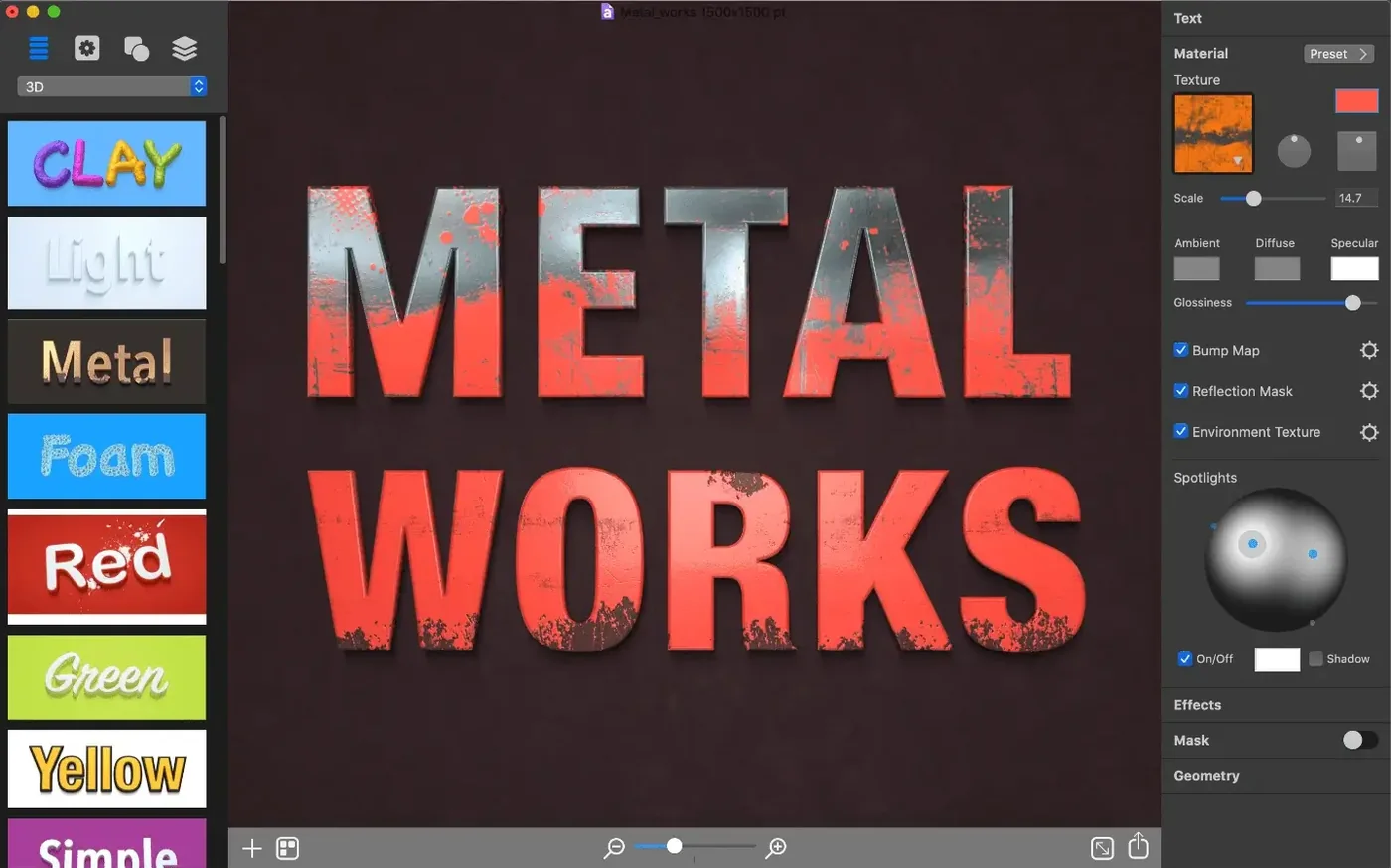
Open the materials panel, pick a brushed metal texture, and the word you typed suddenly reads like a product badge. Art Text 4 is a dedicated Mac application for turning plain text into finished graphic elements — icons, titles, social headers — without leaving a single window.
Set the type and choose a surface
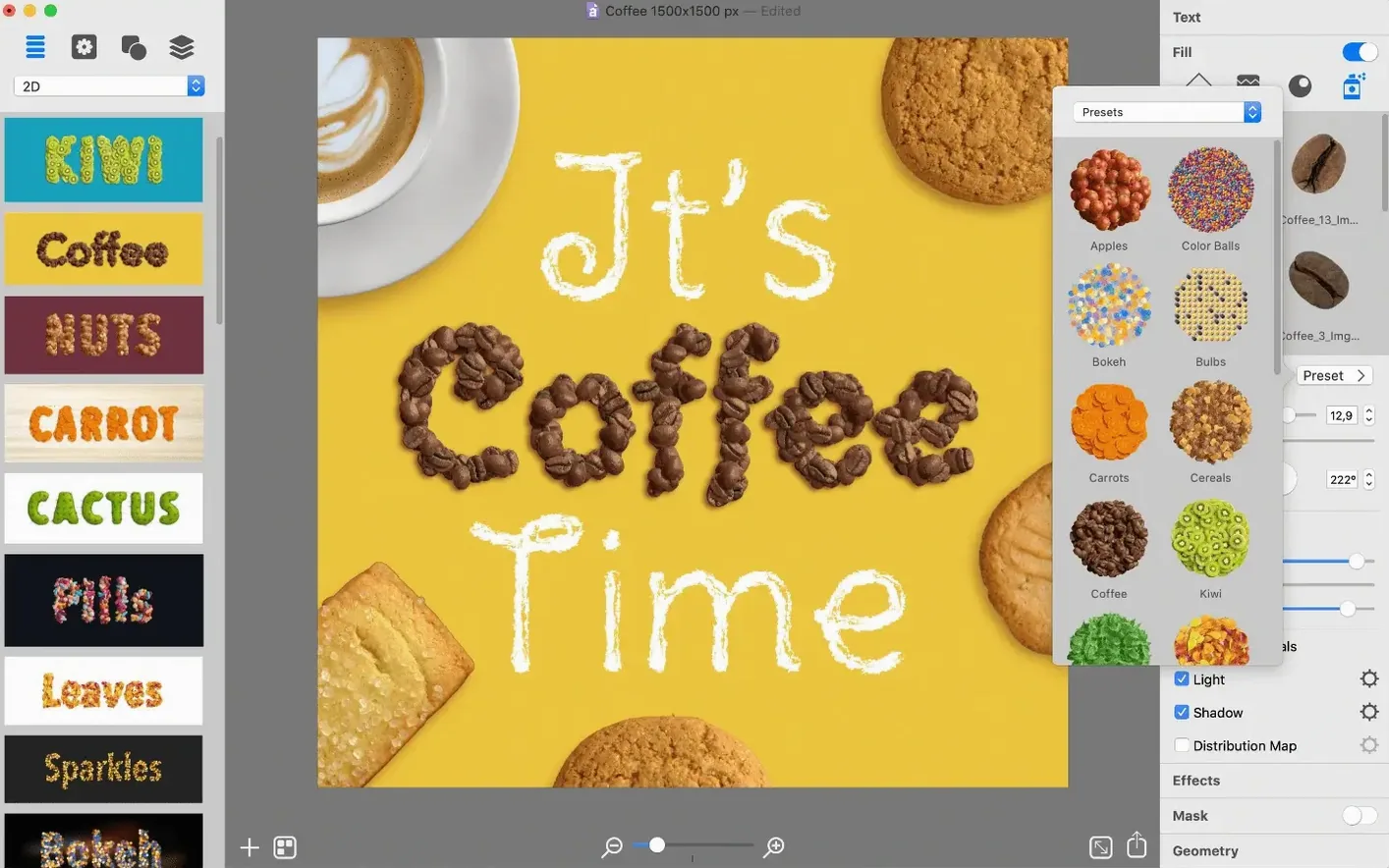
You type a word or a short phrase, then apply shadows, gradients, materials, or deformations from the built-in library. The app renders the effect in real time, so you see exactly how the stroke and fill interact with your chosen background.
Reshape without destroying the original
Deformation sliders let you bend, twist, or bulge the letterforms. Because the source text stays editable, you can tweak the tracking or swap a character after the distortion is applied — no need to start over.
Export for the job at hand
When the graphic is ready, save it as a PNG, JPEG, TIFF, PDF, or SVG, or keep the native .arttext file for later revision. The output is clean, with a transparent background if you need it.
Runs on any Mac from Mojave through current releases
Art Text 4 runs on any Mac with macOS 10.14 or later — that covers Mojave through the current releases. Both Apple Silicon and 64-bit Intel machines are supported, so whether you are on an M-series Mac or an older Intel model, the app will launch and function without compatibility workarounds. The installer is delivered as a disk image; you mount it, bypass Gatekeeper via a quick Terminal step, and drag the application into your Applications folder. No additional runtimes or font managers are required.
The interface is localised into five languages: English, German, Spanish, French, and Japanese. If you work in a multilingual studio or prefer your tools in a language other than English, the option is there from the first run.
Browse 110 presets grouped by metals, glass, and gradients
After installing, spend a few minutes browsing the 110 preset designs. They are grouped by style — metals, glass, gradients, soft shadows — and give you a sense of what the material engine can do. Double-click any preset to load it onto your canvas, then swap the sample text for your own.
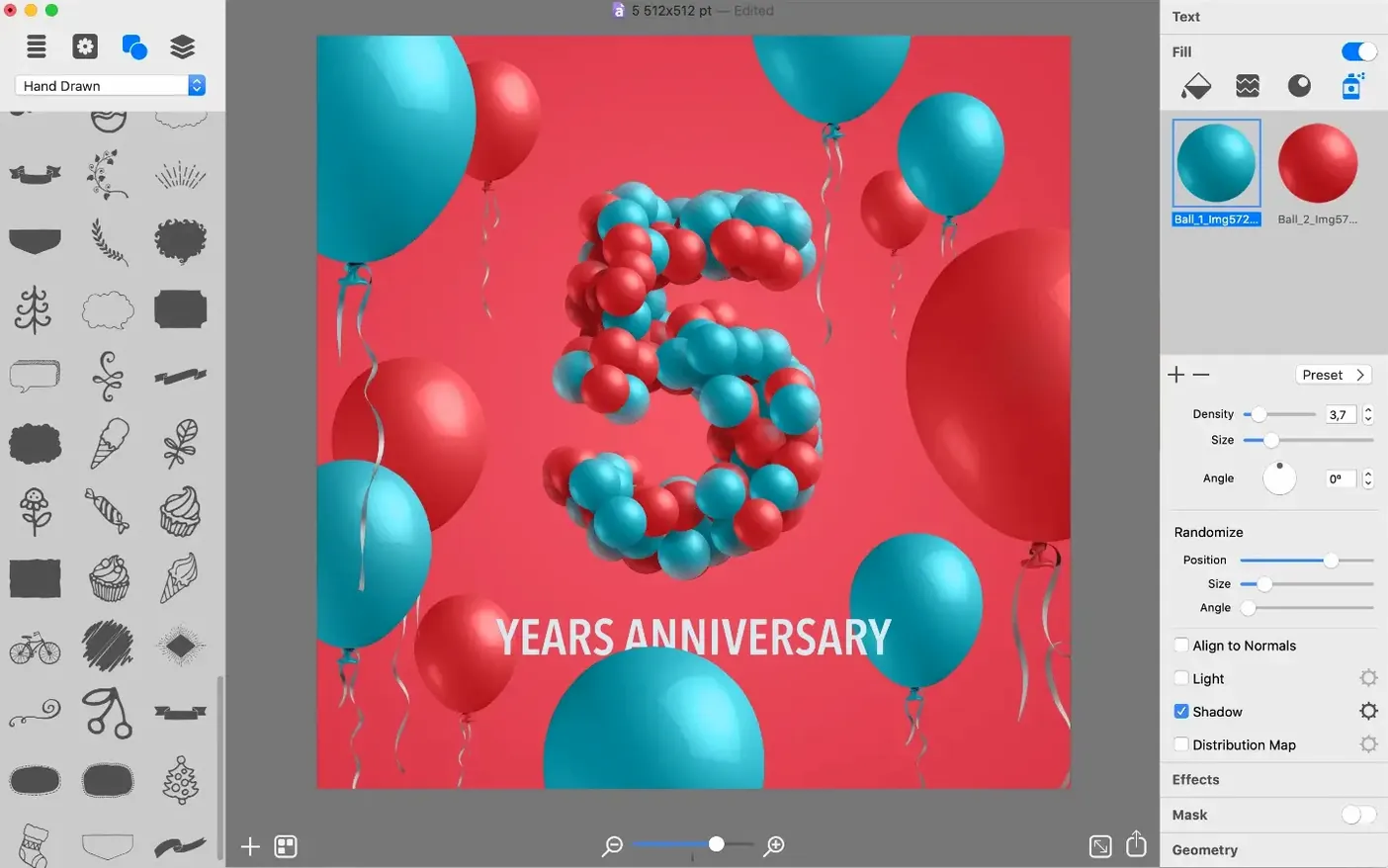
The 400 vector icons are worth exploring early. They are stored in a library panel and can be placed directly onto the canvas as shapes. Because they are vectors, you can scale them freely, apply the same materials and deformations that you use on text, and combine them with letterforms to build logos or badges. You can also create your own icons by drawing a vector shape and saving it to the library for reuse.
When you start a new project, set the document dimensions to match your output medium before you begin. The canvas size stays fixed during editing, so it saves time to know whether you are preparing a 1080 by 1080 social square or a 1920 by 1080 header. Export format depends on the final use: PNG or JPEG for web and social media, TIFF for print, PDF or EPS for vector workflows, and GIF for simple animated mockups.
Text remains editable after applying any deformation
Can I edit the text after applying a deformation?
Yes. The source text remains fully editable throughout. You can change the wording, adjust tracking, or alter the font while the deformation sliders stay active. The effect updates in real time, so there is no need to rebuild from scratch.
Does Art Text 4 work with fonts I already have?
It uses the system font library. No separate font import step is needed.
Can I use my own images as textures?
The materials panel includes presets, but you can also load your own image files to use as texture fills. This is useful when you need to match a brand’s specific surface or background pattern.
Will the app run alongside other design software?
Yes. Art Text 4 is a standalone application and does not install background processes or kernel extensions.
Workflow: creating a social media header from scratch
Open Art Text 4 and set the canvas to 1500 by 500 pixels — a common Twitter header size. Type the title of your page or event, then choose a bold sans-serif font from the system library. Apply a metallic material from the presets; the brushed steel finish works well for technology or music-related content. Add a subtle drop shadow from the effects panel to separate the text from the background.
Next, open the vector icon library and locate an icon that matches your theme — a microphone for a podcast, a camera for photography, or a gear for a tech channel. Drag it onto the canvas and position it beside the text. Scale it to approximately one-third of the text height and apply the same metallic material so the two elements share a consistent look. If the icon feels too rigid, use the deformation slider to give it a slight curve.
Finally, export as a PNG with transparency enabled. The file is ready to upload directly to your social platform. If you need to reuse the layout for a different event, save the project in the native .arttext format — you can swap the text and icon in under a minute later.
Changes in this build
- Minor technical improvements.
- Introducing AI Bundle 3 offer.
Before it goes on the Mac
- macOS 10.14 or later
- Intel 64-bit or Apple Silicon processor
- Interface languages: English, German, Spanish, French, Japanese
Questions from the room
Which Macs does Art Text 4 support?
It runs on both Intel (64-bit) and Apple Silicon Macs, from macOS 10.14 onward.
Can I export graphics with a transparent background?
Yes, the app saves to common formats such as PNG, TIFF and SVG, which support transparency.
What file formats does Art Text 4 use for its own projects?
It saves work in its native .arttext format, preserving all layers and effects for later editing.
Installing it on the Mac
- Mount the disk image and run Open Gatekeeper friendly.
- Press Enter in the Terminal window to bypass Gatekeeper.
- Drag the app into the Applications folder.
- The app is ready to use.
Notes from the control room
Sign in or open a catalogue account to leave a note.
No notes from the room yet. If you have used this build for a week, a short note helps the next person.