Home › Mac Apps › Apple Keynote

Apple Keynote 15.3.1 (Mac)
Updated

The catalogue note
Keynote 15.3.1 requires macOS 15.6 or later and runs on both Intel and Apple Silicon Macs. If your machine is still on an older system version, you are stuck with an earlier release — no way around it.
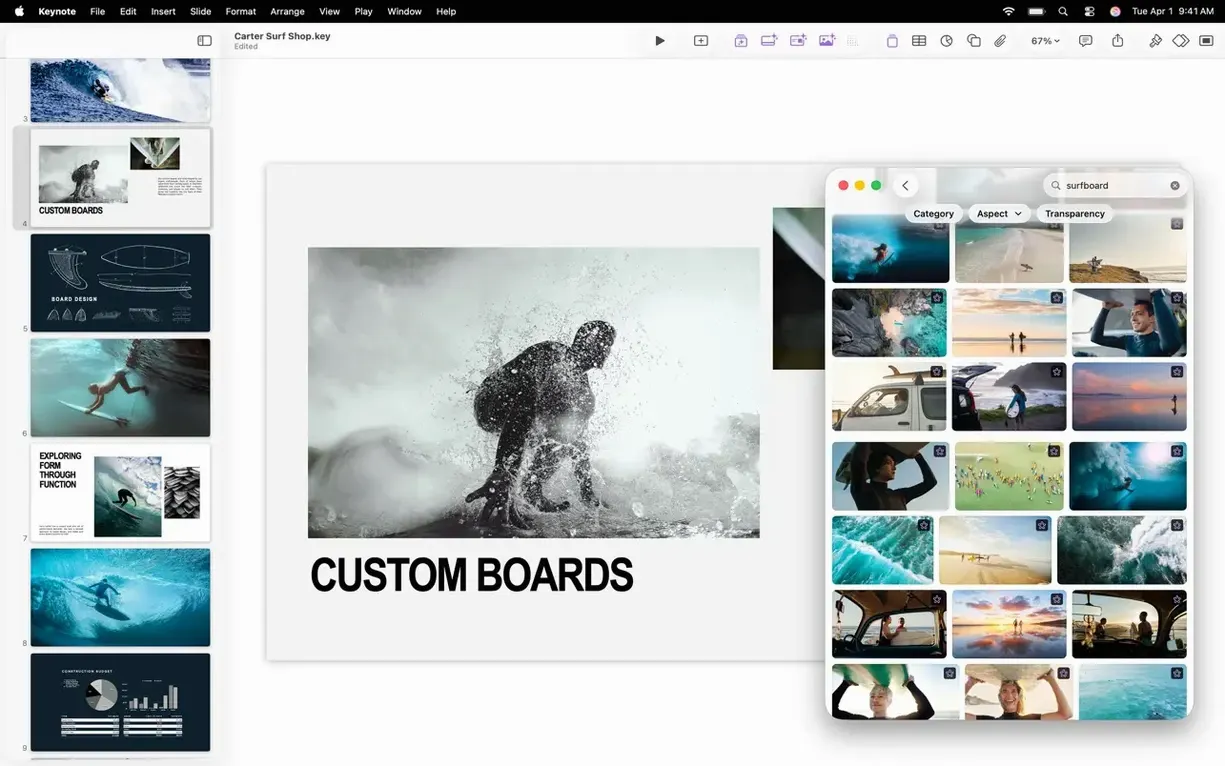
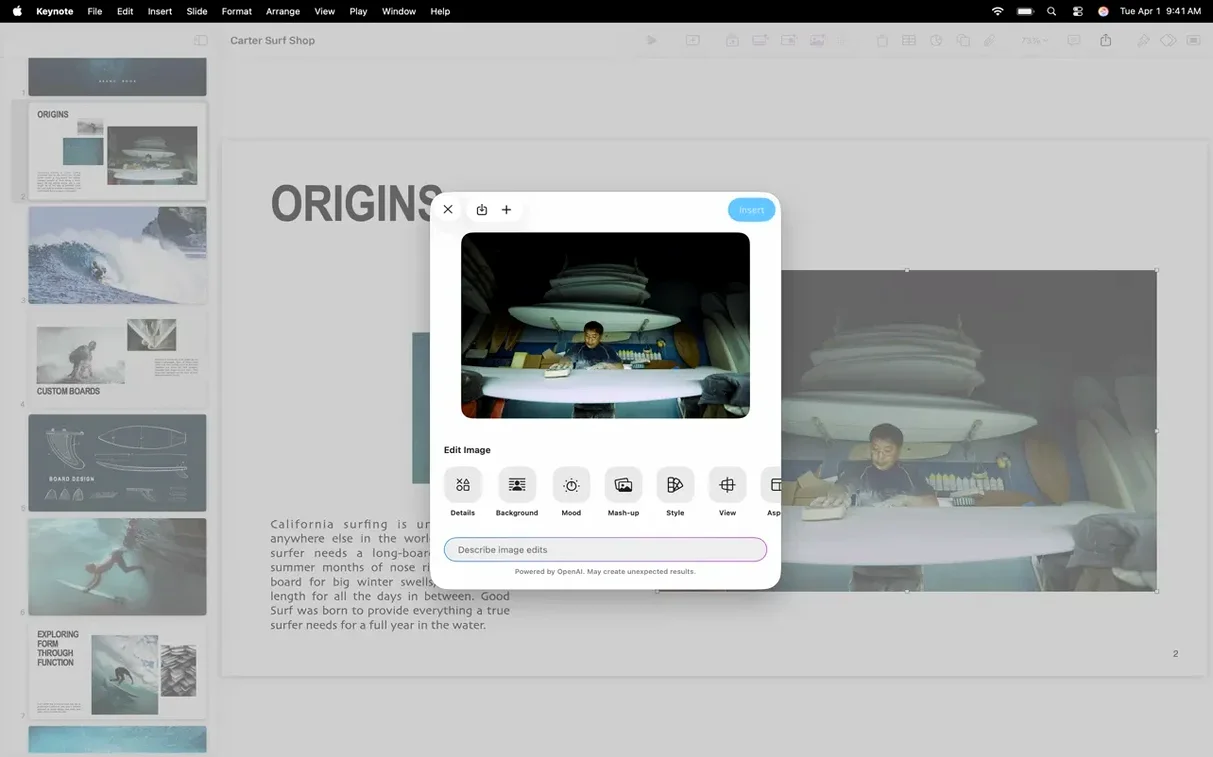
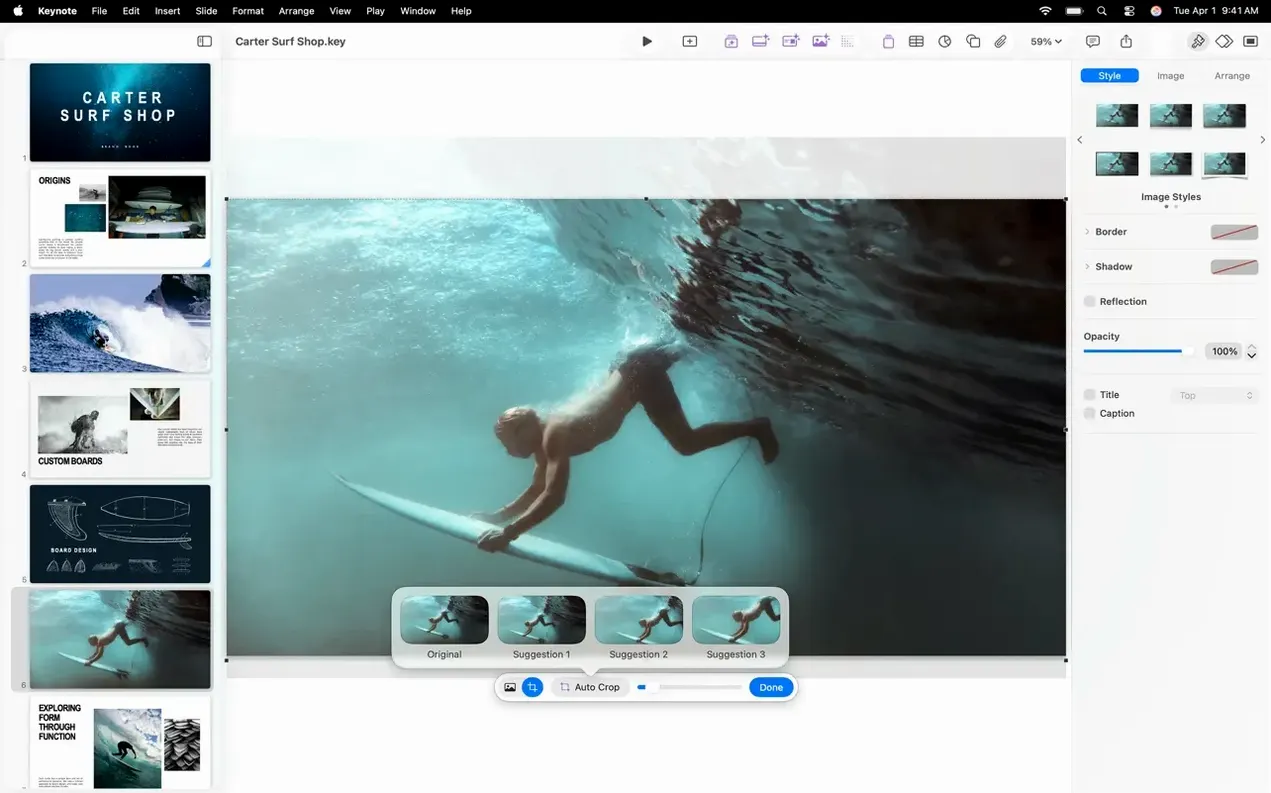
What changed in this update is modest: a handful of new transitions and builds (shift, radial wipe, character blur) and a more straightforward way to replace images from the Content Hub. The rest is bug fixes and performance tightening. The core workflow — themes, shapes, charts, image galleries, audio recordings, video broadcasts — works exactly as it did before.
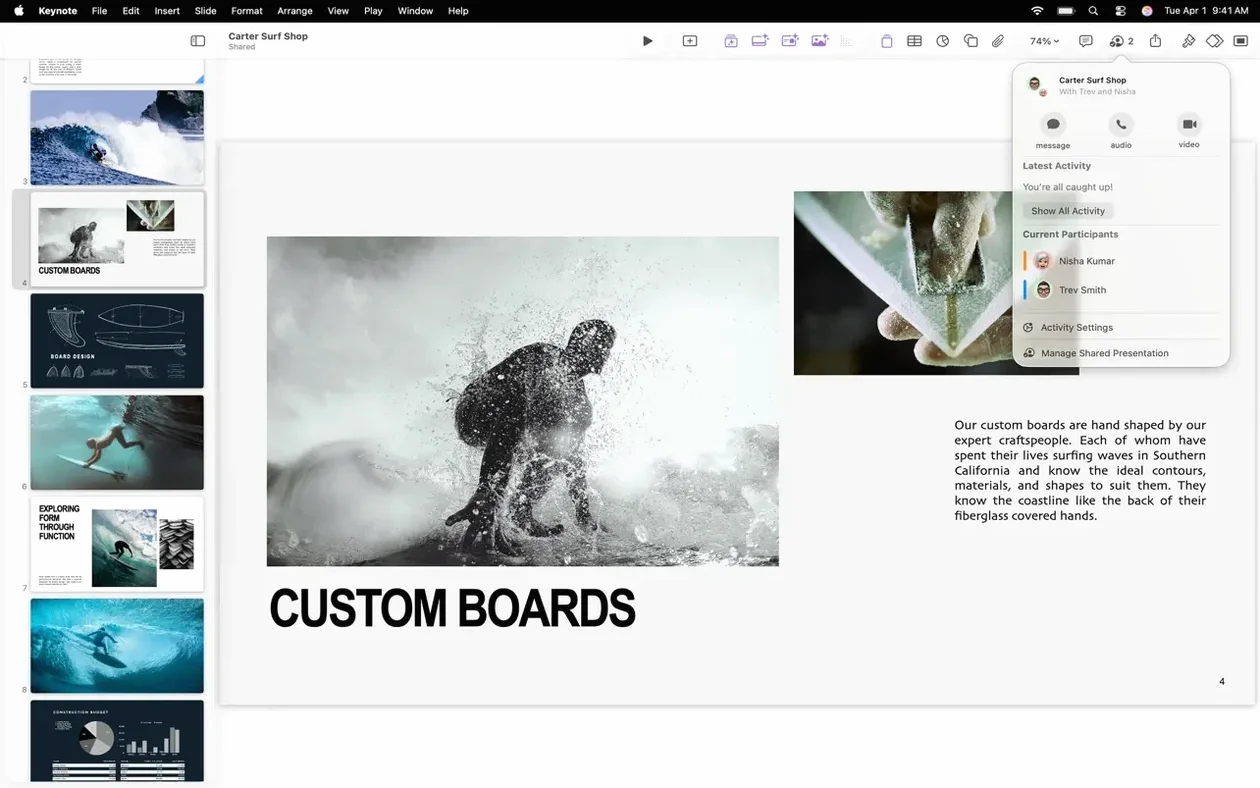
Keynote still imports and edits PowerPoint files without fuss, still supports the Magic Move transition, and still lets you publish or share presentations through iCloud or Box with per-user permissions. On an iPad you can annotate with Apple Pencil or a finger while presenting; on the Mac it is the same keyboard-and-trackpad affair it always was.
If you already use Keynote, the update is a refinement, not a reinvention. If you are new to it, version 15.3.1 is a stable, capable presentation app that does what it says on the tin.
Untick iCloud as the default save location
Keynote ships with sensible defaults, but a few adjustments save time the moment you start a new project. Open Keynote > Settings and look under the General tab: unticking "Use iCloud as the default location for new documents" puts local folders first, which matters if you work offline or prefer to manage files manually. Under the Presentation tab, set "Stop playback when exiting full screen" to off if you rehearse and often switch windows without wanting the show to end.
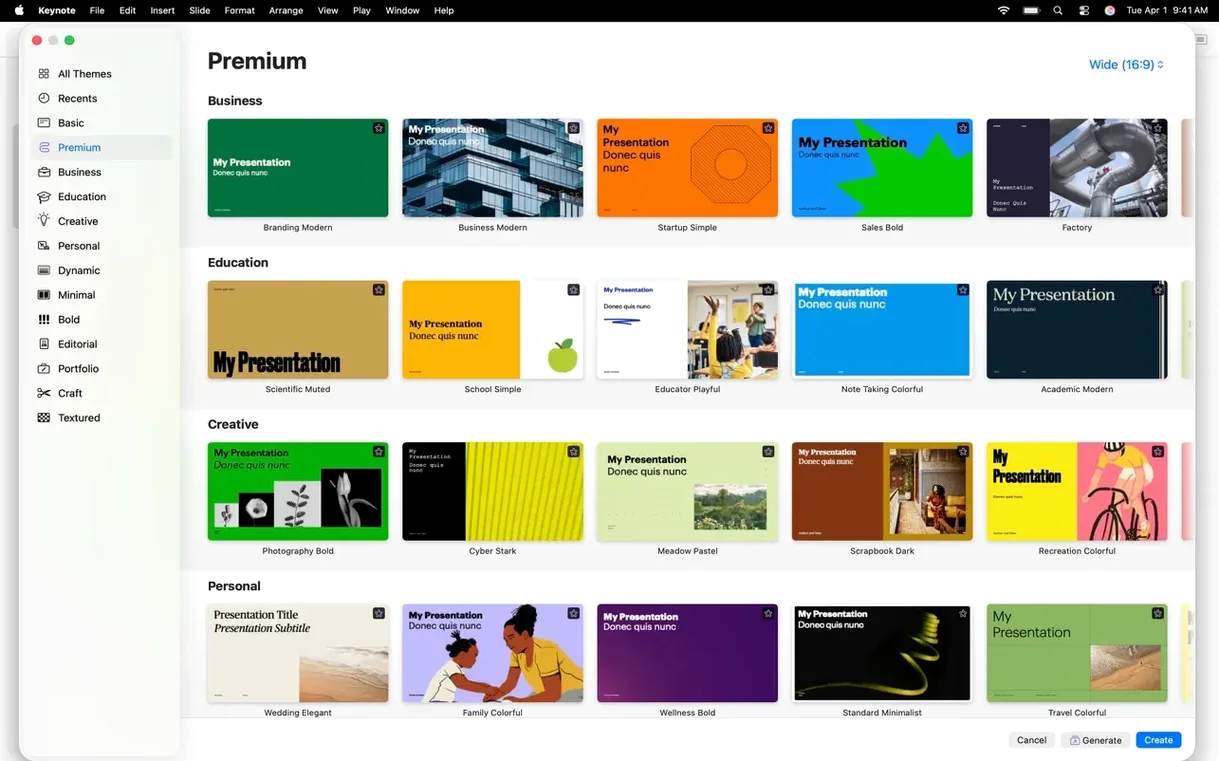
Rulers and guides are toggled from the View menu. If you align objects often, turn on "Show Guides at Object Center" and "Show Guides at Edges" — they snap shapes and images into place without guessing. The Format sidebar is where you adjust slide dimensions (standard 16:9 or custom), and you can set a default theme under General > "For new documents" to skip the theme chooser each time.
Fix three frequent Keynote roadblocks
Three issues crop up regularly, and they all have straightforward fixes.
Fonts missing or looking wrong after importing a PowerPoint file
Keynote maps common Windows fonts to their macOS equivalents, but not every font survives the trip. If text reflows or appears in a fallback face, install the missing fonts manually or replace them from the Format sidebar > Text > Font. For presentations you share back to PowerPoint users, stick with system fonts like Arial, Helvetica, or Times New Roman.
Magic Move not working as expected
Magic Move animates between two slides where objects share the same name. If nothing happens, check that the same object (shape, image, text box) appears on both slides and that you have assigned matching names in the Format sidebar > Arrange > Name. The transition also requires that the second slide is set to the Magic Move transition type, not a standard dissolve.
Video or audio won't play in the exported movie
When exporting to movie format, Keynote embeds media files but sometimes loses sync or omits them if the source file path breaks. Before exporting, verify that all audio and video clips play correctly within the presentation. If one fails, re-insert it from its original location rather than dragging it from a different project. The export settings dialog also lets you choose a resolution — 1080p works reliably for most scenarios.
How to open .key files on a Windows machine
Can I open a .key file on a Windows machine? Not directly — Keynote is macOS-only. But you can export to PowerPoint format (.pptx) from within the app, and that file opens in PowerPoint on Windows. For viewing only, export to PDF. There is no official Keynote viewer for Windows.
Will my old Keynote themes work in 15.3.1? Yes. Themes created in previous versions load fine. Custom themes saved as .kth files can be installed by double-clicking them or placing them in ~/Library/Application Support/Keynote/Themes. The new transitions (shift, radial wipe, character blur) won't appear in older files until you apply them manually.
Does this version require an internet connection? No. Keynote works fully offline. iCloud sync and shared presentations need a connection, but creating, editing, and presenting locally does not. The Content Hub image replacement feature pulls from an online library, so that specific function requires internet — but the rest of the app does not.
Verify the integrity of any file you obtain outside official channels. The install steps remain the same: open the disk image, drag the app to the Applications folder, and launch from Launchpad.
A science teacher builds a narrated water cycle lesson
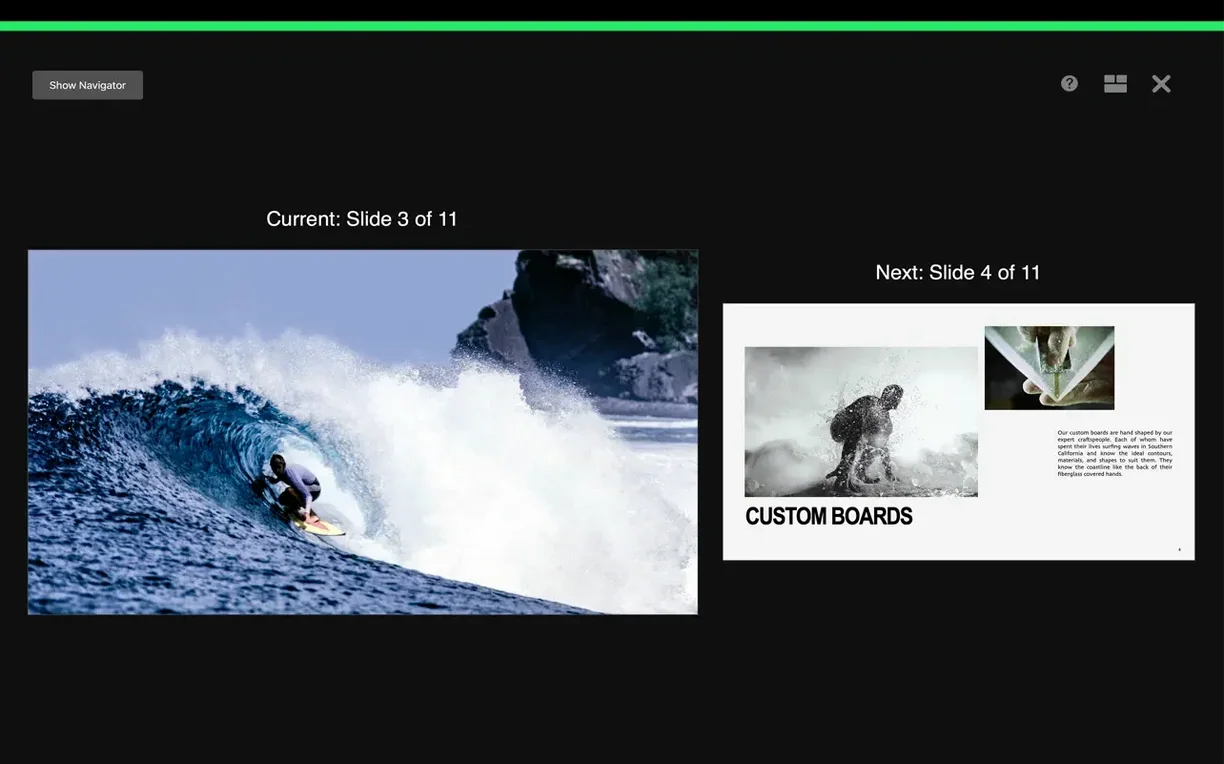
A secondary-school science teacher prepares a lesson on the water cycle. She builds slides with diagrams from the Shapes library, adds a short video clip of evaporation, and records her own voiceover for each stage. During class, she uses the presenter display on her MacBook screen to see notes and the next slide while the students watch the projector. After the lesson, she exports the presentation as a movie and uploads it to the school's learning platform for students who were absent. The whole workflow — from draft to published video — stays inside Keynote, and the new shift transition gives the slide progression a clean, modern feel without distracting from the content.
Changes in this build
Before it goes on the Mac
- macOS 15.6 or later
- Intel or Apple Silicon processor
Questions from the room
Can Keynote open Microsoft PowerPoint files?
Yes, Keynote can import and edit Microsoft PowerPoint presentations.
What are the system requirements for Keynote 15.3.1?
Keynote 15.3.1 requires macOS 15.6 or later and runs on both Intel and Apple Silicon Macs.
Installing it on the Mac
Notes from the control room
Sign in or open a catalogue account to leave a note.
No notes from the room yet. If you have used this build for a week, a short note helps the next person.