
Home › Mac Apps › AI Transcription
AI Transcription 2.16 (Mac)
Updated
The catalogue note
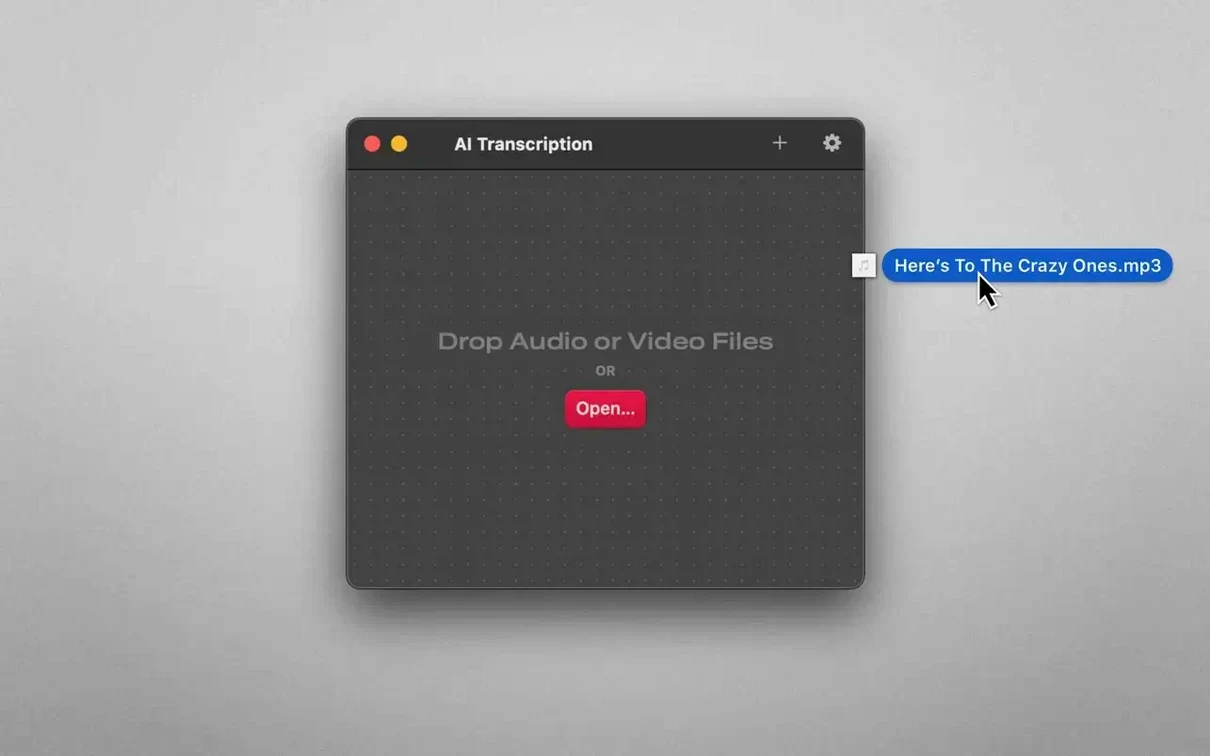
If you are used to the speed of dictation in Pages or the voice typing in Notes, AI Transcription does the same job but with files you already have — recorded interviews, lectures, meeting recordings, video clips. Drop an MP3 or an MP4 onto the window and the app processes it entirely on your Mac, no internet connection needed. Here are the first things a newcomer should try:
- Drag an audio file straight onto the app window — no import dialog, no format conversion step. The app works with any file macOS QuickLook can play.
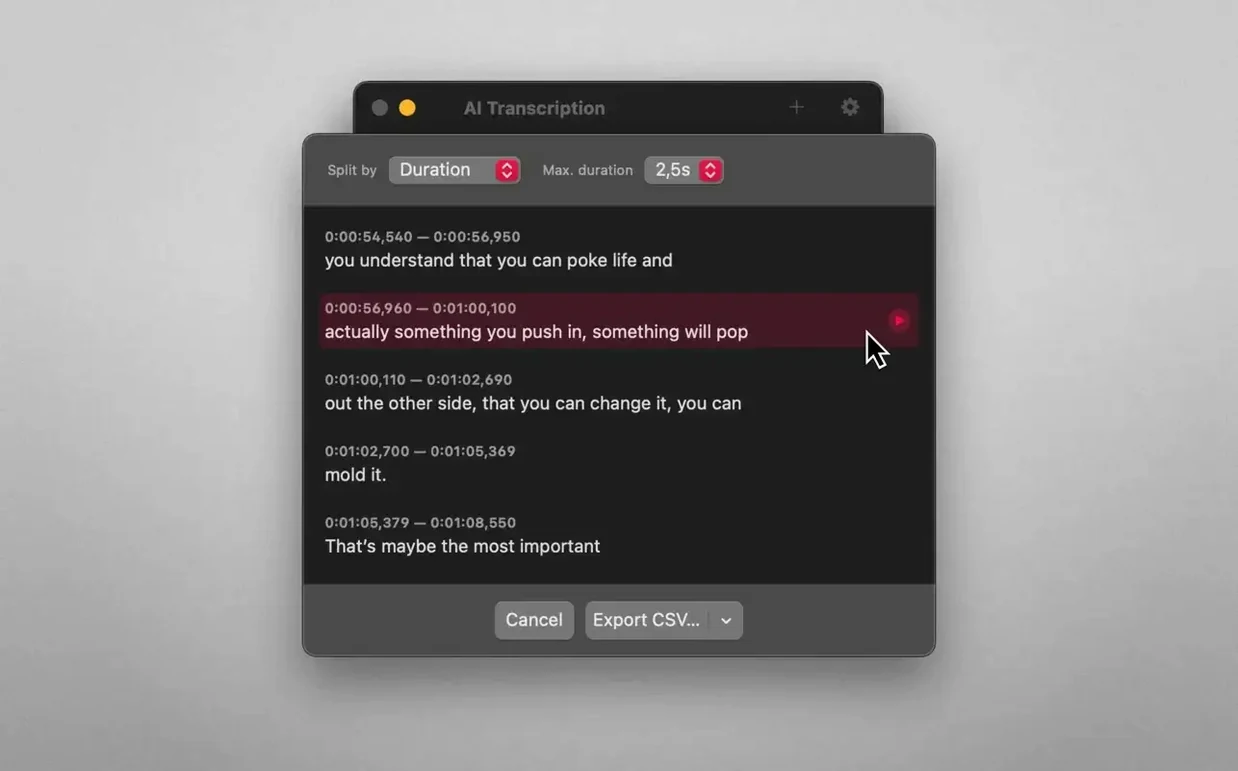
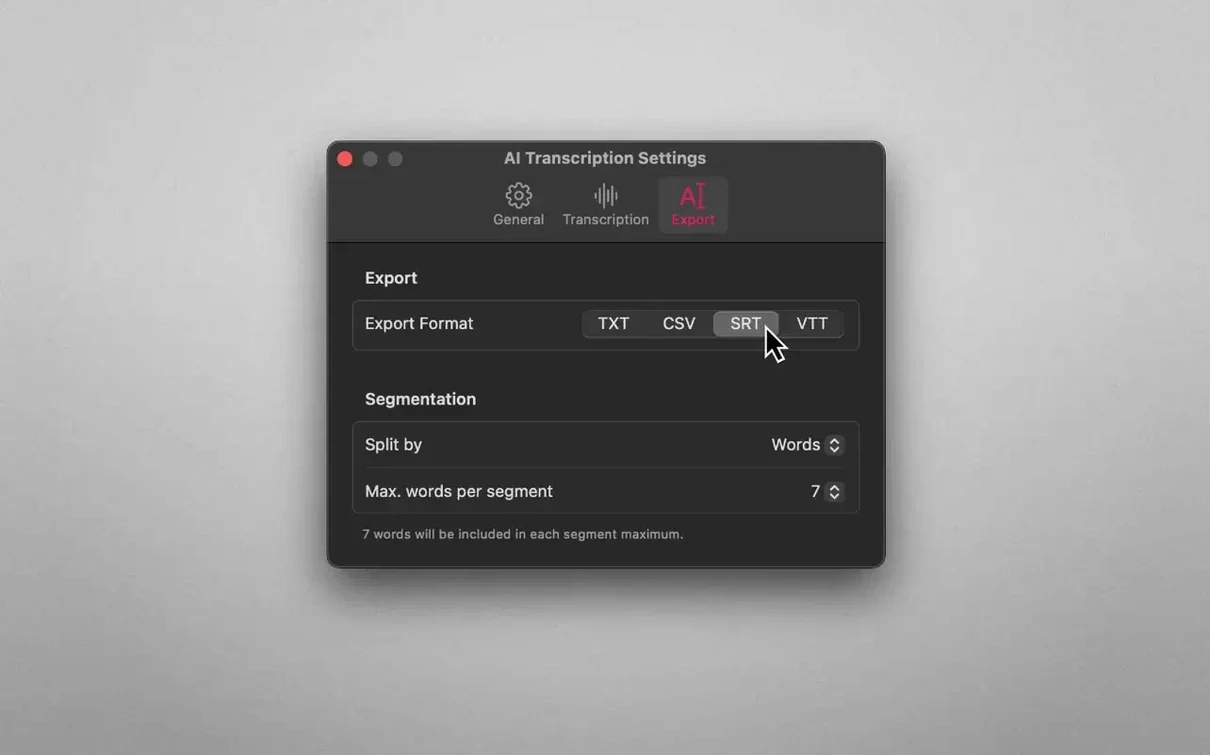
- Switch the split mode before you start: words, sentences or fixed duration. Sentences is the most readable for interviews; duration works well for long lectures where you want consistent time stamps.
- Open the transcript while the file is still processing. The text appears line by line, so you can begin editing or copying before the whole file finishes.
- Export a plain text file and compare it with the on-screen transcript — the app keeps punctuation and speaker turns from the OpenAI Whisper engine, but a quick human pass catches misheard terms.
- Check the language selector before transcribing a file with mixed languages. The app supports nine interface languages and can handle code-switching in the audio, but setting the primary language first improves accuracy.
Once you have a transcript you are happy with, copy it to a note or save it as a text file. The app does not lock you into its own format — the output is as portable as the source audio.
Journalists and researchers get transcripts without internet
Journalists and researchers who record interviews in the field will find the offline workflow essential. No hotel Wi-Fi, no mobile signal, no cloud upload — the transcript appears on the laptop in the same hotel room. The same applies to students who record lectures on a MacBook and want the text ready before the next class. Privacy-conscious users also have a clear reason to choose this approach: the audio never leaves the machine, which matters when the recording contains client details, patient information or confidential meeting content.
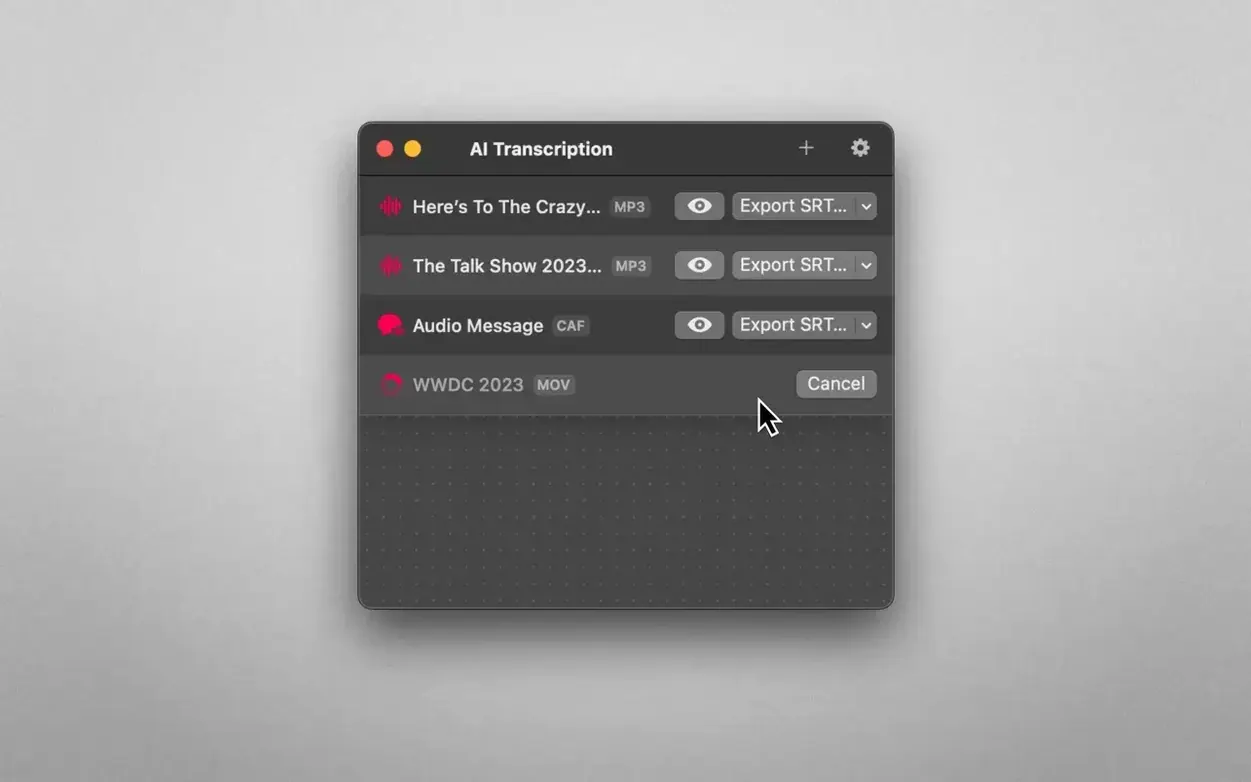
Video editors and podcast producers who work with short clips or full-length episodes will appreciate the batch potential. Drop several M4A files into the queue, set sentence-level splitting and walk away. The app processes each file sequentially, and because it uses both OpenAI Whisper and Apple Speech Recognition, the results can be cross-checked if a passage sounds off. For Mac users who already rely on dictation in macOS, AI Transcription extends the same concept to pre-recorded material — no need to re-speak a ten-minute recording just to get a text version.
What the Mac actually needs
The app requires macOS 14.6 or later. That means any Mac that runs Sonoma 14.6 qualifies, including Intel Macs from 2018 onward and all Apple Silicon machines. The disk image installs via the usual drag-to-Applications method, with a one-time Gatekeeper bypass step for the TNT team release — mount the image, run the terminal command, then drag the app across. The app itself is a single bundle; no background services, no helper tools and no persistent menu-bar icon. Interface languages cover English, German, Spanish, Italian, Simplified Chinese, Korean, Portuguese, French and Japanese, so the interface switches cleanly between those without affecting the transcription engine.
On the file side, the app accepts MP3, WAV, CAF, AIFC, M4A and MP4. Those cover the common audio formats plus the container format most screen recordings and camera videos use. Export options stay equally practical: plain text for notes, CSV for spreadsheets, SRT and WEBVTT for subtitles. The split modes — by words, sentences or duration — are set before transcription begins and cannot be changed mid-file, so choose the one that matches the output you need.
Transcribes QuickTime recordings for editing in other apps
AI Transcription does not pretend to be a full editing suite. It transcribes and exports; you handle the rest elsewhere. A typical workflow might start with a QuickTime screen recording saved as M4A, dragged into AI Transcription, then the resulting plain text pasted into a Bear note or a Drafts document for further editing. For subtitle work, the SRT file can be imported directly into Final Cut Pro or HandBrake without conversion. The CSV export is useful when you need speaker timings in a spreadsheet — aligning time stamps with a video edit timeline, for instance.
Because the app works entirely offline, it respects macOS Focus modes and network privacy settings. No outgoing connections means no firewall prompts, no VPN interference and no background data usage. The transcript appears in a standard Mac window with editable text fields, so standard macOS services — Look Up, Quick Look selections, Share menu — work as expected. You can select a word and use the built-in dictionary or copy a paragraph directly into a Mail compose window. The app does not add its own menu-bar extras or notifications; it stays out of the way once transcription finishes.
Before it goes on the Mac
- macOS 14.6 or later
- Apple Silicon or Intel Mac
- Interface languages: English, German, Spanish, Italian, Simplified Chinese, Korean, Portuguese, French, Japanese
Questions from the room
Does AI Transcription need an internet connection?
No. The app runs entirely offline on your Mac, using Whisper and Apple Speech Recognition locally.
What file types can I transcribe?
The app transcribes audio and video files. Drag-and-drop works with any file macOS QuickLook can play.
How does the split mode work?
You can split the transcript by words, sentences, or duration. Choose before transcribing to match your reading preference.
Installing it on the Mac
- Mount the disk image and run the Open Gatekeeper friendly command.
- Press Enter in Terminal to bypass Gatekeeper.
- Drag the app to the Applications folder.
- Launch the app when installation is complete.
Notes from the control room
Sign in or open a catalogue account to leave a note.
No notes from the room yet. If you have used this build for a week, a short note helps the next person.
Also filed under Mac Apps
The whole Mac Apps rack Aiarty Image Enhancer3.14 Mac Apps 129 MB
 Affinity Publisher2.6.5 Mac Apps 783 MB
 Affinity Photo2.6.5 Mac Apps 789 MB
 Affinity Designer2.6.5 Mac Apps 779 MB
 Adobe Substance 3D Painter12.1.5 Mac Apps 3 GB
 Adobe Premiere Rush1.5.62 Mac Apps 1.6 GB
 Adobe Photoshop28.0.0 Mac Apps 3.5 GB Updated
 Adobe Lightroom Classic15.6.0 Mac Apps 3.7 GB