
Home › Mac Apps › Affinity Designer
Affinity Designer 2.6.5 (Mac)
Updated
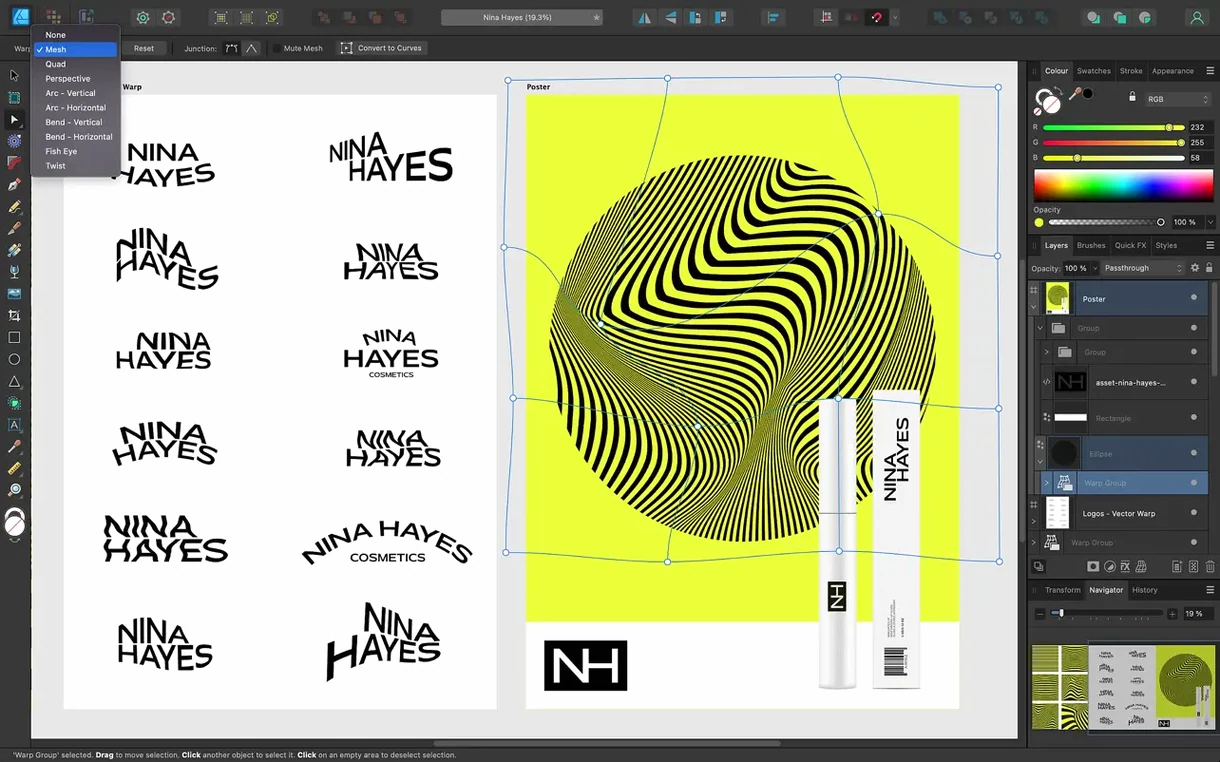
The catalogue note
The current version, 2.6.5, keeps the core workflow intact while polishing a few edges.
Pencil and stroke width improvements in version 2.6
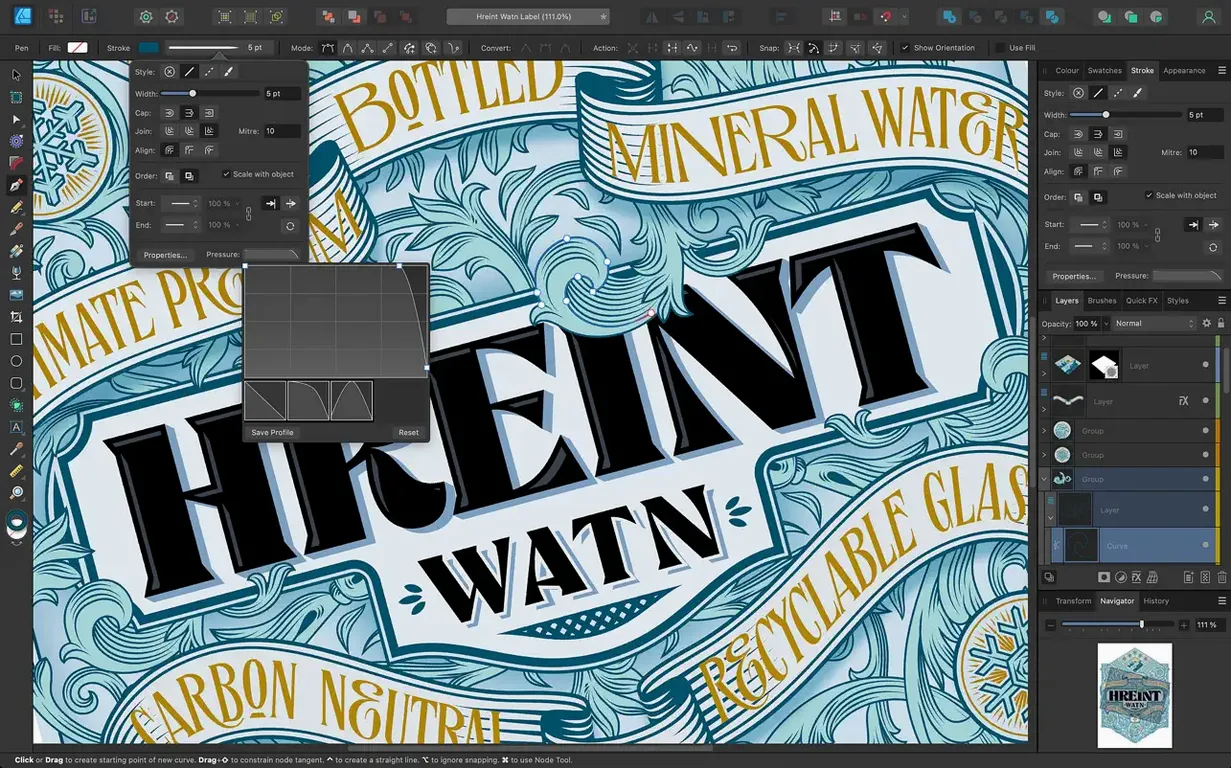
The 2.6 release focused on the Pencil tool and the Stroke Width Tool. You get smoother freehand curves thanks to brush and pencil stabilisation, and the Stroke Width Tool now has profiling improvements plus a Reset Profile option. A small but handy addition: holding Command or Ctrl toggles marquee select intersection behaviour, which speeds up selecting overlapping shapes.
Version 2.6.5 itself is mostly bug fixes and stability improvements, so if you were waiting for a quieter build, this is it.
Choose vector or raster workspace, then draw and refine
- Open Affinity Designer and choose between the vector or raster workspace depending on the task.
- Create a shape or draw a path with the Pen, Node, or shape tools.
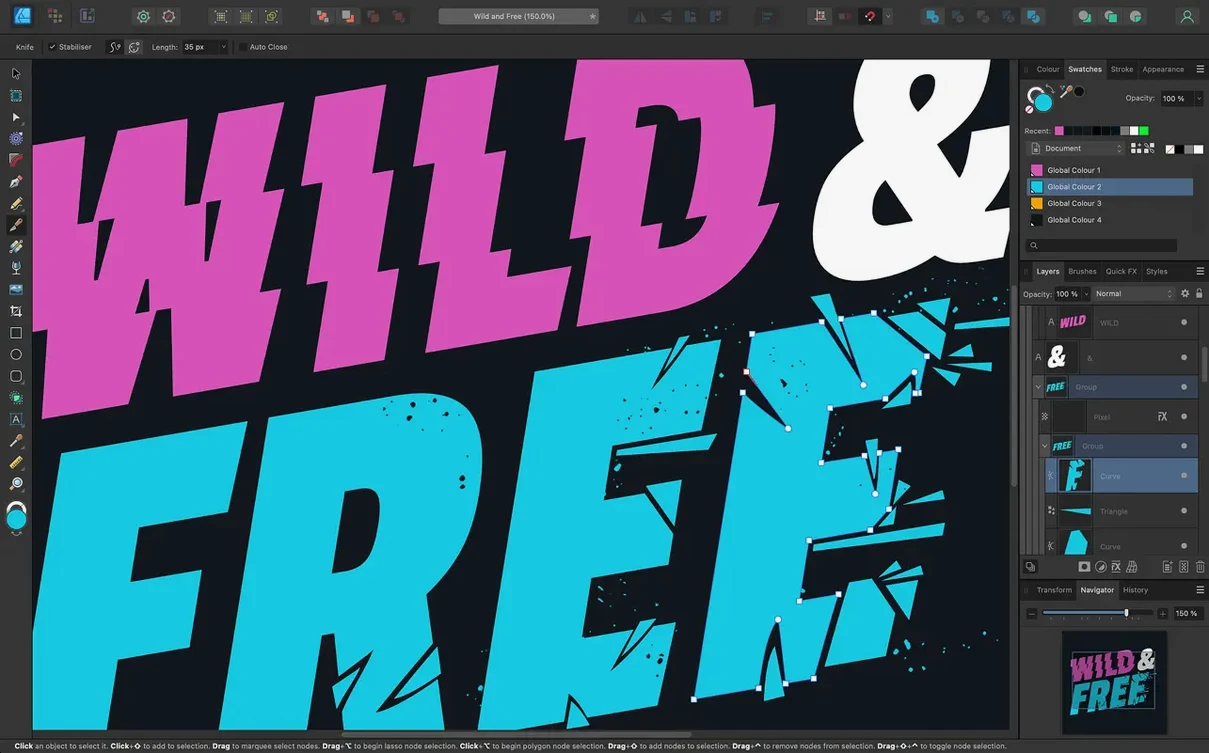
- Refine curves using stabilisation on the Pencil tool for cleaner lines.
- Use the Stroke Width Tool to vary line thickness, and reset the profile if you want a fresh start.
- Export to PSD, AI, PDF, EPS, SVG, JPG, TIFF, or EXR, with ICC colour management profiles applied.
Nothing about the interface has been turned upside down. You still get 16-bit per channel editing, support for both ARM and Intel Macs, and a choice of eight interface languages. For a free download of Affinity Designer for Mac, the current version is a solid, dependable update.
Mistakes beginners often make
New users sometimes jump into Affinity Designer expecting it to behave exactly like Adobe Illustrator. The first stumbling block is the workspace switching. The app lets you toggle between vector and raster workspaces, and beginners often stay in the wrong one. Drawing a shape in the raster persona works, but you lose the vector editing benefits — the Node tool won't give you the same control, and scaling later becomes a pixel problem. Get into the habit of checking which persona you are in before you start a new element.
Another common error is ignoring the stabilisation settings on the Pencil tool. The default is off, so freehand curves come out wobbly. Beginners blame the app, but a few seconds spent adjusting stabilisation makes a noticeable difference. It is worth finding the setting early rather than fighting the tool.
Layer management trips people up too. Unlimited artboards are great, but without naming layers and artboards from the start, a project with ten boards quickly turns into a mess. The same applies to OpenType features: the app supports them, but they are not visible unless you select the right text frame or artistic text object and open the character panel. Beginners assume the feature is missing when it is just a panel away.
Export format confusion is another one. The app supports PSD, AI, PDF, EPS, SVG, JPG, TIFF, and EXR, but not all formats preserve layers. Exporting a layered design as JPG flattens everything. It sounds obvious, but it is a frequent frustration.
Common concerns before installing on your Mac
Runs on Macs from 2015 with macOS 10.15 or later
The app requires macOS 10.15 or later and supports both ARM and 64-bit Intel Macs. If your Mac is from around 2015 onwards and can run Catalina or newer, you are covered. There is no need to worry about Rosetta or emulation — the app runs natively on Apple Silicon and Intel alike.
Imports PSD, AI, PDF, EPS, and SVG files
Yes. The app imports PSD, AI, PDF, EPS, and SVG files, along with common raster formats. The import is not perfect on every complex AI file — some effects or gradients may need tweaking — but for the vast majority of logo and illustration work, it works well. You can also export to those same formats, so exchanging files with collaborators is straightforward.
Familiar layout with a small learning curve for personas
The layout is familiar if you have used any professional design app. The tools are in panels, the workspace is customisable, and the persona system adds a small learning curve. Most people feel comfortable after a few hours. The interface is available in English, German, Spanish, Italian, Simplified Chinese, Portuguese, French, and Japanese, so language is rarely a barrier.
Is it good for print work?
It supports CMYK, LAB, RGB, and grayscale colour models, 16 bits per channel, and ICC colour management profiles. For print designers who need spot colours, colour separations, or precise proofing, it covers the essentials. It is not a replacement for dedicated prepress software, but for layout, logo, and illustration work headed to print, it is more than capable.
Stabilised pencil tool makes freehand drawing smoother
Version 2.6 brought two changes that affect daily work. The Pencil tool improvements mean that freehand drawing feels more responsive. The stabilisation options let you draw smoother curves without switching to the Pen tool for every clean line. For logo sketches and UI wireframes done by hand, this saves time.
The Stroke Width Tool profiling improvements and the Reset Profile option are useful if you vary line thickness often. Before, resetting a profile meant undoing or starting over. Now one click clears the profile, which is handy when experimenting with brush-like strokes on vector paths.
The Command or Ctrl toggle for marquee select intersection behaviour is a small thing, but it changes how you select overlapping shapes. Instead of switching selection modes in a menu, you hold the key and the behaviour flips. It speeds up workflows where you frequently select nested or intersecting objects.
Version 2.6.5 itself is a stability release. No new features, but the bug fixes make the app more predictable. If you were using 2.6.0 and hit occasional crashes or glitches with the Pencil tool, this build is the one to use.
Vector illustrators gain precision tools and unlimited artboards
Vector illustrators benefit the most. The Pen tool, Node tool, and stabilised Pencil tool give you precision for clean linework, and the unlimited artboards let you keep multiple versions of a character or composition in one document. The 60 fps pan and zoom make navigating complex vector files smooth, even on older Intel Macs.
Logo designers and brand identity creators will find the combination of vector tools, OpenType support, and export formats useful. You can design a logo, set type along a curved path, and export to SVG or PDF for clients without leaving the app. The CMYK and ICC support means what you see on screen translates reliably to print.
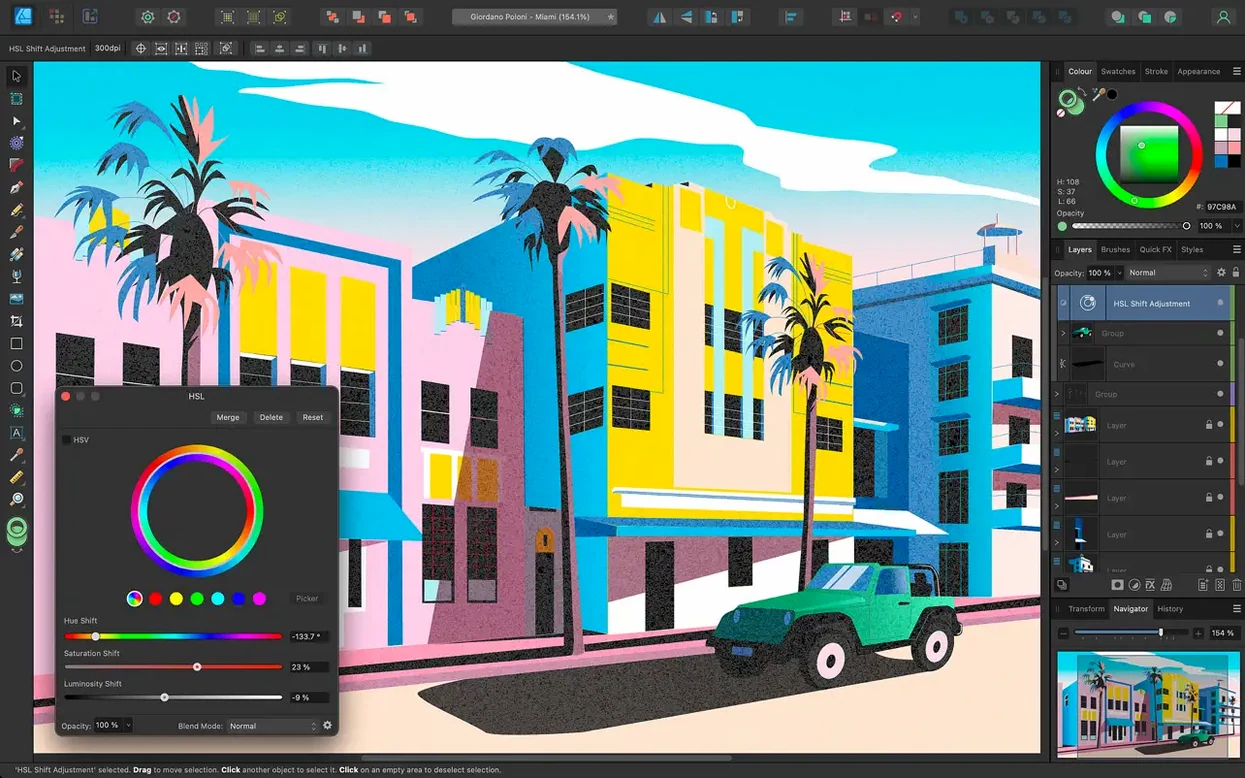
UI designers who work in vector-based mockups will appreciate the persona switching. You can draw interface elements in the vector workspace, then switch to the raster persona to add textures or pixel-level shading. The PSD export is handy for handing off to developers or importing into other apps.
Print designers who need to prepare artwork for production will find the colour management tools, 16-bit editing, and PDF export fit into a professional workflow. It is not a replacement for Adobe InDesign for multi-page layouts — that is what Affinity Publisher is for — but for single-page print projects, posters, and packaging mockups, it holds its own.
Changes in this build
- Bug fixes and stability improvements in 2.6.5
- Pencil tool improvements in 2.6
- Stroke Width Tool profiling improvements and Reset Profile
- Command or Ctrl toggle for marquee select intersection behaviour
Before it goes on the Mac
- macOS 10.15 or later
- Apple Silicon or 64-bit Intel Mac
Installing it on the Mac
- Mount the disk image and launch Open Gatekeeper friendly.
- Press Enter in Terminal to bypass Gatekeeper.
- Drag the app into the Applications folder.
- Open the app when installation is complete.
Notes from the control room
Sign in or open a catalogue account to leave a note.
No notes from the room yet. If you have used this build for a week, a short note helps the next person.
Also filed under Mac Apps
The whole Mac Apps rack Affinity Photo2.6.5 Mac Apps 789 MB
 Adobe Substance 3D Painter12.1.5 Mac Apps 3 GB
 Affinity Publisher2.6.5 Mac Apps 783 MB
 Adobe Premiere Rush1.5.62 Mac Apps 1.6 GB
 Adobe Photoshop28.0.0 Mac Apps 3.5 GB Updated
 AI Transcription2.16 Mac Apps 5.1 GB
 Adobe Lightroom Classic15.6.0 Mac Apps 3.7 GB
 Aiarty Image Enhancer3.14 Mac Apps 129 MB