Home › Mac Apps › Apple Remote Desktop
Apple Remote Desktop 3.10 (Mac)
Updated
The catalogue note
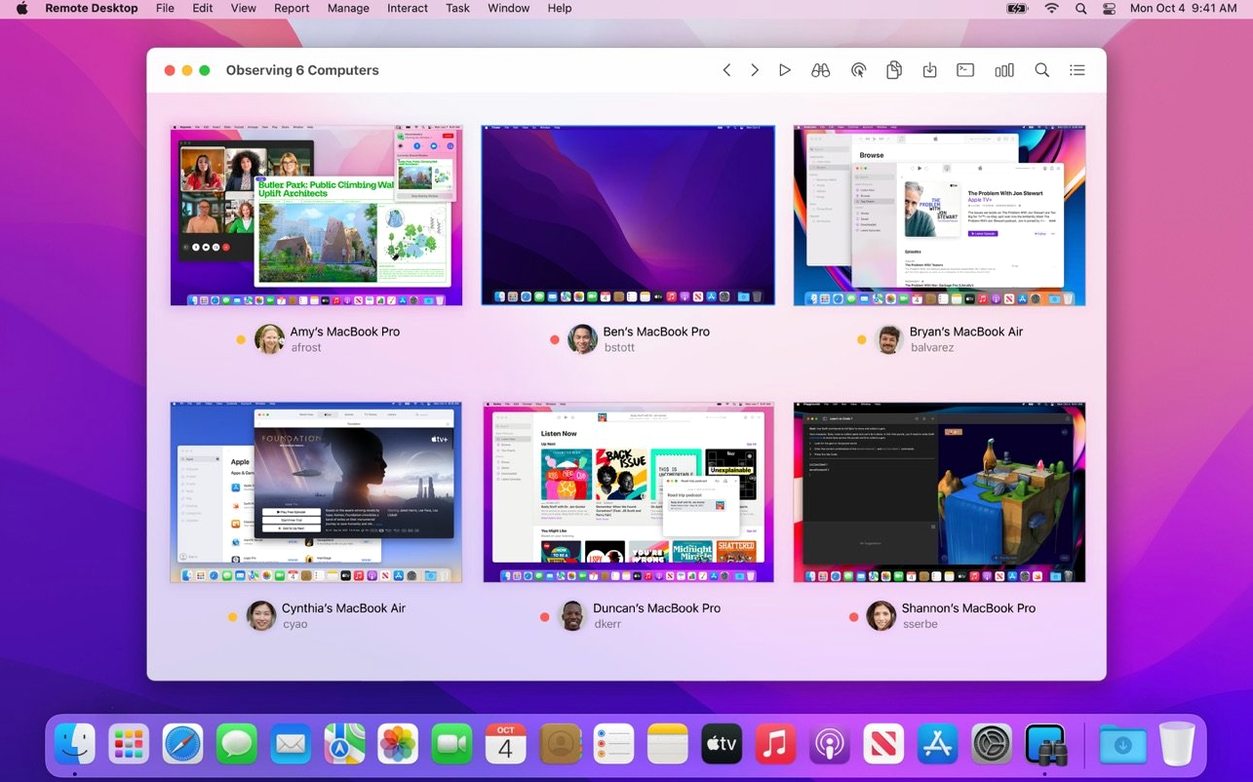
You're at your desk in Kraków, and a Mac in the live room is misbehaving. Apple Remote Desktop puts that screen on your display, lets you take over the mouse, and sorts it out without walking across the building.
How do I start observing a remote Mac?
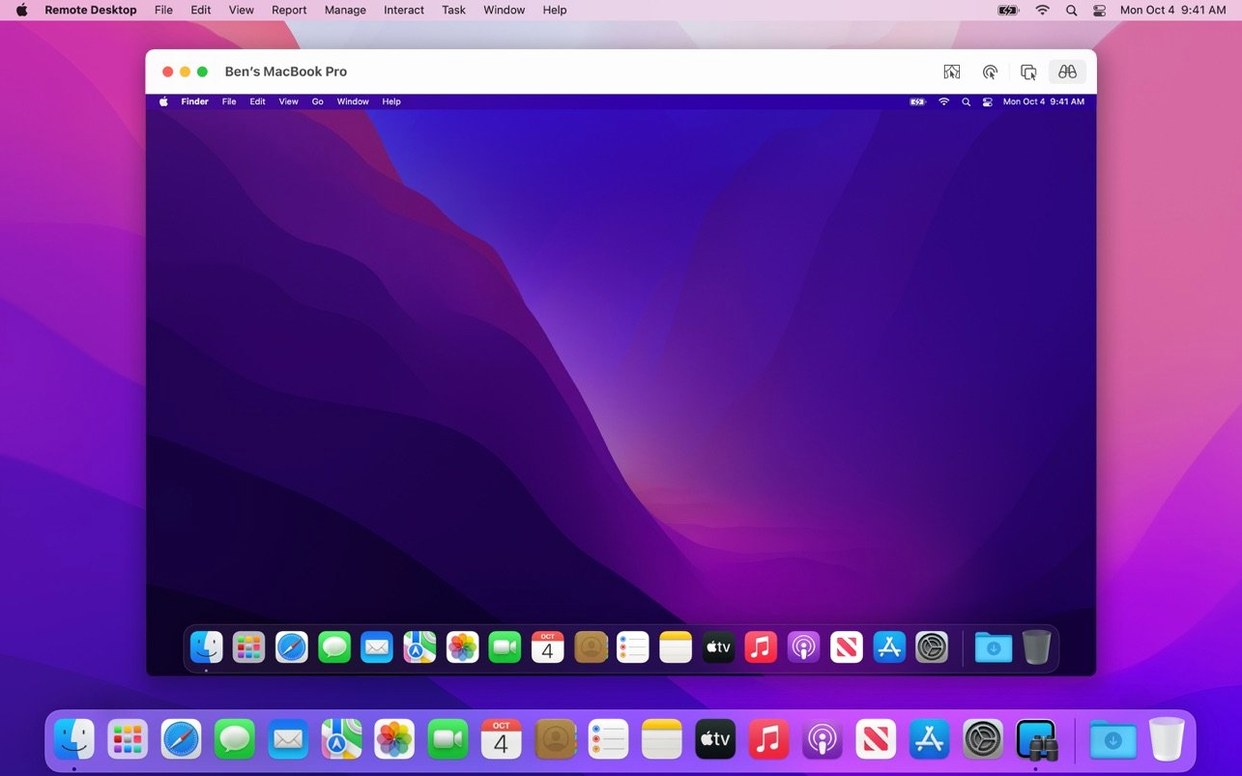
Open the app, add the computer by IP or Bonjour name, and select Observe from the toolbar. You get a live view of that screen, with minimal overhead on your network.
What's the quickest way to take control?
Choose Control instead of Observe, and your mouse and keyboard drive the remote machine directly. Copy and paste works between the two computers, so moving a file path or a snippet of text is just Cmd+C, Cmd+V.
Can I copy files without opening a Finder window?
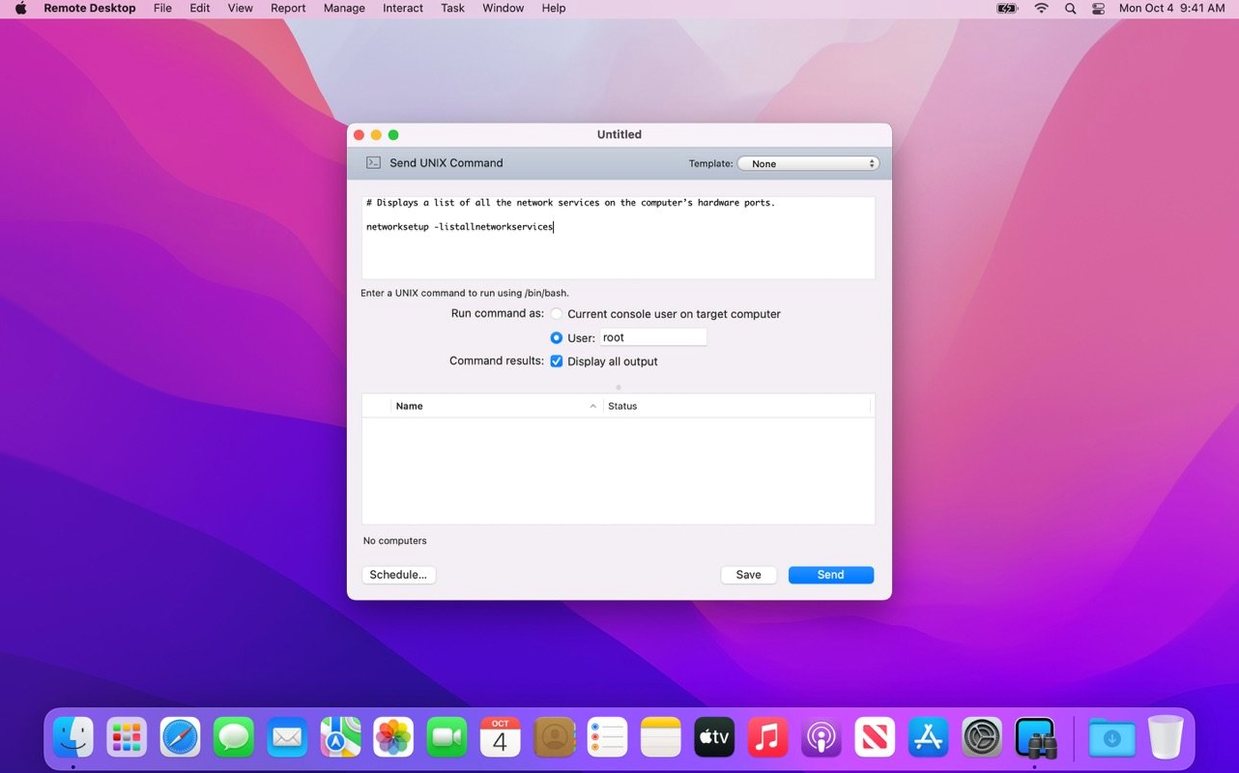
Use the Copy command from the Manage menu. It transfers packages and files over an encrypted connection, and you can push installer packages to several Macs at once.
What else can I automate from the start?
Try the built-in tasks: sleep, wake, restart, lock the screen, or run a shell command remotely. You can also trigger Spotlight search on the remote Mac, which saves time when you need a specific file.
Forgetting to install the Remote Desktop Client on every Mac
The most common slip is forgetting to install the Remote Desktop Client on managed Macs. Without it, you lose full control: Curtain Mode won't work, copy and paste between machines is unreliable, and some system commands won't reach the target. Install the client before you need it, not during an incident.
Another frequent error is using Observe mode when Control is needed. Beginners watch a remote user struggle and then realise they can't click anything themselves. Switch to Control early; you can always revert to Observe if you only need to check progress.
People also underestimate the permissions required on the remote Mac. If Screen Recording or Accessibility access hasn't been granted in System Settings, the connection may appear as a blank screen or disconnect immediately. Always verify these permissions on a test machine first.
A quieter mistake is ignoring the scheduling feature for software distribution. Pushing packages during working hours can interrupt users and trigger help-desk calls. Set the installation to run overnight or when the target is offline, and let Remote Desktop push the update the next time that Mac connects to the network.
Finally, many newcomers never touch the reports. They fix one machine at a time, not realising they can pull hardware specs, software lists, and user login histories for the entire lab in one click. That report can show you which machines need RAM upgrades before anyone complains.
Automator workflows that push packages and run scripts in one click
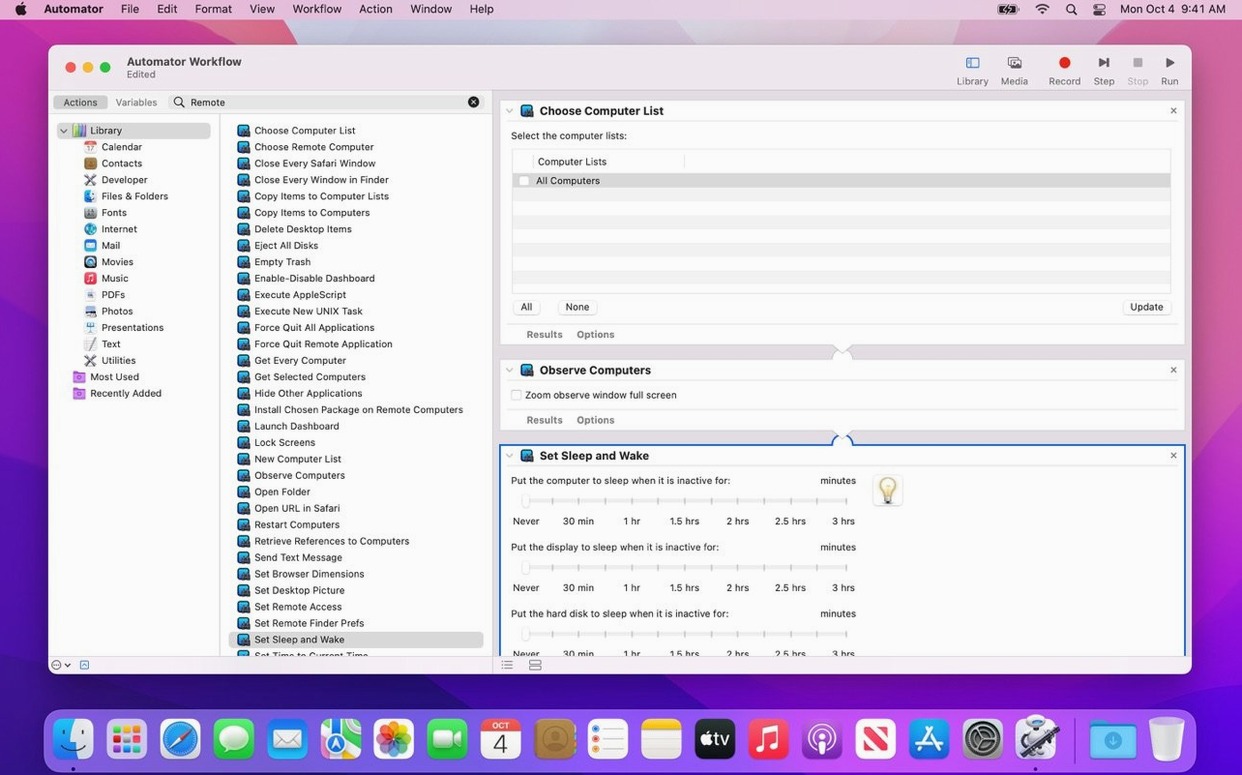
Apple Remote Desktop works well with Automator. You can build a workflow that collects system reports, runs a shell script, and then pushes a package — all triggered by a single button in the Remote Desktop toolbar. More than 40 built-in actions are available for things like waking computers, locking screens, or generating reports.
VNC compatibility means you can also manage Windows, Linux, or UNIX machines through the same interface. The control isn't as deep as with a full Mac client, but for basic screen sharing and file transfers it works reliably.
On the macOS side, Remote Desktop uses the same encryption layer as other Apple management tools. If your organisation already uses Profile Manager or MDM solutions, Remote Desktop fills the gap for tasks those tools don't handle well — ad-hoc file transfers, interactive troubleshooting, and one-to-one support sessions.
Spotlight search on a remote Mac is a small but underused feature. You can find a document on a colleague's machine without browsing folders manually; it's faster than asking them to search and describe what they see.
Rescuing a designer's Mac stuck on a grey screen after a plug-in install
Wednesday morning. A graphic designer on the second floor calls: her Mac is stuck on a grey screen after a plug-in installation. I open Apple Remote Desktop, find her machine in the saved list — it's already been added with the client installed — and click Control.
Her screen appears, grey as described. I use the built-in Restart command from the toolbar; the machine reboots. I switch to Observe mode to watch the startup sequence. It gets past the login window, but the plug-in's dialogue box is still hanging there, blocking everything.
I take Control again, dismiss the dialogue, and run a shell command to check the plug-in's cache folder. A corrupted preference file shows up. I use the Copy command from the Manage menu to push a clean version from my own machine — drag the file into the Remote Desktop window, set the destination path, and confirm. Ten seconds later, the file is there. I open the application on her Mac, and it loads normally.
While I'm in there, I generate a quick software report for the whole design team — seven machines. The report shows two of them have the same plug-in version, which might cause the same issue. I schedule a package update for tonight, targeting those two computers. I set it to install when they're offline, so the update will apply automatically the next time they connect to the network.
Session done. I close the remote connection and move on to the next task.
Organizing Macs into groups by IP range or Bonjour before managing the fleet
Before you start managing a fleet, adjust a few defaults to match your workflow:
- Set up computer lists and groups. Add your machines by IP range or Bonjour discovery, then group them by location, department, or role. A well-organised list saves time when you need to act on ten machines at once.
- Enable encrypted connections. By default, Apple Remote Desktop uses encryption for file transfers and screen sharing. Verify this is active in the preferences; it prevents others on the same network from intercepting data.
- Configure Curtain Mode. If you support users who should not see your actions, turn on Curtain Mode. It blacks out the remote screen so they cannot watch what you're doing — useful for password resets or sensitive configuration changes.
- Adjust report templates. The default reports are comprehensive, but you can save custom templates that show only the data you care about: disk space, RAM, OS version, or specific applications. This cuts down the time you spend scanning irrelevant columns.
- Set up offline package delivery. In the Software Distribution preferences, enable the option to install packages when computers come back online. This removes the need to coordinate with users or wait for a maintenance window.
Changes in this build
- Adds macOS Tahoe 26 compatibility.
- Adds Accessibility and Remote Keyboard menu and toolbar items on macOS Tahoe 26 or later.
- Adds VoiceOver support for remote Mac on macOS Tahoe 26 or later.
- Includes bug fixes and performance improvements.
Before it goes on the Mac
- macOS 15.5 or later
- Apple Silicon or Intel
Questions from the room
Does Apple Remote Desktop work with non-Mac computers?
Yes, it can manage Windows, Linux, and UNIX systems through VNC.
Can I generate reports about remote Macs?
Yes, it can create reports with more than 200 hardware characteristics, plus user logins and application usage.
Can I automate repetitive tasks?
Yes, you can use Automator and more than 40 built-in actions to automate tasks on remote Macs.
Installing it on the Mac
- Mount the disk image and run Open Gatekeeper friendly.
- Press Enter in Terminal to bypass Gatekeeper.
- Drag the app to the Applications folder.
- Launch the app.
Notes from the control room
Sign in or open a catalogue account to leave a note.
No notes from the room yet. If you have used this build for a week, a short note helps the next person.