
Home › Utilities › 4K Video Downloader

Updated
The catalogue note
If you already use a downloader for grabbing YouTube clips or channel audio, the current 4K Video Downloader for Mac behaves like the familiar utility it has always been. Version 26.3.5 remains a straightforward tool for pulling videos, subtitles, and audio from supported websites, rather than a media player or a library manager.
Clipboard link detection and Smart Mode arrive
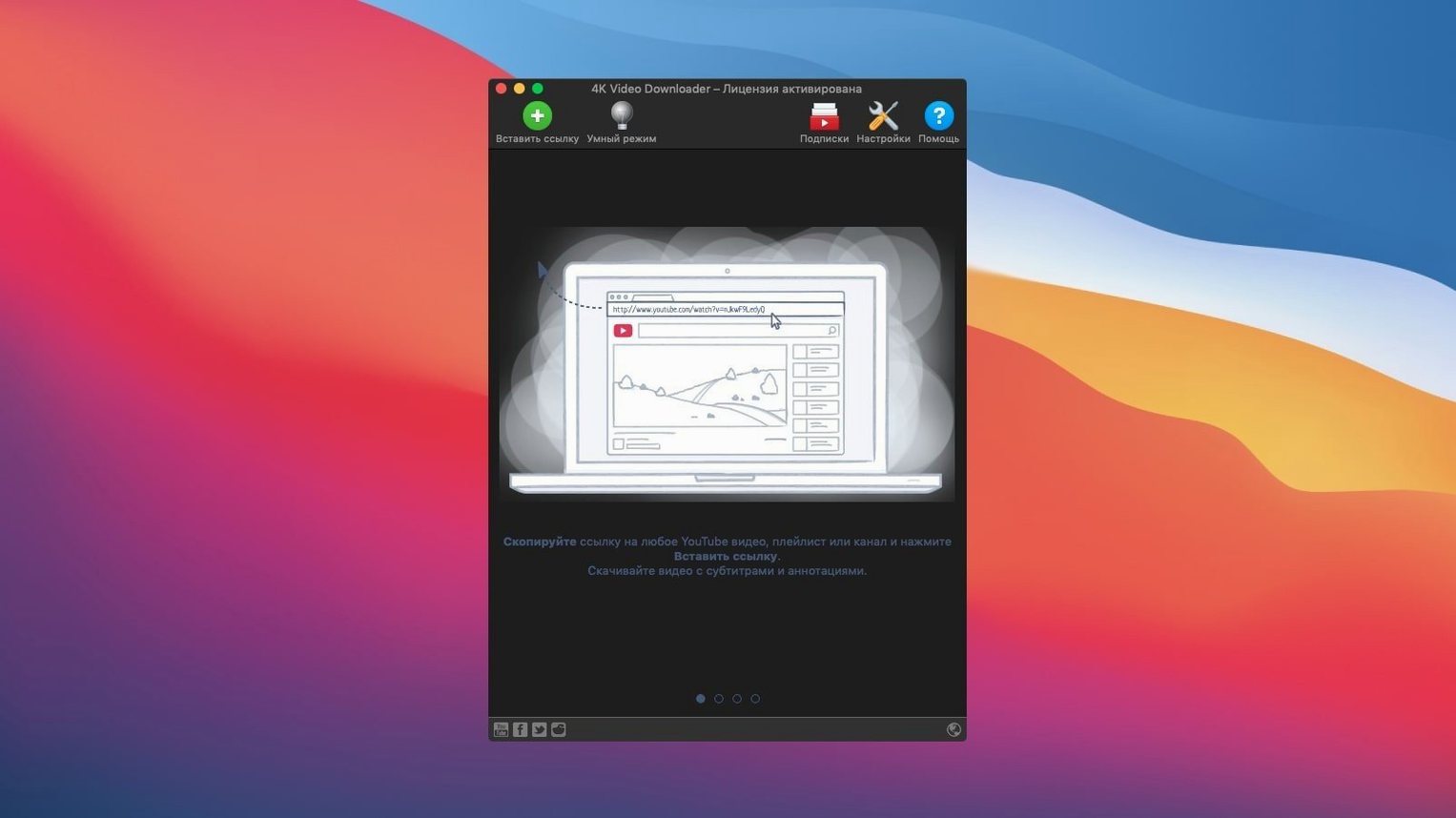
- Clipboard link detection with a Paste Url action for quick downloads
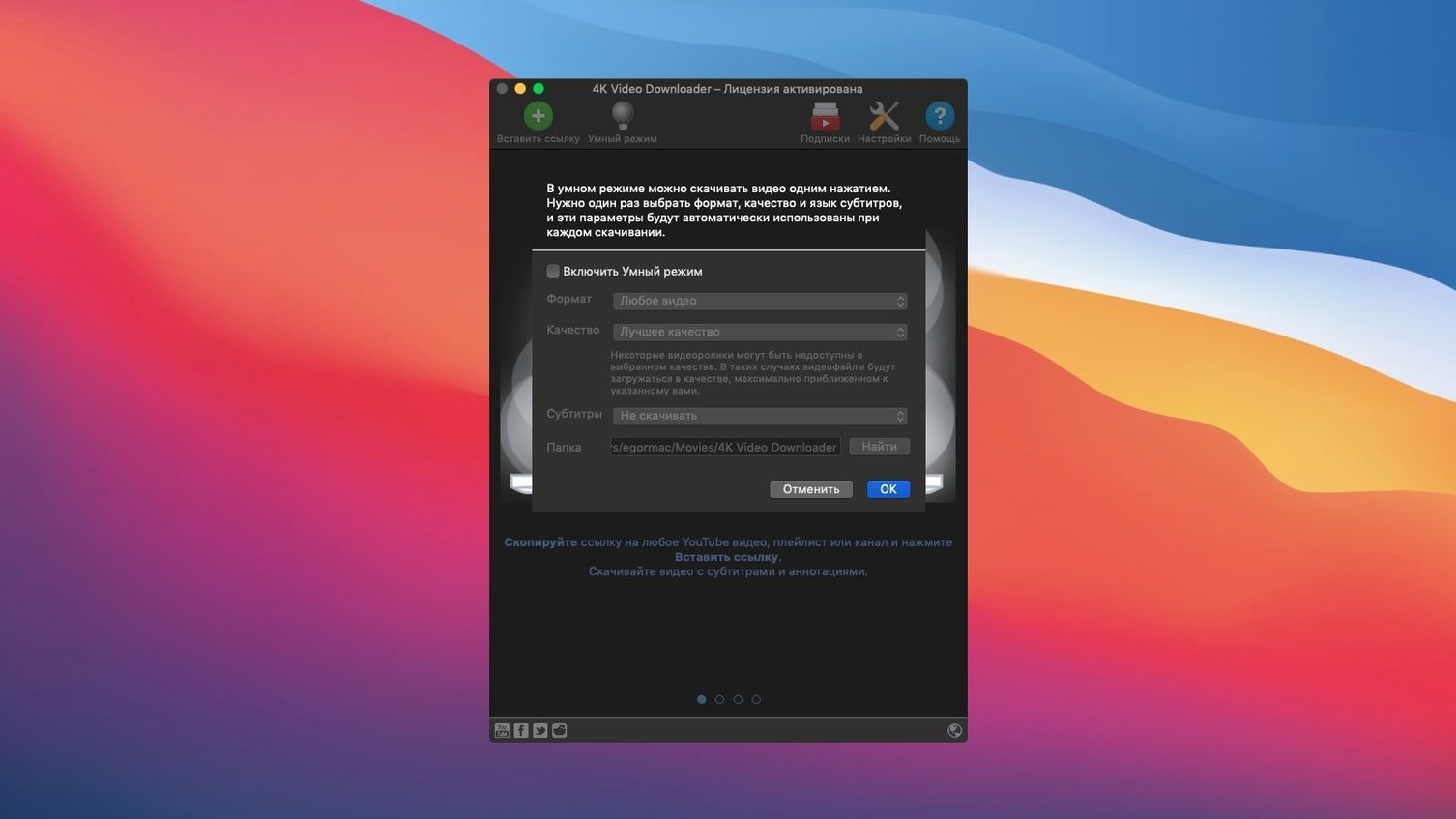
- Smart Mode that applies your chosen settings automatically to future downloads
- Output in MP4, MKV, M4A, MP3, FLV, and 3G formats
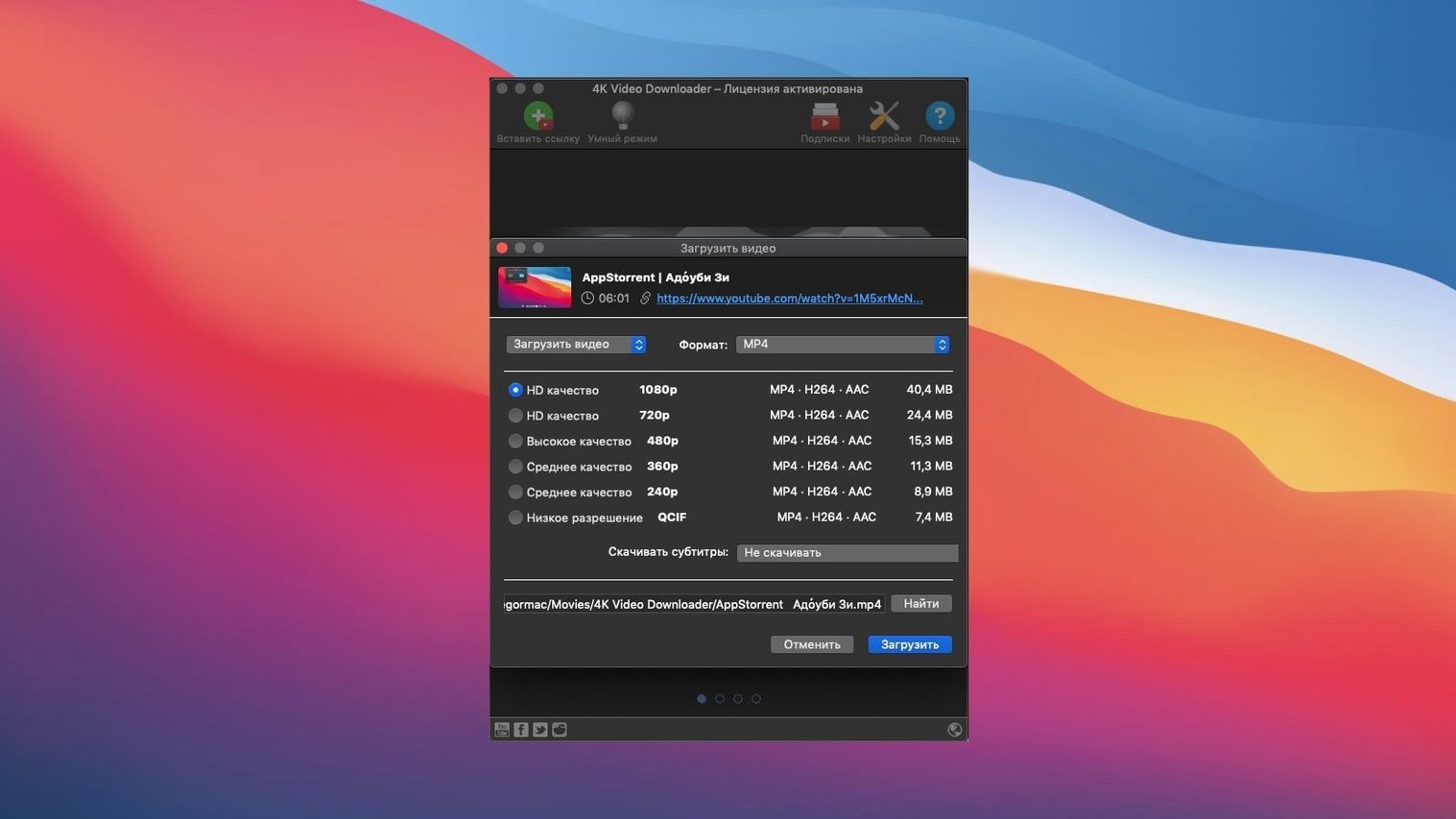
- Resolution choices at 1080p, 720p, or 4K
- Playlist and channel saving from YouTube
- Built for Intel 64-bit Macs, running on macOS 12 or later
Sixteen languages and a focus on core downloads
The interface language list remains wide, covering sixteen languages from English to Japanese. It is part of the broader OpenMedia family that includes 4K Video Downloader Plus, but this version keeps its focus on the core task: grabbing online media in the format you specify.
Paste Url handles longer YouTube channel URLs
The jump to version 26.3.5 brought a handful of refinements that show up during daily work rather than in the feature list. Paste Url now handles longer channel URLs without choking on the extra parameters that YouTube appends after the watch ID. Smart Mode remembers the format toggle between MP4 and MKV independently per download type — so a video in MKV and a separate audio grab in MP3 keep their own presets without you re-selecting each time.
Playlist parsing runs a little more quietly: the app no longer stalls the interface while it reads a channel with several hundred videos. The progress bar updates more steadily, and the queue handles a new download without bumping the one already running. Subtitle downloads default to SRT rather than embedded when you choose "Subtitles" in the format picker, which saves a trip to the settings panel for anyone who edits captions externally.
Test downloads before committing to a new site
Set Smart Mode before the first real download
Open Preferences, choose your usual format and quality, then enable Smart Mode. After that, every Paste Url action uses those settings without a dialog. It saves time on the second download and becomes essential once you start queueing multiple clips.
Let the app watch the clipboard
Keep the main window visible and copy a link from your browser. The app picks it up immediately — you do not need to switch focus or click a button. For embedded YouTube videos on a webpage, right-click and copy the page URL instead of the embed code; the app parses the page and finds the video.
Use M3U for long playlists
When you download a YouTube playlist, check the "Create M3U file" option in the format panel. The resulting file works in VLC, IINA, and most players that support playlists, so you can browse the local files by their original order without renaming anything.
Keep the app updated for site changes
Video platforms alter their streaming protocols regularly. Version 26.3.5 handles current YouTube and Vimeo layouts, but an older build might fail on a new format. Check for updates every few months rather than waiting for a download to error out.
Scenario: archiving a lecture series from YouTube
A university student uses the app to save an entire lecture playlist from a professor's channel. They copy the playlist URL, paste it into 4K Video Downloader, and choose MP4 at 720p — the sweet spot between file size and legibility for slides. Smart Mode is set to the same format, so subsequent playlists download with one paste each. The M3U file lets them play the lectures in order inside IINA without hunting through the Downloads folder. Subtitles come as SRT files, which they import into their note-taking app to search through transcripts later. The whole process takes about the same time as watching the first lecture, and the local copies stay available offline during exam prep.
Check supported sites before you install
Does it download 4K from every site?
The app offers 4K as a resolution option, but the actual availability depends on what the source serves. YouTube delivers 4K on many videos; Vimeo and DailyMotion may cap lower. The format list shows only the resolutions the app detects for a given link, so you see what is possible before you start.
Can I download a single video from a playlist?
Yes. Paste the playlist URL, and the app lists all videos. Uncheck the ones you do not want, then start the download. The same applies to channels — select individual files or grab the whole set.
Bilibili is not in the supported site list
The supported site list includes YouTube, Vimeo, SoundCloud, Flickr, Facebook, DailyMotion, and Instagram. Bilibili is not listed. For sites outside that set, the app may or may not parse the video stream — test with a single short clip before committing to a large download.
Why does the app ask to bypass Gatekeeper on first launch?
The Intel build is signed by OpenMedia but not notarised through Apple's automated checks. Mounting the disk image and running the Open Gatekeeper friendly step in Terminal tells macOS to trust this copy. After that, the app launches normally and stays authorised through updates unless the developer changes the signing certificate.
Runs downloads in the background while you browse
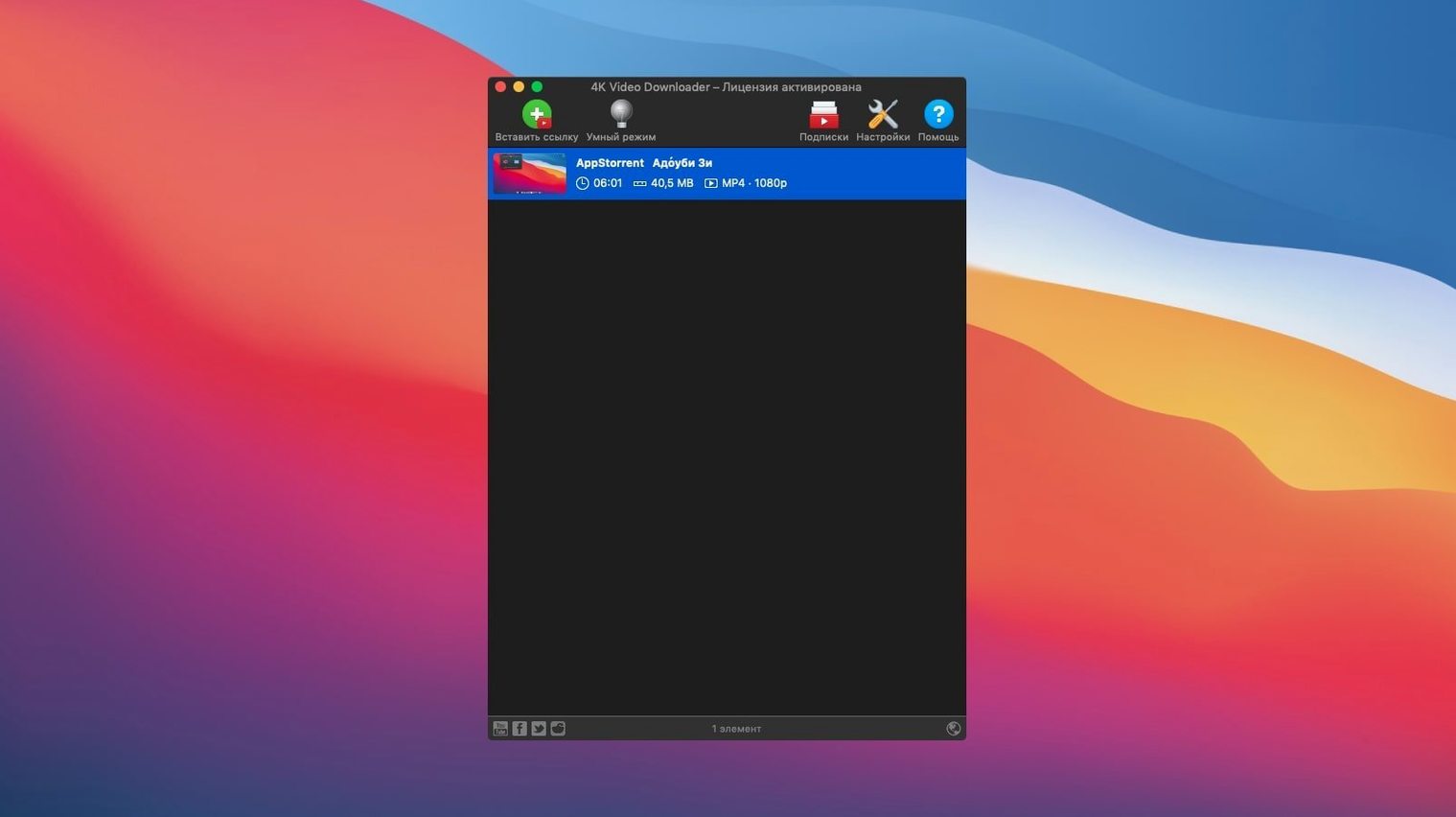
4K Video Downloader works as a companion to your browser rather than a replacement. Copy a link from Safari, Chrome, or Firefox, paste it in the app, and the download runs in the background while you keep browsing. The app does not play media — it leaves that to QuickTime Player, IINA, VLC, or whatever player you prefer.
The M3U files it creates open directly in iTunes (now Music) on macOS Ventura and later, provided the tracks are in a compatible format like MP4 or M4A. For video playlists, IINA or VLC handle the order correctly. The SRT subtitle files work in any editor or player that supports external subtitles, including Final Cut Pro and DaVinci Resolve for transcription workflows.
Because the app saves files to a standard location you choose, Spotlight indexes them. Searching for a video title or channel name later brings up the local copy. That is useful when you remember the content but not the exact filename. The app itself does not need to be running to find the files — just rely on Finder and Spotlight as usual.
Before it goes on the Mac
- macOS 12 or later
- Intel 64-bit architecture
Questions from the room
Does 4K Video Downloader work on Apple Silicon Macs?
The app is built for Intel 64-bit Macs, so it runs natively on Intel hardware and would rely on Rosetta 2 translation on Apple Silicon machines.
Installing it on the Mac
- Mount the disk image and run the Open Gatekeeper friendly option.
- Press Enter in Terminal to bypass Gatekeeper.
- Drag the app to the Applications folder.
- Launch the app from Applications.
Notes from the control room
Sign in or open a catalogue account to leave a note.
No notes from the room yet. If you have used this build for a week, a short note helps the next person.
Also filed under Utilities
The whole Utilities rack 1Password7.9.4 Utilities 70 MB
 4K YouTube to MP326.4.0 Utilities 218 MB Updated
 A Better Finder Attributes7.55 Utilities 13 MB Updated
 Adobe Bridge17.0.0 Utilities 3.6 GB Updated
 Adobe Media Encoder27.0.0 Utilities 2.4 GB Updated
 AirBuddy3.0 Utilities 49 MB
 Airflow3.3.10 Utilities 69 MB
 Alcove1.7.9 Utilities 14 MB