

Updated
The catalogue note
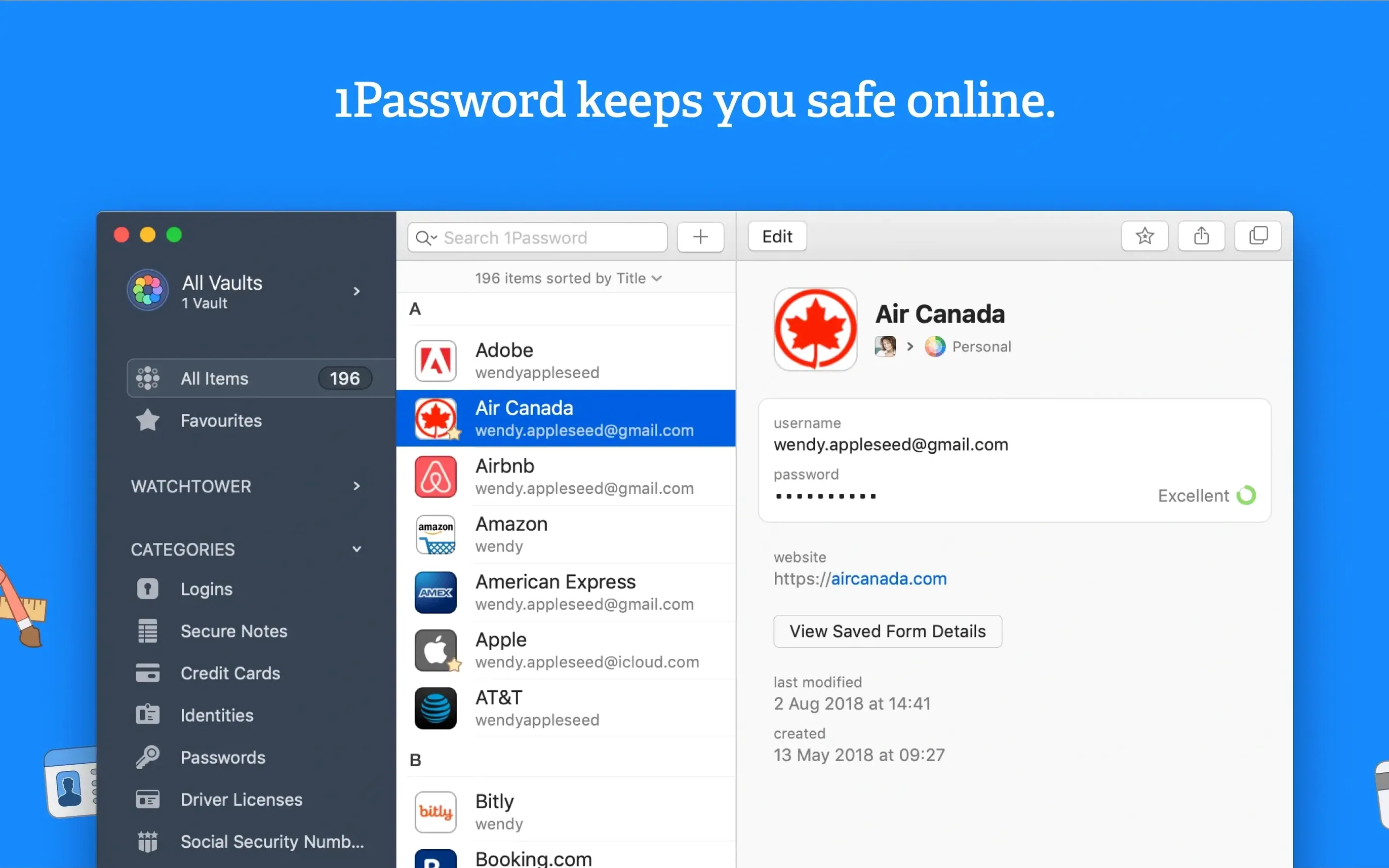
1Password 7.9.4 stores your logins and passwords for apps and websites, and it keeps them behind a single master password that only you know. It is a password manager first, with a browser extension for saving and signing in as you browse.
How does Watchtower help?
Watchtower checks your vault for weak, compromised, or reused passwords, and flags sites that still serve unencrypted HTTP. It is a built-in audit tool rather than a separate service.
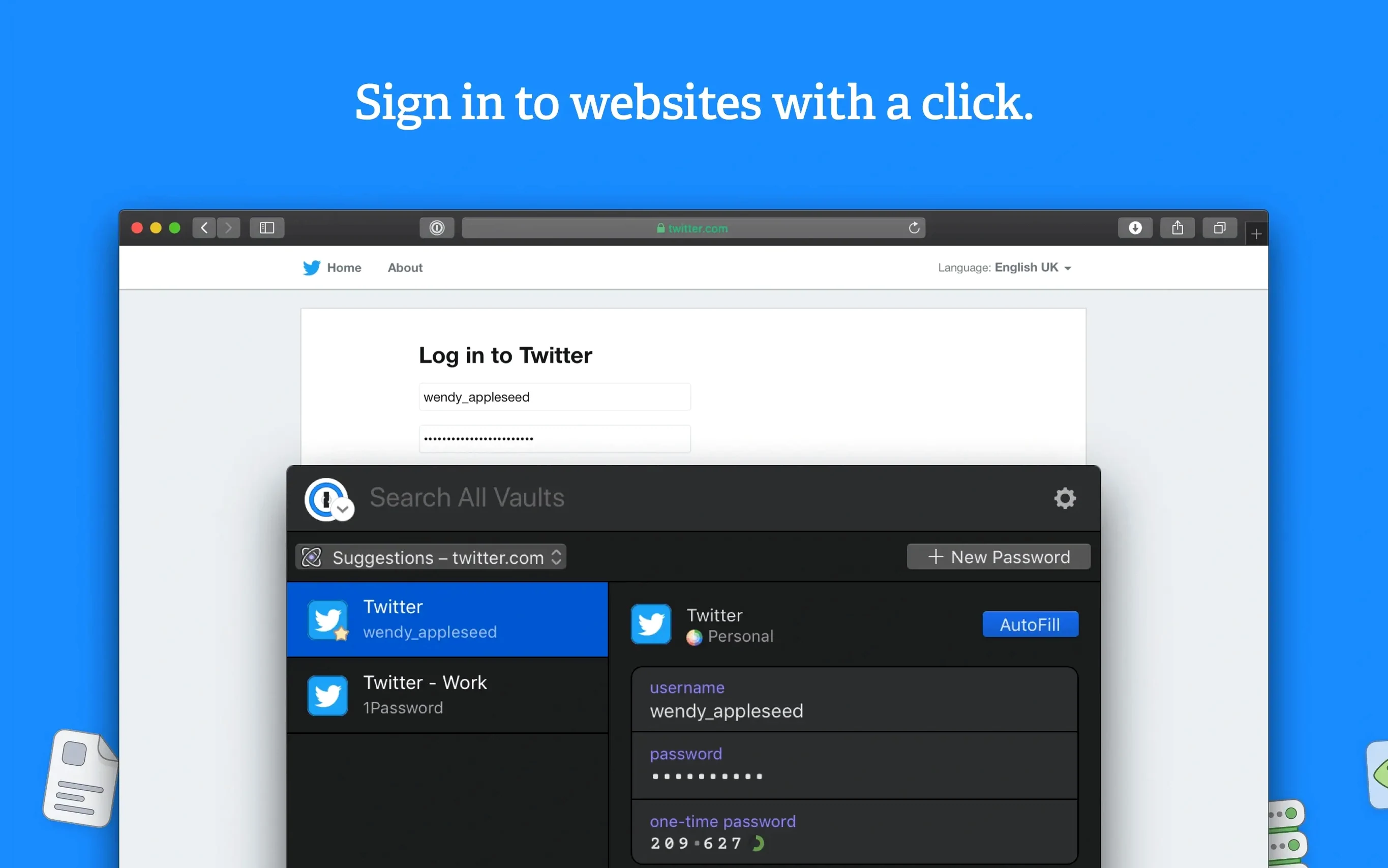
Fills credentials without leaving your browser
It sits alongside your browser and system keychain, filling credentials where needed. The Mac app and browser helper work together, so you do not have to switch windows to grab a login.
Vault format and shortcuts carry over from 1Password 6
If you are coming from 1Password 6, the vault format carries over, and the release notes page for Mac lists what changed in each update. The interface stays consistent, so familiar shortcuts still apply.
Three quick fixes for common setup hiccups
A few things tend to trip people up when they start using 1Password 7 on a Mac, or when they come back to it after a long gap. None of them are serious, but knowing where to look saves time.
Browser extension stops talking to the app
The 1Password mini helper runs in the menu bar and connects the browser extension to your vault. If the extension says it cannot find the app, the helper may have stopped or the browser might be blocking it. Quit the browser, open 1Password for Mac, go to the preferences and check the browsers section — make sure the toggle for your browser is on. Then restart the browser. The helper should reconnect on its own.
1Password duplicate item after importing
When you bring data in from another manager or from an older 1Password 6 vault, duplicates can appear if the import tool matches items by name rather than by URL or username. The quick fix is to use the built-in duplicate finder: look under File > Duplicates in the menu bar (the exact label depends on your language setting). It shows you pairs of similar items so you can delete the older one. Do not rush through it — check the URLs and notes fields before removing anything.
Watchtower warnings that never clear
Watchtower flags sites that use plain HTTP. If you manage a legacy site that does not support HTTPS, that warning will stay. It is not a bug; it is telling you the site is unencrypted. You can dismiss individual items from the Watchtower view, or leave them as a reminder to push for an upgrade. For reused-password warnings, change the password on the site and update the item in 1Password — Watchtower re-scans after the vault syncs.
Vault not syncing across Macs
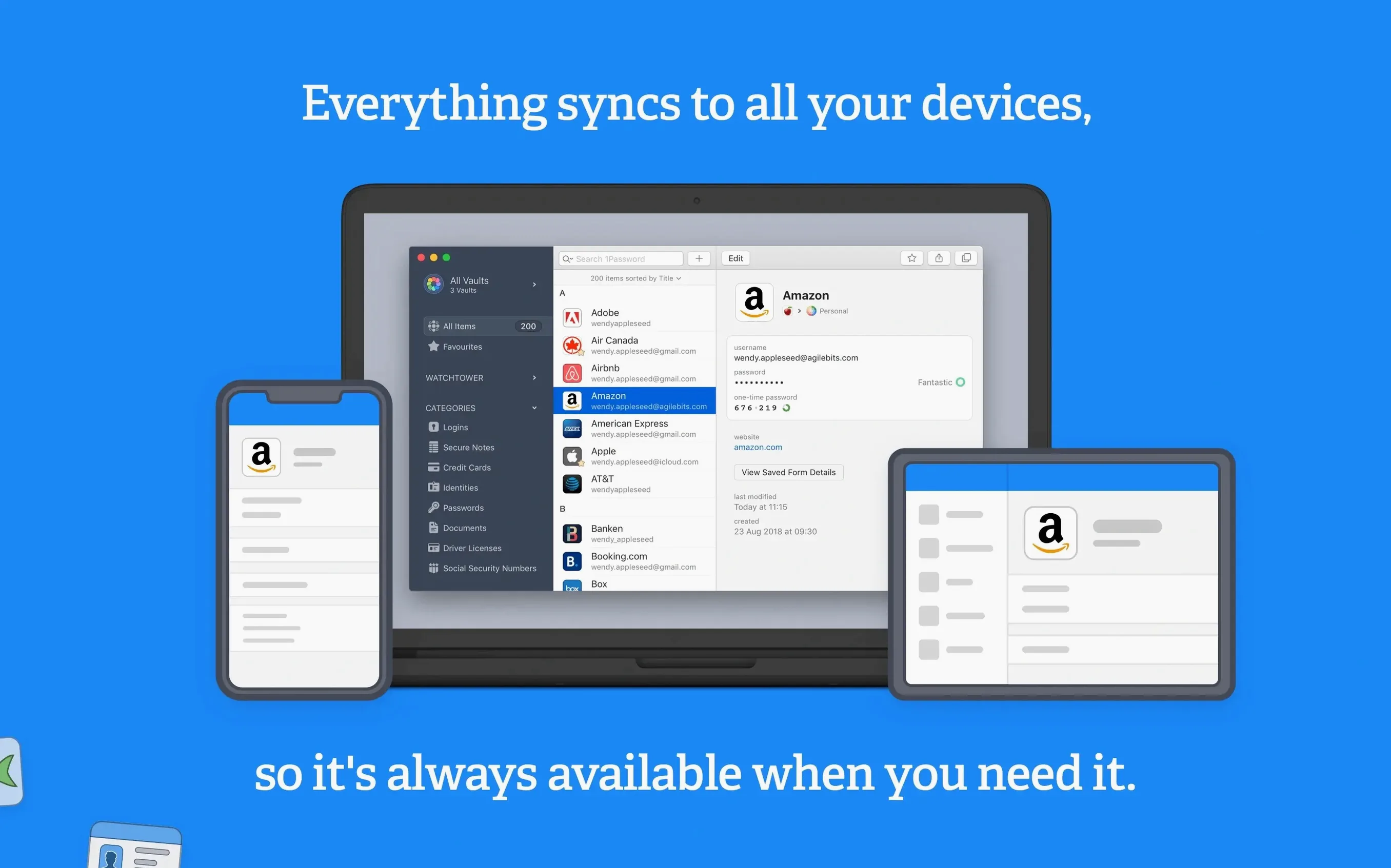
1Password 7 can sync through iCloud, Dropbox, or a local folder. If your vault is not updating on another Mac, check that both machines are on the same sync method and that the sync folder or service is reachable. In preferences, choose the sync tab and verify the location. A common oversight: the secondary Mac has the vault file in a different Dropbox folder. Keep the path identical on every machine.
Beats two rivals on speed and vault sharing
I keep a few password managers on the studio Mac for testing. Here is how 1Password 7 stacks up against two that serve a similar audience.
Versus Bitwarden
Bitwarden is open-source and runs its own sync infrastructure. 1Password 7 stores your vault locally or through your choice of cloud provider, which some people prefer for control. Bitwarden's browser extension is lighter, but 1Password's Watchtower gives you the breach and weak-password checks without visiting a separate website. Both handle multiple vaults well. 1Password's secure notes and document storage feel more polished on macOS — the UI for attaching a file to a login item is clearer.
Versus KeePassXC
KeePassXC is free and database-only. It does not have a built-in browser extension on the same level as 1Password; you have to set up KeePassXC-Browser separately. 1Password 7 offers the browser helper that works with Safari, Chrome, Firefox and others right out of the box. KeePassXC's strength is portability — its database file opens on almost any OS — but 1Password gives you Watchtower and the credit-card form filler, which KeePassXC lacks unless you add third-party tools.
Versus Apple's iCloud Keychain
iCloud Keychain is free and built into macOS. It fills passwords in Safari and syncs across your Apple devices. It does not have a dedicated Mac app with a searchable vault, nor does it offer Watchtower auditing. 1Password 7 works with multiple browsers, stores secure notes and documents, and gives you one master password that unlocks everything rather than relying on your iCloud account. If you use only Safari and never need to store non-password data, the keychain might be enough. For anything beyond that, 1Password fills the gaps.
A workflow for auditing your vault with Watchtower
Watchtower is most useful when you treat it as a periodic maintenance task rather than a one-time scan. Here is a workflow I walk through every few months.
- Open 1Password 7 for Mac and click the Watchtower icon in the sidebar. You see a list of categories: weak passwords, reused passwords, compromised passwords, two-factor authentication available, and websites using HTTP.
- Start with Compromised passwords. These are the urgent ones. Click each item, go to the website, change the password, and update the entry in 1Password. Do not skip the step of generating a new password inside the app — use the built-in generator for a random string of 16 to 20 characters.
- Move to Reused passwords. Pick one login, change its password to something unique, and save it. Repeat for each. If you have dozens, prioritise banking, email, and social media accounts first.
- Next, Weak passwords. These are usually old entries that you never updated. Generate a strong password for each and save it.
- Check Two-factor authentication available. For any site you care about, enable 2FA if you have not already. Store the recovery codes in a secure note inside 1Password.
- Finally, look at Websites using HTTP. If a login page still uses plain HTTP, see if the site supports HTTPS — many do but redirect slowly. Update the URL in the item to the HTTPS version.
This whole process takes about an hour for a vault of 100 logins. After the first pass, subsequent audits are faster because most items are already clean.
Lock on sleep and other defaults to tweak first
When you install 1Password 7 for the first time, a few default settings are worth adjusting before you start filling logins.
- Lock on sleep — the app locks when your Mac goes to sleep. Keep this on. It prevents someone from walking up to an unlocked vault after you close the lid.
- When you copy a password, it stays on the clipboard until you copy something else. A short auto-clear reduces the risk of pasting it somewhere unintended.
- Browser integration — in preferences, confirm that the browsers you actually use are enabled. Disable any you do not run. It keeps the helper from trying to inject into every browser on your system.
- Keyboard shortcut — assign a shortcut to open 1Password mini (Command+Space is taken by Spotlight on most Macs, so I use Control+Option+Command+P). It makes filling credentials faster than clicking the menu bar icon.
- Vault sync — if you use iCloud or Dropbox, set the sync folder to a location you can remember. On a single Mac, local sync is fine and removes one dependency.
These are small tweaks, but they make the day-to-day experience more predictable. The rest of the defaults work well enough as they are.
Before it goes on the Mac
- macOS 10.12 or later
- Intel architecture
Questions from the room
Does 1Password 7 for Mac work with older macOS versions?
Yes, it requires macOS 10.12 or later, and the current build runs on Intel Macs.
Installing it on the Mac
- Mount the disk image and run Open Gatekeeper friendly.
- Press Enter and wait for the process to finish.
- Complete the standard installation steps.
- The app is ready to use.
Notes from the control room
Sign in or open a catalogue account to leave a note.
No notes from the room yet. If you have used this build for a week, a short note helps the next person.
Also filed under Utilities
The whole Utilities rack 4K Video Downloader26.3.5 Utilities 247 MB
 4K YouTube to MP326.4.0 Utilities 218 MB Updated
 A Better Finder Attributes7.55 Utilities 13 MB Updated
 Adobe Bridge17.0.0 Utilities 3.6 GB Updated
 Adobe Media Encoder27.0.0 Utilities 2.4 GB Updated
 AirBuddy3.0 Utilities 49 MB
 Airflow3.3.10 Utilities 69 MB
 Alcove1.7.9 Utilities 14 MB