Home › Mac Apps › VectorStyler

VectorStyler 1.3.033 (Mac)
Updated
The catalogue note
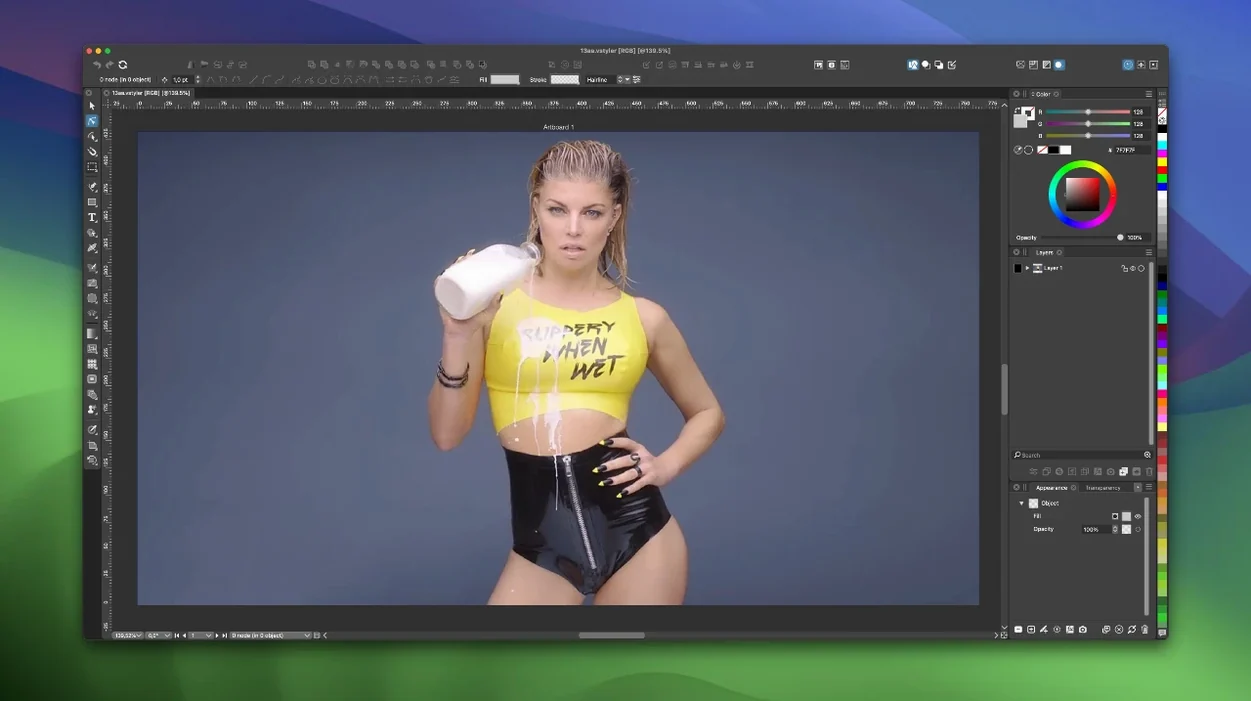
VectorStyler runs on any Mac from OS X 10.11 El Capitan onwards, Intel or Apple Silicon. It is a native vector graphics, design, and illustration editor for creating scalable art, drawings, and illustrations for both print and screen.
What it is and who it is for
Non-destructive shape effects — Apply effects to objects and groups without altering the original geometry. Edits remain live.
Advanced text layout — Text flows inside linked frames across multiple artboards and canvases. Supports both text frames and point text.
Live image effects — Over 100 image effects can be applied to vector objects and groups without rasterising them. Color filters stay vector until you commit.
Brushes and warps — Artistic, pattern, scatter, and bristle brushes are included. Mesh, envelope, and elastic warp effects deform shapes predictably.
Practical questions about running VectorStyler alongside Illustrator
Because VectorStyler is a native application rather than a web tool, a few practical questions tend to come up before the first download. Here are the ones I hear most often.
Does it work alongside Adobe Illustrator? Yes. VectorStyler imports Adobe Illustrator brush types directly, so if you have built a brush library in Illustrator, you can bring those into VectorStyler without conversion steps. The app also reads and writes common vector formats, making it straightforward to move files between the two applications.
Will it run on an older Mac? The minimum system is macOS OS X 10.11 El Capitan, and the application supports both Intel and Apple Silicon architectures. I have seen it work on a 2012 MacBook Pro that still runs High Sierra, though performance with heavy mesh warps or many linked text frames will naturally depend on the hardware. The app is 64-bit only, so any Mac that can run El Capitan or newer will launch it.
Do I need an internet connection to use it? No. Once installed, VectorStyler works entirely offline. This matters if you work on a studio machine that stays disconnected from the internet.
Can I use it for print work? Yes. The colour filter system applies to vector objects without rasterising them, so you can prepare CMYK-ready artwork without losing editability. The text layout engine handles linked frames and multiple columns, which is useful for multi-page booklet work.
Marta's wine label workflow for typography and custom scripts
Marta designs wine labels for a small distillery. Each label needs a different quote set in a custom script typeface, with the text wrapping around a central illustration. She used to do this in a general-purpose vector app, but the text reflowed unpredictably whenever she adjusted the illustration.
In VectorStyler, Marta creates a text frame on the artboard, types the quote, and links that frame to a second frame on the same canvas. The text flows automatically between them. She then applies a parametric distortion effect to the illustration — a gentle envelope warp — without rasterising the vector shapes. The text stays independent of the warp, so she can edit the quote's wording or kerning without touching the illustration. When the client asks for a taller label, she drags the artboard boundary and the linked frames adjust. No reflow errors, no flattened layers.
Building a logo with non-destructive shape effects and scatter brushes
This walkthrough covers creating a logo mark from a single vector shape, using non-destructive effects and a scatter brush to add texture. It assumes you have VectorStyler open and a new document ready.
- Draw the base shape. Use the path or shape tool to draw a simple closed shape — a circle, a polygon, or a custom path. This will be the core of the logo mark.
- Apply a non-destructive shape effect. With the shape selected, open the effects panel and choose a parametric distortion — for example, a bulge or a twist. The effect appears as a live overlay on the canvas. Drag the control handles to adjust the distortion intensity. Because it is non-destructive, the original path remains unchanged beneath the effect; you can edit the effect parameters at any time.
- Add a scatter brush stroke. Create a new layer above the shape. Select a scatter brush from the brush library — a speckled or dotted pattern works well for texture. Draw a freehand stroke that partially overlaps the shape. The brush applies as a vector path, so you can edit its stroke width, colour, and opacity without rasterising.
- Apply a live image effect to the brush stroke. With the brush stroke selected, choose a colour filter from the live image effects list — a monochrome or tint filter, for instance. The filter applies to the vector stroke only, and you can toggle it on and off to compare the effect.
- Position and snap. Enable collision snapping in the snapping options. Drag the brush stroke layer so it aligns with the edge of the distorted shape. The snapping guides show contact points between the two objects, making precise placement straightforward.
- Refine the text. Add a point text element below the shape. Type the brand name, adjust the font and size, and use the alignment tools to centre it under the logo mark. Because the text is a separate object, you can edit it independently of the shape effects.
The result is a logo mark where every element — shape, brush, filter, and text — remains editable as a vector. Changing the distortion effect later does not break the brush stroke or the text layout.
Changes in this build
Version 1.3.033 has landed. The full changelog is up on the developer's site — a handful of fixes and refinements for the vector toolset.
Before it goes on the Mac
- macOS 10.11 or later
- Apple Silicon and Intel 64-bit Macs
Installing it on the Mac
A 115 MB download that runs on any Mac still on 10.11 or newer — Intel or Apple Silicon. Installation is four steps and takes under a minute.
- Mount the disk image and launch Open Gatekeeper friendly.
- When the Terminal window appears, press Enter to bypass Gatekeeper.
- Drag the application icon into your Applications folder.
- Ready to run.
Notes from the control room
Sign in or open a catalogue account to leave a note.
No notes from the room yet. If you have used this build for a week, a short note helps the next person.