
Home › VST Plugins › LFOTool
LFOTool 1.768 (Mac)
Updated
The catalogue note
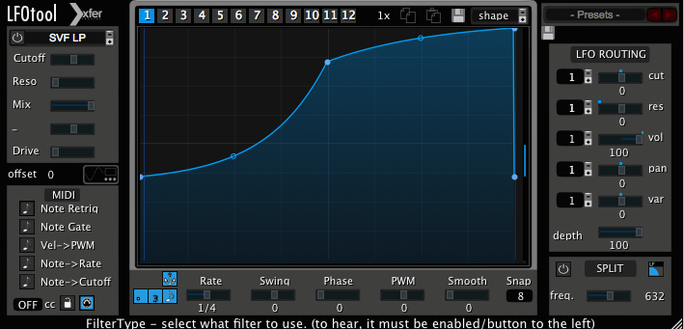
Set up a sidechain-style pumping effect on a pad sound: load LFOTool on the track, draw a curve that dips every beat, and let the plug-in slice the gain. The same graph can also send MIDI CC to another instrument, so one LFO shapes two things at once.
Runs as VST or AudioUnit on Intel and Apple Silicon
LFOTool runs as a VST or AudioUnit plug-in on macOS 10.11 or later, on both Intel and Apple Silicon. It works in any compatible host: Logic, Ableton Live, Cubase, Studio One, Reaper. The plug-in is written in C++ to keep CPU load down, even with several graphs running.
Step-by-step: set up an autofilter with MIDI out
- Insert LFOTool on a track with audio or a software instrument.
- Open the graph editor and draw an LFO curve for cutoff or pan.
- Set rate in hertz or BPM; enable swing if the groove needs it.
- Assign up to four graphs to Cutoff, Reso, and Pan simultaneously.
- Route the plug-in's MIDI output to another instrument or hardware to send CC messages from the same LFO.
Sample-accurate sync keeps the LFO locked to the transport, and each preset can hold up to 12 graphs, so you can store variations and recall them per song section.
How LFOTool fits with other apps and macOS features
LFOTool works inside your host, but it also talks to things outside the plug-in window. The MIDI CC output is the main bridge: route it to another track's software instrument, and the LFO controls filter cutoff, oscillator pitch, or effect mix on that synth without extra automation lanes. Some users run LFOTool on a silent MIDI track, generating modulation for every instrument in the project from one place.
On macOS, the AudioUnit version slots into Logic's own MIDI environment. You can feed LFOTool's MIDI out through a transformer object or straight to an instrument channel. The plug-in also responds to host automation, so you can switch between its 12 graphs via arrangement automation lanes, giving you different LFO shapes per song section without opening the editor.
If you use Ableton Live, LFOTool's MIDI output can drive Rack macros or be recorded as automation clips. In Logic, you can record the MIDI CC stream to a region and then edit it as standard MIDI data. This workflow lets you design an LFO curve once, print it, and then tweak individual events by hand.
Point-and-tension curve editor bends for organic shapes
The point-and-tension curve editor does more than draw straight lines. You can click anywhere on the graph to add a point, then drag its tension handle to bend the curve. This creates smooth, non-linear shapes that sound more organic than stepped LFOs. Beginners often drag points into position and leave the tension at default, missing the chance to make filter sweeps that ease in and out.
Presets hold up to 12 graphs, but only four run at the same time. The remaining eight are stored and ready to switch via MIDI notes or automation. This is useful for building a library of LFO shapes for one project: a slow sine for pads, a fast saw for arpeggios, a stepped curve for rhythmic gating — all in one preset, switched by keyboard notes or arrangement automation.
The rate control lets you choose between BPM-synced divisions and hertz values. Switching between the two doesn't reset the curve, so you can audition a slow hertz-based wobble and then lock it to tempo without redrawing the shape. Swing is a simple percentage slider, not a separate groove template, so it works with any BPM setting.
New graph must be assigned to Cutoff, Reso, Pan, or Gain
The most common error is expecting LFOTool to affect audio without assigning the graph to a destination. By default, a new graph doesn't control anything. You have to pick Cutoff, Reso, Pan, or Gain from the graph's assignment menu. New users draw a curve, hear nothing, and assume the plug-in is broken.
Another mistake is running more than four graphs simultaneously. LFOTool's limit of four active graphs is per preset, not per instance. Beginners sometimes create a fifth graph, see it appear in the editor, but wonder why it has no effect. The answer is in the graph's on/off toggle — only four can be active at once. The rest are stored and switchable, not dead.
A third issue: MIDI CC output needs a destination. If you set LFOTool to send MIDI CC on channel 1 but the target instrument listens on channel 2, nothing happens. The plug-in doesn't warn you about mismatched channels. Similarly, if the target doesn't respond to that CC number, the modulation goes nowhere. Checking the MIDI routing and the target's MIDI implementation is necessary before you troubleshoot elsewhere.
Finally, some users forget to enable sample-accurate sync in their host's track delay compensation. LFOTool's sync is sample-accurate by design, but if the host's PDC is off or the track has a long latency plugin before LFOTool, the LFO may feel loose. This isn't a plug-in issue, but it's a common point of confusion.
Graph editor snapping refined for predictable grid alignment
Version 1.768 is the current release. It maintains the same feature set as earlier builds but includes refinements to the graph editor's drawing behaviour. The point-and-tension handles now snap more predictably when you drag close to a grid line, which reduces the need for manual fine-tuning. The preset browser loads files slightly faster on slower drives.
There are no new graph slots or MIDI features in this version — the 12-graph preset limit and four-active-graph cap remain unchanged. The installer now supports macOS 10.11 through the latest versions, including Ventura and Sonoma, without separate builds for Intel and Apple Silicon. The plug-in is a single binary that runs on both architectures.
For existing users, updating from an earlier version means the same workflow, but the graph editor feels a little tighter. The C++ codebase has no known regressions, so presets made in older versions load and behave identically.
Start with factory presets then study the graph editor
- Start with presets. LFOTool ships with dozens of factory presets. Browse them in your host's preset menu or the plug-in's own browser. Pick one that sounds close to what you want, then open the graph editor and study how the points and tension create the shape. This teaches you the editor faster than drawing from scratch.
- Test with a simple sine wave. Load a test oscillator or a single-note pad. Insert LFOTool and assign one graph to Gain. Draw a simple sine curve at 1/4 note rate. This gives you a clear pumping sound. Once you hear how the graph translates to audio, experiment with steeper curves and swing values.
- Route MIDI CC to a synth. Create a second track with a software synth that accepts MIDI CC (most do). Set LFOTool to send CC 74 (filter cutoff) on channel 1. Set the synth to receive CC 74 on the same channel. Play a note on the synth and watch the filter move with the LFO. This confirms the MIDI output works before you try more complex routing.
- Save your own presets. After you create a useful LFO shape, save it as a preset. Name it clearly — "Pad Pump 1/4 Swing" or "Filter Sweep 2Hz." Presets are small files, so building a personal library costs nothing and saves time later.
- Check your host's sample rate and buffer. LFOTool's sample-accurate sync depends on the host reporting the correct sample rate. If your project is set to 44.1 kHz but your interface runs at 48 kHz, the LFO rate may drift. Keep the project and device sample rates matched.
Before it goes on the Mac
- macOS 10.11 or later
- Intel or Apple Silicon
- VST or AudioUnit-compatible host
- English interface
Questions from the room
Can LFOTool send MIDI to external hardware?
Yes, it generates a MIDI message stream that can be routed to other software instruments, effects, or external hardware via MIDI CC.
Installing it on the Mac
- Download the installer and run it.
- Follow the included installation and activation instructions.
- Restart your host if needed and load LFOTool.
Notes from the control room
Sign in or open a catalogue account to leave a note.
No notes from the room yet. If you have used this build for a week, a short note helps the next person.
Also filed under VST Plugins
The whole VST Plugins rack Komplete Kontrol3.5.4 VST Plugins 785 MB
 iZotope Insight2.4.0 VST Plugins
 Melodyne5.4.2 VST Plugins 97 MB
 EZdrummer3.1.2 VST Plugins 786 MB
 Effectrix1.4.8 VST Plugins 20 MB
 Devious Machines Infiltrator2.5.26 VST Plugins 46 MB
 Plugin Alliance Brainworx Bundle2025.06.16 VST Plugins 2.1 GB
 reFX Nexus5.5.21 VST Plugins 72 MB