
Movist Pro 2.21.0 (Mac)
Updated
The catalogue note
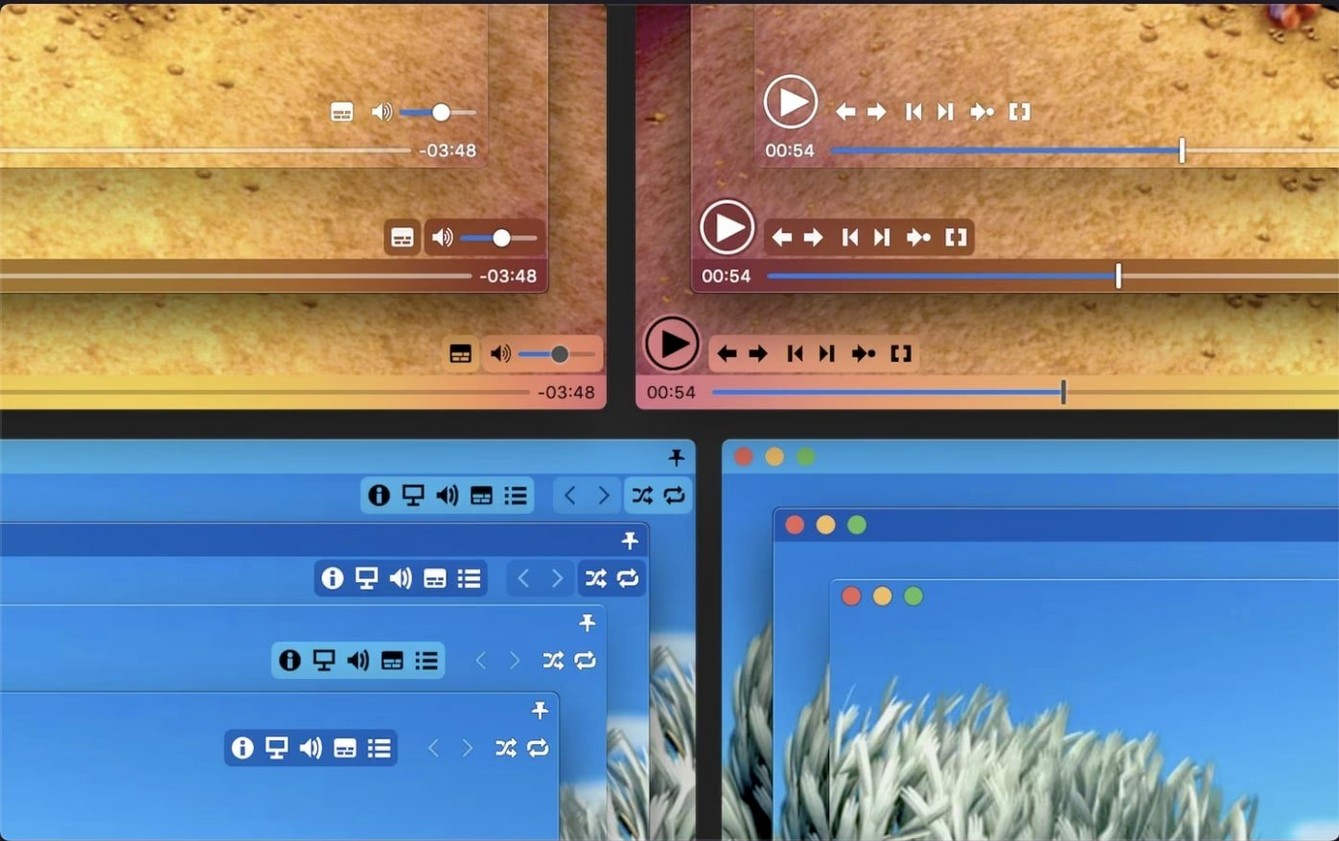
Single‑window mode is one of those features you don’t think about until you need it. Movist Pro keeps the interface clean while giving you QuickTime and FFmpeg engines under the hood. It handles embedded subtitles, lets you adjust subtitle sync and playback speed, and runs unlimited simultaneous subtitles if that’s your workflow.
Plays TS files that other players stumble on
- Playing TS videos that other players stumble on (v2.17.2 fixed a specific TS playback issue).
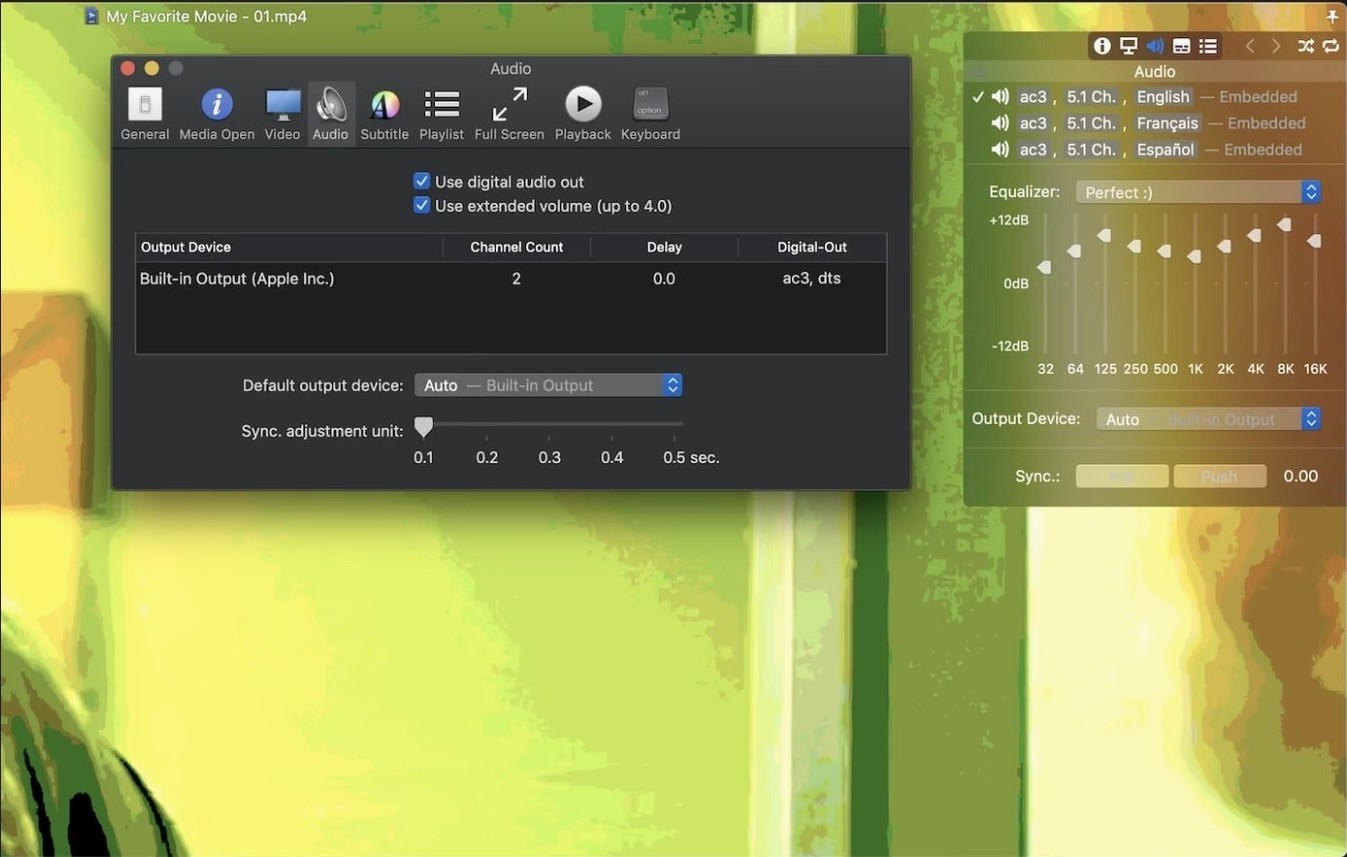
- Digital audio output via S/PDIF if your setup avoids HDMI.
- Playlist autocompletion – it searches episode and subtitle files automatically.
- Screenshot capture without leaving playback.
Requires macOS 10.13 or later, update if SIP is off
- It needs macOS 10.13 or later; runs on Intel and Apple Silicon.
- Version 2.17.2 fixed a crash when System Integrity Protection is disabled, so update if you run SIP off.
Which playback engine to pick: QuickTime or FFmpeg
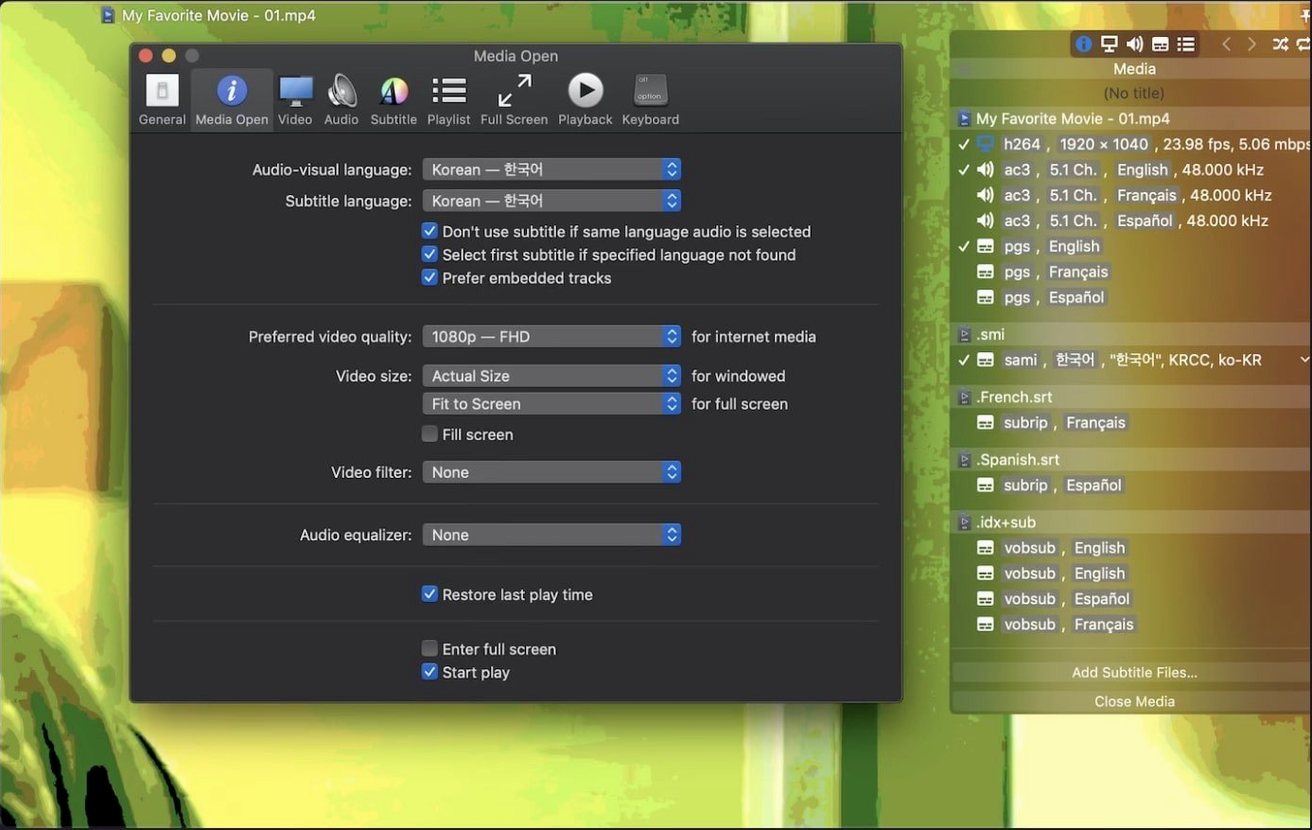
Because Movist Pro offers two playback engines, the first question is usually which one to pick. QuickTime is the default for most codecs and gives you the tightest integration with macOS – things like colour space handling and system audio routing behave as Apple intended. FFmpeg, on the other hand, tends to play files that QuickTime refuses, especially older or more obscure formats. The app lets you choose per video codec, so you can set, say, H.264 to QuickTime and MPEG-4 to FFmpeg if that combination works for your library. There is no global “just use one” toggle; you configure it in the preferences once and forget it.
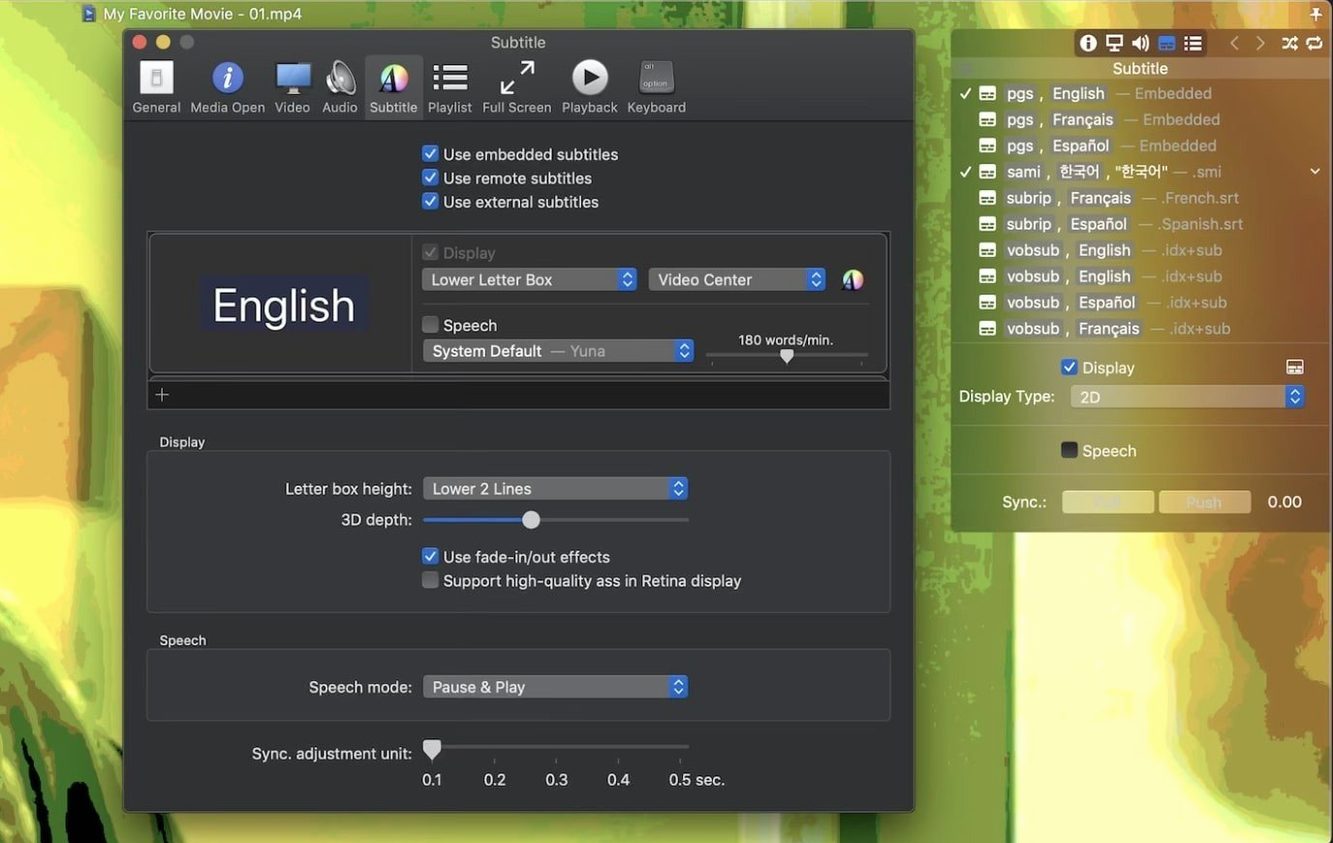
Another frequent point is subtitle support. Movist Pro reads embedded subtitles from MKV, MP4 and similar containers, and it also loads external files in SRT, ASS, SSA and a handful of other formats. Compressed archives (.zip and .rar) are unpacked automatically, which saves a step if you keep subtitles bundled. The automatic encoding detection usually gets it right, but if a file shows garbled characters you can override the encoding manually. Three‑dimensional subtitles and Letter Box positioning are there for projection or theatre setups.
That means it can access files anywhere on your drive without the user‑facing file‑picker dialog. If you move video files between external drives or network mounts often, the non‑sandboxed version is noticeably less fiddly.
Set H.264 and H.265 to hardware decoding first
After you drag Movist Pro into Applications and open it for the first time, a few preferences make the daily experience better.
- Video engine per codec – go to the Video tab and set H.264 and H.265/HEVC to hardware acceleration if your Mac supports it. This keeps the fans quiet and the UI responsive during long playback sessions.
- Window mode – the single‑window mode is enabled by default, but if you prefer having multiple videos open side by side (say, comparing takes), switch to multi‑document mode in the General preferences.
- Audio output – if your receiver uses S/PDIF, set the audio output to digital passthrough. Movist Pro will send the raw stream instead of converting to PCM, which matters for surround formats.
- Subtitle appearance – the default font and size are readable, but the subtitle display is fully customisable. Change the font face, outline width and shadow offset to match your screen size and lighting.
- Playlist behaviour – enable automatic episode completion in the Playlist tab. The app scans the folder for files that share a naming pattern and adds them in sequence, which is handy for series or lecture recordings.
Single binary works on both Intel and Apple Silicon
Movist Pro runs on macOS 10.13 High Sierra and newer, covering both Intel (x86‑64) and Apple Silicon (ARM) architectures. The app is a single binary that loads either QuickTime or FFmpeg frameworks depending on your per‑codec settings. On Apple Silicon, the hardware acceleration for H.264 and H.265/HEVC uses the Media Engine, so decode load stays off the CPU cores. On older Intel Macs, the same acceleration path works through the dedicated media encoder if present.
The disk image is small – a few dozen megabytes – and the app itself stays compact because it relies on system frameworks for most of the heavy lifting. There is no background service, no installer that modifies system libraries, and no constant network activity. The app opens to a plain player window and does not pre‑scan your whole drive. Memory usage scales with the video you play; a 4‑hour 1080p MKV with embedded subtitles will use more RAM than a short clip, but the app does not reserve resources ahead of time.
One thing worth noting: because the app can bypass Gatekeeper during installation (the Terminal step), macOS may flag it the first time you open it. Once you authorise it in System Settings, subsequent launches are silent.
A video editor's TS recordings play without workarounds
A video editor I know keeps a reference library of TS recordings from broadcast feeds. Most players either drop frames or refuse to open the files altogether. After the 2.17.2 fix, Movist Pro plays those TS files without a workaround. He sets the video engine to FFmpeg for MPEG‑2 transport streams and leaves everything else on QuickTime. The playlist autocompletion picks up the episode numbering in the filenames, so he can click through a week’s worth of recordings without dragging each file in manually. When he needs a still frame for a client note, he takes a screenshot directly in the player. The app stays in single‑window mode and sits on a secondary monitor while the main timeline runs in the NLE. That is the kind of use where Movist Pro earns its place in the dock.
Changes in this build
- Fixed an issue where some TS videos would not play.
- Fixed a crash that could occur when System Integrity Protection was disabled.
Before it goes on the Mac
- macOS 10.13 or later
- Intel or Apple Silicon
- Interface languages: English, Russian, Simplified Chinese, Korean, Japanese
Installing it on the Mac
- Mount the disk image and open Gatekeeper – it will prompt you.
- Open Terminal and press Enter to bypass Gatekeeper.
- Drag the app to the Applications folder.
- The app is ready to use.
Notes from the control room
Sign in or open a catalogue account to leave a note.
No notes from the room yet. If you have used this build for a week, a short note helps the next person.