
Moho Pro 14.4 (Mac)
Updated
The catalogue note
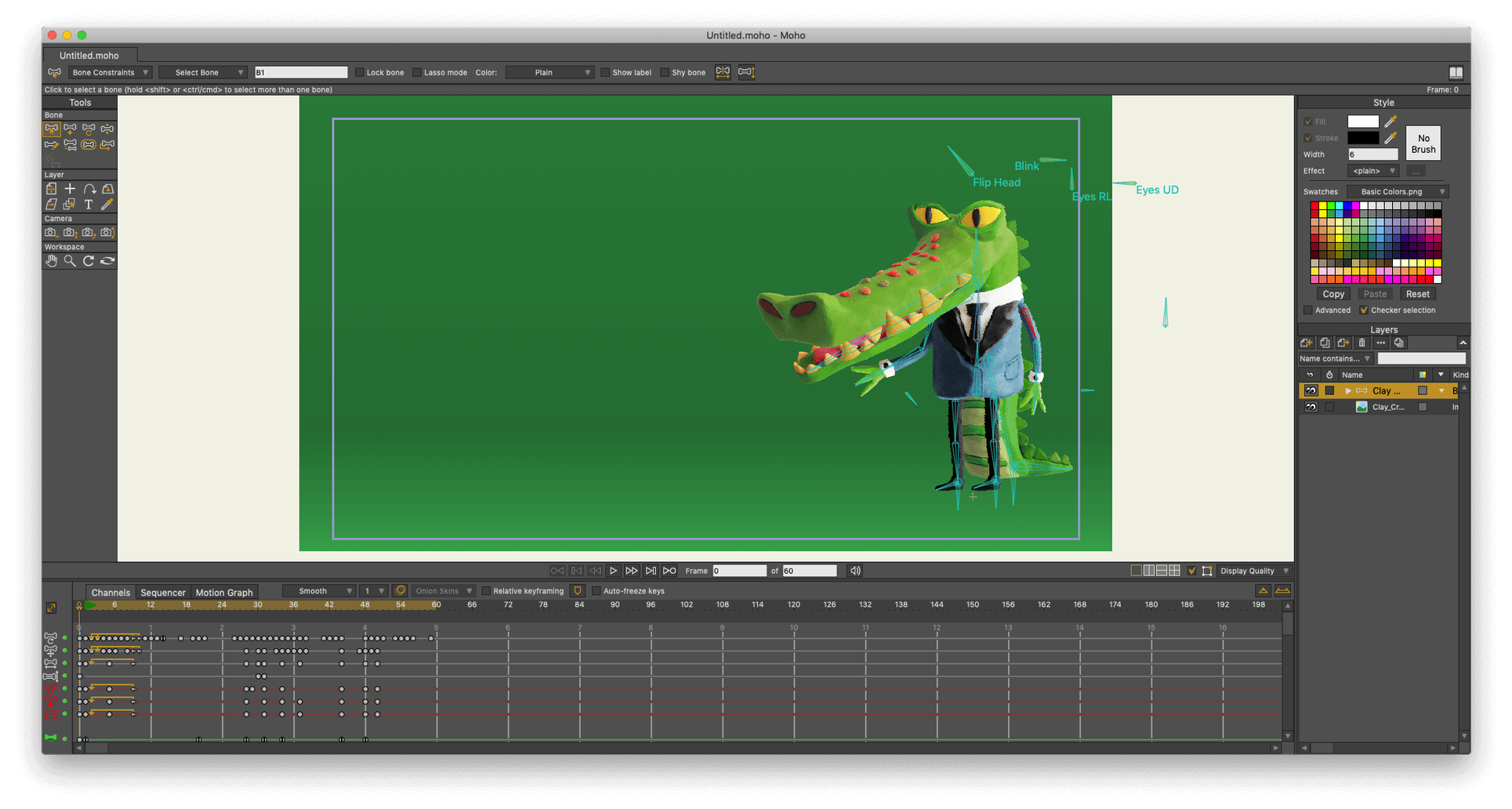
You have a character rigged in layers — a puppet with bones, switch groups, and smart warp meshes — and you need to export it as a glTF animation for a Unity prototype. Moho Pro 14.4 handles that directly now. Open the project, select the rig, choose File > Export > glTF/GLB, and the program bakes the bone animation, mesh deformations, and layer visibility into a single file that game engines read without fuss. No intermediate FBX wrangling, no broken constraints.
Moho Pro 14.4 at a glance
| Detail | Value |
|---|---|
| Developer | Lostmarble LLC |
| Category | 2D video animation |
| Current version | 14.4 |
| macOS support | macOS 10.15+, Intel and Apple Silicon |
| Interface languages | 15 languages including English, Spanish, French, German, Japanese, Chinese |
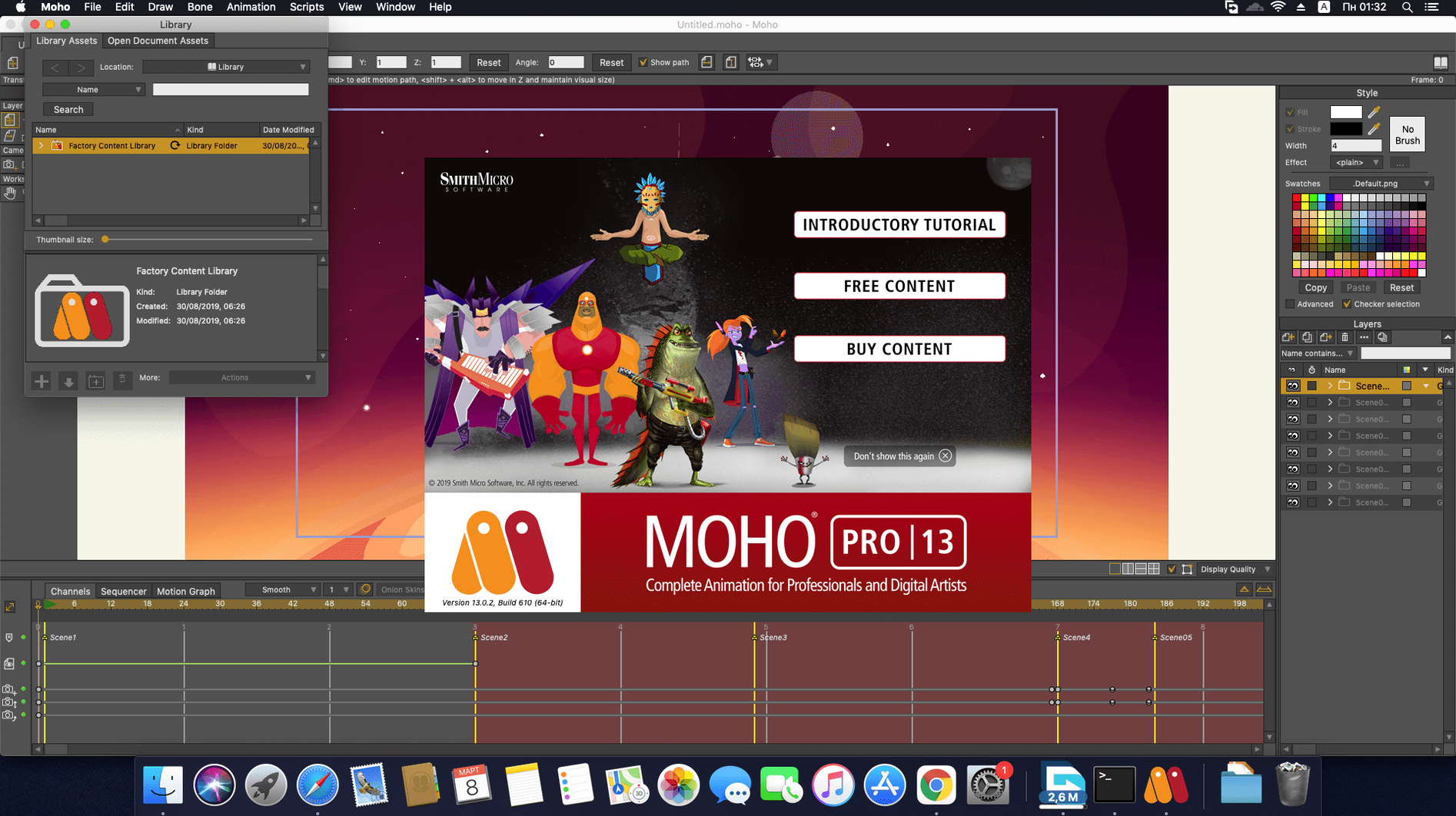
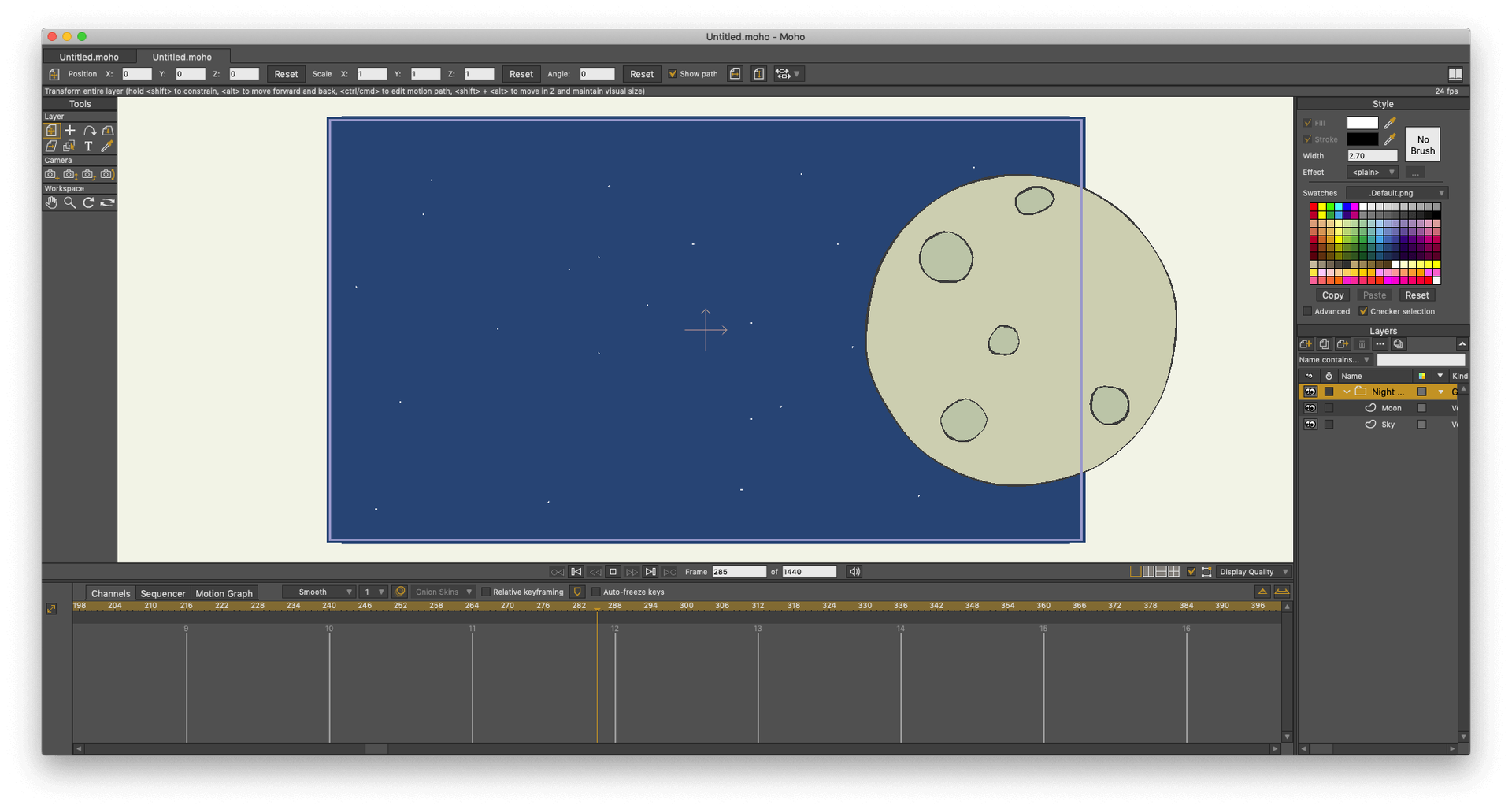
The rest of the workflow stays what Moho users expect: vector and bitmap layers in a timeline, bone rigging, smart warping, and a frame-by-frame mode for hand-drawn shots. The new glTF export is the headline — it outputs animations with PBR materials, armatures, and blend shapes, compatible with Unity, Unreal, and Godot. For studio pipeline work, the Lua scripting interface was updated to 5.4.4 in Moho 14, giving you access to modern language features for batch processing or custom tools. It is a focused release: the particle system got fixes and the layer handling is tighter, but the core appeal remains the same — professional cut-out animation that can talk to 3D engines without feeling like a separate discipline.
Runs natively on Apple Silicon without Rosetta
One of the first concerns is whether Moho Pro 14.4 runs on Apple Silicon natively. The installer is a universal binary — it works on both Intel and Apple Silicon Macs without Rosetta translation. The minimum macOS is 10.15 (Catalina), so if you are still on an older OS version, you will need to update.
Another common question is about file compatibility with the older Anime Studio Pro files. Moho Pro opens .anme files from version 11 onward without conversion steps. Projects saved in Anime Studio Pro 10 or earlier may need to be re-saved in an intermediate version first — the bone and layer structures changed significantly when the software rebranded.
For those working in teams, the question of simultaneous editing comes up. Moho Pro is a single-user application — there is no built-in collaboration or cloud sync for project files. Teams typically use version control or shared network drives with careful file locking to avoid conflicts.
People also ask about the glTF export quality compared to rendering internally. The glTF export bakes the animation into keyframes, so the result is deterministic — what you see in the Moho timeline is what the engine plays. Mesh deformations from smart warps are preserved as morph targets, and bone hierarchies map directly to armatures. The export does not support every Moho feature (particle systems, for example, are not baked into glTF), but for character animation and cut-out sequences it covers the essentials.
How Moho Pro differs from Toon Boom Harmony on macOS
On macOS, the 2D animation landscape splits roughly into three camps: vector rigging tools, raster frame-by-frame applications, and hybrid compositing environments.
Moho Pro vs Toon Boom Harmony
Harmony is the industry standard for broadcast animation, with deep compositing, colour grading, and network rendering built in. Its rigging is node-based, which gives fine control but demands a steeper learning curve. Moho Pro uses a more direct layer-and-bone approach — you set up a skeleton in the workspace, bind points, and animate. For a small studio or an individual animator, Moho Pro is faster to get results from, especially for cut-out style work. Harmony excels when you have a team of riggers, compositors, and colourists working on a single pipeline.
Moho Pro vs Spine
Spine is specialised for game animation — it exports directly to runtimes for Unity, Unreal, and Godot, and its mesh deformation tools are tuned for skeletal animation. Moho Pro covers the same game export path now (glTF), but it is a broader tool: you can draw, paint, and animate in the same application, whereas Spine expects assets prepared in external graphics software. If your work is exclusively 2D game characters, Spine may be more efficient. If you also produce cut-scenes, motion graphics, or traditional-style animation, Moho Pro is the more versatile choice.
Moho Pro vs Blender's Grease Pencil
Blender is free, and Grease Pencil is a capable 2D animation system inside a full 3D suite. The trade-off is workflow integration: Moho Pro is built from the ground up for 2D rigging, with dedicated bone tools, switch layers, and point binding that feel purpose-made. Blender's Grease Pencil is powerful but requires you to learn Blender's 3D interface and modifier stack. For a dedicated 2D animator who does not need the surrounding 3D environment, Moho Pro is the cleaner fit.
Export to glTF/GLB replaces frame-by-frame game engine workflow
The glTF/GLB export is the only feature that alters a daily workflow. Before 14.4, sending a Moho animation to a game engine meant rendering frames, importing image sequences, and rebuilding the skeleton in the target tool. Now you export one file and the armature, mesh, and PBR material assignments come through intact. If you work with Unity, Unreal, or Godot, this removes a repetitive manual step.
The particle system fixes are less visible but matter for motion graphics work. Particle emitters that relied on layer visibility triggers now behave more predictably, and the fix to layer handling means grouped layers inside particle emitters no longer cause unexpected stacking order changes during playback.
For anyone writing Lua scripts, the update to Lua 5.4.4 in Moho 14 is the underlying change. Older scripts written for Lua 5.1 (the version used in Anime Studio Pro) may need minor adjustments — the goto statement and integer division operator are new, and some deprecated functions were removed. Lostmarble provides a compatibility script with the installation that catches most common issues.
Reduce auto-save to 5 minutes for complex rigs
After installing Moho Pro 14.4, a few adjustments make the workspace more comfortable for regular use.
- Auto-save interval — the default is 15 minutes. If you work on complex rigs, reducing it to 5 minutes saves headaches. The setting is under Preferences > General.
- Undo levels — the default of 20 steps is conservative. Increasing it to 50 or 100 costs negligible memory and makes experimentation safer, especially when adjusting bone constraints or point binding.
- Viewport quality — for heavy scenes with multiple bone layers and smart warps, set the viewport to a lower quality during playback (Preferences > Display > Quality). Switch to full quality only when rendering final previews. This keeps timeline scrubbing responsive without disabling features.
- Export presets — the glTF exporter allows you to save presets. If you export to the same engine regularly, set up the material export options (PBR metallic/roughness, vertex colours, or none) once and reuse them. This is done from the Export dialog before the first export.
For those migrating from a moho pro 14.4 or earlier version, the preferences file from version 13 carries over, but custom workspace layouts do not always translate cleanly. It is worth resetting the workspace to default after the update and rebuilding your panel arrangement from scratch — the new layer list and timeline docking areas behave slightly differently.
If you downloaded the installer from a source that mentions moho torrent or moho pro torrent, the activation process follows the same steps as any other version — the instructions are included in the package. The software itself is identical regardless of how you obtained it; the only difference is the activation method.
Changes in this build
Before it goes on the Mac
- macOS 10.15 or later
- 64-bit operating system
- OpenGL 4.1 supported graphics card
- 2.0 GHz Intel Core i3 or higher
- 4 GB RAM or higher
- 1.6 GB free hard drive space or higher
- Online connection required for online activation
Questions from the room
What game engines does Moho Pro 14.4 export to?
The new glTF/GLB export works with Unity, Unreal, and Godot directly, without needing a separate converter.
Installing it on the Mac
- Installation and activation instructions are included in the package.
Notes from the control room
Sign in or open a catalogue account to leave a note.
No notes from the room yet. If you have used this build for a week, a short note helps the next person.