
The Sims 4 1.127.41 (Mac)
Updated


The catalogue note
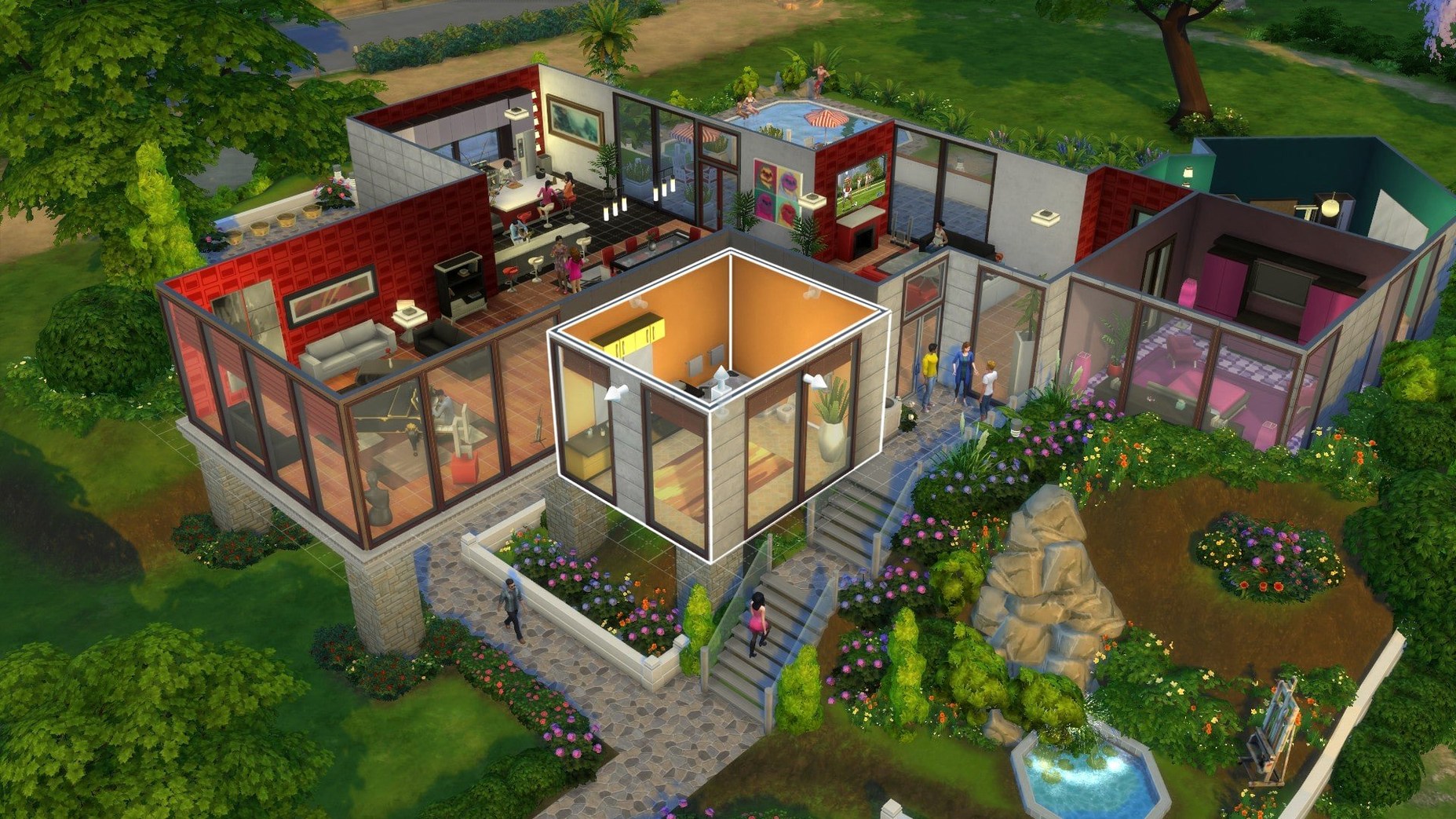
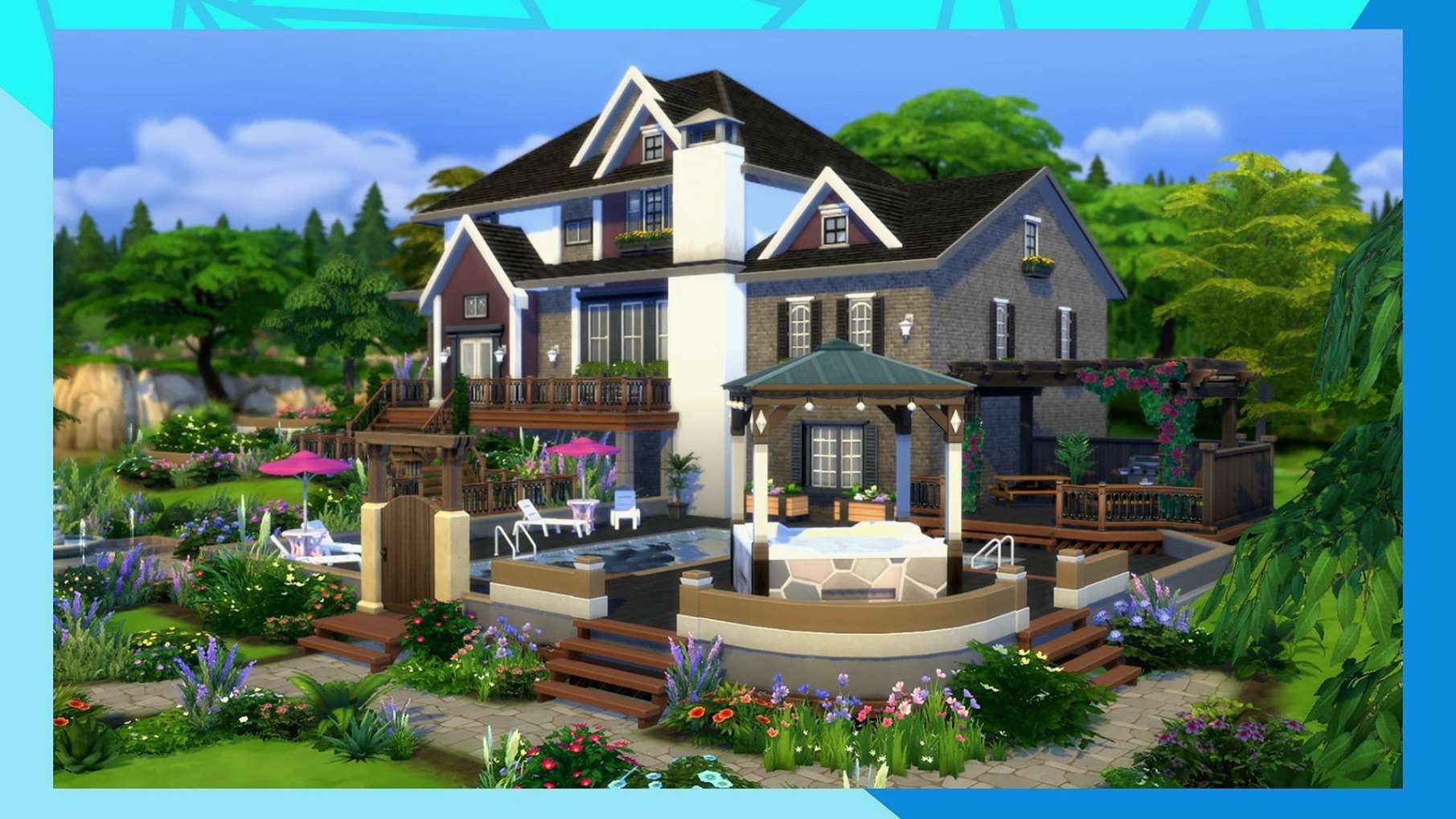
The Sims 4 is for anyone who likes to tinker with lives that aren't their own. You design Sims, build houses, and then let them loose in a world where careers, relationships, and daily routines unfold at your pace. It's a sandbox for storytelling, not a race to a finish line.
- Players who enjoy open-ended creativity — character design, home building, and wardrobe choices are deep enough to lose an afternoon.
- People who like slow, observational gameplay. You can follow a Sim through their day and watch how small decisions stack up.
- Storytellers who invent drama or comedy from everyday situations. The game gives you the pieces, you make the plot.
- Players who want a low-pressure game with no fail states. There's no game over screen, just a life to steer.
- Simmers who enjoy community and mods. The game runs on macOS with both Intel and Apple Silicon, and the current version 1.127.41.1030 works well on a 2020 M1 MacBook Air under Sonoma.
If you need fast action or a clear objective, this isn't for you. But if you've ever caught yourself wondering what your Sim would do next, you'll fit right in.
Marketplace caches images after the first download
The game has a few details that don't get shouted about but make daily play smoother. When you browse the in-game Marketplace, the current version caches images after the first download. That means the second time you open a category or revisit a lot, thumbnails load from local storage rather than fetching them again. For anyone who spends time scrolling through player-uploaded builds or outfits, this cuts down on waiting. It's a small thing, but it adds up across a long session.
Another quiet improvement: the Marketplace browsing flow was adjusted in update 1.127.41.1030. The navigation feels more responsive, particularly when switching between different item types or creators. Nothing dramatic, just fewer pauses while the interface catches up to your clicks.
The game's language selector is tucked inside the EA App properties panel before launch. You choose your language there, the app updates the game files, and from then on all menus and text appear in that language. The base game supports seventeen languages including Polish, Czech, Finnish, and both Traditional and Simplified Chinese. If you switch languages, the game will download the relevant text assets, so give it time before you launch.
Maintenance update improves online browsing
Version 1.127.41.1030 is not a content drop; it's a maintenance update. The two visible changes are the Marketplace improvements mentioned above. For someone who plays regularly, the biggest difference is how the game behaves when you're online and browsing community content. Before the caching change, switching between tabs or refreshing search results could stall as the game loaded preview images each time. Now that first visit still pulls from the server, but subsequent views are instant. This matters most if you have a slower connection or if you like to window-shop for builds before placing one in your neighbourhood.
The update also included unspecified bug fixes. In practice, that usually means fewer unexpected crashes during loading screens or when interacting with certain objects in build mode. Nothing in the changelog points to a specific fix, but the general stability feels no worse than before, which is what you want from a patch that doesn't add features.
Stardew Valley offers a fixed 2D pixel alternative
On macOS, life simulation games are not a crowded category, but there are alternatives worth noting alongside The Sims 4.
Stardew Valley is a farming and community simulation with a fixed 2D pixel style. It gives you a farm, a town, and seasonal events, and you manage crops, animals, and relationships over several in-game years. The scope is narrower than The Sims 4 — you can't build a house from scratch or customise every outfit. But it runs on almost any Mac, including older models with Intel graphics, and a single save can last for dozens of hours without feeling repetitive. The trade-off is creative freedom: Stardew Valley is a curated experience with a set map, while The Sims 4 hands you an empty lot and says "go."
BitLife is a text-based life simulator driven by choices and random events. There's no building, no real-time movement, no visuals besides text and simple icons. It's fast — a character's whole life can take ten minutes — and it's good for quick sessions on a laptop trackpad. But it lacks the spatial, visual depth of The Sims 4. You don't watch your character walk across a room or sit down to eat; you read about it. The two games serve different moods: BitLife for a quick story, The Sims 4 for an immersive world you can see and shape.
Second Life is older, runs on macOS via a dedicated viewer, and focuses on persistent online worlds with user-created economies. It's more about social interaction with other players than about controlling one character's daily life. The building tools exist, but they're built for collaboration and commerce, not for storytelling. The Sims 4 is a local sandbox; Second Life is a connected world. If you play offline or single-player, Second Life won't fill the same role.
None of these replace The Sims 4 if what you want is detailed character creation, house building, and unscripted daily life. They're different tools for different jobs.
Rushing character creation leads to trait regrets
New players often treat The Sims 4 like a game with a goal. They rush through character creation because they want to "start playing," then realise twenty minutes later that they wish they'd picked different traits or a different career. Take your time in Create-a-Sim. The traits and aspirations you select affect which interactions and events pop up during gameplay, and changing them later requires a reward item or a mod. There's no penalty for spending an hour tuning a face or choosing an outfit.
Another common mistake: ignoring bills. Sims get mail about unpaid bills, and if you let them pile up, the Repo Man arrives to take furniture. New players sometimes treat the mailbox as decoration. Check it daily in-game, or set a Sim with the right trait to handle it automatically. Otherwise your carefully furnished living room vanishes.
Beginners also underestimate how much time Sims spend on basic needs. If you stack their schedule with skill-building and socialising, they'll collapse from exhaustion. Keep an eye on the mood panel. Let them sleep, eat, and use the bathroom before you send them out to network at a nightclub. The game gives you control, but the Sims have limits you can't override without cheats.
Finally, many new players don't realise that the game doesn't pause when you open menus. If you leave the game running while you browse the Marketplace or read a pop-up notification, time passes and your Sim might be starving by the time you return. Use the pause key (usually P or the pause button in the interface) when you need to think or browse. It's not a loading screen; it's active time.
Saves live in the Electronic Arts folder in Documents
On macOS, The Sims 4 sits alongside the EA App, which handles login, updates, and language configuration. The game itself is a self-contained binary, but it reads and writes to a folder in ~/Documents/Electronic Arts/The Sims 4. That's where saves, screenshots, Mods, and custom content live. If you need to troubleshoot a freeze or a crash, clearing that folder (while keeping Saves, Tray, and Mods) is the standard first step. It resets user interface settings without losing your households or your custom content.
Screenshots taken in-game (by pressing C) are saved to a Screenshots subfolder inside that Documents directory. You can drag them into Preview to crop or annotate, or import them into iPhoto or the macOS Photos app. For anyone who shares builds or stories on forums, this workflow is quicker than using a separate screen capture tool.
The game uses macOS window management normally. You can run it in windowed or full-screen mode, and switching between The Sims 4 and another app via Cmd-Tab works without the game minimising awkwardly. That's useful if you keep a web browser open for build inspiration or for referencing the Sims 4 wiki. On a Mac with limited screen space, setting the game to a windowed resolution of 1600x900 or 1440x900 leaves room for a browser alongside it.
The Sims 4 lets you build homes and control characters' lives, so consider the sims mac download free full version for endless creativity. After that, you open the EA App without the unlocker to set your language, save the change, update the game, and launch. If the game freezes on the initial splash screen, cleaning the The Sims 4 folder in Documents while keeping Tray, Saves, and Mods usually resolves it. This process fits into the same workflow as managing any other game folder on macOS — it's not elegant, but it's consistent.
Changes in this build
- Improved Marketplace browsing.
- Marketplace images are now cached after the first download.
- Bug fixes included.
Before it goes on the Mac
- macOS: Sonoma (tested)
- Architecture: Apple Silicon and Intel
- Tested on MacBook Air (M1, 2020)
Questions from the room
Can I change the language in The Sims 4 on Mac?
Yes. Open the EA App without the DLC Unlocker, find the language setting in the game properties, pick from 17 supported languages, and click Update to refresh the game.
Installing it on the Mac
- Download EA DLC Unlocker and read its instructions.
- Download the DLC add-ons as separate files or as one combined file.
- Open the EA App without the DLC Unlocker to change the language.
- In the game properties, select the desired language and save the change.
- Close the window, click Update, and wait for the download to finish.
- Launch the game. If it freezes on the splash screen, clean the The Sims 4 folder in Documents, keeping only Tray, Saves, and Mods if needed.
Notes from the control room
Sign in or open a catalogue account to leave a note.
No notes from the room yet. If you have used this build for a week, a short note helps the next person.