Deer & Boy 1.0.19 (Mac)
Updated
The catalogue note
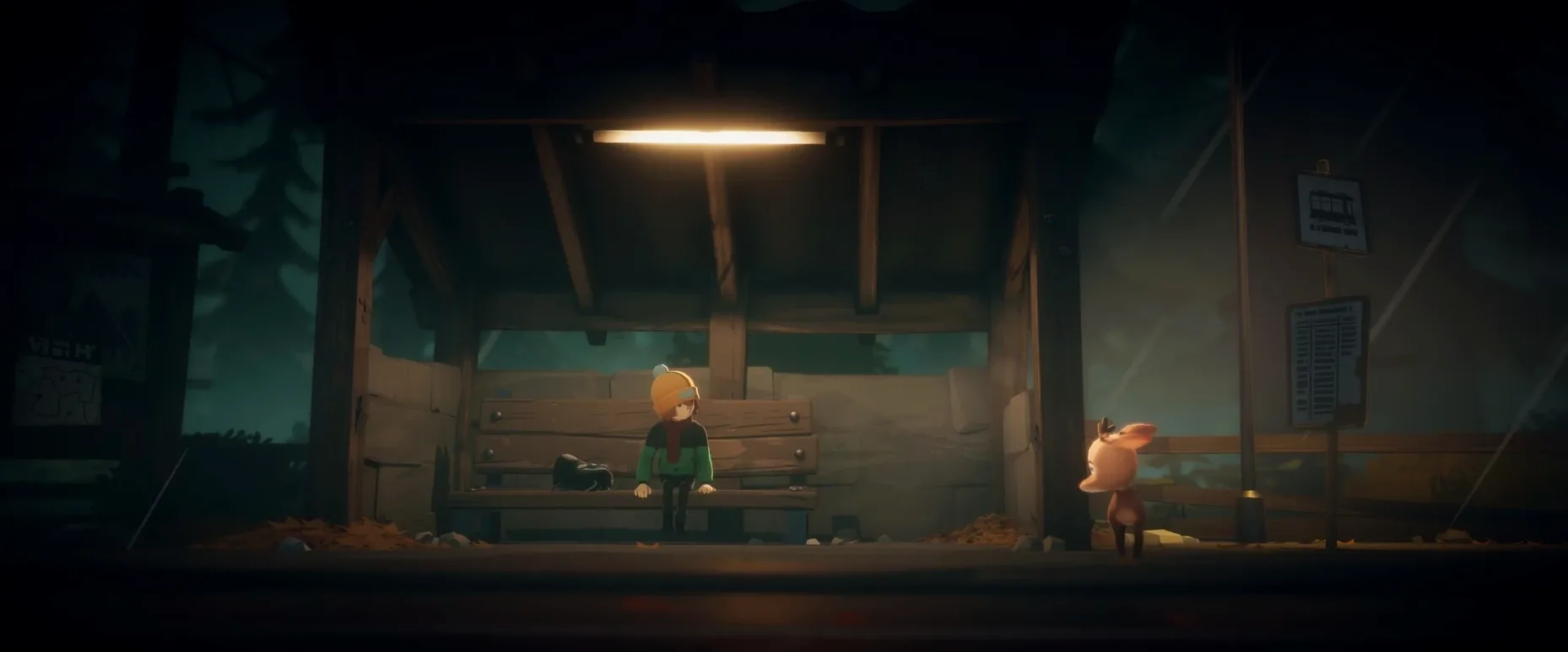
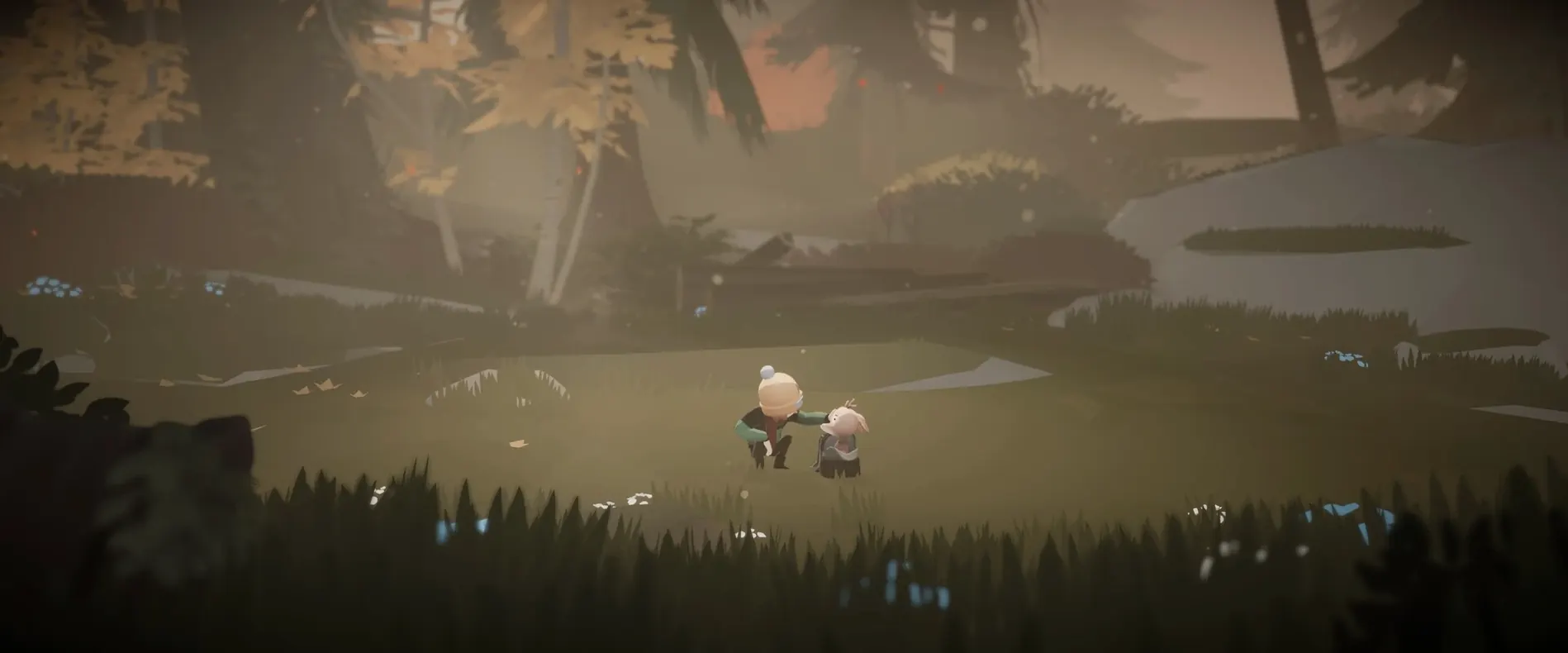
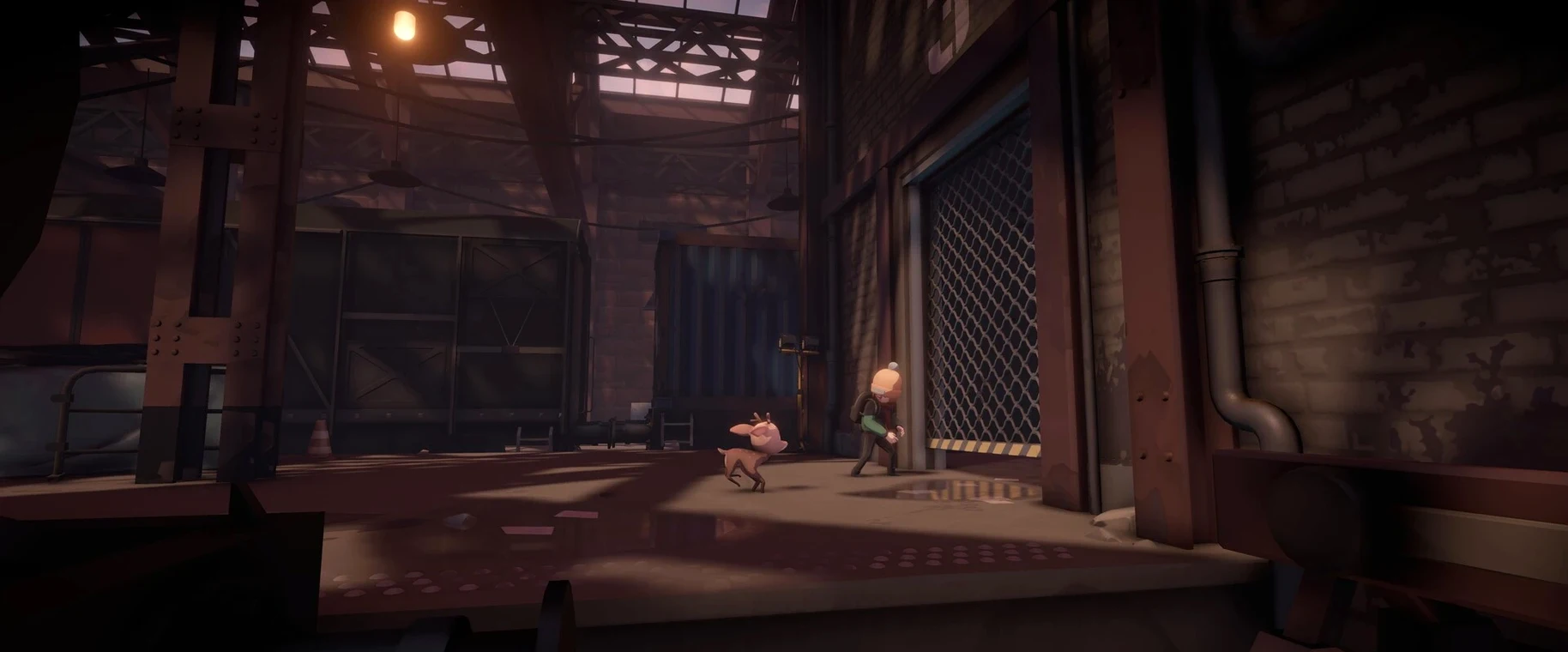
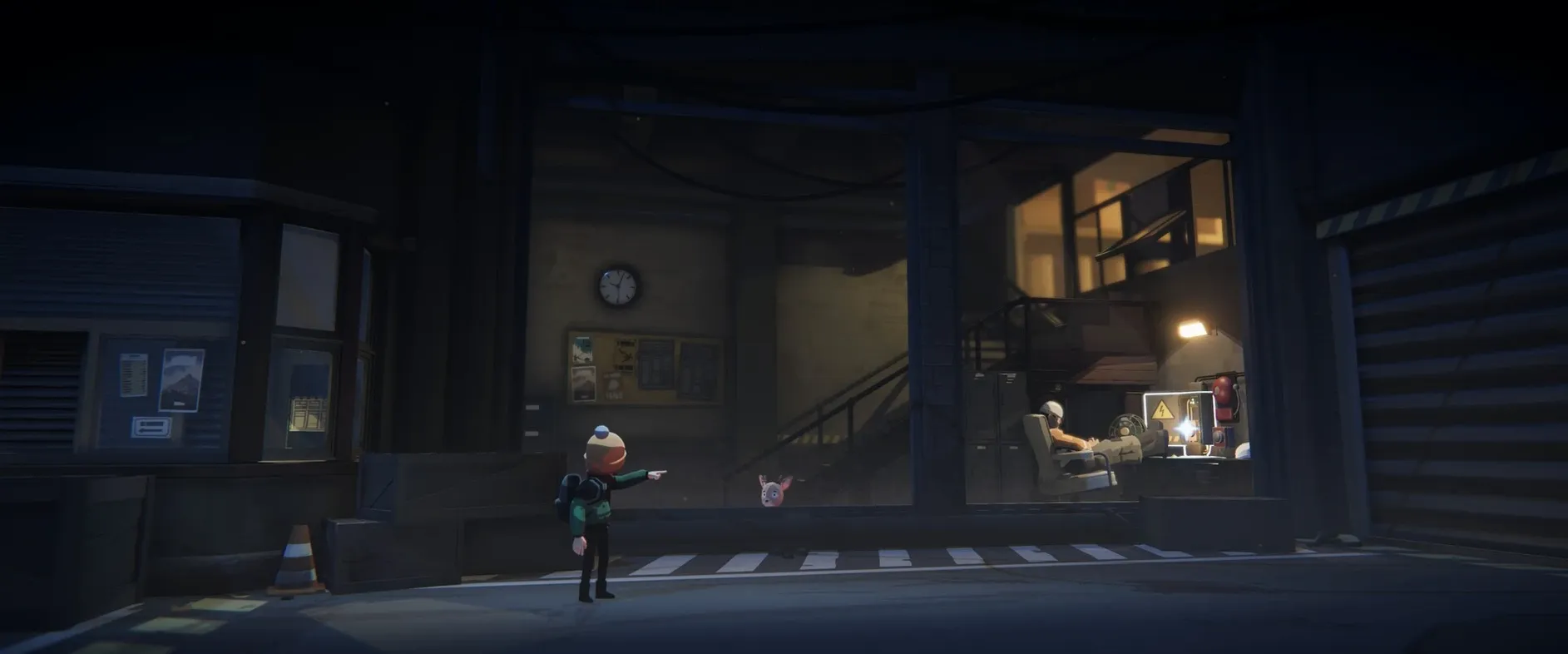
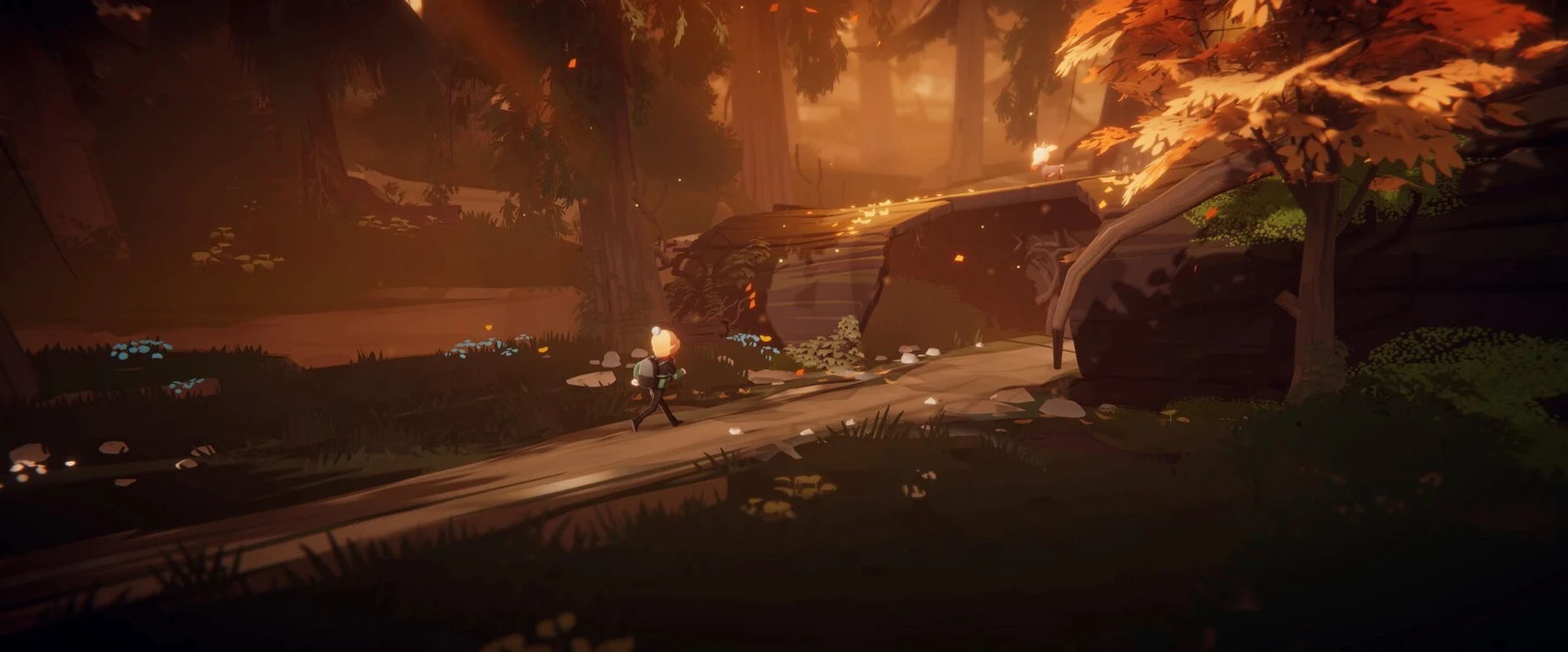
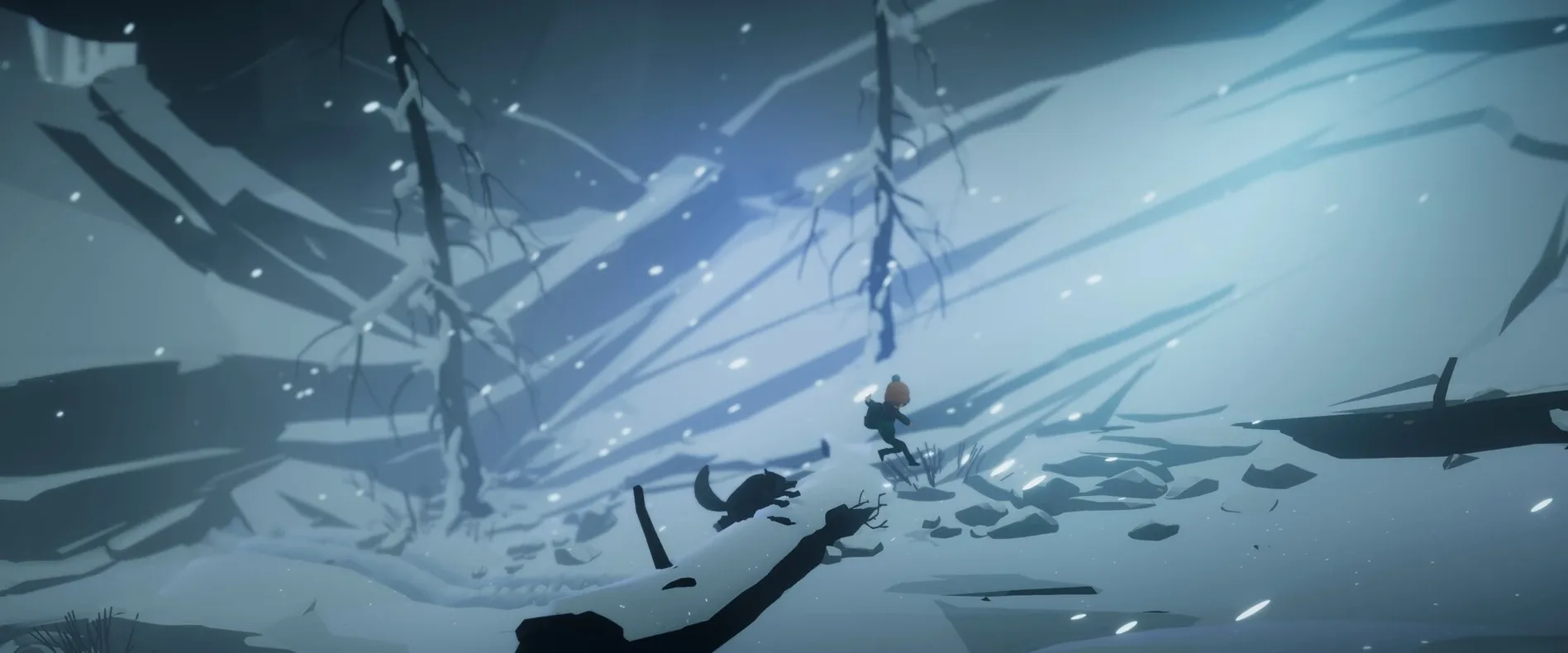
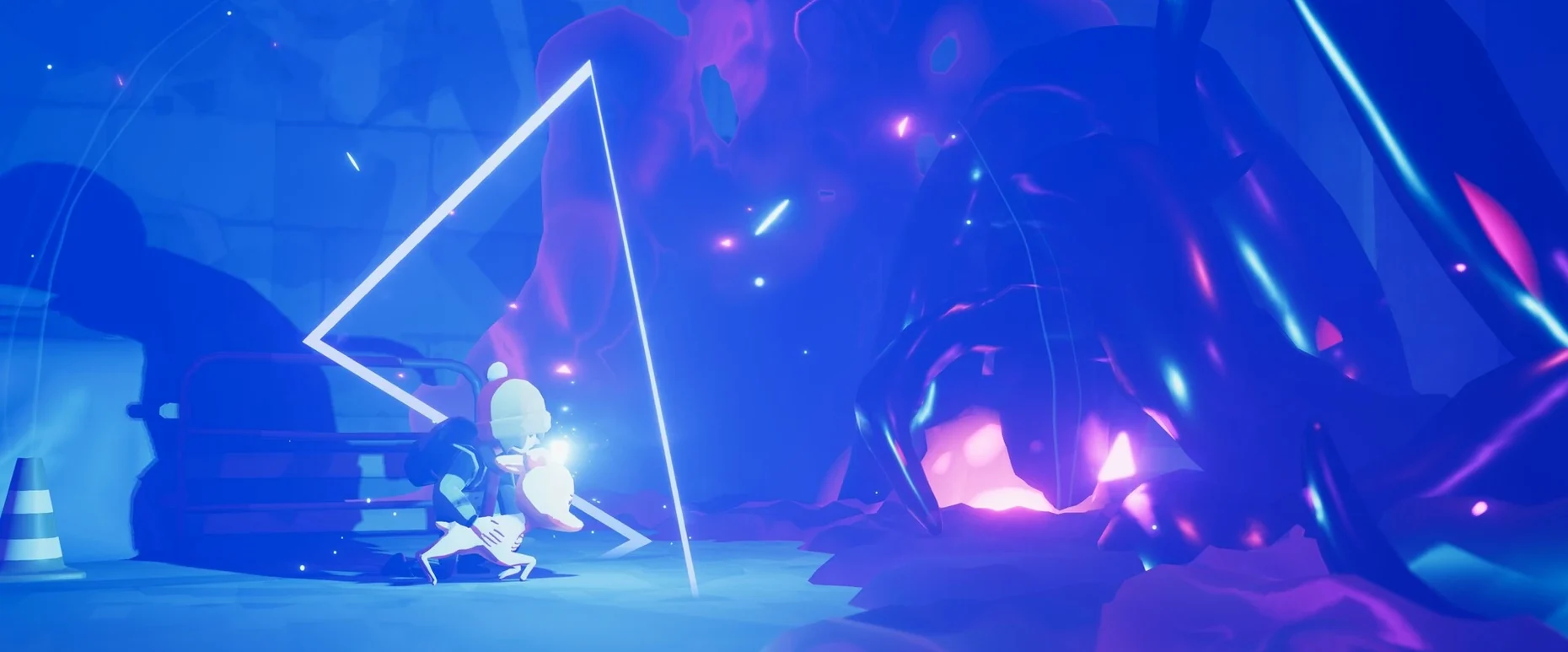
Deer & Boy is the kind of game you sit down with after a long session of plugin tweaking. It is a cinematic adventure, closer to an interactive film than a fast-paced title. A runaway boy meets a fragile fawn, and the two make their way through a 3D world that asks for patience rather than reflexes.
Built for Apple Silicon and tested on macOS Tahoe
- Built for Apple Silicon, ARM architecture only.
- Tested on macOS Tahoe on a Mac mini 2024 M4, so recent M-series machines should handle it without drama.
- Single-player, with puzzles and no complex text — the story is told through visuals and light interaction.
- Suitable for all ages, no graphic violence.
- Complete in a few play sessions; a weekend's worth of quiet evenings.
Straightforward controls with multilingual interface
The controls are straightforward, mostly movement and context actions. If you are on an older Apple Silicon Mac, expect it to still run, though the visual polish may take a small hit. The game's interface supports a dozen languages, so you can play in Polish or English without extra setup.
Questions people ask before installing
One of the first things people ask is whether the game will run on Intel Macs. The answer is no — this build is ARM-only, compiled for Apple Silicon, and tested on macOS Tahoe. An Intel Mac, even a fast one, will not launch it. Another common question is whether the game needs an internet connection. It does not. Activation is not required, and there is no online component. You install it, you play it. People also wonder about the lack of dialogue. The entire story is told through visuals and music. There are no voice lines, no subtitles to read, which makes the language selection more about the interface than the narrative itself. If you set the interface to Polish, the menus change, but the story remains the same silent experience.
Treating it like a traditional puzzle game is the common error
The most common mistake is treating Deer & Boy like a traditional puzzle game. People expect inventory screens, complex logic, or timed sequences. The puzzles here are woven into the environment, and the solutions are often about observation rather than deduction. Rushing through each area looking for a button to press misses the point. Another mistake is ignoring the deer's growth. The fawn changes as the story progresses, and the interaction options shift with it. Beginners sometimes try the same approach from earlier in the game and get stuck because the deer now responds differently. Take a moment to watch what the animal does before acting.
A third error is skipping the Fix file if the game fails to launch. The disk image contains a Fix utility. Running it before the game resolves the Wineskin wrapper quirks that can appear on some Mac configurations. If the app bounces in the dock and then closes, run the Fix first. It saves time.
First play session: install, run the Fix file, then launch
Start by opening the disk image and dragging the app into the Applications folder alias. Wait for the copy to finish. If you are on a clean system, run the Fix file from the disk image before launching. Then open the game from Launchpad.
Set the interface language before you begin — choose English or your preferred language from the options. The story does not require text comprehension, but the menu text will be in whichever language you pick. Once inside, spend the first ten minutes simply moving around the opening area. Look at the environment, not at a goal. The game teaches through visual cues, not tutorials. When you encounter the fawn, approach slowly. The interaction is context-sensitive, so experiment with moving close and then stepping back. The puzzles in the early section involve pathfinding and simple object manipulation. There is no fail state, so try different approaches without concern.
After the first area, take a break. The game is designed for a few sessions, not a single sitting. Come back to it the next day and notice how the deer has changed. That progression informs what you can do next.
Before it goes on the Mac
- macOS Tahoe
- Apple Silicon (ARM)
- Tested on Mac mini 2024 M4
Installing it on the Mac
- Open the downloaded disk image.
- Drag the app into the Applications folder alias.
- Once copying finishes, launch the game from Launchpad.
- If you see an error on launch, run the Fix file inside the disk image.
Notes from the control room
Sign in or open a catalogue account to leave a note.
No notes from the room yet. If you have used this build for a week, a short note helps the next person.