
Home › Mac Apps › AI Color Match

AI Color Match 1.3.1 (Mac)
Updated
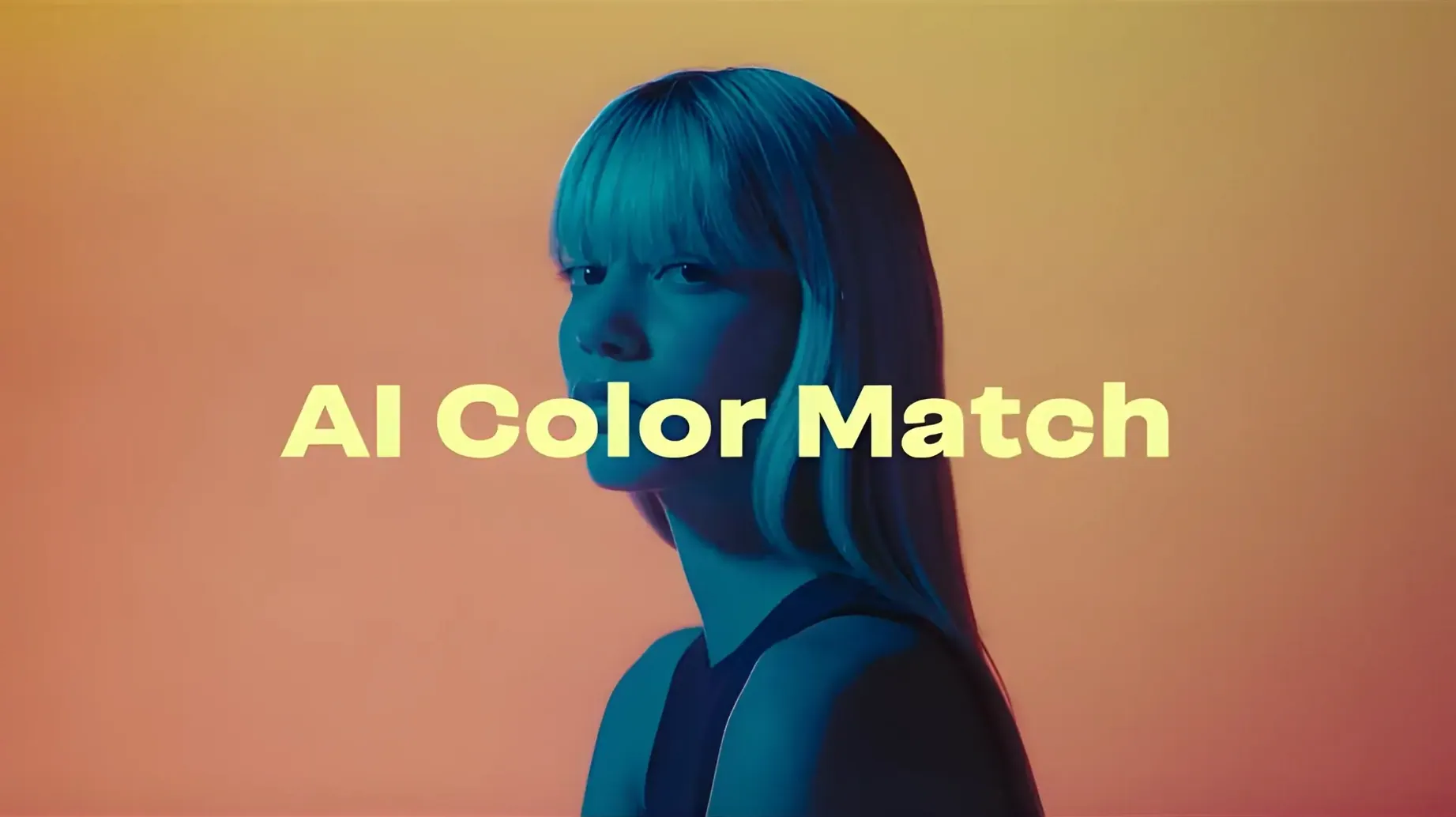
The catalogue note
Anyone who has graded a multicam edit or a sequence of mismatched shots knows the drill: you pick a reference frame, then spend the next hour nudging lift, gamma and gain until the next clip sits next to it. AI Color Match is the plugin that automates that step, and it lives exactly where you would expect it in an After Effects session.
Select a shot and point it at a reference frame
The workflow is straightforward. You select the shot you want to correct, point the plugin at a reference frame, and let it analyse both images on the GPU. Frames never leave the computer, so you can run it on sensitive material without uploading anything.
Workflow
- Apply AI Color Match to the clip that needs correction.
- Pick a reference frame from the shot whose look you want to match.
- Let the plugin analyse exposure, contrast, white balance and more — it runs locally, using the GPU.
- Fine-tune the result if needed, or export a LUT in .cube format to reuse the grade elsewhere.
- Render or continue grading; the plugin supports 16/32 bits per channel, so it holds up in higher-depth projects.
In practice, I find it most useful on interview cross-shots and drone footage shot on different days. The .cube export is a bonus: it lets you take the matched look into a colour grading session without keeping the plugin on every clip.
Automates colour matching where Lumetri Color needs manual work
AI Color Match sits in a small category of After Effects plugins that attempt to automate colour matching. The most common alternative is to do it manually with the built-in Lumetri Color effect, which gives you full control but demands time and a practiced eye. For editors who prefer an automated approach, the two main competitors are Colorista from Red Giant and FilmConvert, though neither is a direct replacement.
Colorista offers a three-wheel colour corrector and a match feature that works by sampling a reference image, but it relies on manual selection of shadow, midtone and highlight points. AI Color Match skips that step entirely, analysing the whole frame and adjusting exposure, white balance and contrast in one pass. FilmConvert is geared toward film stock emulation and grain, not neutral colour matching between two shots — you would use it after the match is done. Neither competitor runs entirely on the GPU for the analysis step, nor do they export a .cube LUT as a standalone feature.
Pick a reference frame with comparable depth of field and lighting
The most frequent error is applying AI Color Match to every clip in a sequence and expecting it to work without a reference frame that is actually comparable. If the reference shot has a different depth of field, a different key light direction, or a different time of day, the plugin will try to match those too — and the result can look forced. The fix is to pick a reference frame that matches the lighting conditions of the shot you are correcting, not just one that looks good on its own.
Another mistake is leaving the plugin’s default settings untouched. Saturation, brightness and contrast controls are there because every shot needs a different balance. Beginners often assume the AI will get it perfect on the first pass, then complain that the match looks flat. A small adjustment to contrast or saturation after the analysis usually solves it. Finally, people forget that AI Color Match supports 16 and 32 bits per channel — if your project is set to 8-bit, the plugin still works, but you lose the precision that makes it worth using.
Analyses frames locally on your Mac's GPU
The plugin requires macOS with either Apple Silicon or Intel 64-bit architecture, so it runs on any modern Mac that can handle After Effects. It processes the analysis locally on the GPU, which means the system’s graphics hardware does the heavy lifting rather than the CPU.
Installation follows the standard procedure for After Effects plugins — no unusual steps. The current version is 1.3.1, and the interface is in English only. Because it works with Premiere Pro as well, you can move between the two Adobe applications without learning a different tool. If you search for ai color match macos download, you will find the same plugin, but the Mac version is the same binary whether you install it on an Intel or Apple Silicon machine — the architecture support is built in.
Before it goes on the Mac
- macOS (version not specified)
- Apple Silicon or Intel (x86 64-bit)
- After Effects
- 16/32 bits per channel support
Questions from the room
Does AI Color Match work on Apple Silicon Macs?
Yes, it supports Apple Silicon and x86 64-bit architectures, and it runs locally on the GPU.
Installing it on the Mac
- Use the standard installation procedure for After Effects plugins.
Notes from the control room
Sign in or open a catalogue account to leave a note.
No notes from the room yet. If you have used this build for a week, a short note helps the next person.
Also filed under Mac Apps
The whole Mac Apps rack AI Transcription2.16 Mac Apps 5.1 GB
 Aiarty Image Enhancer3.14 Mac Apps 129 MB
 Affinity Publisher2.6.5 Mac Apps 783 MB
 Affinity Photo2.6.5 Mac Apps 789 MB
 Affinity Designer2.6.5 Mac Apps 779 MB
 Adobe Substance 3D Painter12.1.5 Mac Apps 3 GB
 Adobe Premiere Rush1.5.62 Mac Apps 1.6 GB
 Adobe Photoshop28.0.0 Mac Apps 3.5 GB Updated