
macOS Ventura 13.7.8 (Mac)
Updated
The catalogue note
If your Mac runs Final Cut Pro or any other demanding production tool, the first question isn’t what the new OS does — it’s whether your machine is on the compatibility list. macOS Ventura 13.7.8 covers iMac 2017 and later, iMac Pro 2017, MacBook 2017, MacBook Air 2018 onward, MacBook Pro 2017 onward, Mac mini 2018 onward, Mac Pro 2019 onward, and the full Mac Studio line from 2022. No split between Intel and Apple Silicon; both architectures are supported.
check hardware compatibility
Pull up your system info and look for the model year. A 2016 iMac or a 2017 MacBook Air won’t make the cut. Beyond the machine, 13.7.8 ships important security fixes — Apple recommends it for everyone running Ventura. Interface languages cover 35 locales, from English and Russian to Catalan and Hindi.
review what the OS adds
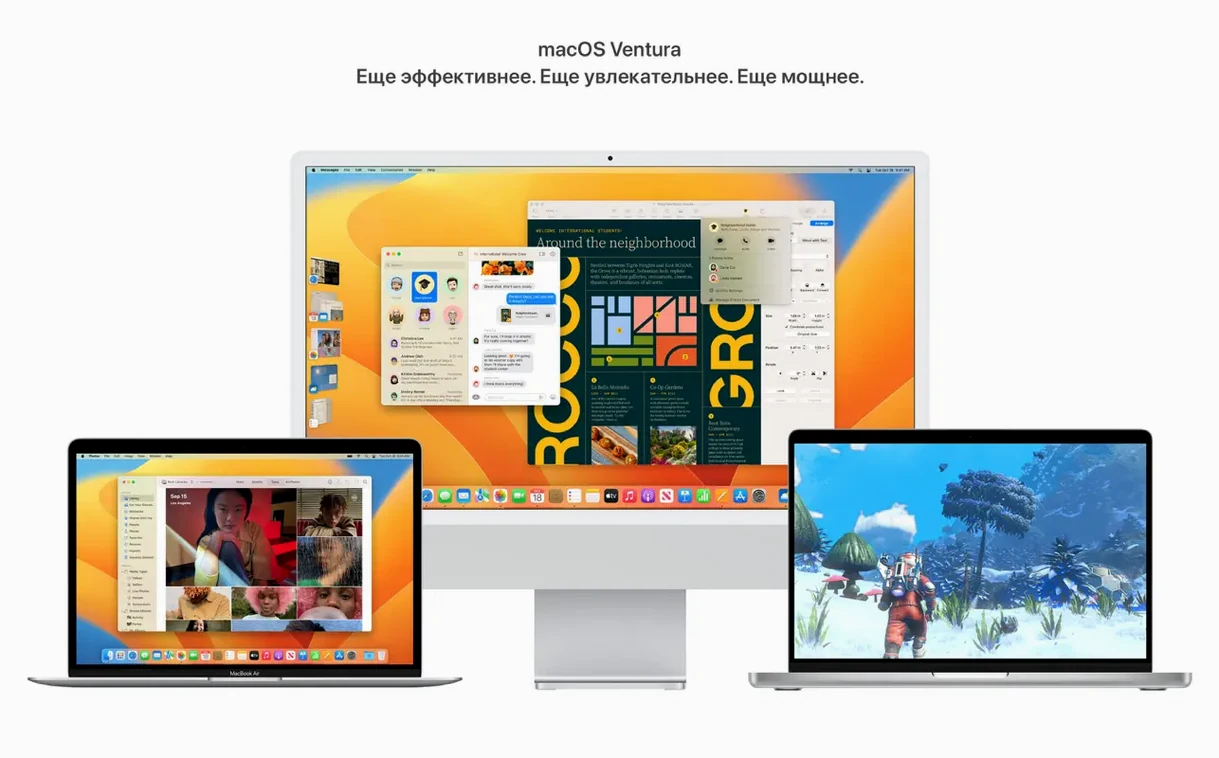
Stage Manager organises active windows into a side panel with background previews on the left for quick switching. Safari gains shared tabs for collaboration. Ventura also brings Weather and Clock from iOS, plus FaceTime hand-off between iPhone and Mac. Continuity Camera lets you use an iPhone as a webcam without extra software.
decide if you need to update
If your current macOS runs your audio or video tools without issue, the main reason to move to this build is the security patch. For those on earlier Ventura releases, the update is straightforward and recommended.
Check if your audio plugins work before upgrading
One of the common concerns is whether existing software will break. Ventura has been out long enough that most developers have updated their applications. For audio plugins, check the manufacturer's site for Ventura compatibility before updating. The Intel/Apple Silicon support in 13.7.8 means Rosetta 2 is still available for x86 applications, so older plugins that haven't been updated to native ARM should continue to work — though performance varies per plugin.
Another frequent question is whether Stage Manager affects workflow. It doesn't change how applications run; it only changes how windows are arranged. If you prefer the traditional Spaces and Mission Control approach, you can simply leave Stage Manager turned off. It's not forced on you.
People also ask about the installation method. The PKG file works for direct updates from within macOS. The IPSW file is for restoring or clean installing via Apple Configurator — useful if you're setting up a machine fresh or recovering from a corrupted system. You don't need both; pick the method that matches your situation.
Data loss concerns come up regularly. A standard update preserves your files and settings. A clean install via IPSW will wipe the drive, so back up before going that route. Time Machine or a disk clone covers you either way.
Enable Stage Manager for studio workflow
After installing Ventura 13.7.8, a few settings improve the experience for studio work. Open System Settings and go to Desktop & Dock. Locate Stage Manager — it's off by default, but if you enable it, the recent applications section on the left can be hidden by clicking the Stage Manager toggle in the menu bar. Some users find the side panel distracting during editing; hiding it keeps the focus on the active window.
In the same panel, adjust the minimise and maximise behaviour. Setting double-click a window's title bar to zoom rather than minimise saves a step when you want to fill the screen with a plugin or mixer view.
Under Privacy & Security, check that Full Disk Access includes your audio applications and utilities. Some analysers and system tools need this to read audio files or monitor system performance. Without it, they may fail silently.
If you use Continuity Camera, go to System Settings > General > AirDrop & Handoff and confirm that Continuity Camera is enabled. The feature works wirelessly, but for stable video, keep the iPhone mounted close to the Mac and on the same Apple ID.
Spotlight finds images by content
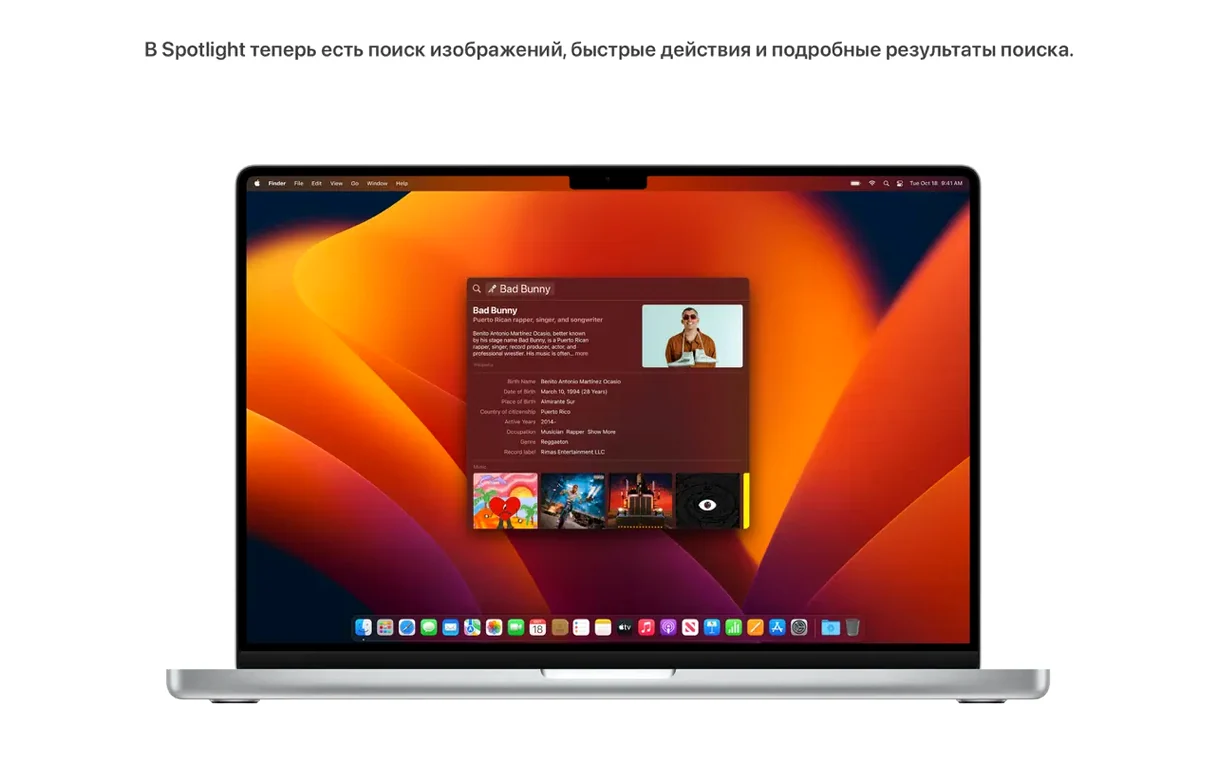
- Spotlight in Ventura can find images by their content — location, people, objects, even text in the image. If you store session photos, screenshots of plugin settings, or scanned notes, type a keyword into Spotlight instead of browsing folders.
- Spotlight can also run actions. Type a timer duration and it starts one. Type a shortcut name and it runs it. This saves reaching for the Shortcuts app for quick tasks.
- Shared tabs in Safari let collaborators see the same set of web pages. Useful when researching plugins or reference material with a colleague — everyone stays on the same page list.
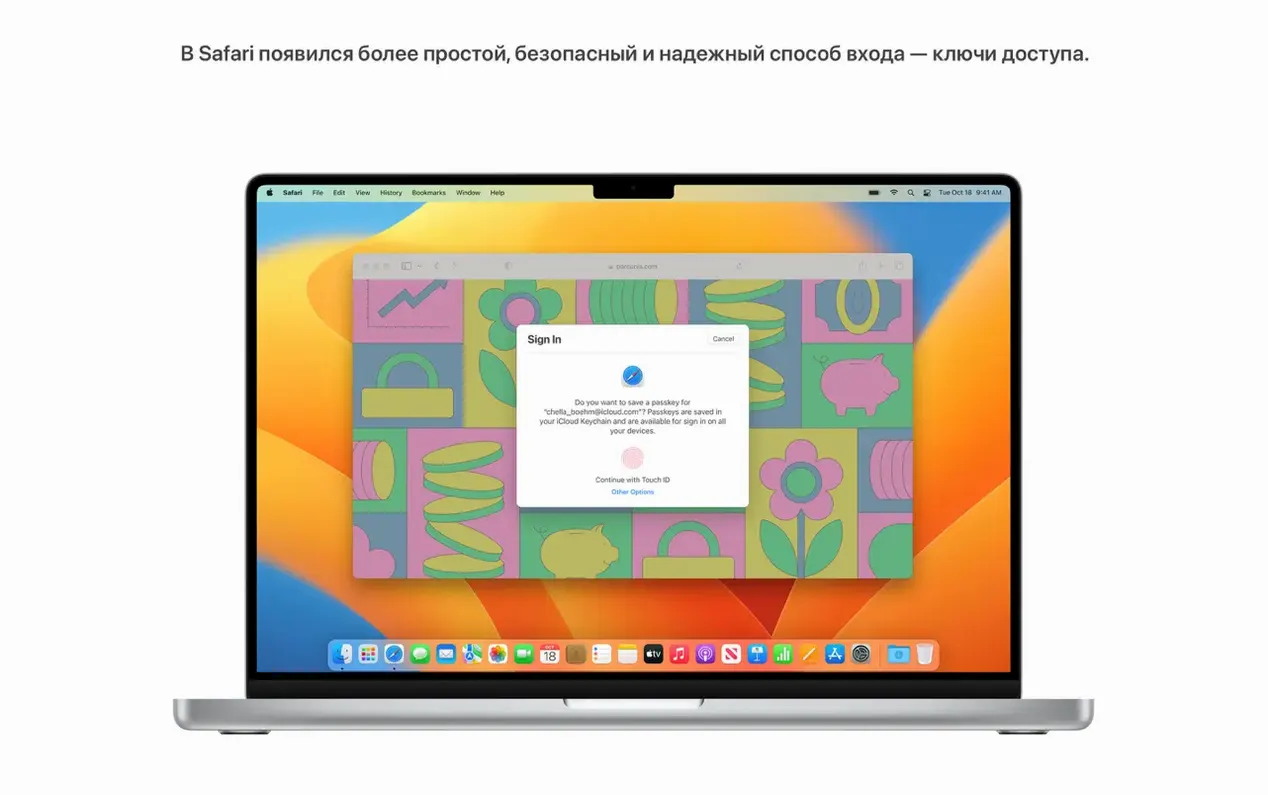
- Passkeys replace passwords for supported websites. Biometric authentication via Touch ID or Face ID on iPhone means one less password to manage. Safari stores them in iCloud Keychain.
- FaceTime calls can move between your iPhone and Mac mid-conversation. If you start a call on the Mac in the studio and need to step away, hand it off to the iPhone without dropping the call.
- The Weather and Clock apps are straightforward ports from iOS, but the Clock app includes world clocks and alarms — handy for session timing without installing third-party apps.
Clean install Ventura for Final Cut Pro or DAW
When setting up a Mac that will run Final Cut Pro or a DAW, a clean install of Ventura 13.7.8 gives you a known starting point. Download the IPSW file from the catalog. Connect the target Mac to another Mac running Apple Configurator. Boot the target Mac into DFU mode — the steps vary by model, so check Apple's support page for your specific Mac. In Configurator, choose the IPSW file and restore. This wipes the drive and installs Ventura fresh.
After the Mac reboots, go through the initial setup without migrating data from a backup. Set up a local administrator account. Open System Settings and disable automatic updates in Software Update — you control when updates apply. Install your audio interface drivers first, then your DAW or video editor, then your plugins. Test playback with a simple session before loading complex projects. Finally, connect your Time Machine drive and restore your personal files from the backup, but not system settings or applications — those are cleaner installed fresh.
This approach avoids carrying over permission issues or conflicting preferences from a previous OS version. It takes longer than an in-place update, but for a dedicated studio machine, the stability gain is worth the time.
Changes in this build
Before it goes on the Mac
- macOS Ventura (13.7.8)
- Architecture: Intel and Apple Silicon
- Interface languages: 35 locales including English, Russian, German, Arabic, Hungarian, Vietnamese, Greek, Danish, Hebrew, Indonesian, Spanish, Italian, Catalan, Traditional Chinese, Simplified Chinese, Korean, Malay, Dutch, Norwegian, Polish, Portuguese, Romanian, Slovak, Thai, Turkish, Ukrainian, Finnish, French, Hindi, Croatian, Czech, Swedish
Questions from the room
Can I use an iPhone as a webcam on macOS Ventura?
Yes, Ventura adds Continuity Camera support, letting you use an iPhone as a wireless webcam without additional apps.
Installing it on the Mac
- Use the PKG file to update directly from the current macOS.
- Use the PKG file to create a bootable installer from Terminal.
- Use the IPSW file to restore or perform a clean install through Apple Configurator.
- Use the IPSW file to roll back the system version or recover from serious issues.
Notes from the control room
Sign in or open a catalogue account to leave a note.
No notes from the room yet. If you have used this build for a week, a short note helps the next person.