
macOS Tahoe 26.7.1 (Mac)
Updated

The catalogue note
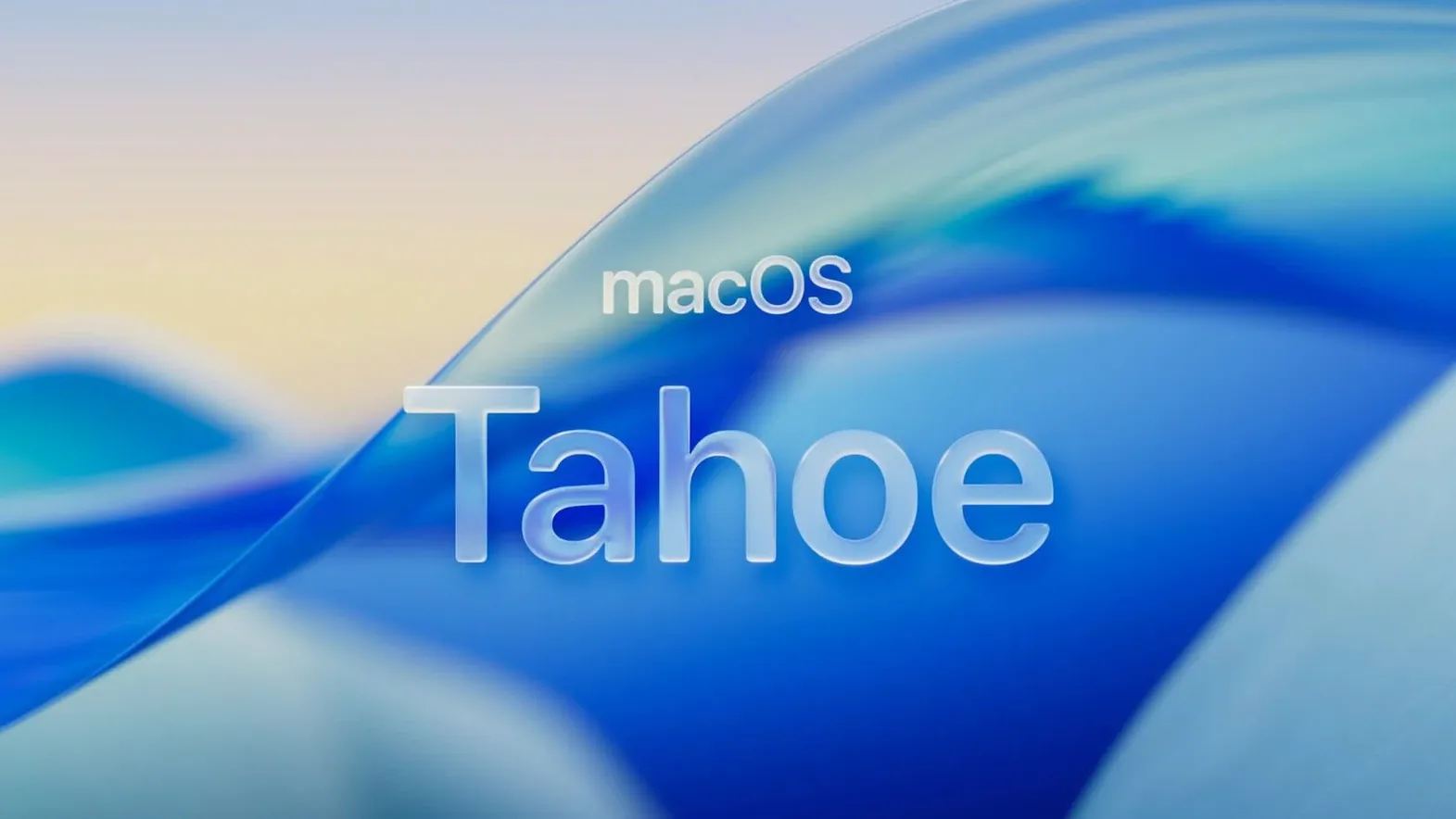
Every few years macOS asks the same question: will the next version run on the machine you already own? macOS Tahoe answers it with a clear compatibility list and a handful of genuinely new additions — no guesswork needed.
Which Macs are supported?
macOS Tahoe runs on both Intel and Apple Silicon Macs, but the cut-off is 2019 or later depending on the model. The full list covers MacBook Air with Apple silicon from 2020, MacBook Pro 13-inch (2020, four Thunderbolt 3 ports) and the 16-inch 2019 model, iMac from 2020, Mac mini from 2020, Mac Studio from 2022, and Mac Pro from 2019. If your Mac is older than that, Tahoe won’t install.
What does Tahoe actually add?
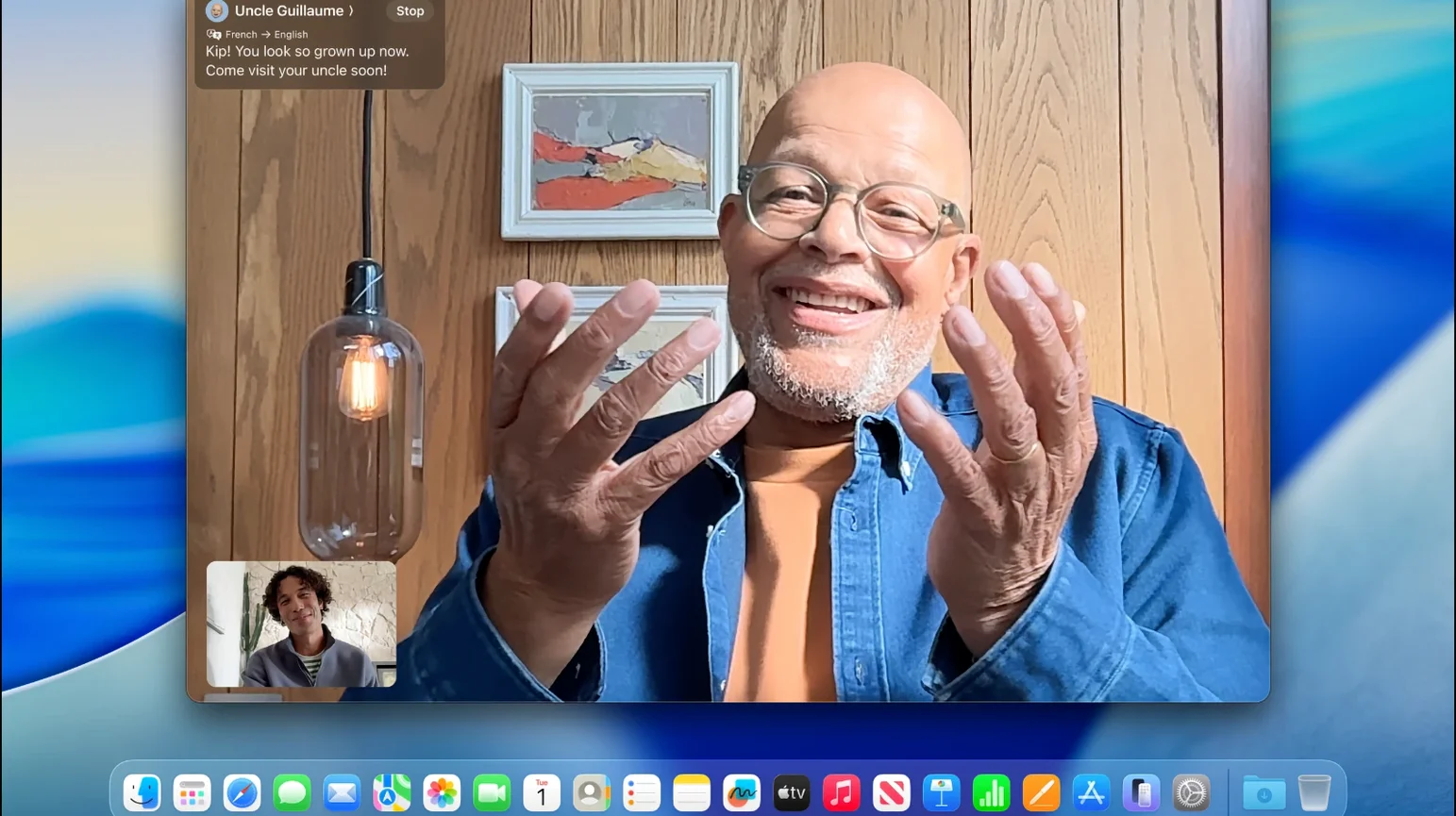
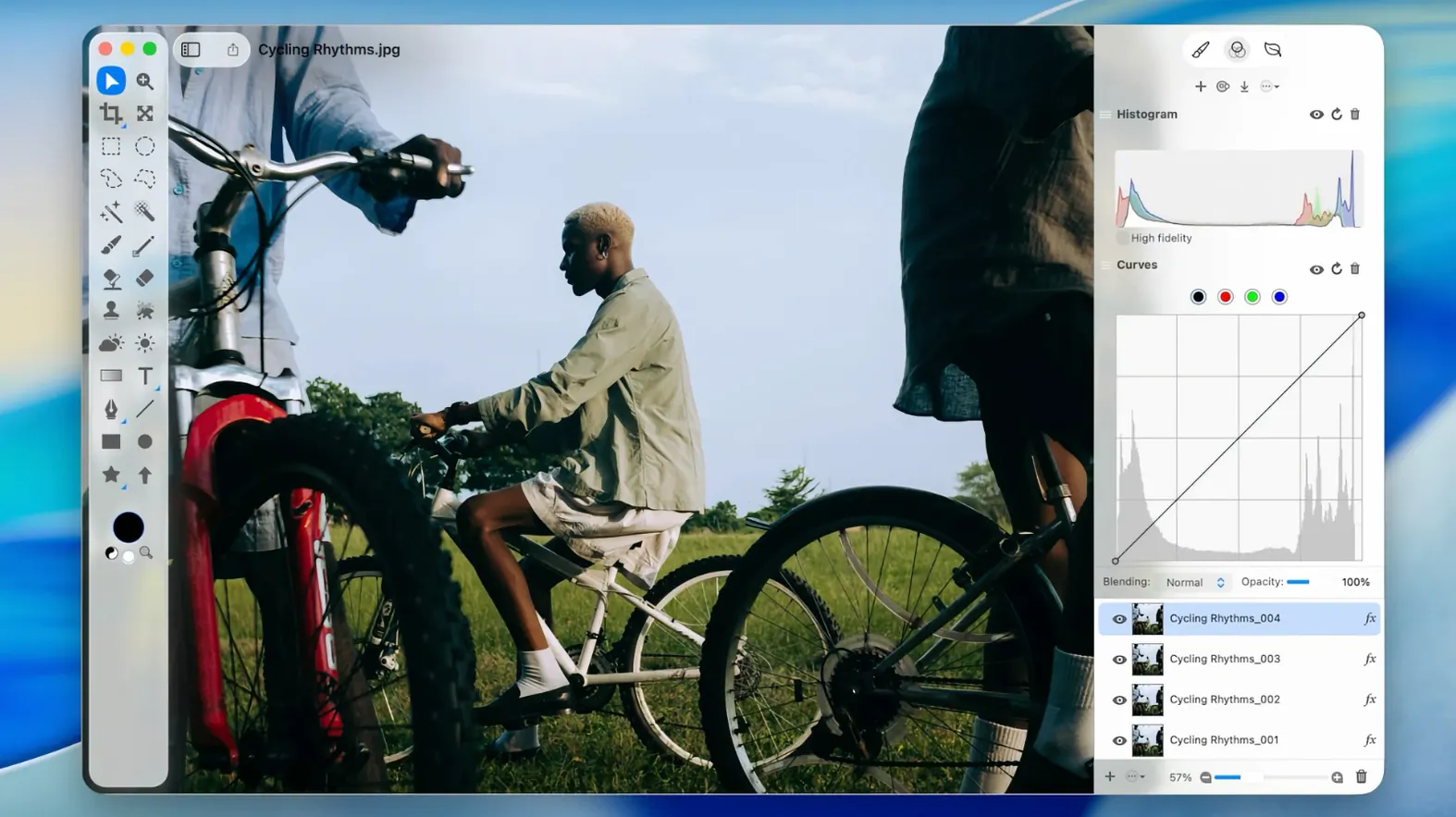
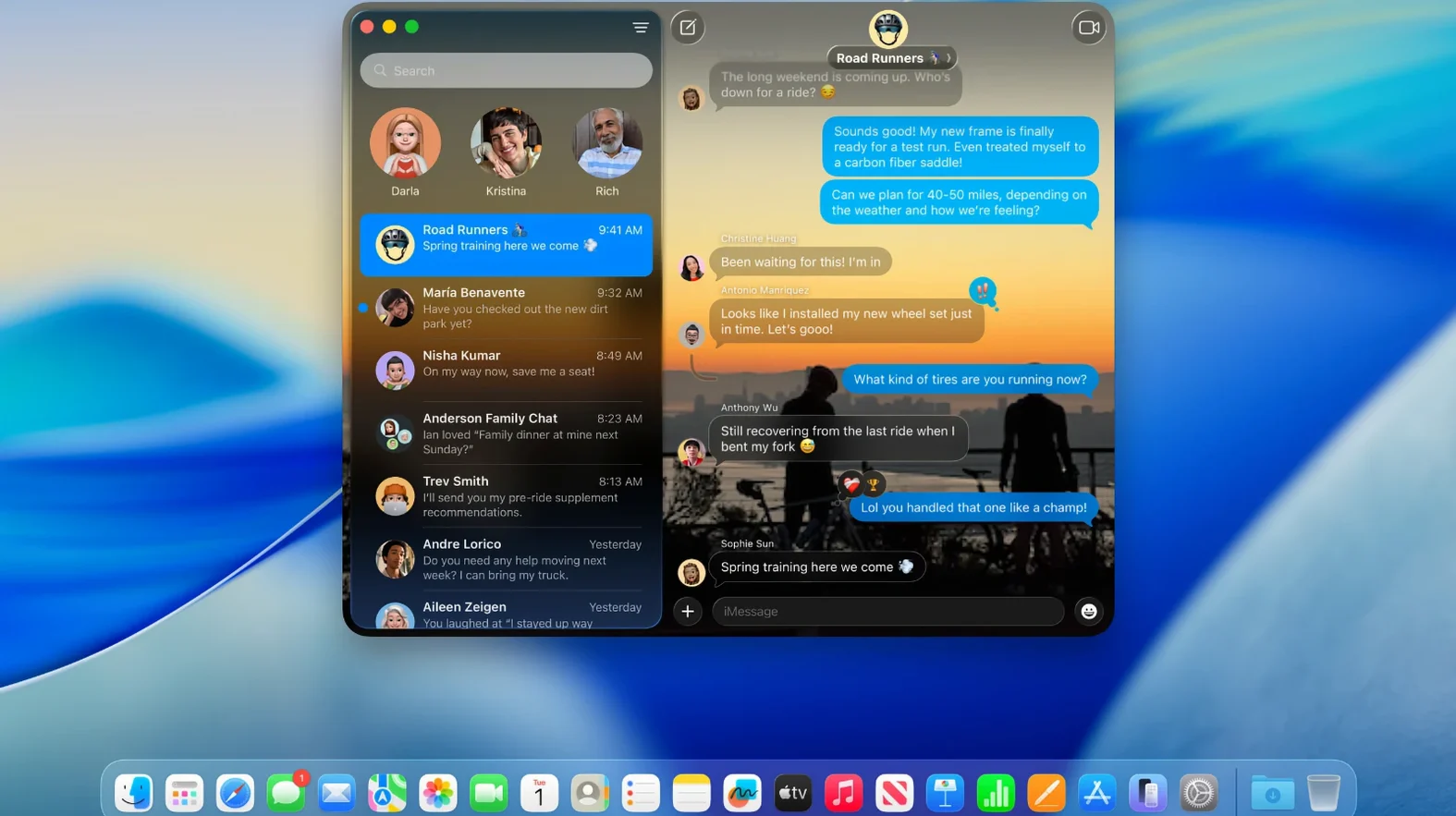
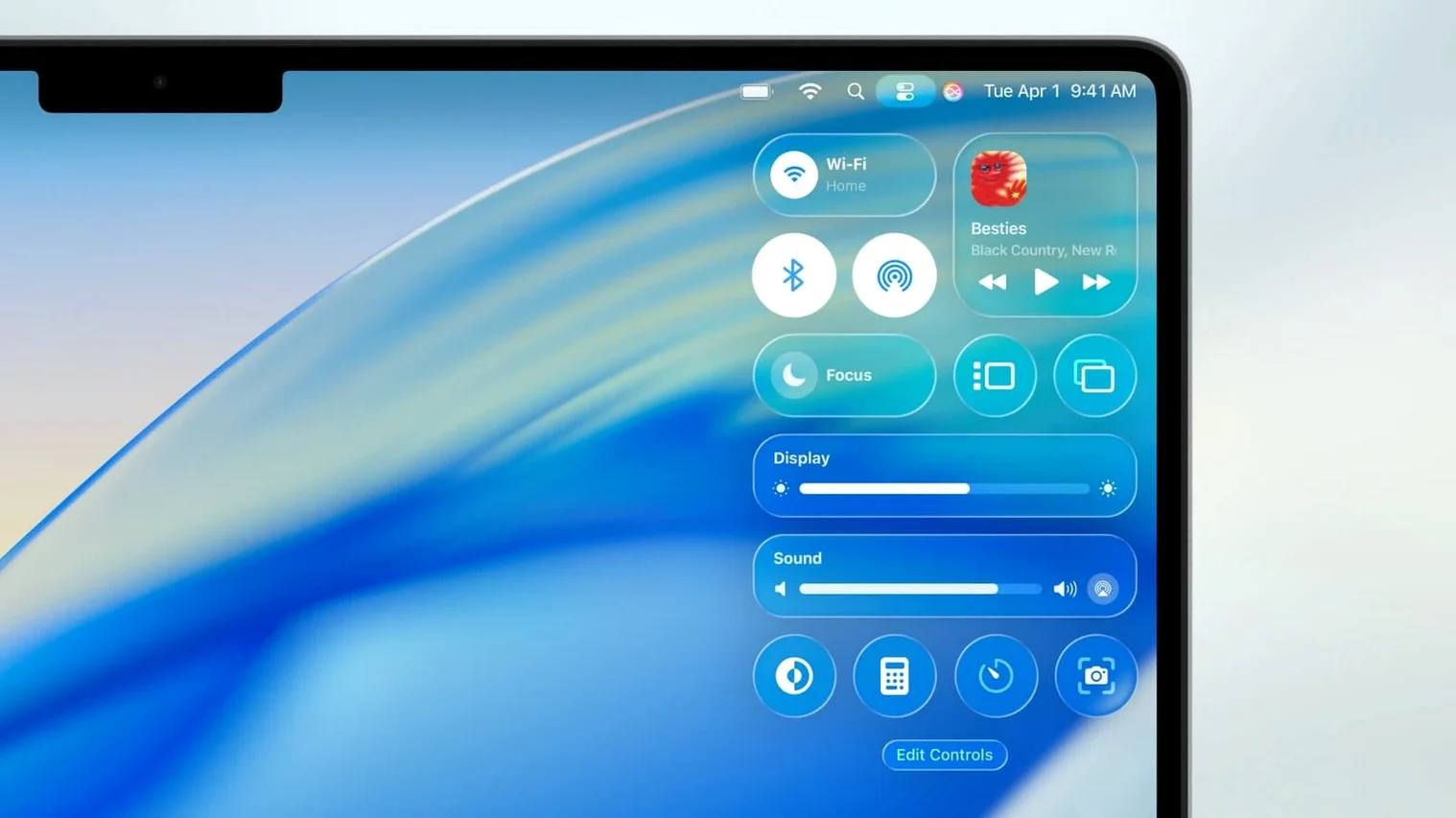
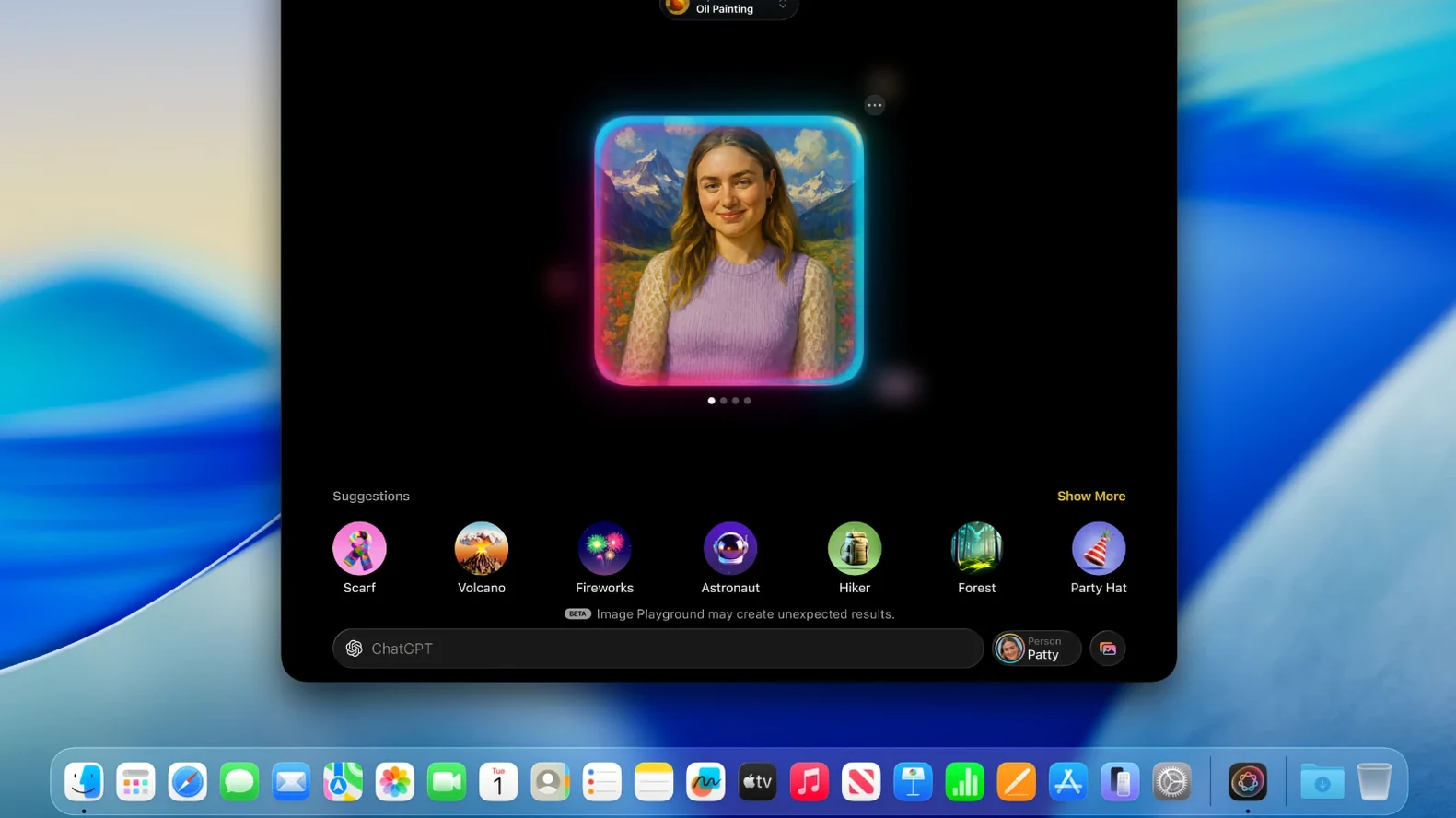
Apple Intelligence gets a wider reach across the system. Launchpad is gone — replaced by an Apps view inside Spotlight. The Phone app arrives on the Mac, alongside a new Games app and Journal. Live Activities from your iPhone now show up on the desktop. The overall interface has been redesigned too, though the core workflow stays familiar.
Is the 26.7.1 update worth installing?
This point release fixes bugs and addresses a security issue where a maliciously crafted file could trigger arbitrary code execution. If you’re already on Tahoe, it’s a no-brainer update. If you’re still on an earlier macOS, the 26.7.1 build is the most polished version of Tahoe so far.
Adjust phone app default before settling in
After a fresh install or an upgrade to macOS Tahoe 26.7.1, a few defaults are worth adjusting before you settle into your workflow. None of these are critical, but they make the new features behave more predictably.
- Phone app notifications — The Phone app on Mac is enabled by default, but you might not want every incoming call lighting up your desktop. Open the Phone app settings and decide which contacts can ring through. The same applies to Live Activities from iPhone: you can disable them per app in Notifications settings if they clutter the screen during focused work.
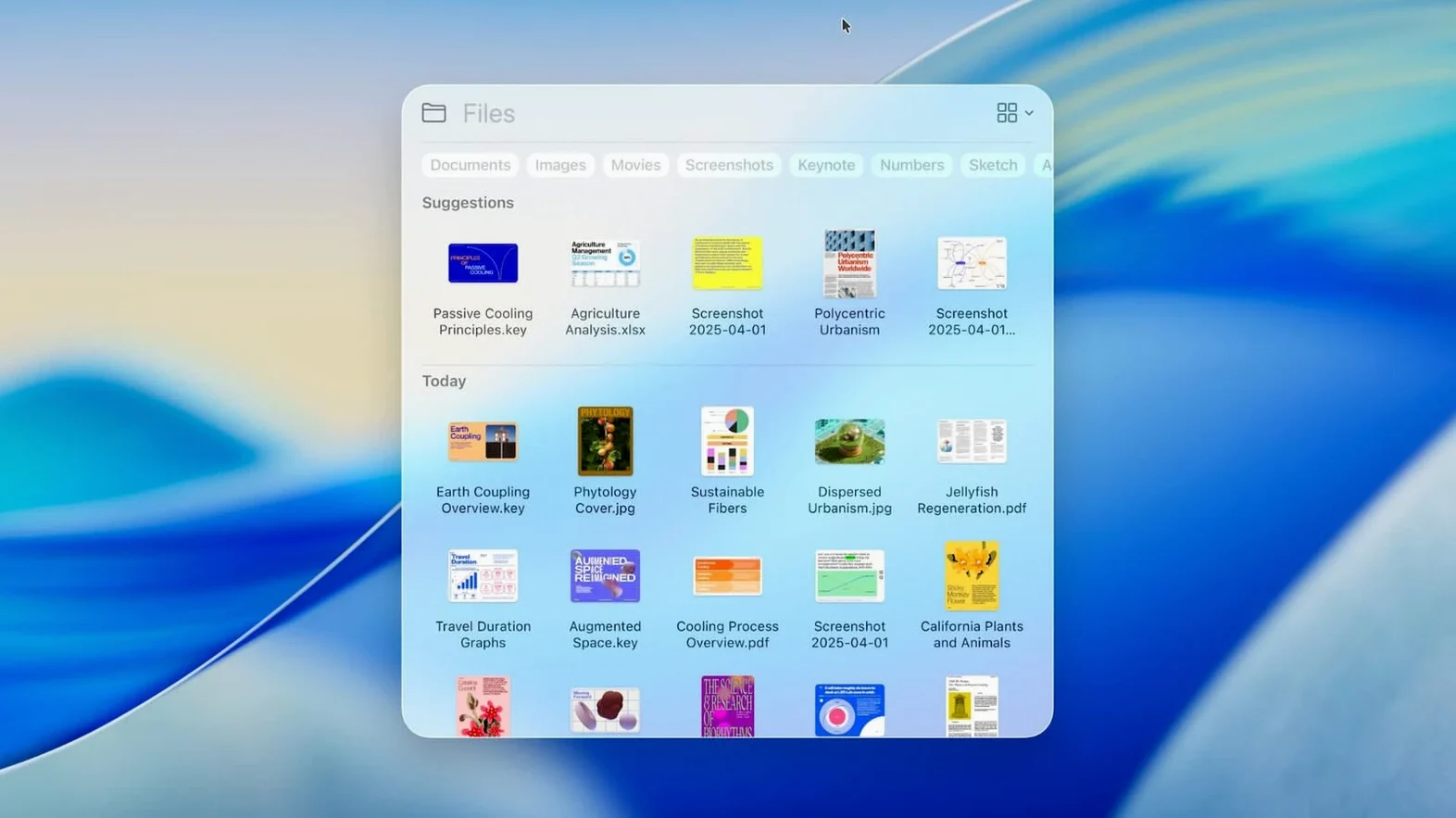
- Spotlight Apps view — With Launchpad gone, the new Apps view inside Spotlight becomes your primary launcher. If you prefer the old grid, you can adjust the view style in Spotlight preferences. The search behaviour itself hasn’t changed, but the larger Spotlight update adds more results categories — you may want to uncheck some in the privacy tab to keep results lean.
- Games app library location — The new Games app creates its own folder for installed titles. If you keep games on an external drive, point the library path there first. It saves moving files later.
- Journal app sync — Journal on Mac syncs with iCloud by default. If you only use it locally, turn off iCloud sync in the app’s preferences to avoid unwanted entries appearing on other devices.
- Apple Intelligence controls — The expanded Apple Intelligence features add system-level suggestions. You can review which services have access in Privacy & Security settings under Apple Intelligence & Siri. Disable anything that feels intrusive.
Spotlight and Launchpad in a normal afternoon
I’ll walk through a normal afternoon to show how the new pieces fit together. This isn’t a tutorial — just how the system behaves once you’ve set it up.
I start by hitting Cmd+Space to open Spotlight. The old Launchpad icon is gone from the Dock, but the Apps view inside Spotlight loads immediately. I type “Logic” and see Logic Pro at the top, plus a recent project in the results — that’s the larger Spotlight update at work. No extra clicks needed.
Mid-session, a colleague sends a time-sensitive message. My iPhone buzzes, and a Live Activity appears in the top-right corner of the Mac screen showing the call duration. I can answer directly through the Phone app on Mac without touching the phone. The audio routes through the studio interface, which is convenient when you’re wearing headphones anyway.
During a break, I open the Games app. It scans the Applications folder and picks up the few titles I have installed. The interface is straightforward — library view, no storefront clutter. I launch one, play for ten minutes, and quit. The app remembers my window size on next launch.
Later, I jot down session notes in the Journal app. It’s a basic text editor with iCloud sync, nothing fancy. I prefer it over Notes for personal logs because it stays separate from work documents. The redesign of the overall interface means the window chrome is flatter, but all the keyboard shortcuts I know still work.
At the end of the day, I check Software Update. The 26.7.1 build is already installed — this point release hasn’t introduced any new behaviour, just the security fix for arbitrary code execution. I shut down knowing the system hasn’t surprised me once.
Treating the phone app like a full VoIP client
Three common missteps come up often when people first move to this version.
- Treating the Phone app like a full VoIP client — The Phone app on Mac mirrors your iPhone’s call handling. It does not work independently. If your iPhone is off or out of range, the Mac app shows nothing. Beginners expect it to function like FaceTime and get confused when calls don’t ring.
- Ignoring the Apps view in Spotlight — Because Launchpad disappeared, some users try to recreate it by dragging folders to the Dock. The Spotlight Apps view is faster and already sorted. It takes one keyboard shortcut to get there.
- Assuming all Intel Macs are supported — Tahoe runs on Intel, but only specific models from 2019 onward. A 2017 iMac Pro, for example, is not on the list. Checking the exact model year before downloading saves a failed install.
Games app is a local library with no store integration
A few details in macOS Tahoe 26.7.1 are not advertised but worth knowing.
- The Games app does not require a separate login or account — it’s a local library browser. No store integration.
- Journal entries created on Mac sync to iPhone and iPad automatically if iCloud is enabled, with no manual export step.
- Live Activities from iPhone appear on the Mac even if the phone is locked. You do not need to unlock the iPhone first.
- The Phone app on Mac supports the same call forwarding and silence settings as the iPhone, accessible from the Mac’s menu bar.
- Spotlight’s Apps view can be accessed by typing the first few letters of an app name — you do not need to click into a separate section.
- macOS Tahoe for mac free download is available as a PKG or IPSW from Apple’s servers; the PKG is the simplest path for an in-place update.
- For administrators, using macos tahoe torrent or direct downloads is not recommended — the official PKG and IPSW are the only supported methods for clean installs.
Changes in this build
Before it goes on the Mac
- macOS version required: varies by update path
- Architecture: Intel and Apple Silicon
- Compatible with MacBook Air with Apple silicon (2020 or later)
- Compatible with MacBook Pro with Apple silicon (2020 or later)
- Compatible with MacBook Pro (13-inch, 2020, Four Thunderbolt 3 ports)
- Compatible with MacBook Pro (16-inch, 2019)
- Compatible with Mac mini (2020 or later)
- Compatible with iMac (2020 or later)
- Compatible with Mac Studio (2022 or later)
- Compatible with Mac Pro (2019 or later)
Questions from the room
Does macOS Tahoe support Intel Macs?
Yes, but only specific models: MacBook Pro (16-inch, 2019), MacBook Pro (13-inch, 2020, Four Thunderbolt 3 ports), iMac introduced in 2020 or later, and Mac Pro introduced in 2019 or later.
Installing it on the Mac
Notes from the control room
Sign in or open a catalogue account to leave a note.
No notes from the room yet. If you have used this build for a week, a short note helps the next person.