
Updated
The catalogue note
The current version of macOS Mojave, 10.14.6 (18G103), focuses on stability and reliability improvements. For those planning a hackintosh mojave download, the first question is always whether the hardware is compatible.
Add Dark Mode and Stacks to your workflow
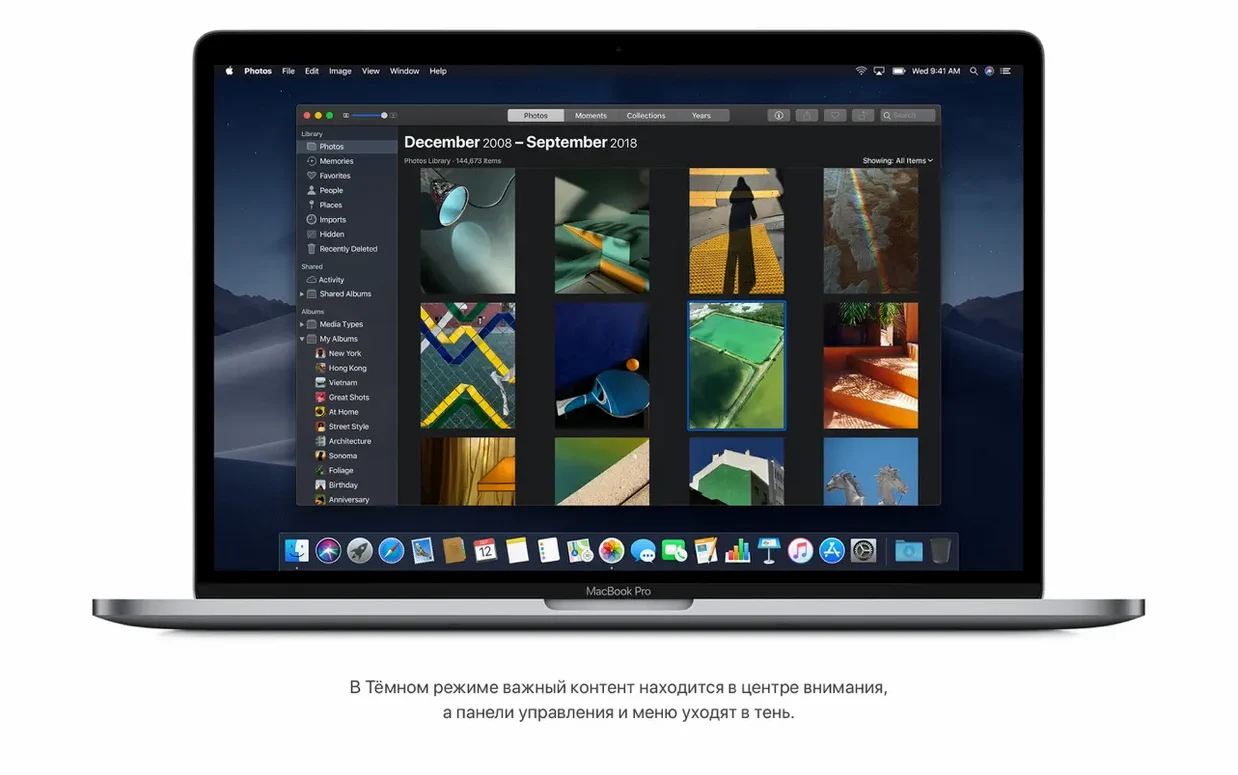
- Adding Dark Mode across the system and supporting apps.
- Using Stacks to automatically group cluttered desktop files by kind or date.
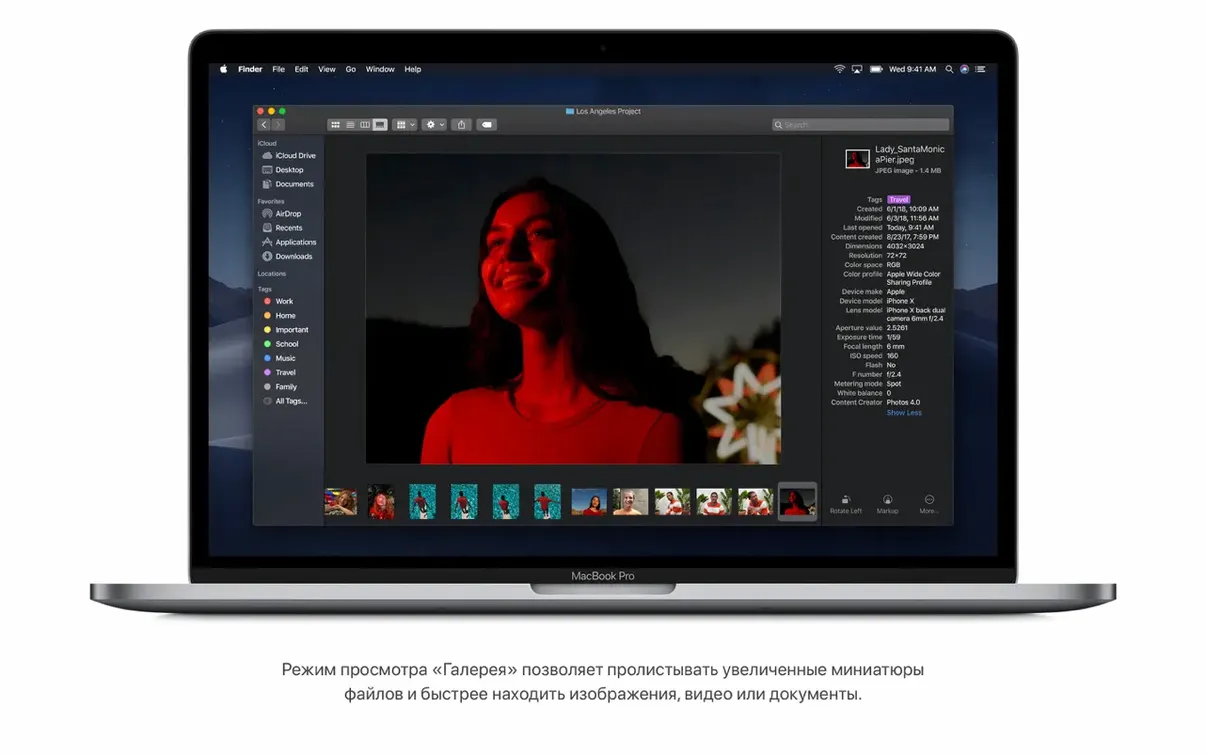
- Browsing and editing media directly in Finder with Gallery View, plus basic trim and rotate tools.
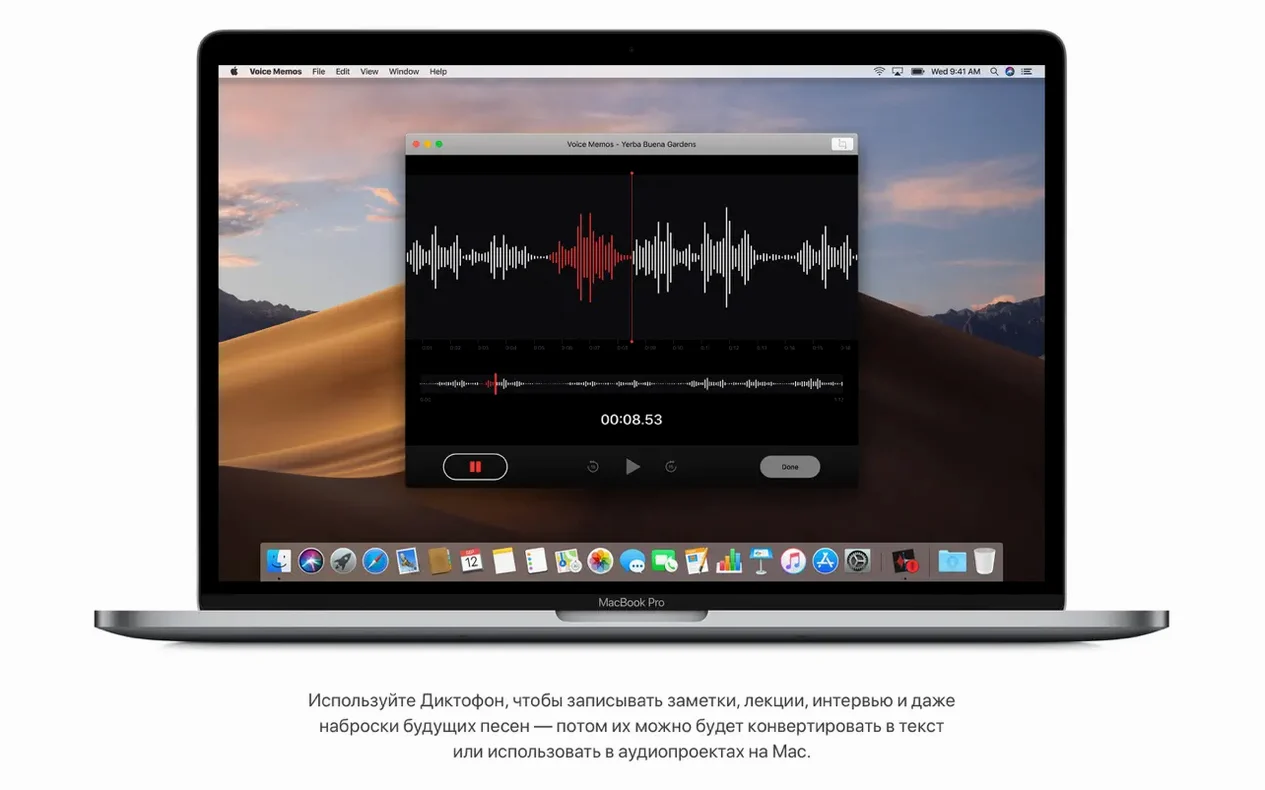
- Running the built-in News and Voice Memos apps.
- Working with 64-bit Intel applications only — 32-bit support ends here.
Check your Mac model and GPU for Mojave
- Compatibility requires a Mac from mid-2012 or later for most models; the MacBook Early 2015 or newer is needed for the 12-inch Retina version.
- The Mac Pro requires a Metal-capable GPU: late 2013 models work as-is, mid-2010 and mid-2012 machines need a graphics card upgrade.
- Minimum memory is 2 GB; storage needs 12.5 GB free.
- If you are looking for a mojave torrent or mac os mojave torrent, verify that the image matches the official 10.14.6 build and that your hardware meets the Intel-only architecture requirement.
What the final update changed in everyday use
Version 10.14.6 is the last release of Mojave. Apple did not add new features here — the 18G103 build is a maintenance update. What it did improve, quietly, is how the system behaves over a workday. The Finder no longer hesitates when you switch between Gallery View and List View on a folder with hundreds of RAW files. Dark Mode, which was already solid in 10.14.5, stopped dropping to light mode after waking from sleep on certain iMac models. Stacks became more reliable when you dragged a new batch of downloads onto a grouped desktop — the files land in the correct stack rather than floating outside it.
For anyone running a hackintosh Mojave download, this version also tightened memory management with third-party graphics drivers. The 12.5 GB storage requirement stays the same, but the installer now checks more thoroughly for corrupt system files before it begins.
How Mojave compares to similar Mac operating systems
Against its direct predecessor, High Sierra (10.13), Mojave is the more polished daily driver if you work with media files. High Sierra introduced APFS and HEVC support, but Mojave added Finder tools that actually save time: Gallery View with metadata panels, and the ability to rotate or trim a video without opening QuickTime Player. High Sierra feels leaner on older hardware, but lacks Dark Mode and Stacks.
Compared to Catalina (10.15), Mojave has one clear advantage: it is the last macOS that runs 32-bit applications. Studios still using legacy audio plugins or older versions of Pro Tools cannot move past Mojave without replacing software. Catalina also removed iTunes, splitting its functions into Music, Podcasts and TV — Mojave keeps iTunes intact, which matters if you manage a large local library for syncing iPods or older iPhones.
Versus Big Sur (11), the difference is architecture. Mojave is Intel-only and runs natively on older Macs that Big Sur dropped support for. Big Sur introduced the redesigned interface and Control Centre, but it also demands more RAM and storage. For a Mac mini late 2012 or a MacBook Pro mid 2012, Mojave is the practical ceiling.
Workflow: organising a month of session files with Stacks and Gallery View
After a recording project, the desktop usually ends up covered with WAV files, project folders, screenshots of mixer settings, and PDF notes. Here is how to clear it in Mojave without third-party tools.
- Enable Stacks. From the desktop, choose View > Use Stacks, or press Control-Command-0. Files group by kind by default — WAV files in one stack, folders in another, images in a third.
- Refine the grouping. Control-click the desktop, go to Stack Grouping By, and select Date Last Opened if you want the most recent session on top. For project organisation, Date Created works better — all files from the same recording day sit together.
- Browse without opening. Click a stack to expand it. Hover over a WAV file and press Space for Quick Look. If you need more detail, switch the Finder to Gallery View (Command-2). The preview pane shows sample rate, bit depth and duration without launching Logic or Reaper.
- Trim and rename in place. If a voice take has silence at the start, select the file in Gallery View and use the trim handles that appear at the bottom of the preview. Rename directly in the metadata panel below the preview — no need to open a rename dialogue.
- Password-protect the session notes. Select a PDF or Pages file in the Finder, choose File > Lock, then set a password. The file stays in its stack but requires the password before anyone can view it.
This workflow keeps the desktop clean, avoids launching an audio editor for quick trims, and locks sensitive client notes without extra software.
Turn on Dark Mode and Desktop Stacks first
- Dark Mode. Go to System Preferences > General and select Dark. It reduces eye strain in a dimly lit studio and makes Finder icons and text stand out more against the background.
- Desktop Stacks default. Turn on Stacks immediately (View > Use Stacks). Otherwise the desktop accumulates files until you manually clean it. Set grouping to Kind first, then switch to Date as needed per project.
- Finder Gallery View column width. In any Finder window in Gallery View, drag the vertical divider between the preview and the metadata list to the right. This gives you room to see extended attributes like audio sample rate and codec without scrolling.
- Reduce transparency. System Preferences > Accessibility > Display > Reduce transparency. On older Macs with integrated graphics, this makes window resizing and Mission Control animations noticeably snappier.
- Disable automatic file previews in Stacks. If you work with large audio files, Stack previews can slow down the desktop. In System Preferences > General, uncheck "Ask to keep changes when closing documents" — this is not directly related, but the more useful setting is in Terminal:
defaults write com.apple.finder AutoStopWhenStackExpands -bool TRUEfollowed bykillall Finder. This stops the desktop from re-sorting stacks every time a file lands on it.
Changes in this build
- Improves the stability and reliability of the Mac.
Before it goes on the Mac
- macOS 10.8 or later (for upgrade)
- Intel-based Mac
- 2 GB of memory
- 12.5 GB of available storage
- Compatible Mac models: MacBook Early 2015 or newer, MacBook Air Mid 2012 or newer, MacBook Pro Mid 2012 or newer, Mac mini Late 2012 or newer, iMac Late 2012 or newer, iMac Pro 2017, Mac Pro Late 2013 or Mid 2010/Mid 2012 with a Metal-capable graphics card
Questions from the room
Which MacBook Pro models are supported?
All MacBook Pro models from mid-2012 or later are compatible with macOS Mojave.
Does macOS Mojave support 32-bit apps?
No, macOS Mojave is a 64-bit-only operating system and will not run 32-bit applications.
What languages does the interface support?
The interface is available in 29 languages including English, German, Spanish, French, Simplified and Traditional Chinese, Japanese, and Arabic.
Installing it on the Mac
- Open the downloaded disk image.
- Extract the installer app to the Applications folder.
Notes from the control room
Sign in or open a catalogue account to leave a note.
No notes from the room yet. If you have used this build for a week, a short note helps the next person.