Home › Games › No, I'm Not a Human
No, I'm Not a Human 1.3.19 (Mac)
Updated
The catalogue note
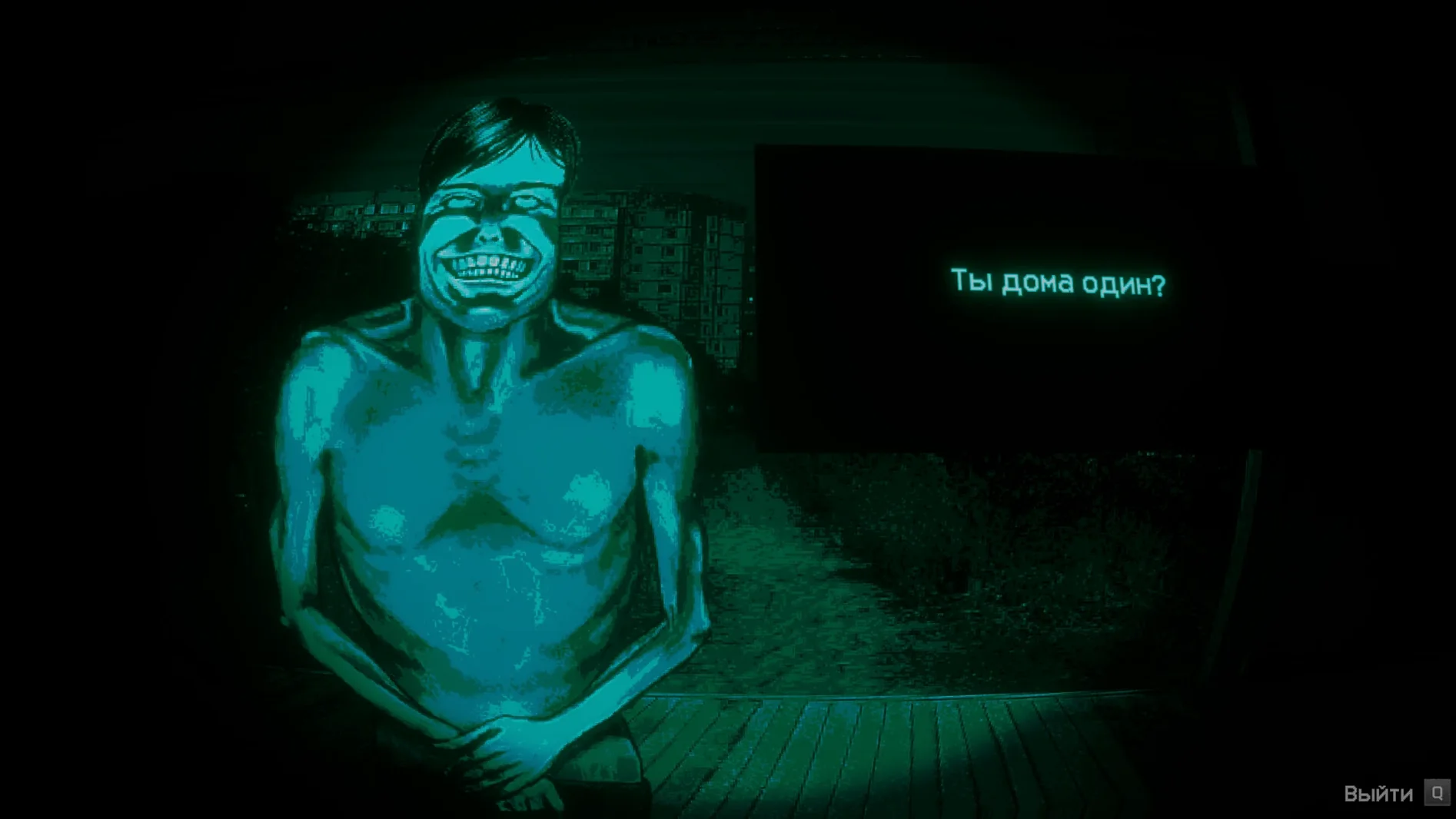
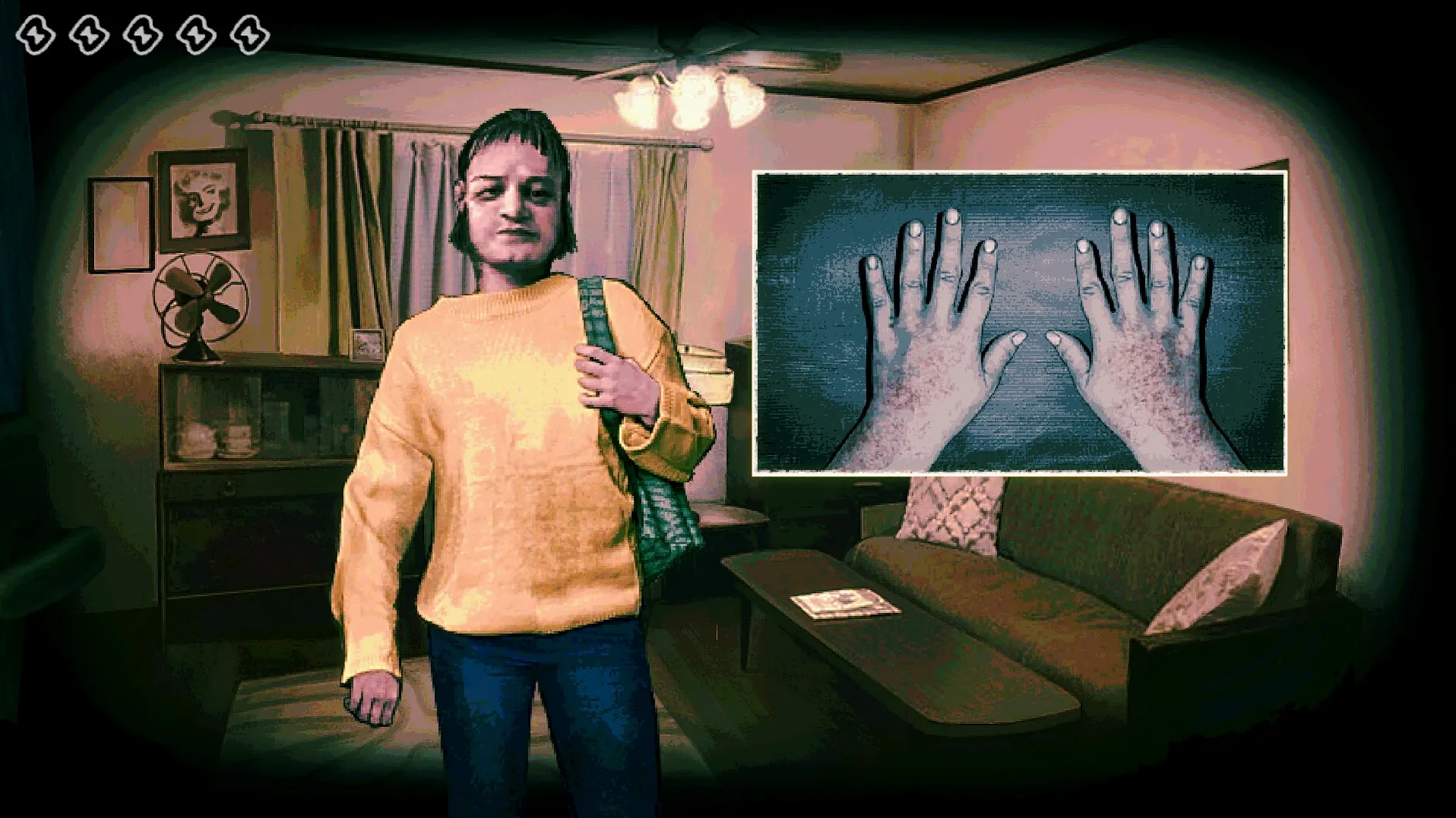
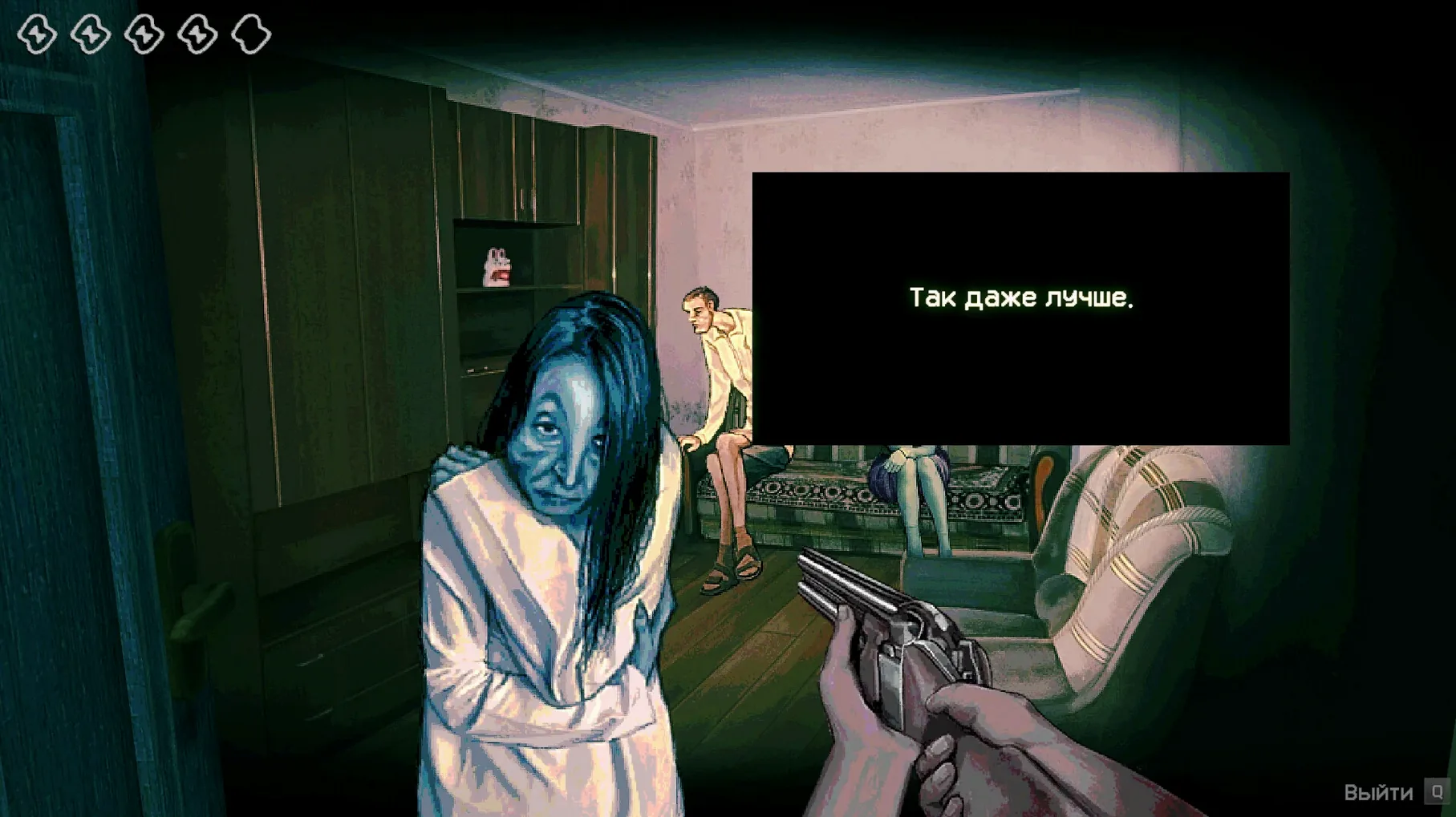
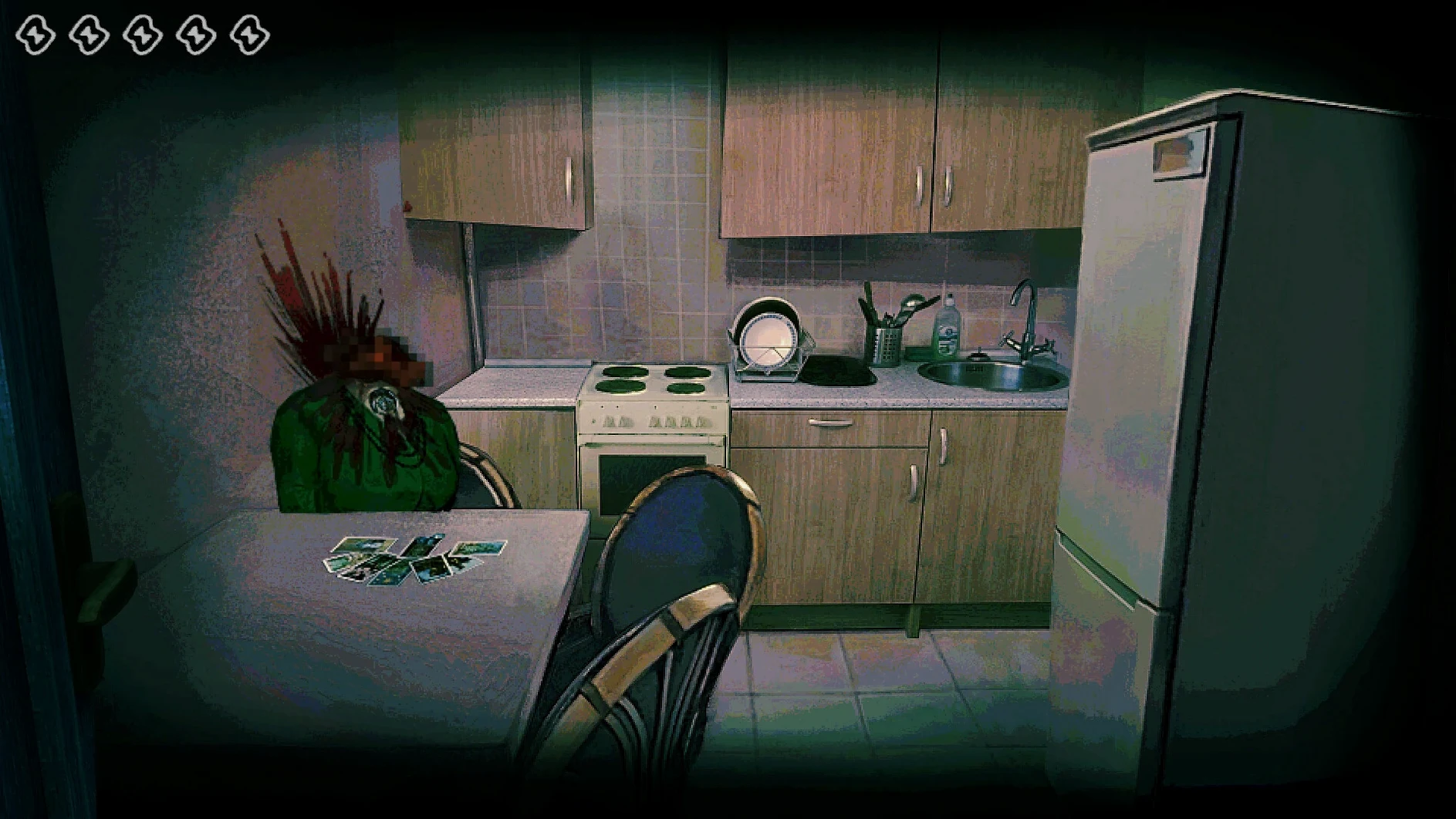
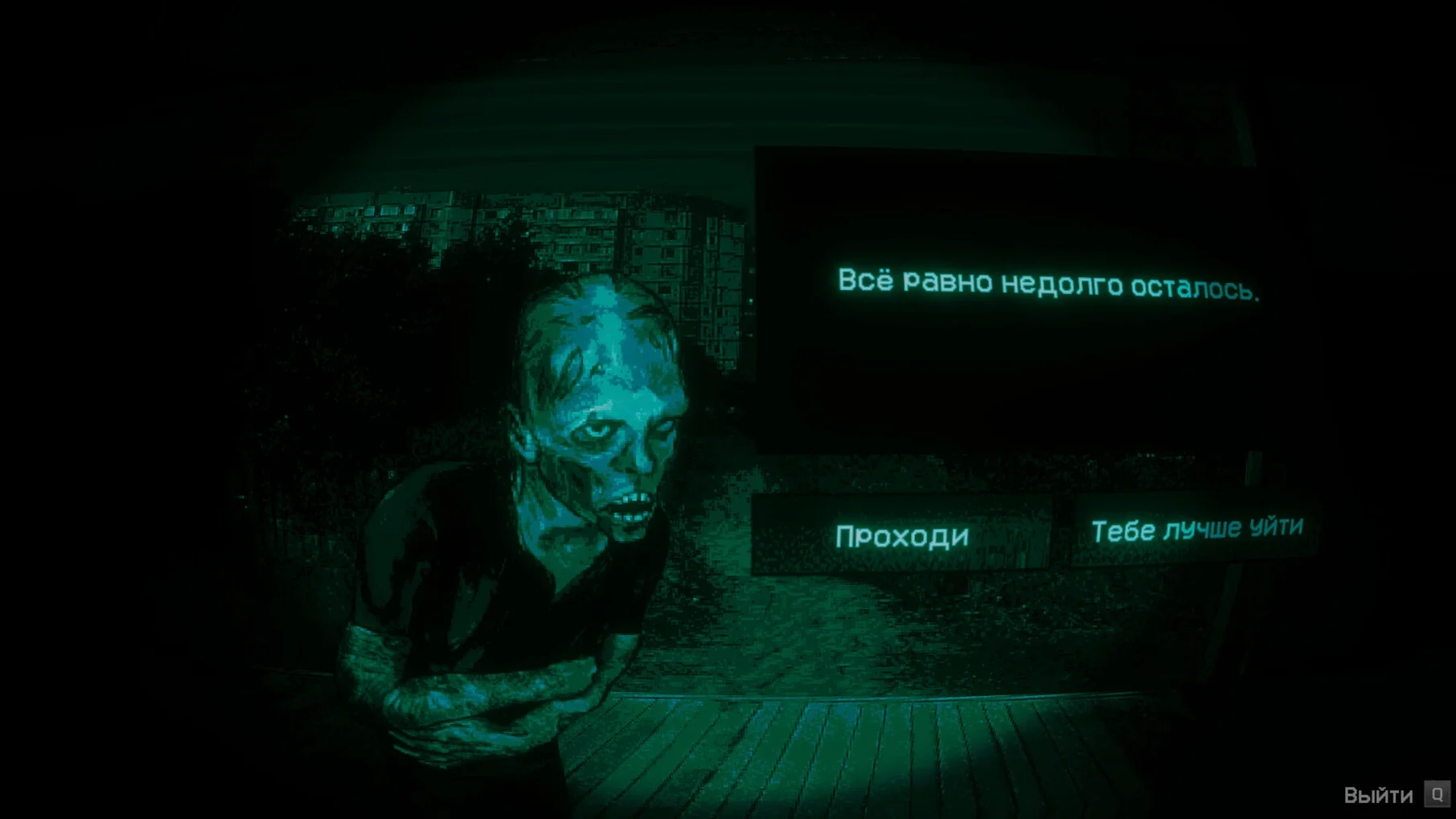
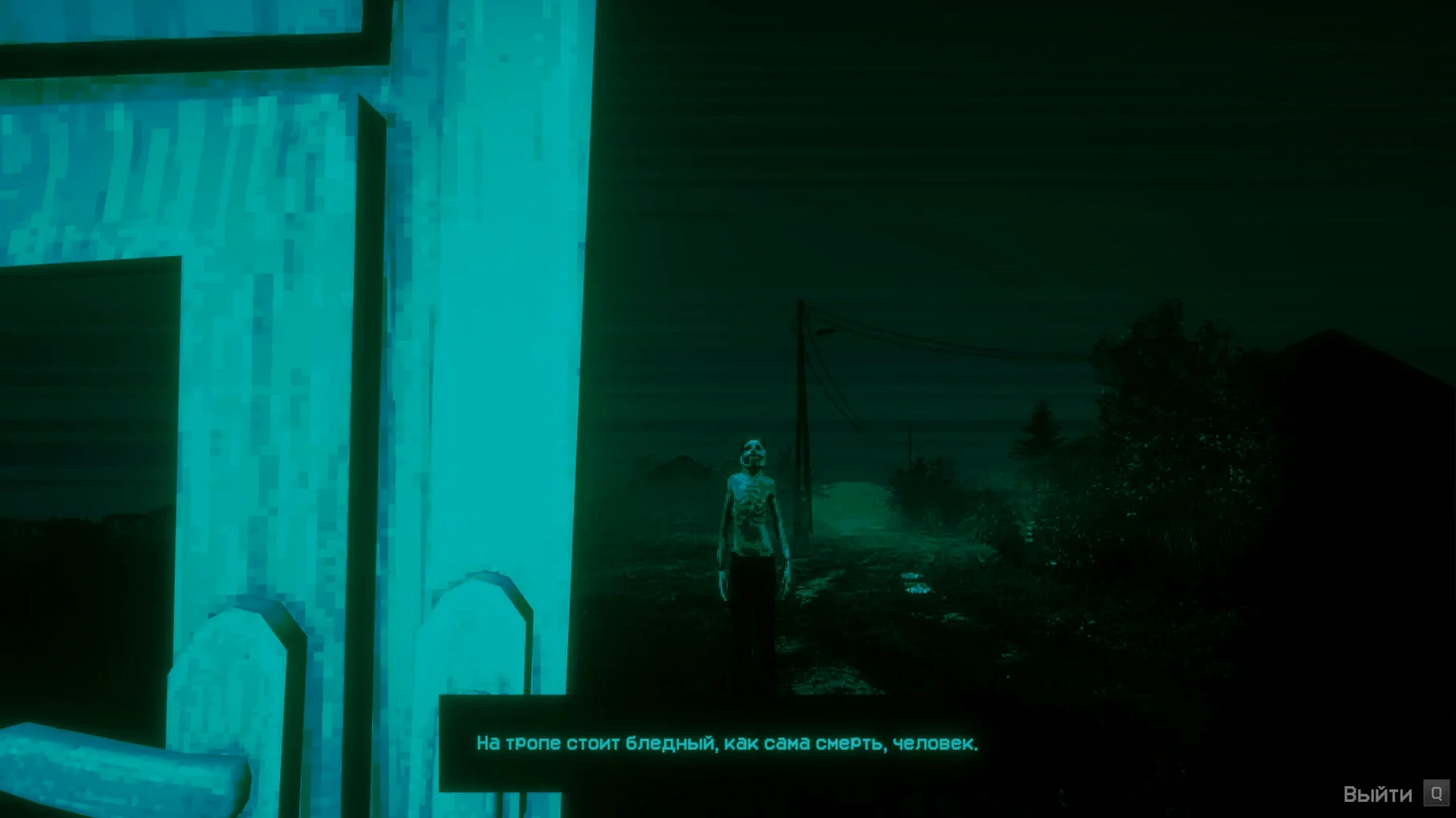
You're at the door. Someone knocks. Outside, the end of the world is happening, and you're told to let only humans in. The problem is, the Visitor at your threshold looks human, sounds human, but you're not sure. That's the core loop of No, I'm Not a Human, and it works because it never gives you a clear answer.
For players who like horror in small decisions, not jump scares
If you like horror that lives in small decisions rather than jump scares, this is your game. The anxiety builds from watching behaviour, listening to dialogue, and deciding who gets in. It's a short, focused experience that rewards attention to detail. The music-only audio track does a lot of the heavy lifting, keeping the mood tense without relying on spoken lines. For players who want a game they can finish in a few sittings, and who enjoy paranoia as a mechanic, it hits the spot.
Not for those who want action or clear horror rules
This is not a game for people who want action or fast pacing. The tension is slow, and the gameplay is mostly observation and choice. If you find prolonged uncertainty frustrating, or if you prefer horror with clear rules and enemy encounters, this will likely wear on you. The first launch must be in English, which is a minor hurdle, but the language can be switched to Russian in settings afterwards. There's also an ARM build for Apple Silicon, so it runs on current Macs. If you're after a quick adrenaline fix, look elsewhere. If you want a slow burn that sits with you, this is worth the download.
Runs as a self-contained Wineskin build in your Applications folder
No, I'm Not a Human is a self-contained Wineskin build, so it lives in your Applications folder like any other Mac app. It doesn't hook into iCloud, Handoff, or Universal Clipboard — that would be out of place for a single-player horror game. What it does benefit from is macOS Tahoe's game mode, which the system enables automatically for full-screen apps. This prioritises CPU and GPU resources for the game window, which helps when you're juggling background tasks like a browser with reference material or a messaging app.
The app bundle contains save files located within Steam/RUNE/427410/remote. If you use Time Machine or a third-party backup tool, you can add that path manually to your backup set. For cloud syncing between machines, you'd need to copy the folder yourself — the game doesn't talk to iCloud Drive or Dropbox natively. That said, the build is portable in the sense that you can move the app to an external drive and run it from there, as long as the drive is formatted for macOS and the system meets the requirements.
If you use macOS's built-in screen recording or QuickTime Player to capture gameplay, the game runs at the system's display refresh rate, so recordings will match what you see. The music-only audio track routes through your default output device, which means you can switch to headphones or external speakers without touching the game's settings. For anyone using multiple displays, the game launches on the primary monitor by default, and you can drag it to another screen before going full-screen.
A translator notices the language list and starts with Japanese
A translator who plays horror games for atmosphere sits down after a day of handling localisation files. They've worked with Russian, German and Japanese text, so the language list catches their eye. On first launch, they set the game to English as required. After the opening sequence, they switch to Russian in the settings to hear how the dialogue reads — the game is music-only, so they're checking the UI text and prompts. They keep a browser tab open with the original Steam description for reference, but the game's own text is clean and consistent across the supported languages. Over two evenings, they work through the encounters, noting how the Visitor dialogue changes in each language version. The save path inside the app bundle means they can copy the progress folder to a USB stick and pick up on a different Mac without reinstalling. The game never demands fast reflexes, so they can pause to look up a phrase or compare two lines. It's not a work tool, but it satisfies the same attention to detail that their day job requires.
Requires macOS Tahoe or later on Apple Silicon Macs
The facts are straightforward. The build is compiled for ARM and requires macOS Tahoe or later. It runs on any Mac with Apple Silicon — MacBook Air, MacBook Pro, Mac mini, iMac or Mac Studio from the M1 generation onward. The tested machine was a Mac mini 2024 with M4, so the baseline is modern. There is no Intel build, and the Wineskin wrapper does not add Rosetta 2 translation overhead; the game runs as an ARM binary.
The download comes as a disk image. After you drag the app to Applications, the first launch must be in English. If the game shows an error at that point, the Fix file inside the disk image resolves it — run that before trying again. Once the game opens, you can change the language in the settings to any of the ten supported options. The music-only audio track means no voice files to load, so the install size stays lean. No activation is required, and there is no online DRM, so the game works offline from the moment it's copied.
Run the Fix file from the disk image immediately after copying
- Run the Fix file from the disk image immediately after copying the app, even if you don't see an error on first launch. It's a one-time step and saves a restart later.
- Start the game in English on the first launch. After you see the main menu, quit, change the language in settings, and relaunch. The setting persists between sessions.
- Make a copy of the save folder after your first play session. The path is inside the app bundle: right-click the app, select Show Package Contents, then navigate to
Steam/RUNE/427410/remote. Drag that folder to your desktop or a backup location. If you ever delete the app or move it, your progress is safe. - If you plan to play across multiple Macs, keep the save folder in a shared location like a USB drive or a network folder. Copy it back into the same path on the other machine before launching the game.
- Close unnecessary background apps before playing. The game doesn't need much, but macOS Tahoe's game mode works best when the system isn't scheduling other processes. Leave a browser tab open for reference if you need it, but quit video editors, virtual machines or heavy creative apps.
- Test the audio output before the first encounter. The music track is the only audio, so make sure your headphones or speakers are selected in macOS Sound settings. The game uses the system default.
Changes in this build
- Version 1.3.19 Rev2 [Wineskin] for Mac.
- Hotfix for Steam Cloud save recovery on Steam Deck.
- Minor Ukrainian localization fixes.
Before it goes on the Mac
- macOS Tahoe
- Apple Silicon (ARM build)
Installing it on the Mac
- Open the downloaded disk image.
- Drag the app to the Applications folder shortcut.
- After copying finishes, launch the app from Launchpad.
- If the game shows an error on launch, run the Fix file in the disk image.
- Start the game in English on the first launch.
- After the first launch, change the language in the game settings if needed.
Notes from the control room
Sign in or open a catalogue account to leave a note.
No notes from the room yet. If you have used this build for a week, a short note helps the next person.