
Home › Mac Apps › ABBYY FineReader PDF

Updated
The catalogue note
If you already use a PDF utility like Preview or Adobe Acrobat for basic document work, ABBYY FineReader PDF steps in when you need text extraction, OCR, or format conversion. This version 15.2.14 runs on macOS 11 (Big Sur) and higher, but only on Intel-based Macs — Apple Silicon is not supported natively, so Rosetta 2 will be required if you try it on an M-series machine.
- System requirements: macOS 11.0 or later; Intel processor only.
- Interface languages include English, Russian, German, Italian, Simplified Chinese, and French.
- Built-in PDF viewer with support for dark mode.
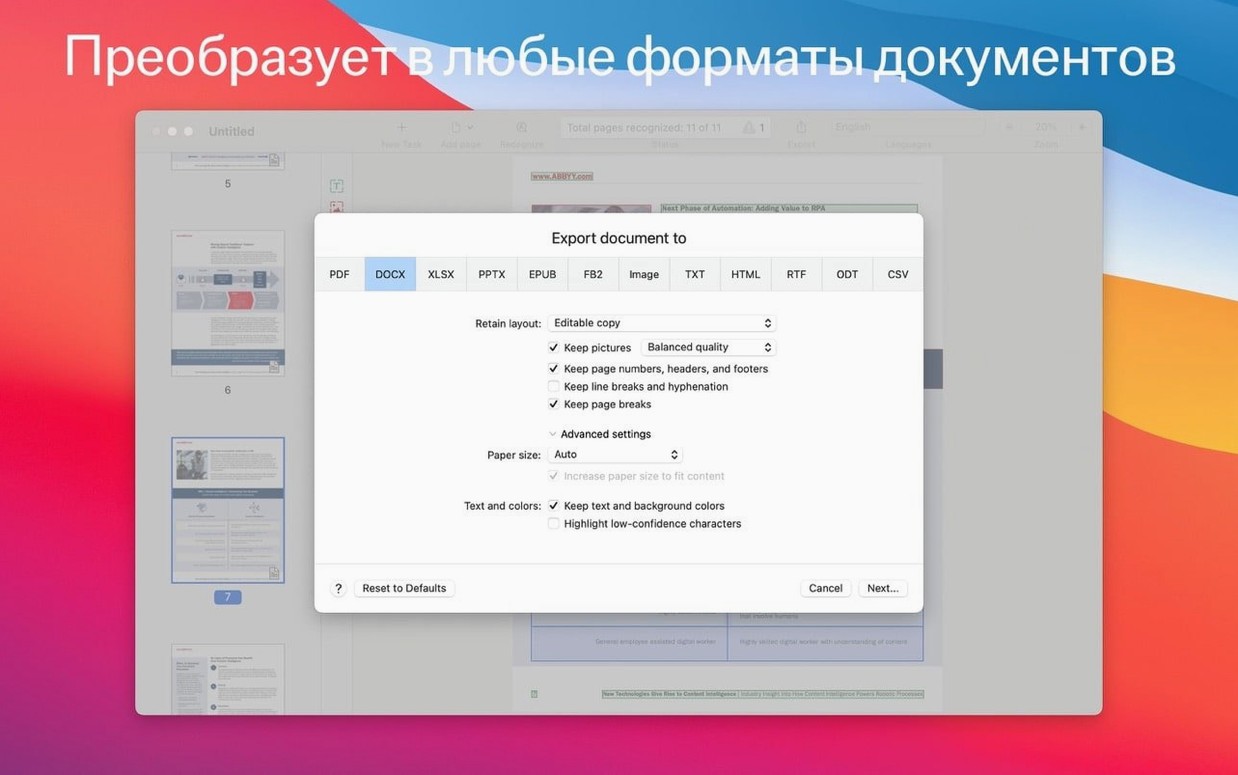
- OCR and conversion to DOCX, XLSX, RTF, ODT, PDF/A, and PDF/UA formats.
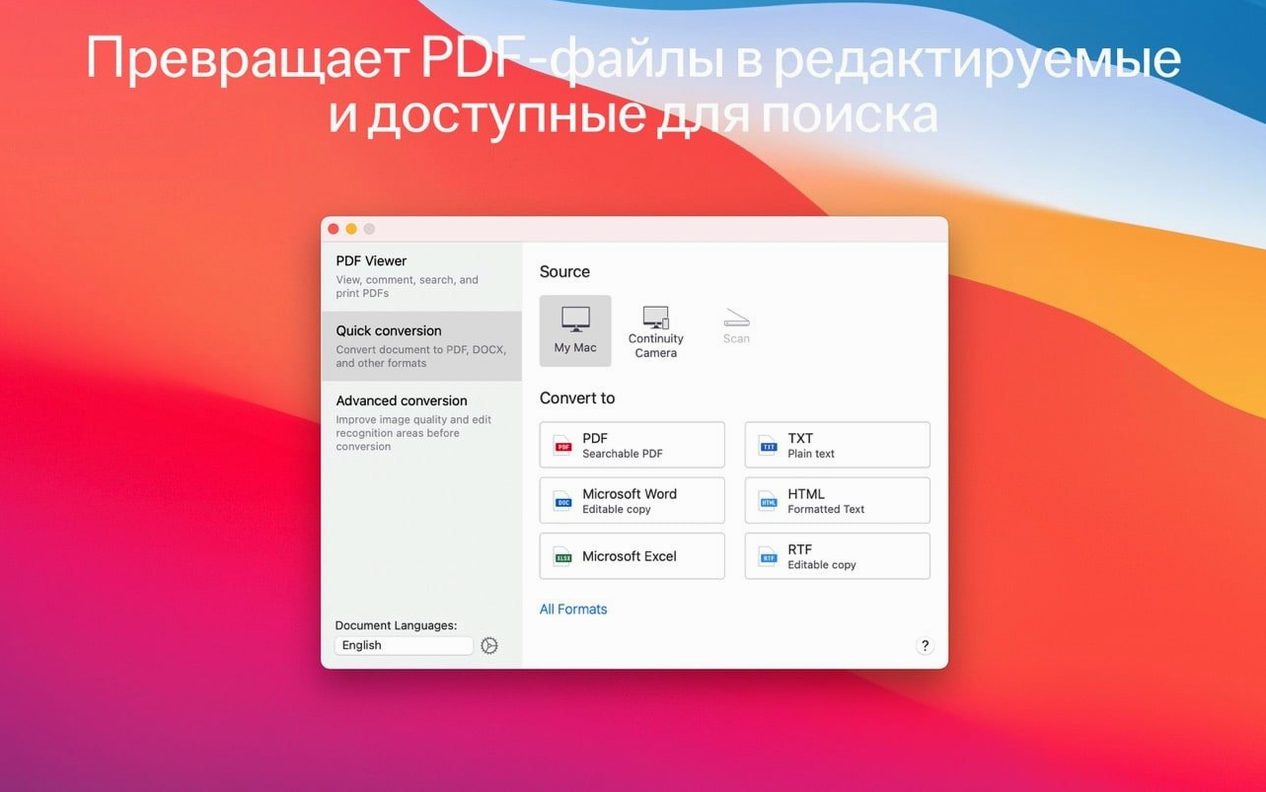
- Import documents via Continuity Camera from iPhone or iPad for immediate conversion.
- Copy text fragments for citation or translation directly from scanned pages.
FineReader PDF is a practical tool for anyone who regularly handles scanned documents, archives, or multilingual text. Just be aware of the Intel-only requirement before downloading.
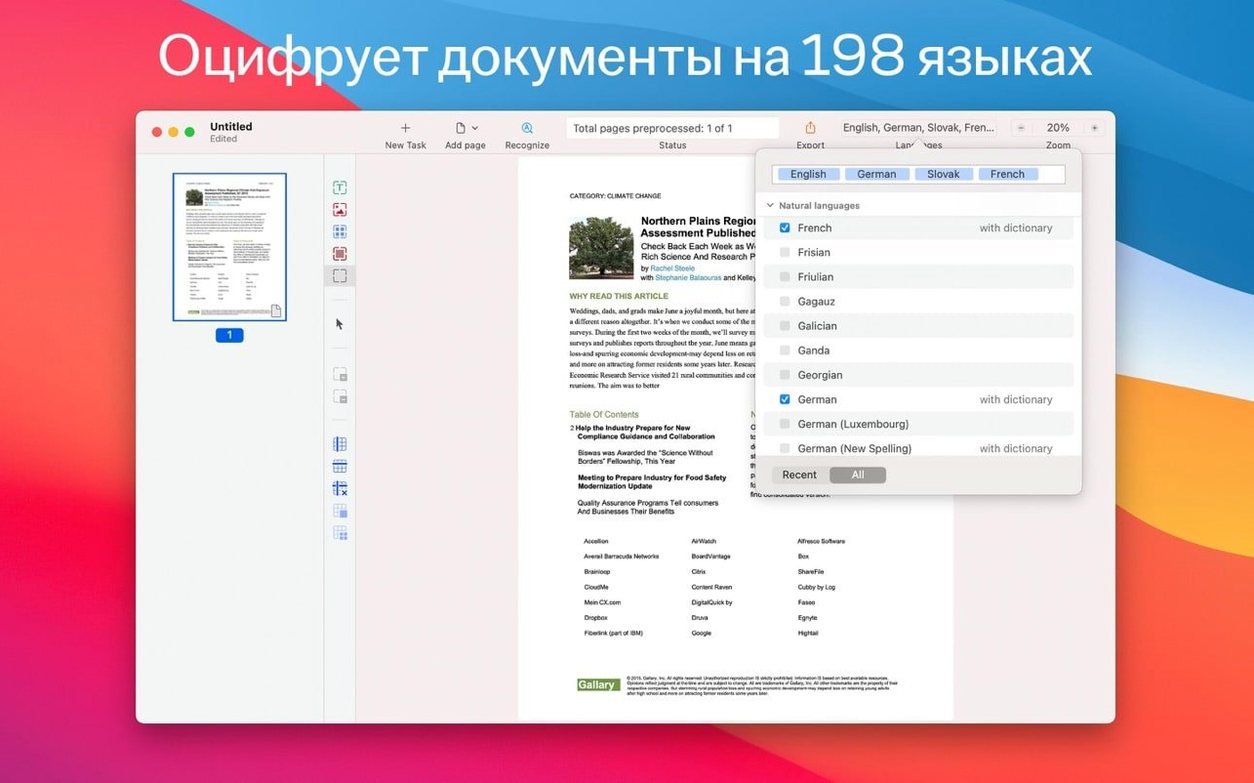
198 recognition languages cover your script
One of the first things people wonder is whether FineReader PDF can handle their language. With 198 recognition languages, it covers most European, Asian, and Cyrillic scripts. The interface itself is available in six languages, but the OCR engine recognises far more than that. If you work with Polish, Czech, or Vietnamese documents, for example, you will be fine.
Another frequent question is about the Intel-only requirement. Yes, the app is 64-bit x86 and will not run natively on Apple Silicon. If you have an M1 or M2 Mac, macOS will prompt you to install Rosetta 2 the first time you launch it. It works, but you are not getting the native performance that an ARM build would provide. For occasional OCR work, the difference is minor. For batch processing hundreds of pages, you might notice it.
People also ask whether the app can edit PDFs directly. The answer is yes, but with a caveat. You can edit text and tables that originated from an OCR scan or that exist as text in a PDF. You cannot rearrange pages or add annotations the way you can in a dedicated PDF editor. The strength is in extraction and conversion, not in full PDF authoring.
Some users ask about importing from an iPhone or iPad. Continuity Camera works as you would expect: scan a document on your phone, and it appears in FineReader PDF on your Mac. The same goes for images you have already captured. It saves a step compared to emailing yourself a photo.
Adjust OCR defaults for speed or smaller files
Before you start working with documents, a few adjustments make the experience more predictable. The defaults are reasonable, but they lean towards maximum compatibility rather than speed or file size.
Open the preferences and look at the OCR section. The language selection defaults to English, so if you work with multilingual documents, set the recognition language to automatic or add the languages you use. The app will then try to detect the script per page. It is not perfect, but it saves time when you have a mix of languages in one file.
The conversion defaults are worth checking. When you export to DOCX, the app tries to preserve the original layout. This is useful for legal documents or forms, but it can produce bloated files. If you only need the text, switch the output to plain text or RTF with minimal formatting. The result is cleaner and easier to edit.
Dark mode support is built in, so if you use macOS dark mode, the app follows it. The interface becomes easier on the eyes during long sessions, especially when you are proofreading OCR results against a scanned original.
Finally, check the PDF export settings. If you archive documents, set the output to PDF/A by default. If you need accessibility compliance, choose PDF/UA. You can also set a default password protection for sensitive files. These settings are in the export dialog, not in the main preferences, so you will need to remember to apply them each time unless you save a preset.
Turned scanned invoice PDFs into editable text
I had a stack of scanned invoices in a binder. Each page was a PDF that someone had created from a photocopier. The text was clear enough, but the PDF was just an image wrapped in a container. I needed the data in a spreadsheet.
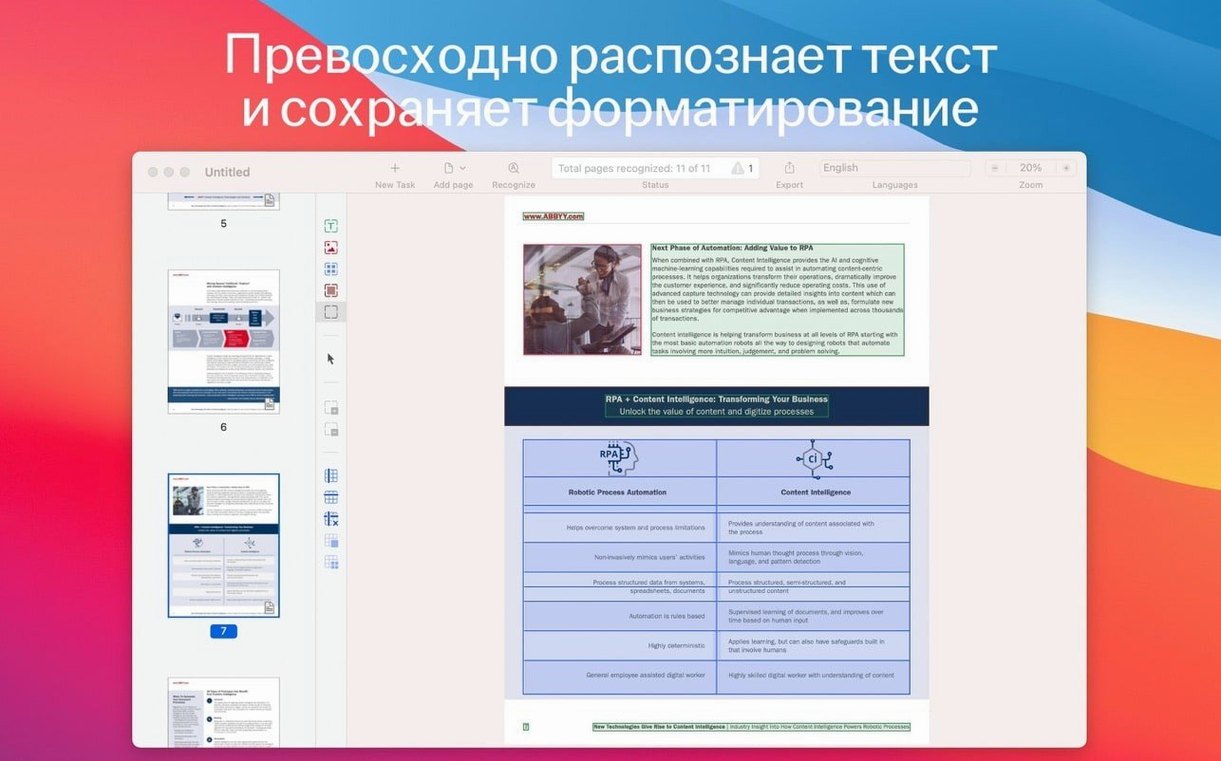
I opened FineReader PDF and dragged the first invoice onto the app window. The built-in PDF viewer displayed the page immediately. I clicked the OCR button and selected Russian as the recognition language — the invoices were from a supplier in Moscow. The app processed the page in a few seconds and highlighted the recognised text regions.
There were a few mistakes: a Cyrillic letter had been read as "K" in a couple of places, and a table column had merged two cells. I switched to the OCR editor mode and corrected the errors manually. The editor shows the original scan on one side and the recognised text on the other, so you can compare as you go. It is tedious for a hundred pages, but for a dozen invoices, it is manageable.
Once the text was clean, I exported the document to XLSX. The app preserved the table structure reasonably well. I opened the file in Numbers, adjusted a few column widths, and saved it. The whole process took about fifteen minutes for five invoices. Without OCR, I would have typed the data by hand.
Later that week, I used the same workflow for a contract in German. I switched the language to German, ran the OCR, and exported to DOCX. The formatting was close enough that I only needed to fix a few line breaks. The copy-and-cite feature let me grab a paragraph and paste it into an email without re-typing.
For documents that arrive as photos from an iPhone, Continuity Camera is the fastest route. I scanned a receipt using the iPhone's document scanner, and it appeared in FineReader PDF on the Mac within a couple of seconds. From there, I ran OCR and exported to PDF/A for archiving. No file transfers, no email attachments.
macOS 11 and later compatibility in this build
Version 15.2.14 is a maintenance release. The core OCR engine and format support remain the same as in earlier 15.x builds. The notable change is compatibility: this build runs on macOS 11 and later, which means it works on Big Sur, Monterey, Ventura, and Sonoma. Earlier builds had stricter version requirements.
Another change is the inclusion of Simplified Chinese in the interface language list. If you work with Chinese documents or users, the interface is now available in that language alongside the existing English, Russian, German, Italian, and French options. The OCR engine already supported Chinese recognition, so this just makes navigation easier for native speakers.
Dark mode support was added in a previous 15.x update, but it is stable in this build. The viewer and editor both switch correctly when you toggle system dark mode. There is no separate toggle within the app itself.
The Continuity Camera integration has not changed significantly, but it continues to work reliably across recent macOS versions. If you have used it before, you will find the same behaviour here.
Apple Silicon launch fix requires Rosetta 2
The most frequent problem is the app not launching on Apple Silicon Macs. The error message is usually vague — "The application cannot be opened" or a crash at launch. The solution is to install Rosetta 2 if you have not already. Open Terminal and run softwareupdate --install-rosetta, then try again. The app will run under emulation, and most features work as expected. Performance on heavy batch jobs will be slower, but single-page OCR is fine.
Another snag is OCR accuracy dropping on poor-quality scans. If your source document is blurry, skewed, or has low contrast, the recognition will have errors. The best fix is to re-scan at 300 DPI or higher. If that is not possible, try adjusting the scan settings in the app before running OCR. The OCR editor mode lets you correct individual characters, but it is faster to improve the input.
Some users find that exported DOCX files have extra spaces or broken tables. This usually happens when the original PDF had complex layouts — multiple columns, text boxes, or overlapping elements. The app tries to preserve layout, but it is not perfect. Switch to RTF or plain text for cleaner output, or adjust the export settings to "flowing text" instead of "exact copy" if that option is available.
Password-protected PDFs can cause confusion. If you try to open a locked PDF, the app will ask for the password. Once entered, you can OCR and convert the document. The password is not stored, so you will need to enter it each time you open the file. This is by design, but it can be annoying if you work with the same locked files repeatedly.
Finally, language detection sometimes fails on mixed-language documents. If you set the language to automatic and the results are poor, switch to manual language selection. Choose the primary language first, then add secondary languages one at a time. The engine will use the selected languages as a hint, which improves accuracy. It is not a perfect solution, but it helps.
For users who search for older distribution methods, terms occasionally come up in forums. The current version is available through normal channels, and the activation method is straightforward. There is no need to hunt for outdated builds.
Before it goes on the Mac
- macOS 11.0 (Big Sur) or later
- Intel processor
Questions from the room
Can I use ABBYY FineReader PDF on an Apple Silicon Mac?
No native support for Apple Silicon is listed. You would need to run it via Rosetta 2 on an M1 or M2 Mac, though performance may vary.
Installing it on the Mac
- Mount the disk image and launch the Open Gatekeeper friendly app.
- Press Enter in the Terminal window to bypass Gatekeeper.
- Drag the app into the Applications folder.
- Start the app.
- Use any data for registration or activation.
Notes from the control room
Sign in or open a catalogue account to leave a note.
No notes from the room yet. If you have used this build for a week, a short note helps the next person.
Also filed under Mac Apps
The whole Mac Apps rack ACDSee Photo Studio26.0.3 Mac Apps 441 MB
 Adobe Acrobat Pro26.002.21901 Mac Apps 3.1 GB
 Adobe Dimension4.1.7 Mac Apps 3.5 GB
 Adobe Dreamweaver21.8.0 Mac Apps 3.2 GB
 Adobe Illustrator30.8.2 Mac Apps 3.4 GB
 Adobe InDesign22.0.0 Mac Apps 1.9 GB Updated
 Adobe Lightroom Classic15.6.0 Mac Apps 3.7 GB
 Adobe Photoshop28.0.0 Mac Apps 3.5 GB Updated